When smartphones first came out, they promised to make our lives easier. But now, with all the apps we’ve downloaded, even simple tasks can take forever – finding the right app alone is a nightmare. This is where Dot Copilot can help. This AI assistant can replace a bunch of apps and save you about an hour every day. One whole hour. Dot Copilot tracks expenses, sets calendar events, translates text, summarizes web pages, and even helps write responses to messages – all in one place, with zero effort. This guide teaches you how to get this incredible AI assistant for mobile devices.
How to Get an AI Assistant for Mobile Devices: Android Users
Here’s how to install Dot Copilot on Android devices.
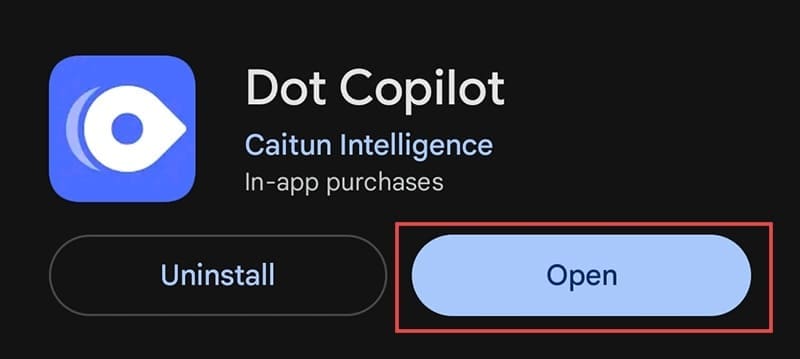
Step 1: Install the Dot Copilot app.

Step 2: Launch the app.
Step 3: Tap “Open” next to the “Float Assistant.”
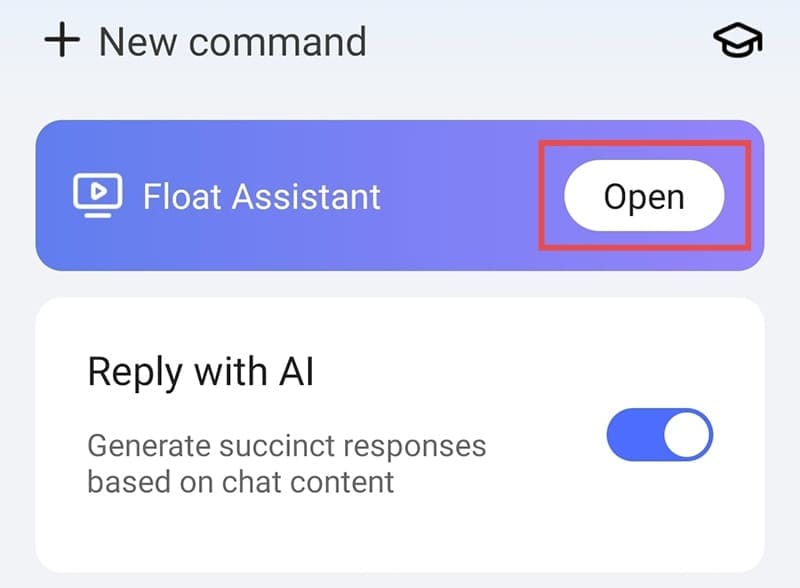
You’ll be redirected to your “Settings” app to give Dot Copilot the proper permissions.
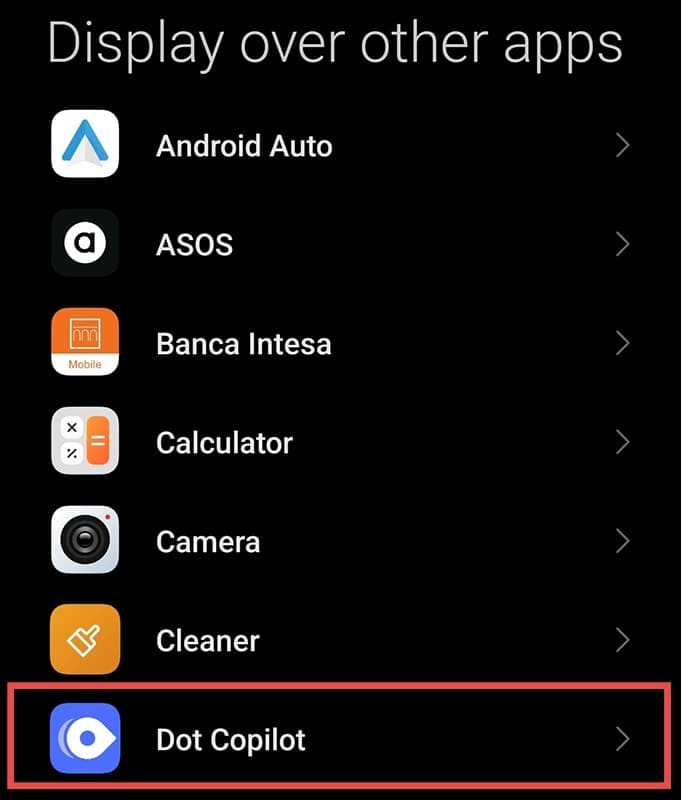
Step 4: Locate “Dot Copilot” in the “Display over other apps” window.
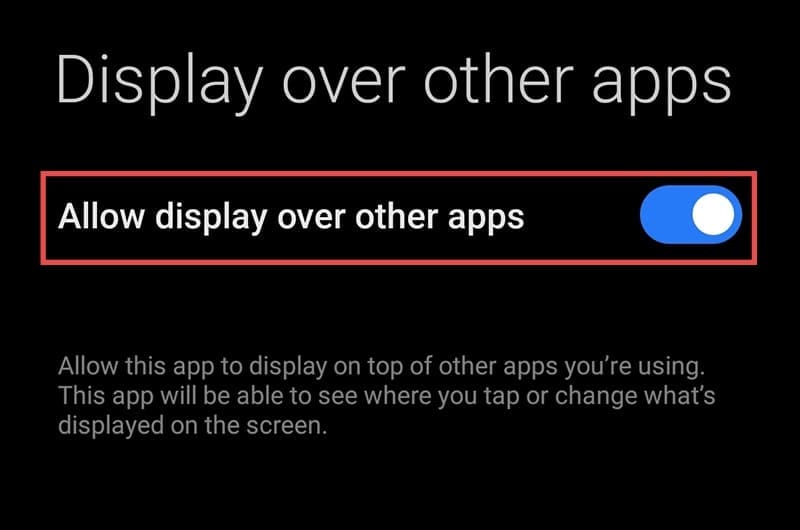
Step 5: Enable the “Allow display over other apps” toggle.
Step 6: Re-launch the Dot Copilot app and open the “Float Assistant” again.
This time, you’ll be asked to allow notifications for Dot Copilot.
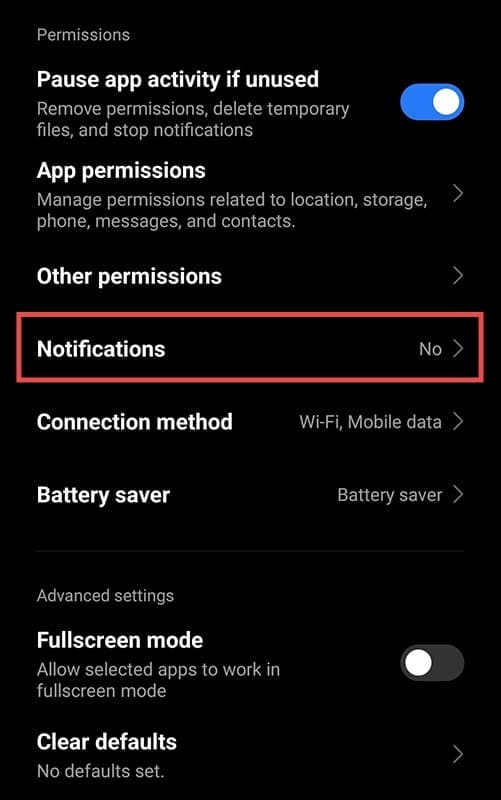
Step 7: Go to “Notifications” under “Permissions.”
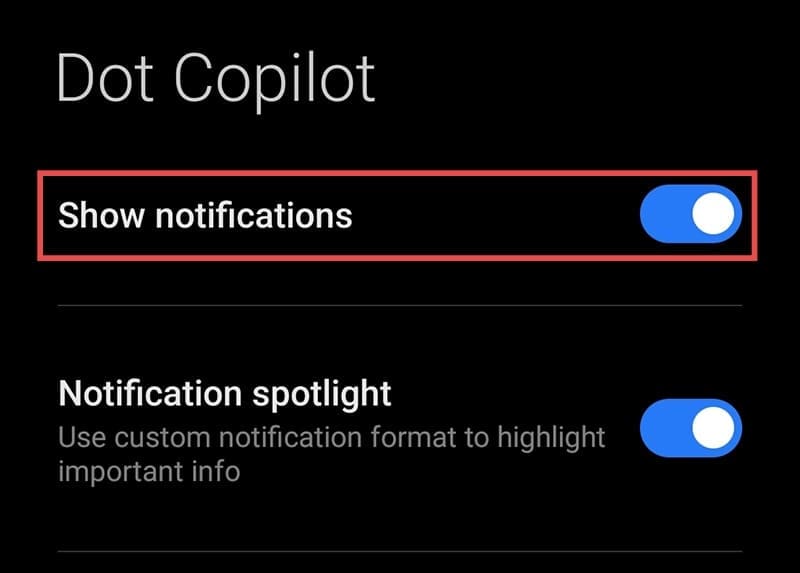
Step 8: Enable the Show notifications toggle.
Step 9: Launch Dot Copilot.
Step 10: When prompted, select “Start Now.”

You’ll immediately notice a blue icon resembling an eye or a map pin pop up on your screen.
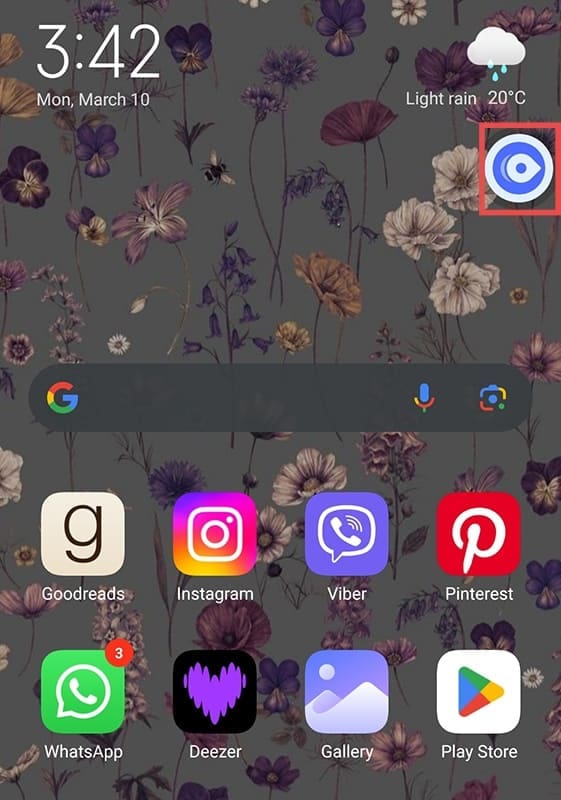
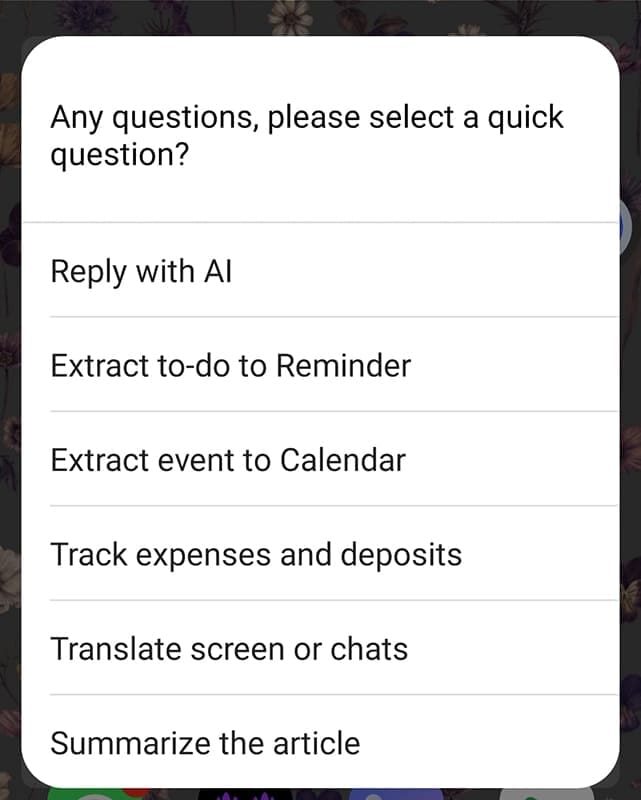
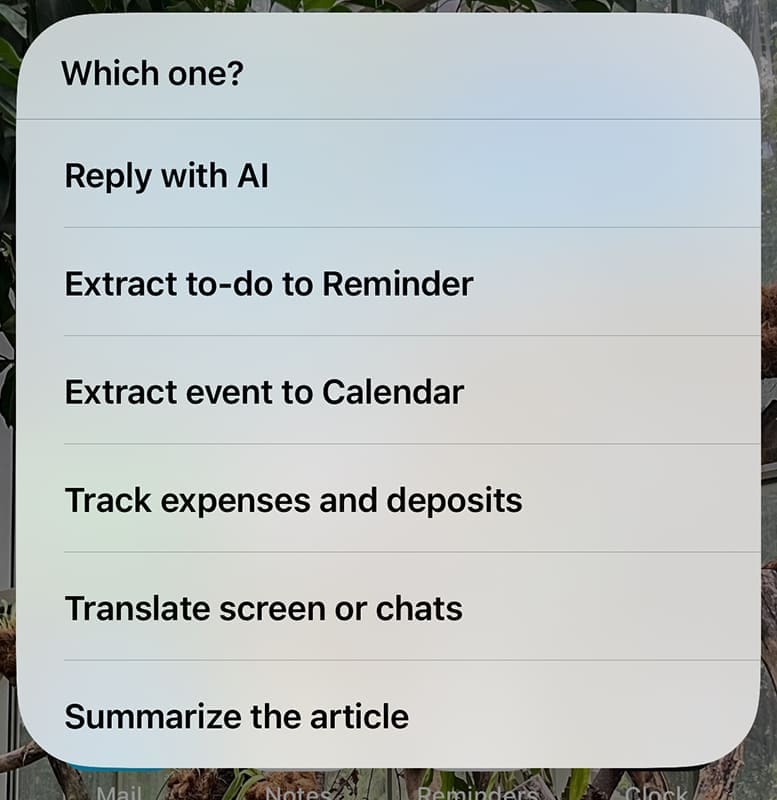
By pressing this icon, you activate your handy mobile assistant and can choose between several tasks.
How to Get an AI Assistant for Mobile Devices: iOS Users
Dot Copilot doesn’t offer an iOS app – instead, it integrates with iOS shortcuts. Here’s how to make this happen.
Step 1: Visit the Dot Copilot install page.
Step 2: Press the “Set Up Shortcut” button.
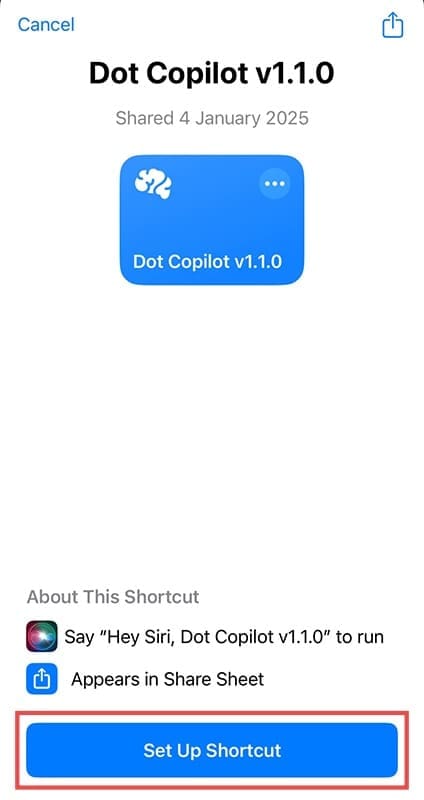
Step 3: Enter your license key in the designated text box. You can find this key on the “My License Key” page. At first, you’ll receive a trial license key for five uses. Afterward, you must upgrade to one of three Dot Copilot paid plans.

Step 4: Tap “Add Shortcut.”

Step 5: Launch the “Settings” app on your phone.

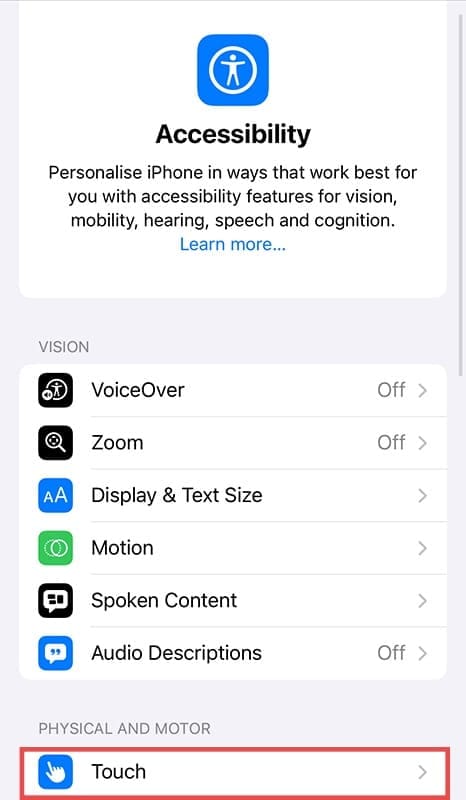
Step 6: Go to “Accessibility.”

Step 7: Scroll down to “Touch.”
Step 8: Navigate to “Back Tap.”
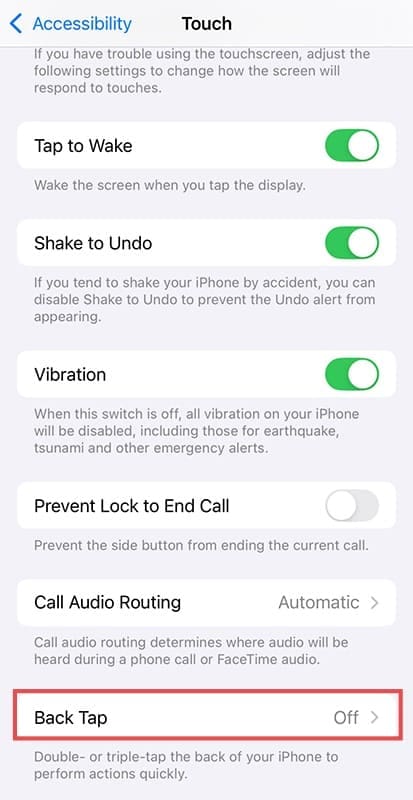
Step 9: Select “Double Tap” or “Triple Tap.” It’s up to you how many times you want to tap the back of your phone to launch Dot Copilot.

Step 10: Go to the “Shortcut” section and press “Dot Copilot.”
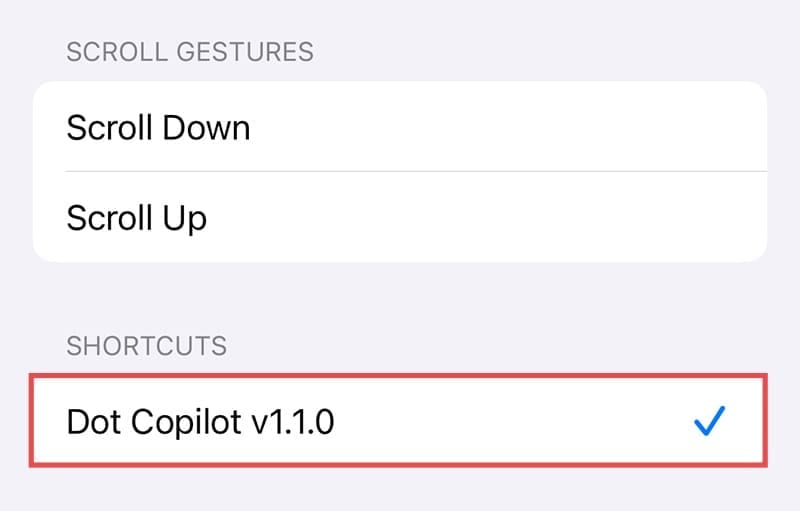
Now, you can double-tap or triple-tap the back of your iPhone to activate your AI assistant. When you do it the first time, you’ll need to give Dot Cotpilot a few permissions.
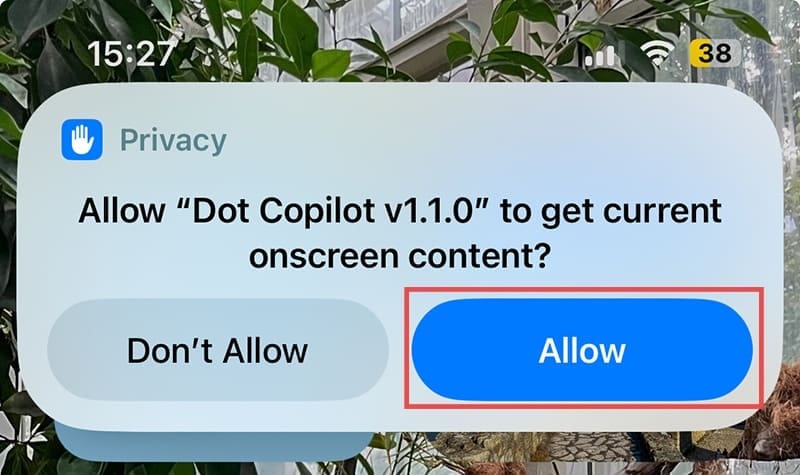
Afterward, you’ll be able to select the task you want it to perform.


Disclaimer: Some pages on this site may include an affiliate link. This does not effect our editorial in any way.