Freepik is one of the internet’s premiere sites to pick up royalty-free images for use in any project. It only seems fitting, then, that they’d branch into AI image-generation tools too. Unlike the image site, however, you’ll be required to create an account and subscribe for a fee if you want to create more than just few limited pictures.
This article will take you through the Freepik AI tool and let you decide whether it’s a good choice.
The Free Site With a Paid Tool
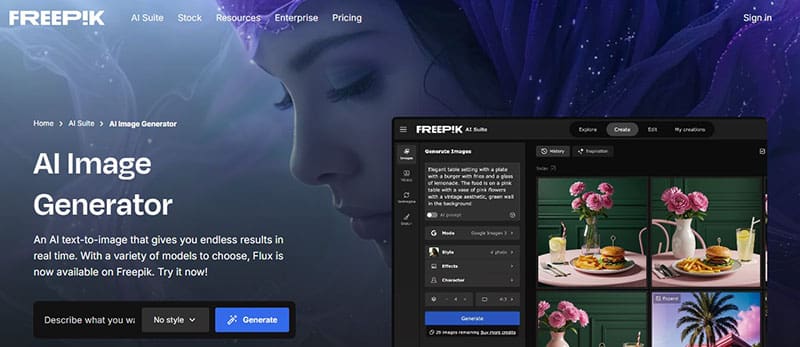
It might seem strange that a site that’s built its reputation on offering free images to all would require a user profile and paid membership to use its AI image generation tool. This barrier, though, reveals a dedicated image generator that produces higher-quality images than your average, free image generator. In fact, Freepik AI offers:
- Multiple AI modes to choose from, including Flux, Ideogram, and even Google’s Imagen.
- A wide variety of input features like styles, image upload, effects, and color palettes.
- A friendly user interface that works for pros and newcomers.
- The ability to tweak and edit generated images.
- Multiple permutations based on a single input, allowing high-quality generation in a variety of styles.
- Integration with API and smartphone or PC compatibility.
What makes Freepik AI so good, apart from its excellent generating modes, is the sheer amount of versatility on display. Users have a lot of control and input over what the tool can do. Do you want to reimagine an existing photo, upscale an old picture, or create a video based on an idea in your head? The tool does all of this.
When compared with other image generation tools, like Leonardo.ai, it’s clear that Freepik strives to be the all-in-one app. While other image generators may allow for more fine-tuning, none allow for the same breadth of functions and options as Freepik AI.
Like many dedicated image generators, Freepik AI uses credits to generate images. The more you have, the more images you can generate. In addition, higher membership tiers also have access to more advanced modes (like the Flux Kontext Pro, as opposed to Flux 1.0) and more image styles.
A Quick Freepik Image Generator Guide
If you want to test things out before committing, Freepik offers those who create a free account that provides just over 20 credits a day. You won’t have access to all modes and functions, but you can still do quite a bit. Let’s take a look:
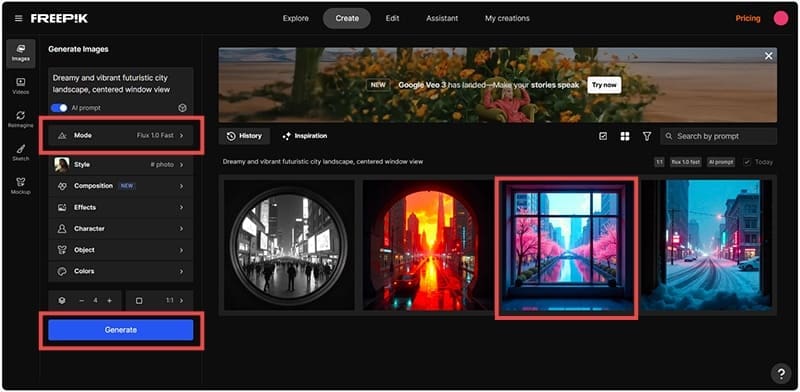
Step 1. The tool should take you to the Freepik (formerly Pikaso) Image Generator by default. Enter your prompt in the dialog box provided. You can also provide a custom seed or ask for inspiration via the two icons at the bottom right of the window.
Step 2. Choose the mode of your image. If you’re on the free tier, you’ll be locked into Flux 1.0.
Step 3. Select the style of your image. There are many to choose from and you can use the search tool to help.
Step 4. You can also choose a recurring character, object, and a distinct color palette.
Step 5. Choose the number of images to generate, and the aspect ratio, then click the “Generate” button.
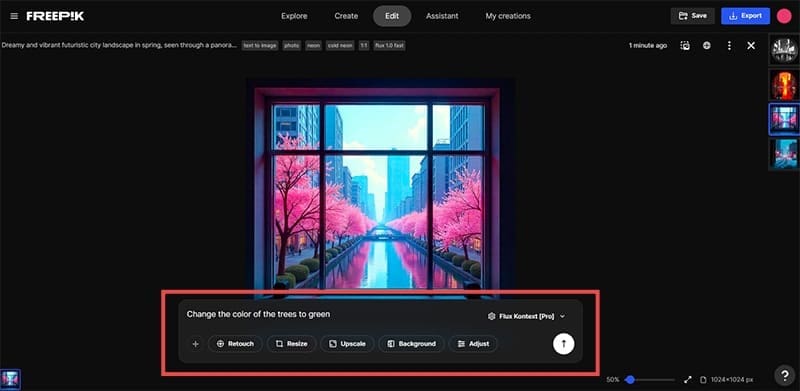
Step 6. Your images will be generated and displayed in the main window. Click on one and select “Edit.”
Step 7. Enter the changes you want to make in the form of a prompt. You can also choose the options below (Retouch, Resize, Rescale) to edit in this way.
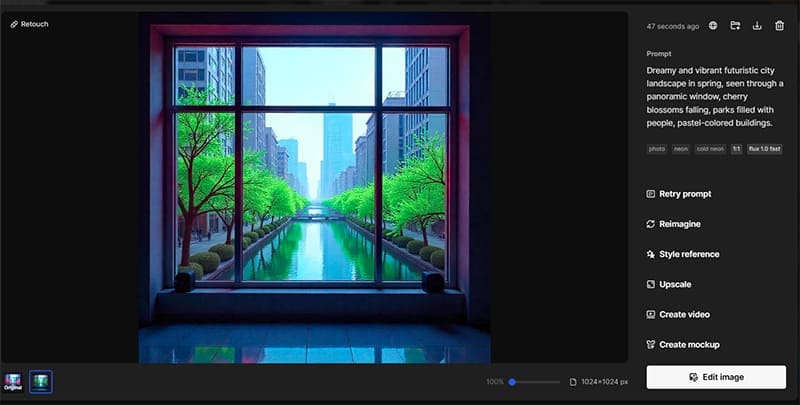
Step 8. Click the upload button once done and the changes should reflect.






Disclaimer: Some pages on this site may include an affiliate link. This does not effect our editorial in any way.