
Digital footprints expand rapidly across desktop and mobile platforms today, driving massive adoption of privacy tools. A recent Pew Research Center study on digital privacy reveals a telling fact: the vast majority of internet users actively take steps to protect their personal identity online. Understanding how to set up SOCKS5 proxy configurations across desktop systems places app-specific data paths directly under your control while keeping baseline internet speeds unaffected.
Unlike standard HTTP web proxies, SOCKS5 operates at a lower system layer without rewriting packet headers. It seamlessly handles web requests, FTP transfers, video streaming, and peer-to-peer applications without restricting protocol choices.
Key Takeaways
- Socket-Layer Advantage: SOCKS5 operates at a lower network level than HTTP proxies, allowing it to handle diverse traffic types (games, torrents, streams) without modifying packet headers.
- Selective Encryption: Unlike VPNs that encrypt all system traffic, SOCKS5 tunnels individual application streams, resulting in significantly lower latency and faster speeds.
- Targeted Application Setup: While Windows allows native OS-level proxy adjustments, configuring SOCKS5 directly within individual clients (like Firefox or qBittorrent) guarantees proper UDP and DNS leak protection.
SOCKS5 vs. HTTP Proxy Protocols and VPNs
Transit tools handle access requests using distinct methods. Comparing SOCKS5 and HTTP proxy protocols reveals major differences in how they work and how flexible they are.
Standard HTTP intermediaries handle only web requests. They interpret HTTP and HTTPS requests, making them suitable for standard browsers. SOCKS5 tunnels, by contrast, process application data at the socket layer via TCP or UDP. This low-level handling bypasses application restrictions and transmits raw data packets regardless of content type.
- HTTP/HTTPS Intermediaries: Restrict sessions to web-based endpoints. They frequently modify header information, which can expose your usage to target hosts.
- SOCKS5 Tunnels: Accept traffic from any application, including online games, torrent clients, and VoIP tools. They transfer data without altering header packets.
- VPN Tunnels: Encrypt system data across all interface adapters simultaneously.
A distinct technical boundary emerges when comparing the encryption differences between VPN and proxy tools. A VPN builds an encrypted tunnel across your entire hardware interface. SOCKS5 focuses on directing individual streams and skips heavy encryption algorithms, reducing latency and speeding up transfers.
| Protocol / Tool | OS-Level Encryption | UDP Protocol Support | Speed & Latency | Typical Use Case |
| HTTP web Node | None | No | Fast | Browsing, simple IP location changes |
| SOCKS5 proxy | None (App-dependent) | Yes | Very Fast | Torrenting, gaming, scraping, P2P |
| VPN | Full Encryption | Yes | Moderate | Full privacy, public Wi-Fi security |
Finding clean IP infrastructure determines your session stability and bandwidth performance. Public free relays frequently log user activity, suffer severe congestion, and often fail entirely during heavy data transfers. Premium providers, conversely, assign dedicated IPs with consistent uptime metrics.
When sourcing your credentials, select a service with clear privacy policies, high bandwidth caps, and locations matching your target region. Providers like Proxy-Seller offer dedicated proxy SOCKS5 lists with custom authentication options and precise geographical IP selection. Clean residential or datacenter pools prevent sudden drops and maintain high speeds across complex tasks, similar to optimizing complex workflows through guides such as how to synthesize customer surveys with power automate AI.
System-Wide SOCKS5 Proxy Setup in Windows 11
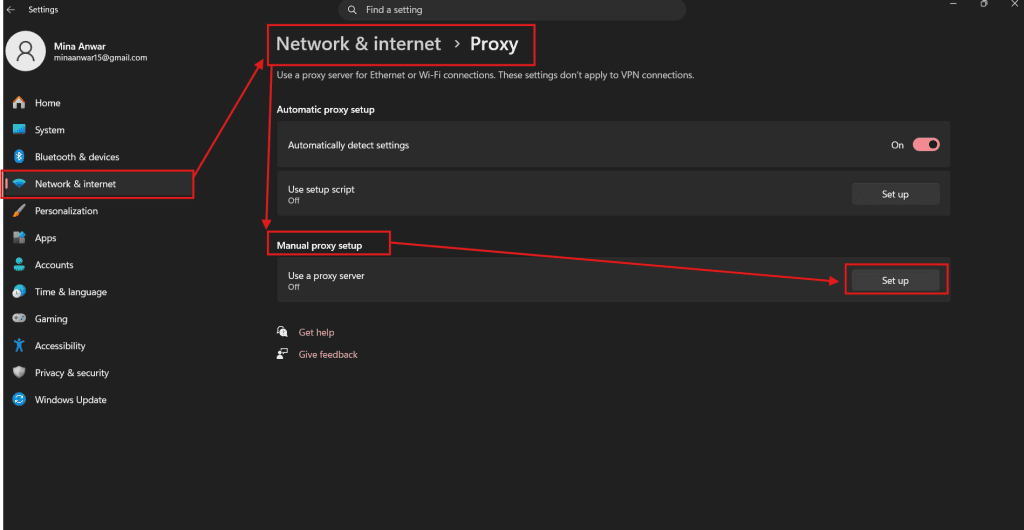
Windows includes built-in forwarding options for establishing system endpoints. Learning how to set up SOCKS5 proxy parameters at the OS level directs default system applications through your designated host.
Follow these steps to configure your native Windows parameters:
- Open Settings by pressing Win + I.
- Select Network & internet from the side menu.
- Click on the Proxy tab to access internet options.
- Locate the Manual proxy setup section and click Edit next to Use a proxy server.
- Toggle the switch to On.
- Enter your node IP address into the Proxy IP address field and enter your assigned proxy port numbers explained in your provider control panel into the Port field.
- Enter any local URL you wish to bypass into the exception box.
- Click Save to apply your changes.
Note: Native Windows options process standard HTTP/HTTPS requests. However, Windows native transit tools sometimes bypass SOCKS5 parameters for UDP packets. Application-specific configurations deliver tighter control over your security posture.
Configuring Session Parameters in Browser Environments and Apps
Configuring session parameters in browser environments and desktop clients gives you precise control over individual applications, mirroring how tech-savvy users optimize tools like Snowchat AI for daily workspaces.
Browser Configuration in Firefox
Mozilla Firefox maintains an independent protocol stack, managing application-level tunnels independently of the OS. If you want to discover how to set up SOCKS5 proxy rules inside browsers, Firefox offers native menus:
- Open Firefox, click the menu icon in the top right corner, and open Settings.
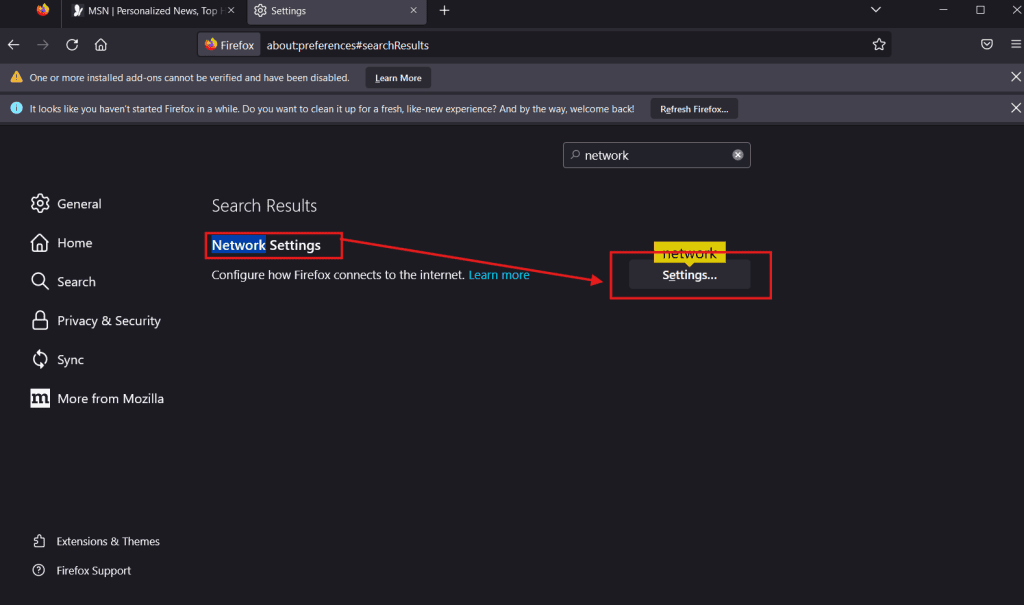
- Scroll to Network Settings and click Settings.
- Select Manual proxy configuration.
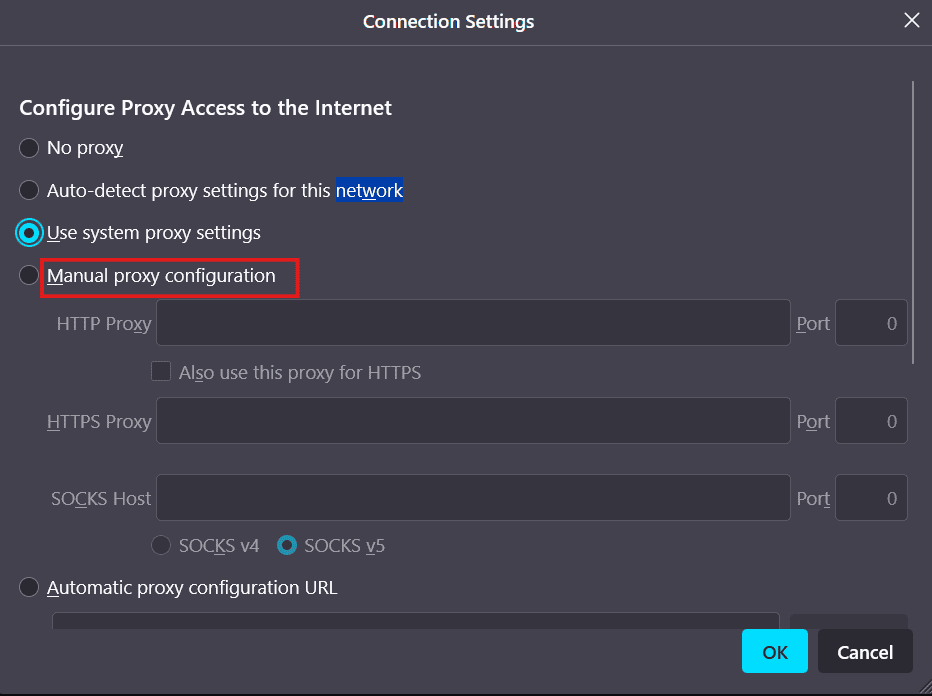
- Fill in the SOCKS Host field with your remote IP address.
- Enter your SOCKS5 port into the Port field.
- Select SOCKS v5.
- Check the box labeled “Proxy DNS when using SOCKS v5” to avoid DNS queries leaking to your local ISP.
- Click OK to save changes.
How to Set Up SOCKS5 Proxy for Torrent Clients
Torrenting and P2P compatibility make SOCKS5 the top choice for peer-to-peer applications. Modern BitTorrent clients like qBittorrent or uTorrent support SOCKS5 natively.
When learning how to set up SOCKS5 proxy credentials in qBittorrent, follow these steps:
- Open qBittorrent and click Tools > Options (or press Alt + O).
- Select the Connection tab.
- Under the Proxy Server menu, set the Type dropdown to SOCKS5.
- Enter your destination IP and port number.
- Make sure the option called ‘Use proxy for peer connections’ is selected, and enter your username and password.
- To prevent your IP from being exposed, select the option that blocks peers for untunneled clients.
- Press Apply and then click OK.
Advanced Configurations: Mobile Devices and Routers
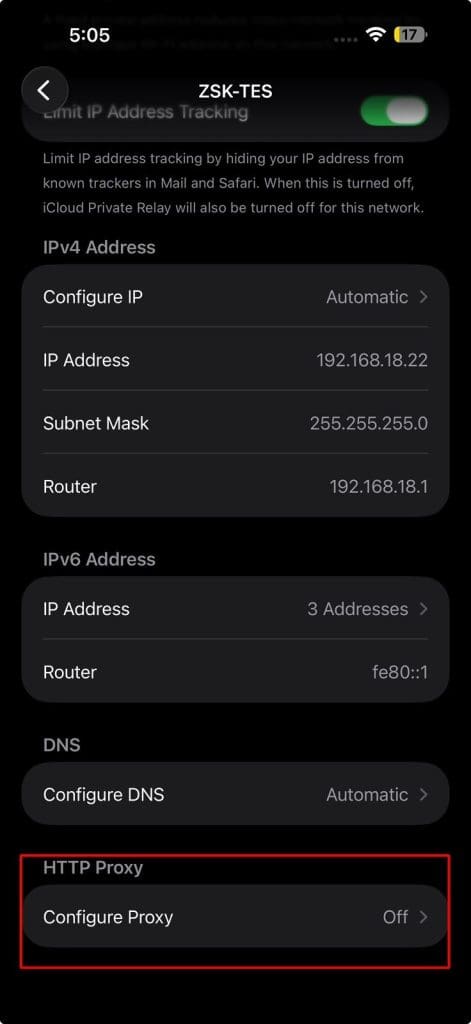
By using your SOCKS5 connection on devices other than your main personal computer, you can keep your entire home environment secure, similar to mastering prompt engineering techniques found in how to talk to AI: the guide to better LLM prompts.
Mobile Device Configuration
Configuring a mobile device is very similar to setting up a desktop. On iOS and Android, open your Wi-Fi settings, select the connected network, and locate the proxy submenu to enter your SOCKS5 host and port. Because some mobile platforms restrict native SOCKS5 routing in standard web browsers, using dedicated tunnel applications ensures system-wide forwarding.
Router-Level Configuration
Configuring your router routes all outgoing home network traffic through a chosen SOCKS5 node. Users seeking how to set up SOCKS5 proxy routes at the gateway level can install DD-WRT or OpenWrt firmware. This covers smart TVs, IoT devices, and mobile gadgets instantly, eliminating the need to configure individual apps on every single device.
Verification and Troubleshooting Connection Errors
Setting up your remote endpoint is only one part of the process. Once your proxy is active, validate your setup by visiting ipinfo.io or dnsleaktest.com to ensure your IP matches your remote location and DNS requests do not leak. If you need to revert adapter changes or troubleshoot local interfaces later on, consult our guides on how to find your IP address on Windows.
For quick troubleshooting, verify your username and password to prevent access blocks, adjust firewall rules to allow outbound traffic through non-standard SOCKS5 ports, and ensure your app routes both TCP and UDP traffic to avoid leaks.
Knowing how to set up SOCKS5 proxy configurations lets you achieve privacy tailored precisely to your software requirements. Regularly monitoring tunnel performance helps keep your connections fast, private, and secure.
Related Posts
 The 6 Most Interesting AI Features in
 Common Cursor AI Errors in Windows 11 and How to Fix Them
 Windows 11 Is Becoming More Powered by AI Than Ever – What to Expect
 New AI File Renaming Tools Released in 2025 for Windows
 Quick Guide to Using AI Cursor’s Code Editor in Windows
 Something Went Wrong With Bing AI – How to Fix It
 You Can Now Use AI in Notepad – Here’s How
 Can Copilot Tasks Improve Productivity for Busy Creators?

Disclaimer: Some pages on this site may include an affiliate link. This does not effect our editorial in any way.