Have you ever been bewildered by an email chain that’s grown too long and includes too many people? Or maybe you’ve got eye strain from reading a particularly long one. To avoid those problems, many users have been putting their emails into AI chatbots that can summarize the contents, including Google’s Gemini.
In a recent development, though, Google decided to include Gemini’s summarizing power in Gmail by default. How and when this new feature works is the focus of this article.
Gemini Meets Gmail
In May of 2025, Google announced the gradual rollout of Gemini summary assistance on the Gmail app. In the EU and Japan, the feature was disabled by default, but users in other countries got to experience this functionality firsthand.
It’s Google’s way of implementing its generative AI seamlessly into more of its suite. It’s part of the Smart Features now and is included with other more well-known features like Nudges and Smart Compose.
How Do Gmail AI Summaries Work?
If you’re wondering how to create Gmail summaries, the good news is that you don’t need to; the process is automatic. Provided the email is long enough to justify a summary, Gmail will shorten the wall of text to an easily readable two lines of the important parts. Any replies to the original email will also be added on, updating the entire summary.
If you’re not happy, you can send feedback to Google. They’ll replace the preview window of an email in your inbox, appearing right below the subject. For good measure, the summary will be indicated with its own icon.
Caveats
Just because Gmail can now summarize your long emails, doesn’t always mean that it’ll do it properly. AI is still AI and runs the risk of missing subtleties and crucial details. For important messages, a summary shouldn’t be used as a substitute.
Who Gets to Use It?
You might be wondering why the summary feature isn’t showing up in your Gmail account. The Gmail Summary feature is still quite new, with the rollout expected to take close to 20 days in some areas. In addition, the tool isn’t available to all Gmail users by default. To get the Summary feature, you’ll need:
- The Gmail app, either the Android or iOS version for automatic summaries
- To be a paying member of either Google Workspace or the Google AI plan
These access restrictions may change in the future, but for the moment, it seems Google is keeping the scope of its new tool quite limited.
Enabling and Disabling Gmail Summaries
If you’d like to use the Summary feature but live in an area where it is disabled by default, or would rather do without it altogether, then Gmail makes it easy to do either way. Here’s how:
1. Open Gmail in your web browser (for Google Workspace).
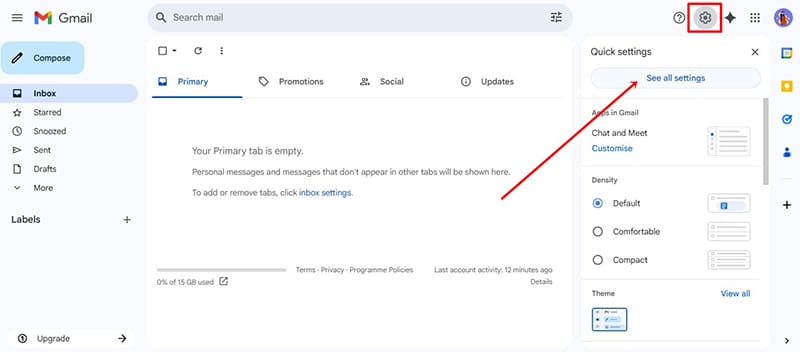
2. Tap the gear Settings icon and click “See all settings.”
3. In the “General” tab, look for the “Google Workspace smart features.”
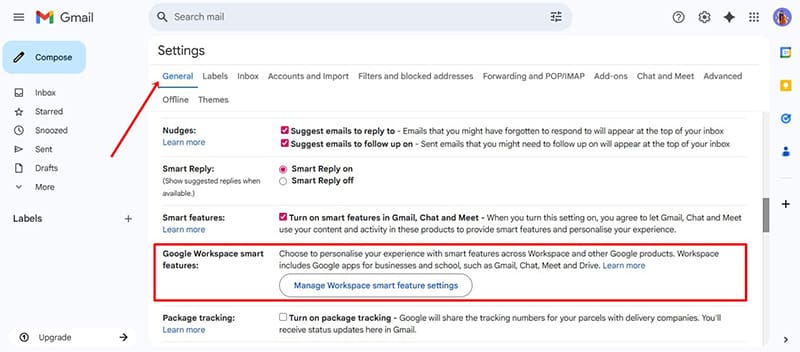
4. Tap “Manage Workspace smart feature settings” and turn the feature on to enable Gmail AI summaries or off to disable, depending on your preference.
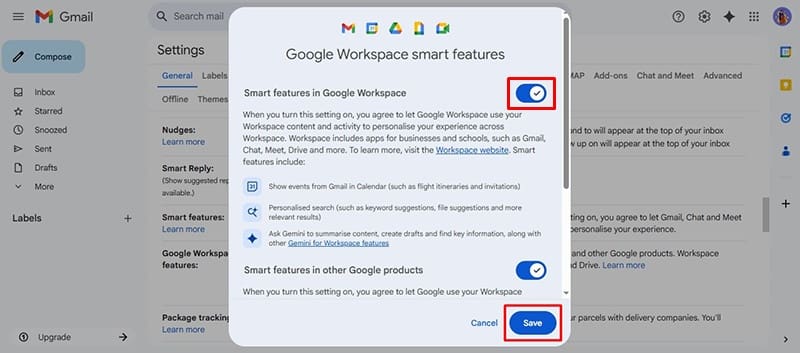
5. Click Save to make the changes.



Disclaimer: Some pages on this site may include an affiliate link. This does not effect our editorial in any way.