There are now numerous tools taking advantage of AI technology to help busy professionals with their day-to-day tasks. The Librarian AI is one such tool. Taking the form of an AI personal assistant tool, The Librarian AI is accessible on multiple major platforms, like WhatsApp, Slack, and Gmail, helping users with scheduling, communications, and productivity.
This guide looks at how The Librarian AI works and how you can use it across your go-to platforms.
What Is The Librarian AI?
In a nutshell, The Librarian AI is an AI personal assistant. It does the same tasks as a human personal assistant would, such as:
- Finding files
- Scheduling meetings
- Summing up discussions
- Sending messages
It does all of this across some of the most-used working communications platforms, including Slack and Gmail. You can, for example, use it to quickly summarize discussions on Slack, draft emails and responses on Gmail, or retrieve key documents from your Notion workspace.
How to Use The Librarian AI Personal Assistant Tool
Now you know what The Librarian AI is capable of, let’s take a look at how to use it.
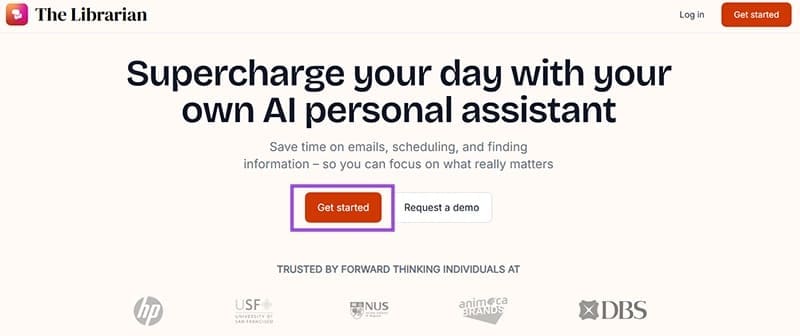
Step 1. Click on the “Get Started” button on The Librarian AI and log in with your Google account.

Step 2. Enter some basic information, including your name, company, and job title.

Step 3. Once you’re all logged in, you’ll see a range of “Connect” buttons to sync The Librarian AI with a range of different services, like Google Calendar, Gmail, Google Drive, and Slack. Click any of the “Connect” buttons to proceed.

Step 4. Each time you click “Connect” to sync a service, you’ll need to log in to that service and give The Librarian AI the necessary permissions.

Step 5. When setting up The Librarian AI on WhatsApp, you’ll need to use your mobile device. Open WhatsApp on your phone and scan the QR code given to you by The Librarian AI. Then click “Send” on the message that is automatically prepared for you. You’ll then see The Librarian AI added to your WhatsApp contacts, ready to chat with whenever you need.

Step 6. When connecting with Slack, you will also need to grant The Librarian AI access to your work channels. This may have to be approved by a channel admin before you can proceed.

Step 7. Repeat the “Connect” process with all of the tools you wish to sync up with The Librarian AI, including Notion and Gmail.

That’s it. Once you’ve integrated The Librarian AI with all relevant platforms, you’ll be able to chat with it on WhatsApp, Slack, or on the main The Librarian AI page and ask it to carry out tasks or assist you in various ways.

Disclaimer: Some pages on this site may include an affiliate link. This does not effect our editorial in any way.