When you’re working on a small website or amateur publishing, the front page will be the key to attracting more customers or viewers. But professional art can cost a pretty penny, especially given that you might be working on an uncertain project with zero budgeting options. You can generate illustrations with AI, which cost a fraction of what would take an actual artist, as an attractive stopgap when you’re still detailing your business plan. Read more about a minimalistic and seamless illustration generator in our Illustro AI review.
In the shortest possible terms, Illustro is an AI illustration generator that works with simple illustrations and provides attractive pay-as-you go pricing. The minimalistic editor allows you a few degrees of manipulation post-generation, and the natural language processing capabilities should usually give you something that approaches what you wanted to have drawn.
How to Use Illustro AI
Due to its focus on simplicity and ease of use, Illustro is a remarkably straightforward way to generate illustrations with AI.
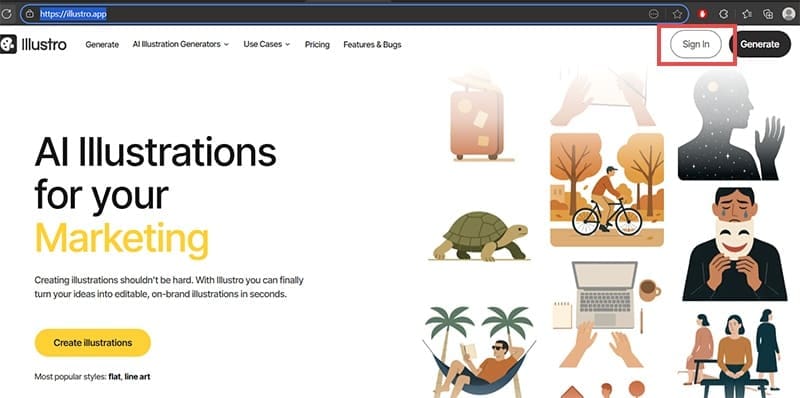
Step 1. Go to Illustro’s home page and click on “Sign in” (You can try anything else, but it will be basically a preview and you’ll still need to make an account).
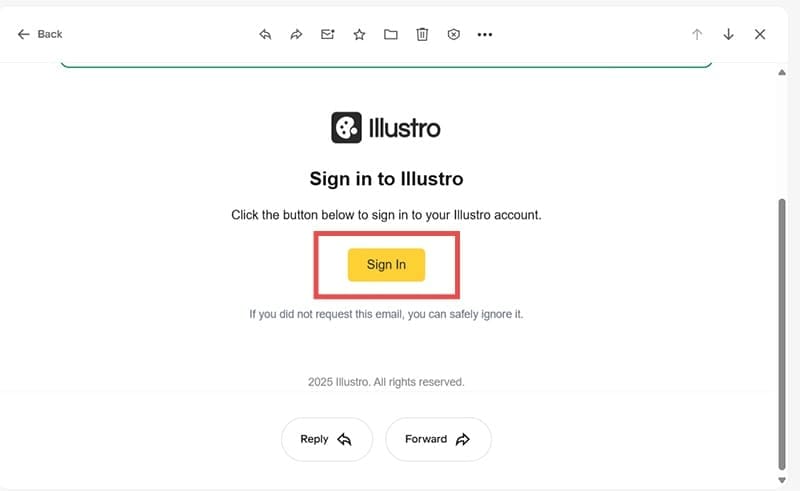
Step 2. Enter your email address and select “Send me a Magic link.” Go to your email folder, open the message you sent, and click on the button link to complete the sign in.
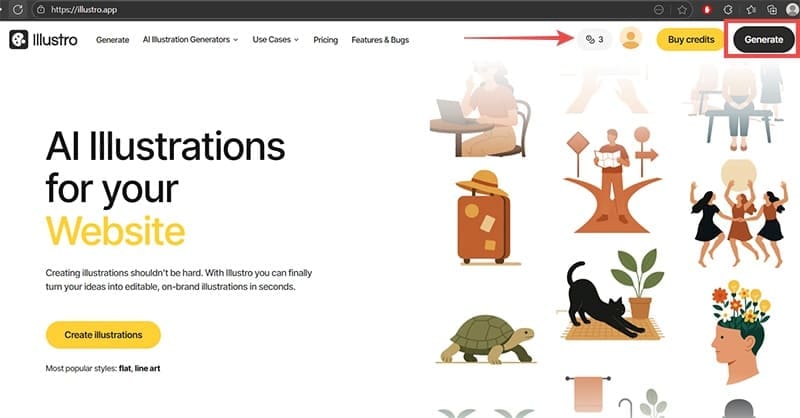
Step 3. You get 3 free credits as a trial, which is just enough to create, edit, and export an illustration. Click on “Generate” to continue.
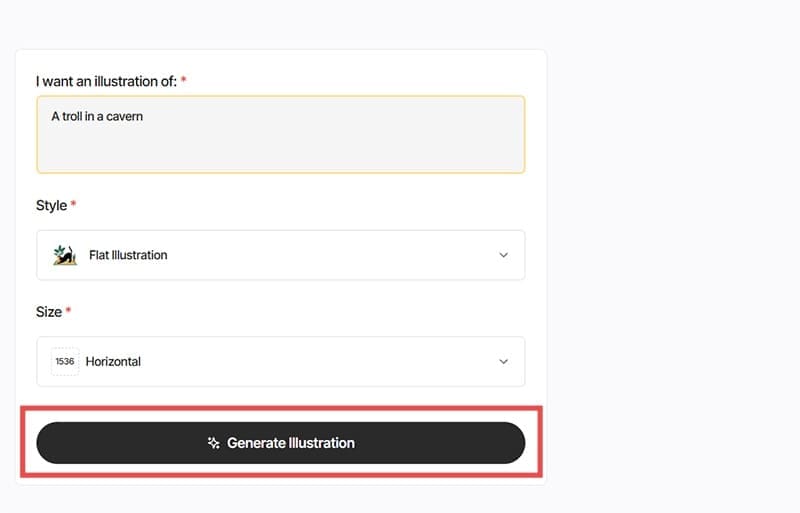
Step 4. Enter a description of the illustration in the text field, then choose a style (flat, or line art in black and white or color), then choose the resolution. The more you enter in the field, the more detailed the results (but you also might confuse the AI if you send it too many details). Click on “Generate Illustration” when you’re satisfied with the choices.
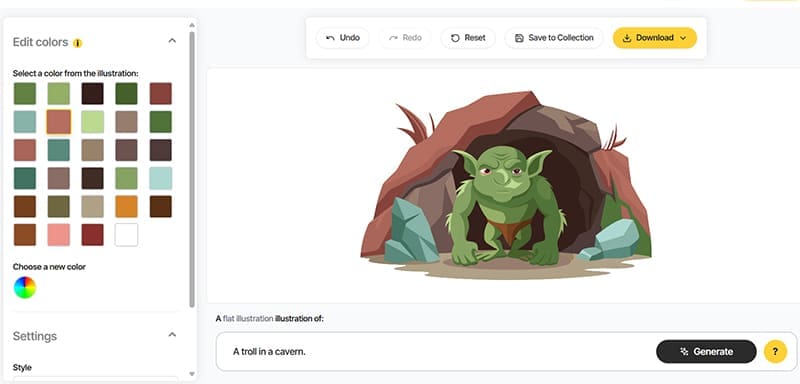
Step 5. You’ll get a “first draft” of the illustration. You can change the color of a part of the illustration by selecting it on the color wheel and applying it on the layer. Note that this is not foolproof and the editor might not accept colors beyond what it has generated originally, so what you get might just be the final result or you’d need to regenerate with a new prompt.
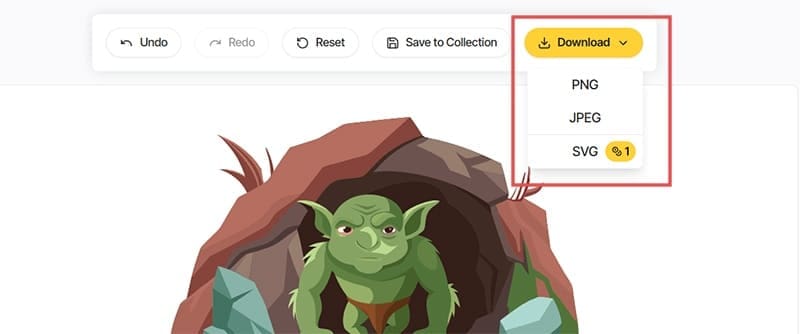
Step 6. Click on “Download” to save the illustration. Saving as a JPEG or PNG is free, but a SVG (vector graphics file which allows for more customizations and better resolution scaling) costs one credit.
You can purchase more credits by going to the “Buy credits” icon at the top-right.
Illustro AI Review Pricing
Unlike traditional chatbots, Illustro works on a credit-based model. The current rate is $15 for 250 credits. This works out to 250 images or 125 vector files provided you use the first result that pops out of the generator. Typically, however, you might need to get the AI to generate three or four results since it doesn’t understand some of the more abstract or nuanced concepts.
Illustro AI Pros and Cons
One of the main benefits of the AI illustration generator is that the styling is pretty consistent across the board, whether you’re looking at flat or line-art styles. The generated images have a professional-like quality to them at first glance and look good in smaller icons or drawings.
However, the heavily restricted in-app editing means you’re best off generating a few different icons then exporting the best result as a vector file for final improvements by hand. This will depend on your own skill level and can just save some time brainstorming ideas or getting the rough draft done.
The platform also struggles with some concepts or detail-heavy descriptions, even with characters.
Copyright-wise, the platform states that you get a full commercial license to use the images, so long as you’re not using them to train another AI.
As such, use Illustro to get the rough first draft or ideas when you’re brainstorming icons and have some experience with vector icon editing (as you might need it to polish the result).





Disclaimer: Some pages on this site may include an affiliate link. This does not effect our editorial in any way.