AI has become ubiquitous in the past few years, and most tech giants have been only too happy to jump on board. It seems that every major tech company is offering some form of AI assistance to users. Case in point: search engines and their AI answers to search queries. But for some, that extra info is unnecessary or unwanted.
In this article, we’ll be showing you how to disable AI answers and overviews in search engines, primarily Google and Bing.
Disable AI Generated Search Answers
Major search engines use their AI tools to help users get quick summaries and information at a glance. Microsoft Copilot and Google Gemini are perhaps the two biggest examples you’ll find. These are handy, but can be annoying when they pop up for every search. Worse still, some summaries may be unhelpful or potentially misleading. Let’s look at some ways to bypass them.
Disable AI in Searches
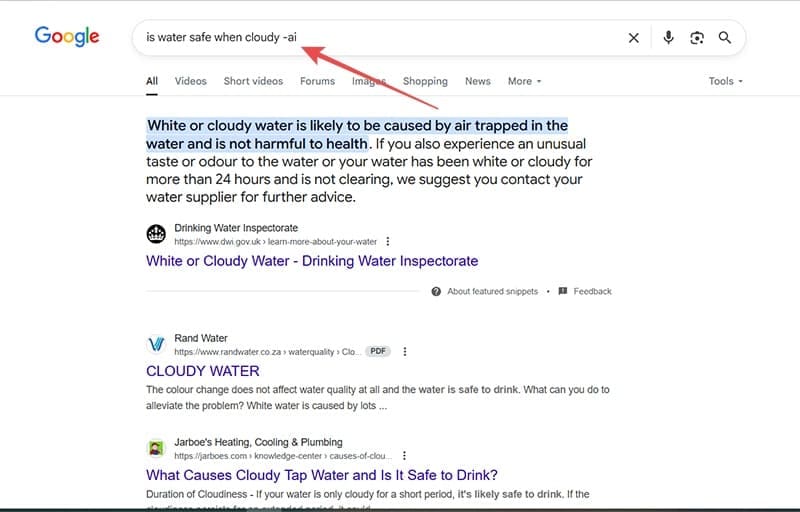
A quick method for disabling AI results (and by extension, AI overviews and summaries) is by specifying that you don’t want AI in your search query. To do this, simply type “-AI” at the end of every search. This will work on all major search engines and can be useful if you’re not looking to permanently disable the AI answers in your search engine.
How to Turn Off Google AI Overview and Other Summary Tools
Microsoft and Google have both leaned hard into their AI integration. While Bing used to allow users to opt out of Copilot searches by use of a slider (which it has since removed), Google has never allowed this option to users. As such, you’ll need to get creative in disabling them. Here are a few methods:
Use Browser Extensions
You might be pleased to know there are like-minded people out there who also don’t want AI search assistance and also have a knack for programming. Thus, browsers like Chrome, Firefox, and Edge allow for extensions that block certain content from your browsing experience. In fact, many ad blockers have this functionality, which will keep your search screens clear of AI suggestions.
Disable JavaScript
JavaScript helps your modern search engine look and perform better than the browsers you remember when you first started searching the web. It manages image and video files, appearances, interactive features, and many quality-of-use perks like smooth scrolling. Disabling JavaScript makes for a no-frills browsing experience, but also gets rid of search engine AI responses.
To do this in Chromium browsers (we’re using Chrome):
Step 1. Open “Settings” and choose “Privacy and security” from the sidebar.
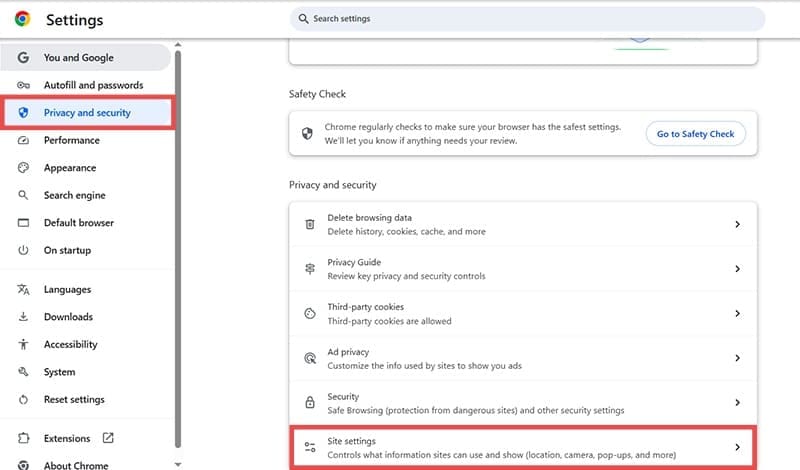
Step 2. Scroll down to “Site settings” and click it.
Step 3. Navigate to the “Content” subgroup and click “JavaScript.”
Step 4. Choose “Don’t allow sites to use JavaScript” to cover all search engines, or add specific search engines (like Google or Bing) by clicking the “Add” button.
Use the Web Option (Google)
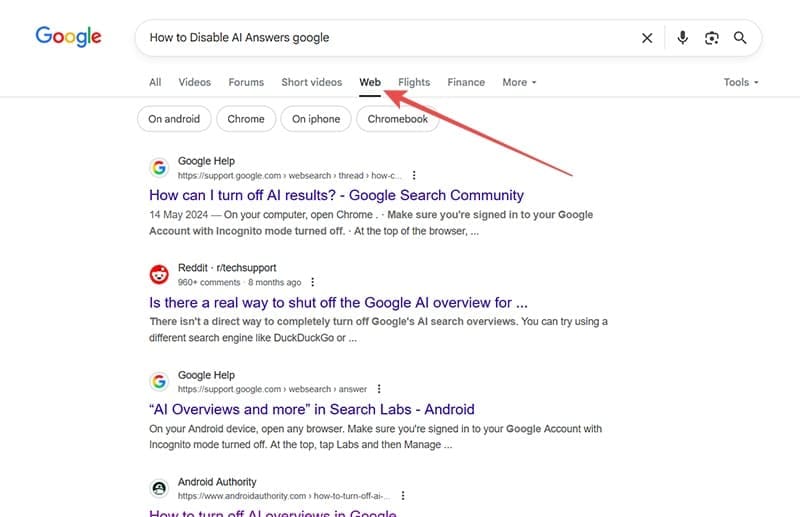
Google has an option (next to Images, Videos, etc.) to search via the Web. This will allow you to search with limited input from Gemini. To do this, simply click the “Web” option before typing in your search.
Utilizing &udm=14
Searching on the web in Google and inserting the parameter “&udm=14” into every search skips AI answers. To make this a default when searching with Google, you can insert it in Google Chrome:
Step 1. Open “Settings” in Chrome and choose “Search engine” from the sidebar.
Step 2. Click the “Add” button next to “Site search.”
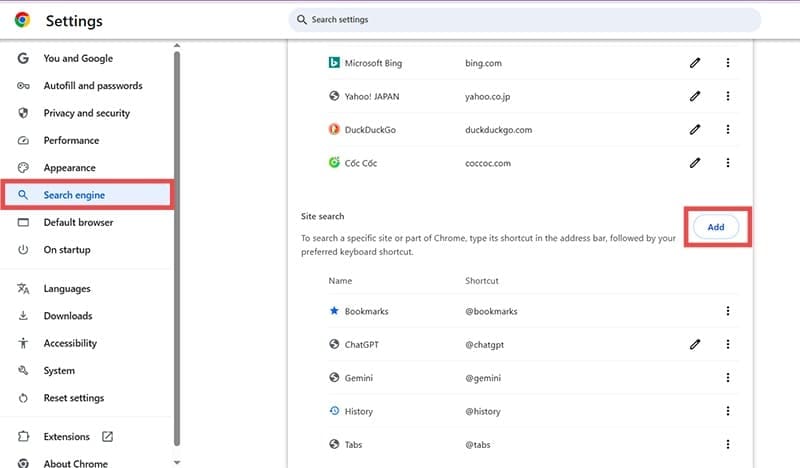
Step 3. Name the search engine “Google” and the shortcut “google.com” and insert the URL as “{google:baseURL}/search?udm=14&q=%s” before clicking “Add.” Note that you may first need to delete the existing “Google” search engine entry.
Step 4. Click the hamburger menu (three dots) next to your new search engine and click “Make default.”
Choose a Different Search Engine
Certain search engines like DuckDuckGo place great importance on user anonymity and freedom, offering users control over how they browse. If you’re looking for a quick fix without the extra steps, try switching to one of those search engines or similar ones like Ecosia, Qwant, and Brave Search.


Disclaimer: Some pages on this site may include an affiliate link. This does not effect our editorial in any way.