Canva has been making complex design accessible to users, both professional and amateur, for many years now. In the past few years, they’ve sought to make things even easier by adding AI assistance in a variety of different ways. This article will look at some of the major ones and how they can improve your creative process.
How to Use AI in Canva in Many Ways
Let’s get straight into it. There are a lot of ways that AI can enhance and assist your projects in Canva. We’re going to cover the major ones and how they can work for you.
Canva AI
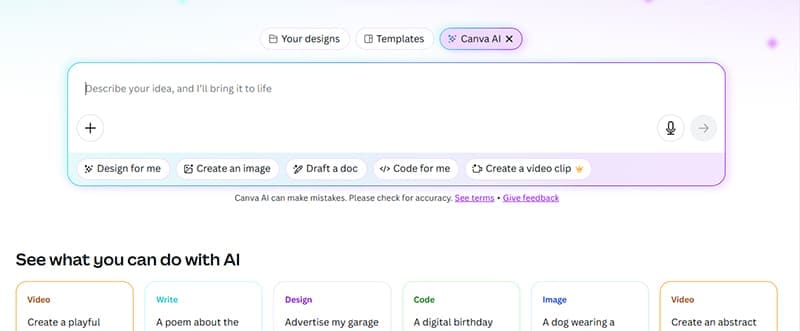
We’re starting with the big one. In the Canva sidebar, you’ll find an icon labeled “Canva AI.” Clicking this will launch the AI chatbot that functions much the same as any other chatbot out there today, except this one is built for the design platform.
Through text and voice input or uploading files, the Canva AI can design for you, generate images and videos, draft documents, and even code tools for you to use.
Furthermore, every option below the dialog box has additional choices. Do you want Canva to design a social media post or presentation? What ratio do you want for your generated image? These help you further refine your choices. After seeing what’s been devised, you’ll have the option to include them in a design or edit designs themselves in Canva.
Magic Media
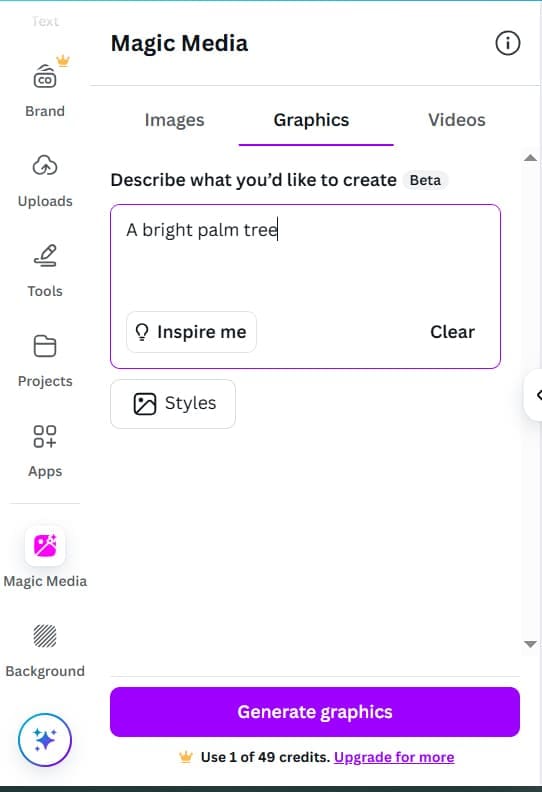
Another sidebar tool, Magic Media, allows you to generate images and videos on the fly. Canva has also recently added Graphics to the fold, enabling you to make some stylized vector illustrations too. Below the dialog box, you also have the option to choose the style for your design.
To top things off, you’ll be able to edit these images and videos as you would any other using the tools in the Canva Editor.
Magic Write

If you’re writing a document or adding any textbox to any design, then you’ll probably see the Magic Write button hanging around somewhere. Give it a click, and you can enter a prompt that the AI will then turn into text. This feature works best with documents, letting you tailor your long-form content into formats like marketing strategies, blog posts, brainstorming sessions, and so on.
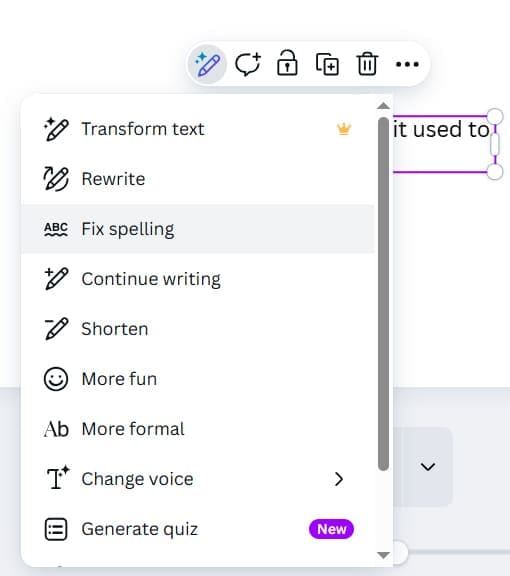
The Magic Write tool also appears in the context menu when selecting writing, allowing you to change style, rewrite, edit length, and copy check.
AI Voice

Want to add some AI narration or a voice to a video or presentation? Canva allows you to do that with an AI voice. Simply type up your script, choose your language and region, and the type of character you’d like to use.
Improved Editing
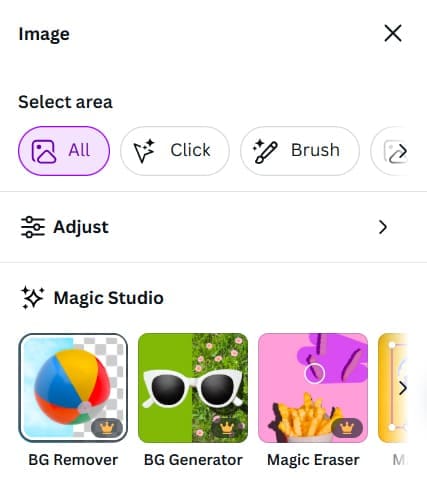
Some AI tools in Canva are more quietly integrated, but are still amazingly useful. AI automatically separates files into different components. If you click the “Edit” button in the toolbar while an image or graphic is selected, you can use the tool’s “Click” function to help select each part. Foreground and background are also identified and separated, and you can edit these by clicking the respective buttons.
Additionally, the “Adjust” menu in the Edit tool also allows for some powerful features. You can remove backgrounds, add new elements, grab parts of an image to isolate them, select text in a picture, and resize. The choices are endless.

Disclaimer: Some pages on this site may include an affiliate link. This does not effect our editorial in any way.