At its best, AI can supplement our workflows by automating repetitive tasks and streamlining processes, making our jobs simpler. When it comes to coding, machine learning can be particularly effective in this regard. Today, we’re looking at an excellent AI-assisted coding app: Cursor AI.
This article will serve as an overview and quick guide on how to use Cursor AI.
Your Job Just Got Easier – The Cursor AI Code Editor Guide

Cursor AI takes the tedium out of coding and assists programmers with writing robust code in a fraction of the time. Some of the many features offered by Cursor AI include:
Autocomplete
The Tab key in Cursor AI becomes your Swiss Army knife and best friend. Not only does it autocomplete code based on estimations and correct spelling mistakes, which are the bane of any coder’s existence, but the feature also learns when you use it, so it can better respond to your needs in the future.
Some other uses of Tab include:
- Jumping to locations in code
- Automatically adding missing import statements
- Suggesting code to use
- Jumping across files
Ctrl + K or Cmd + K
If you’re only passingly familiar with AI, you might think it’s only about text box input and results. Well, Cursor AI has this feature in place too. Simply press (Ctrl +K) or (Cmd + K) to bring up a prompt window where you can tell Cursor AI exactly what you’d like to do. The app will then write code based on your description.
From there, you can edit the code yourself, or click the generated block of code and enter another prompt to tweak things.
This feature can also be used to explain sections of code you find bewildering.
Natural Input
Learning a coding language can be just as tough as a real-world one. Many coders, both amateur and professional, have wished they could speak to their machine naturally. Well, the command-line terminal in Cursor AI allows you to do just that. This box allows you to query and command in natural English and uses machine learning to process the input.
Chat is another great example. Pressing (Ctrl +L) or (Cmd + L) on a highlighted section of code opens a chat sidebar, which allows you to ask questions of Cursor in natural language, receiving a response in kind.
Code Review
Next to the chat input is the “Review” tab, which is another fantastic feature for testing and showing you errors in your code. You can check all or parts of your code with AI and have Cursor AI report back on any issues in a natural response.
Context Awareness
Cursor AI makes use of the “@” symbol to add much-needed context to queries. Typing this into the text box will give you several options to better refine responses, e.g., “@script.js” or “@Web.” It’s a great way to include external sources, too, like hyperlinks or file uploads.
Composer Agent
If you’re looking to generate large chunks of code across multiple sections, then Composer is the feature that makes it happen. With a chat input window, you can do a lot of things, including:
- Edit multiple files simultaneously
- Use externally integrated tools
- Design entire applications from the ground up
Getting Cursor AI
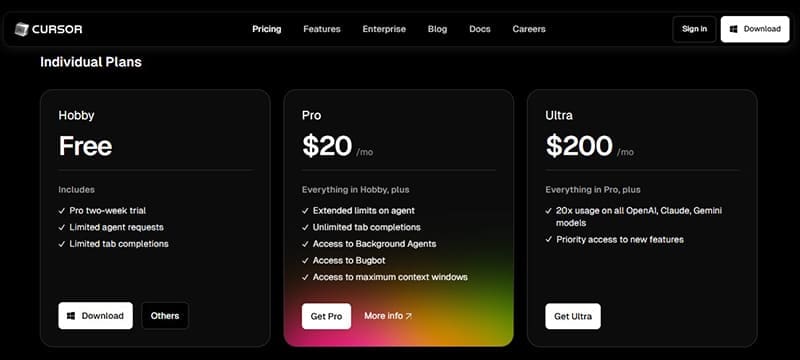
Cursor AI is downloadable from its website and can be installed on macOS or Windows. The app is available in three tiers: Hobby, Pro, and Ultra, offered for free, $20, and $200 per month, respectively. The free trial period offers you everything in Pro for two weeks, giving you a chance to test all features before committing. Just be sure to create an account first.

Disclaimer: Some pages on this site may include an affiliate link. This does not effect our editorial in any way.