Staying organized is a task in itself, and we’re always looking for new ways to be efficient. Well, if you’re a Copilot user, the good news is that this tool can be used to set and send reminders. In this article, we’ll show you how to make the most of Copilot reminders.
Late to the Party, But Ready to Party
The rollout of Copilot features like reminders is behind competitors like OpenAI and Claude. Copilot might be late, but they still aim to please. What’s important to note about this feature is that while it can be created on any device, currently, reminder notifications are delivered through the Copilot mobile app.
That’s sad news if you want to make a reminder for your PC notifications, but here we are. This might change in the future, but for the present, those are the only two ways.
What You’ll Need to Create a Reminder
So, what do you need to get these reminders on your smartphone? You might be surprised to learn that it doesn’t require a Microsoft 365 or Copilot subscription. In fact, casual users of the free tier can send and maintain up to five reminders at any time with their account. Microsoft 365 users get up to 20 reminders.
Being logged in and synced on all devices you wish to use is equally important. You must have the Copilot app installed on your smartphone and be signed in with the same Microsoft account to use Copilot to create reminders.
How to Create a Copilot Reminder
Creating a Copilot reminder is a straightforward task. Let’s take a look at what to do:
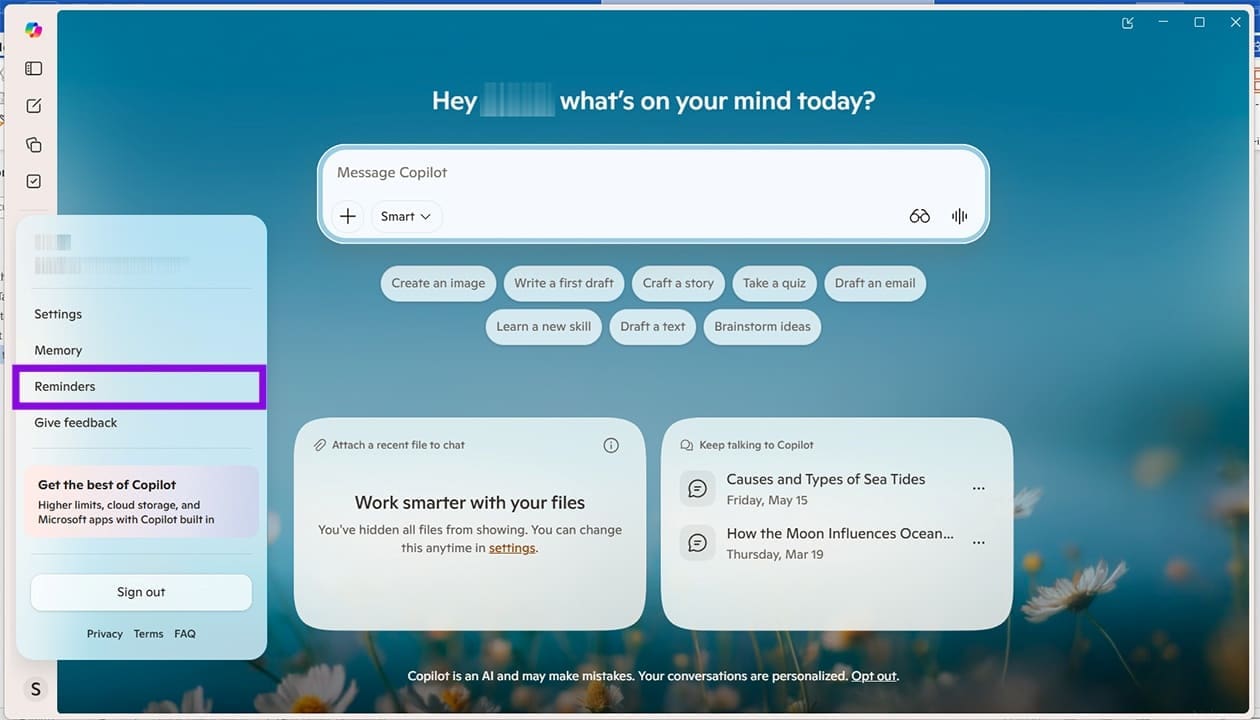
Step 1. Open any version of Copilot. We’re using the Desktop app. Ensure you are logged in.
Step 2. Open the Reminders section if it is available in your version of Copilot.
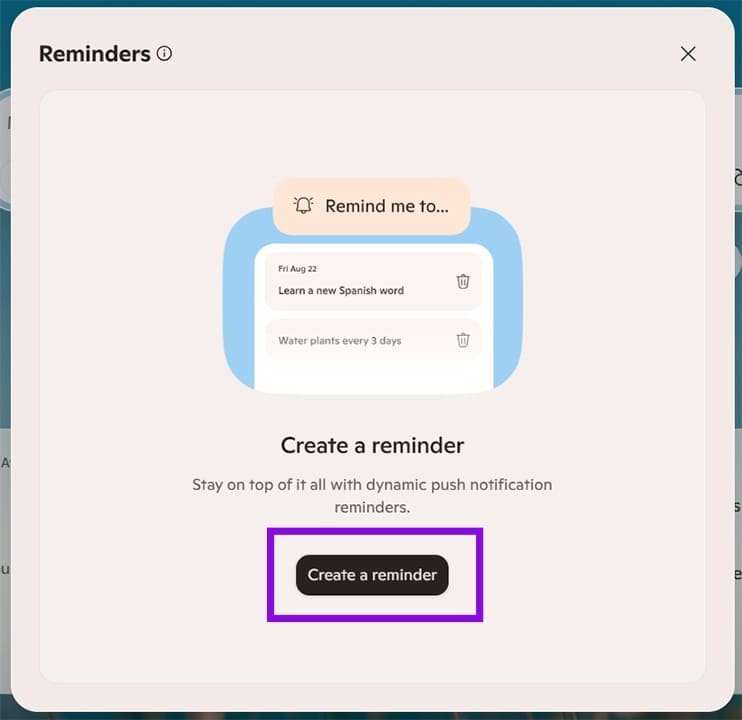
Step 3. A new window will pop up. Click “Create a reminder.”
Step 4. Copilot will take you through a quick how-to if it’s your first time.
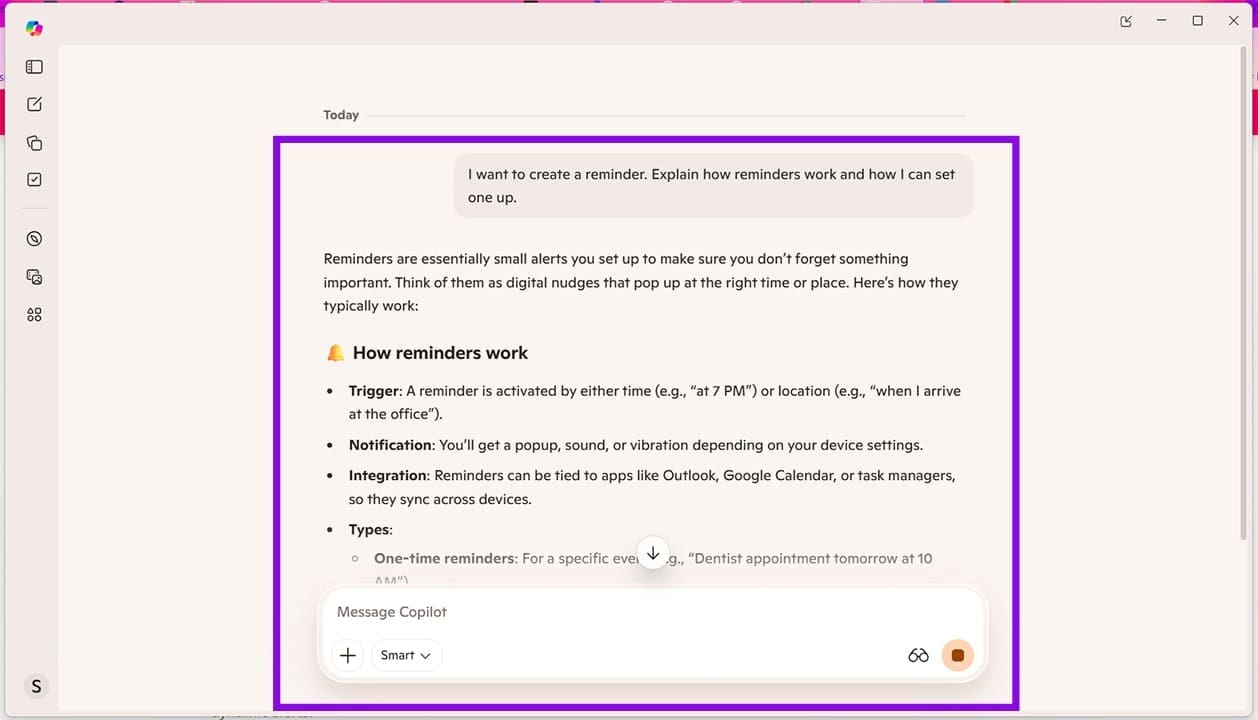
Step 5. Create your reminder with a text prompt. Describe the reminder itself and when it should pop up to notify you.

Step 6. Confirm the reminder details and save the reminder.
Step 7. Your notification should now be set and ready to go. Wait for the email in your inbox or the pop-up on your mobile Copilot app.
Maintaining Reminders
To keep track of your reminders in the Copilot app and create or delete certain ones, head to the Reminders section of the app, where you can view, add, or delete reminders.
Related Posts
 The Importance of a Privacy Oriented GPT Tool and How HiddenGPT Helps You Stay Safe
 Get an AI Assistant on Your Phone With Dot Copilot
 Steps to Install Microsoft Copilot on WhatsApp
 Ways to Use Microsoft Copilot on Telegram
 Can Copilot Tasks Improve Productivity for Busy Creators?
 Can Using Microsoft Copilot Cowork Boost Your Productivity?
 Discover PocketAI – The ChatGPT for WhatsApp

Disclaimer: Some pages on this site may include an affiliate link. This does not effect our editorial in any way.