Error squiggles in VS Code are the squiggly underlines that highlight warnings, syntax errors, and many other issues present in code. While enabled by default in VS Code, there are instances when the error squiggles might not show up. Or you could have disabled them unintentionally. So, how do you enable the error squiggles in VS Code? Find out in this guide.
How to Enable Error Squiggles in VS Code
Error squiggles are vital in VS Code because they help you catch those coding errors early. They allow you to glance at possible issues in your code before going further. Also, having them on means you can write code quickly and then go back and check for errors. They help eliminate the most common programming mistakes or typos, streamlining workflow.
- Press Ctrl+Shift+P on Windows or Cmd+Shift+P on macOS.
- In the search field, type “Error squiggles.”

- Select C/C++: Error Squiggles option and set it to enabled.


After following the above steps, the error squiggles should be visible on your code. Disabling the setting means toggling the above option to Disabled.
Install the C/C++ Extension
If you try to follow the above steps but realize you cannot find the C_Cpp: Error Squiggles setting, ensure the C/C++ extension is installed and enabled. This is how to go about it:
- Go to the left sidebar and select Extensions. It can be opened by pressing the Ctrl+Shift+X keys on Windows. On macOS, press Cmd+Shift+X.
- On the search bar, type C/C++.
- Ensure that you already have the extension installed on the device. If it’s not, install and enable it.


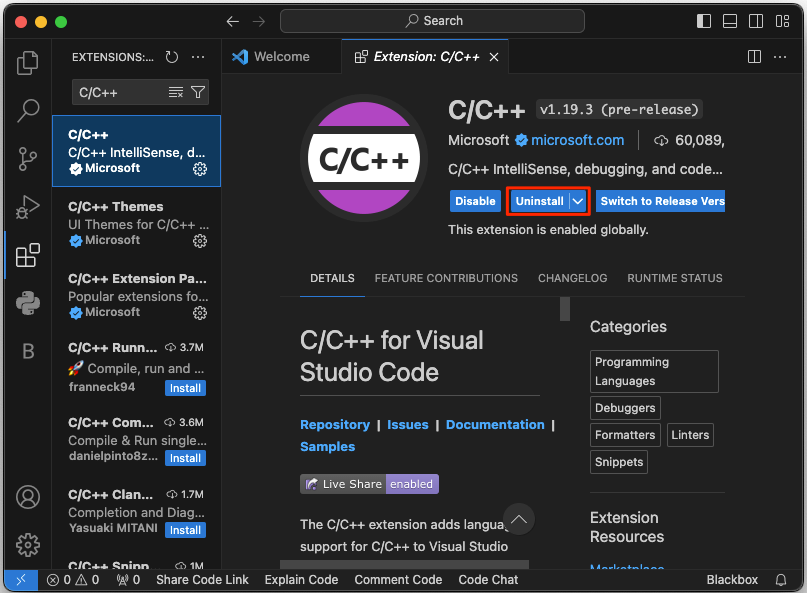
Once the steps above are followed, the C_Cpp: Error squiggles settings will show up. Go ahead and enable it to start highlighting errors.
How to Enable Error Squiggles Locally in VS Code
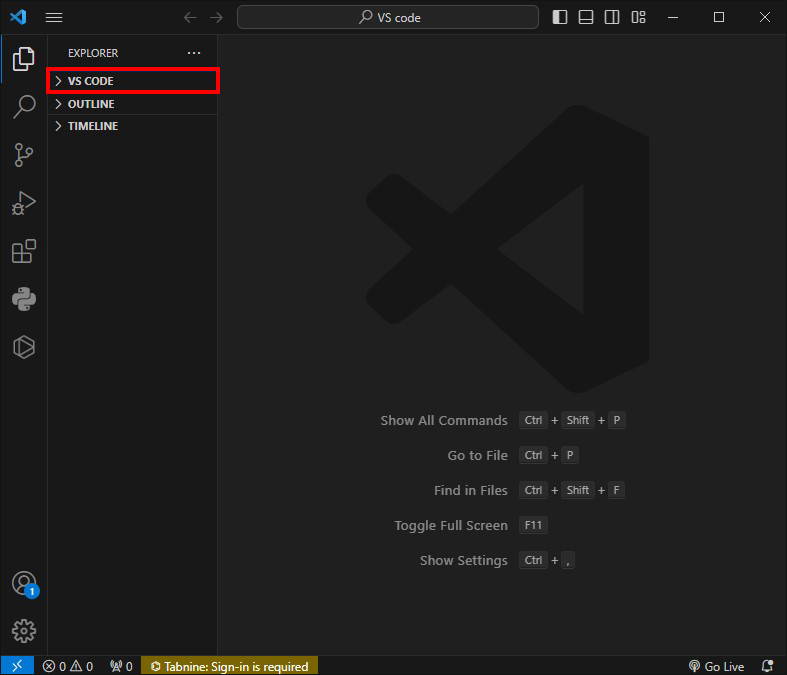
If you notice that error squiggles are not showing in the project after the above methods, try setting them up locally in your workspace. This assumes you have already created a workspace for this project. If the workspace setting is edited, it overrides all global configurations. This is done by updating the .vscode/settings.json file.
- If it doesn’t already exist, make a .vscode folder in the project’s root directory.
- Within this folder, make a settings.json file.
- Add the code
"C_CPP.errorSquiggles": "enabled"to the settings.json file.


Enable Squiggles Through the Command Palette in VS Code
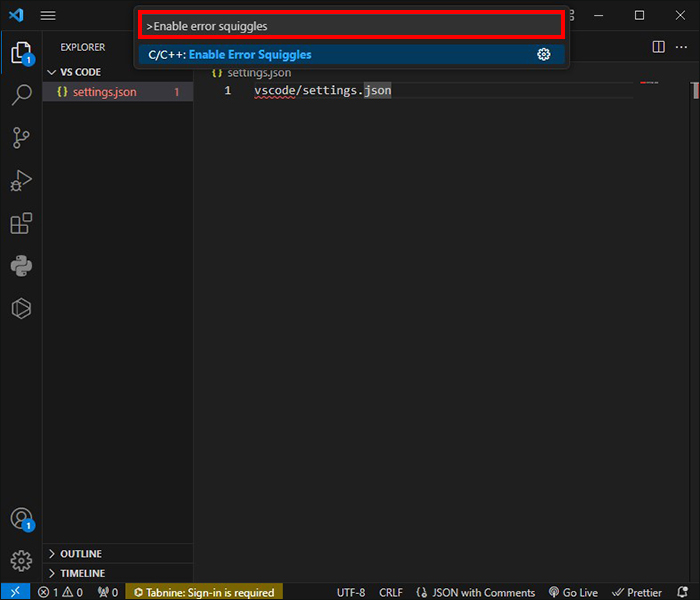
You can enable and disable squiggles through the command palette:
- Press the Ctrl+Shift+P on Windows or Command+Shift+P on macOS. Alternatively, press the F1 button.
- Type “Enable error squiggles”.
- Choose the C/C++: Enable Error Squiggles command.

Enable Error Squiggles in VS Code for Improved Coding
When you leverage error squiggles, you can detect and address all sorts of coding issues more efficiently. This way, you improve coding practices and get an error-free outcome. In VS Code, the error squiggles are based on LSP or Language Server Protocol. This analyzes code in real-time. You get error squiggles for unused imports, undefined variables, type mismatches, and syntax errors through static analysis.
FAQs
Can I customize error squiggles?
Yes. The appearance of error squiggles can be customized to meet specific preferences or colorblindness concerns. When the editor or color theme settings are modified, the styles and colors of the underlines are altered. This way, it’s easier to differentiate between the error types.
Do error squiggles offer information regarding errors detected?
Yes. If you notice an error squiggle, you should hover over it. This way, VS Code displays tool tips offering additional information regarding the warning or error. It could tell you about the specific issue detected and the solutions to consider. With this feature, developers can understand the issue quicker without navigating from the code.

Disclaimer: Some pages on this site may include an affiliate link. This does not effect our editorial in any way.