Sound and image quality are both guaranteed when using HDMI as a connection between a computer and a monitor or TV. By connecting the HDMI connection and selecting the correct input and output source, it is often easy to add an external monitor. However, you may have problems with your Windows 10 PC not being able to recognize a monitor even though this is a simple process.
Luckily, there are a few solutions to this problem. In this article, we’ll go over some methods that can fix the issue of your Windows PC is not detecting a monitor through an HDMI cable.
Why Windows Isn’t Detecting Monitor Through HDMI
There are a variety of possible causes for your computer’s inability to recognize a monitor connected with an HDMI cable. Even if you don’t know the exact reason, take into consideration the following suggestions:
- Ensure that HDMI is configured as the default video and audio output connection.
- Attempt to boot the PC with the HDMI connection attached to a monitor.
- Start the computer when the television is turned off and then turn it on.
How to Fix Windows Not Detecting Monitor Through HDMI
Restart the PC
Restarting the PC with the HDMI cable connected and the TV switched on is the simplest way to fix the Windows 11/10 does not recognize HDMI TV problem. First, you need to check if the monitor is connected correctly to the PC.
Detect the Display Manually
Suppose you’re attempting to use your Windows 11/10 PC with an older monitor or TV. In that case, you may run into this difficulty since Windows may not be able to recognize the HDMI TV automatically. In this instance, the only way to fix the problem is to locate the display manually. Here’s how:
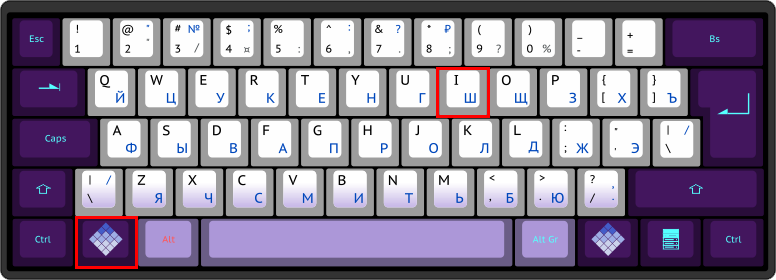
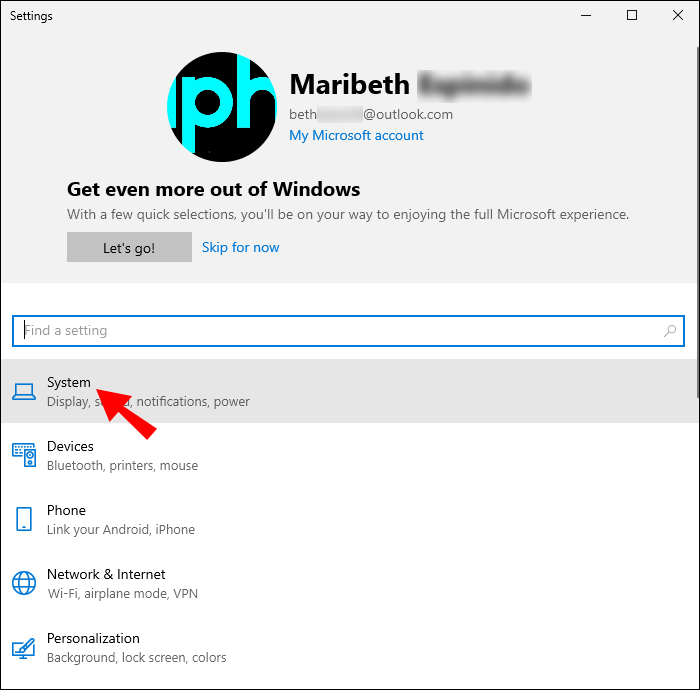
- Open the “Settings” app by pressing the “Windows key + I.”

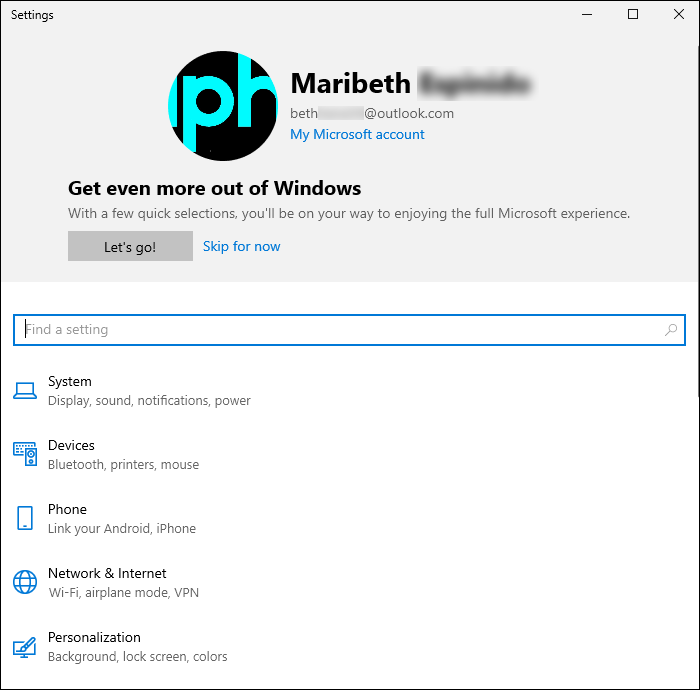
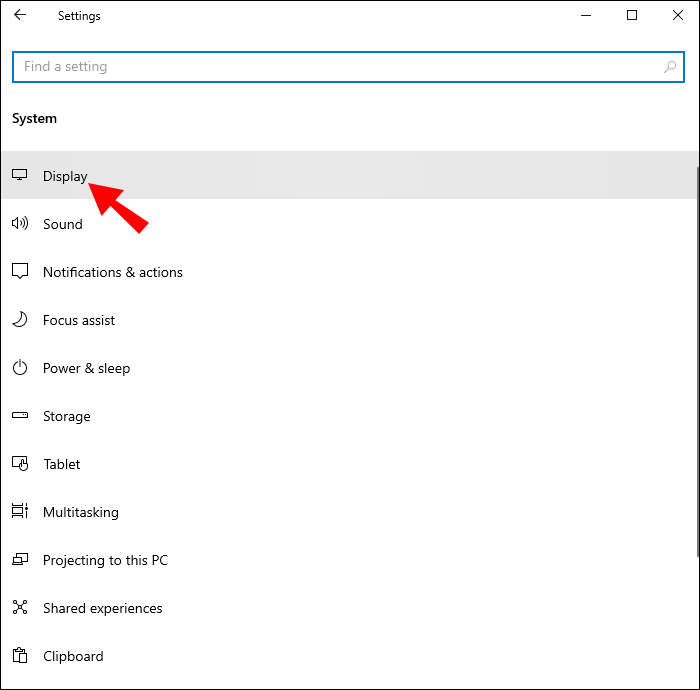
- To change the display settings, go to “System” and then select “Display.”
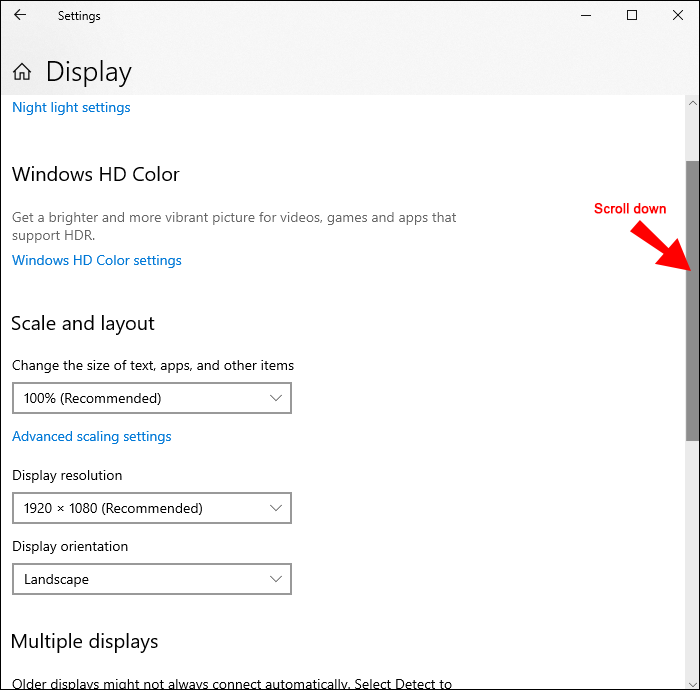
- Expand the Multiple displays area by scrolling down in the right pane and clicking on it.
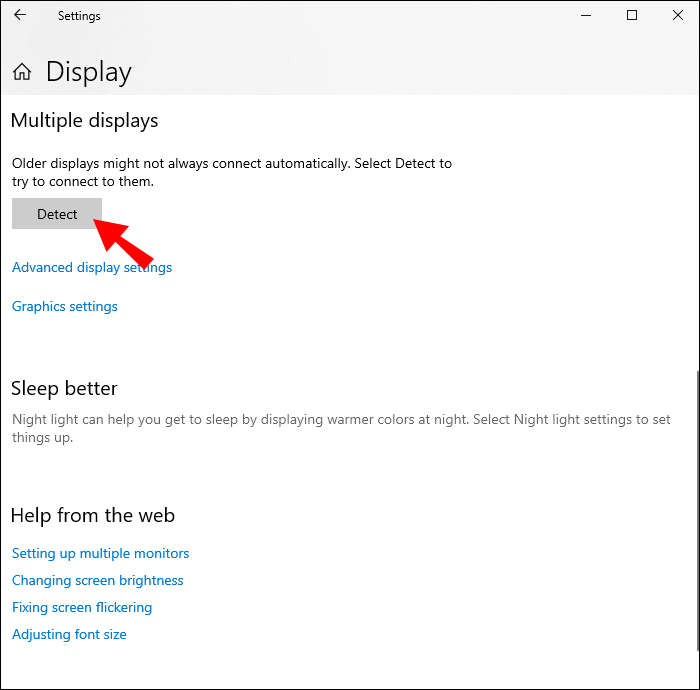
- Under the “Detect other display option,” click the “Detect” button.
- Finish up by closing the “Settings” app.
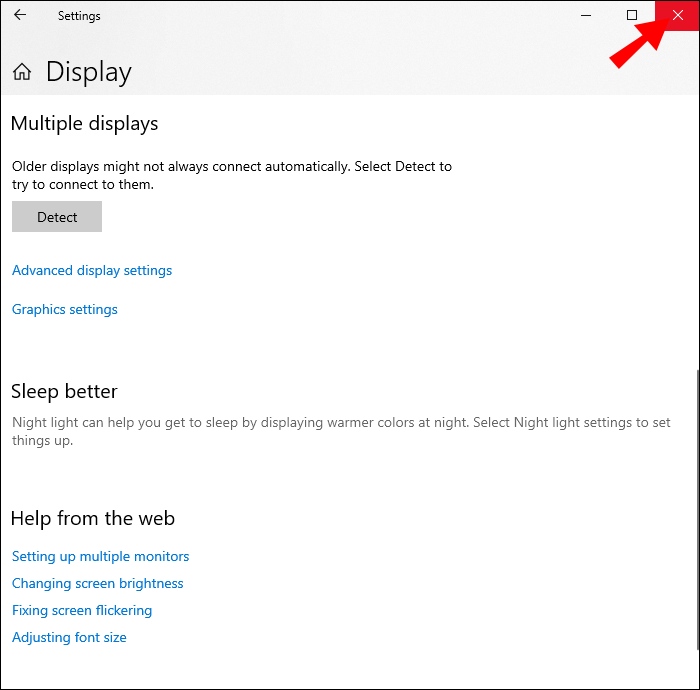
You may now check to see if your PC can recognize the HDMI TV you’ve connected. If it doesn’t work, try some of the following options.
Adjust Projection Setting
In Windows 10 and 11, you can set the projection setting to PC screen only, Extend, Duplicate and Second screen only. Changing the projecting settings can help to resolve the issue. Follow the steps below:
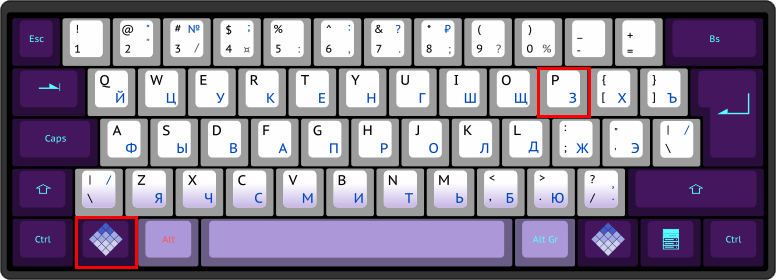
- Use the “WinKey + P” keyboard shortcut to open the Windows Project when your PC is connected via HDMI to your TV or monitor
- Make sure the projection setting is set to PC screen only.
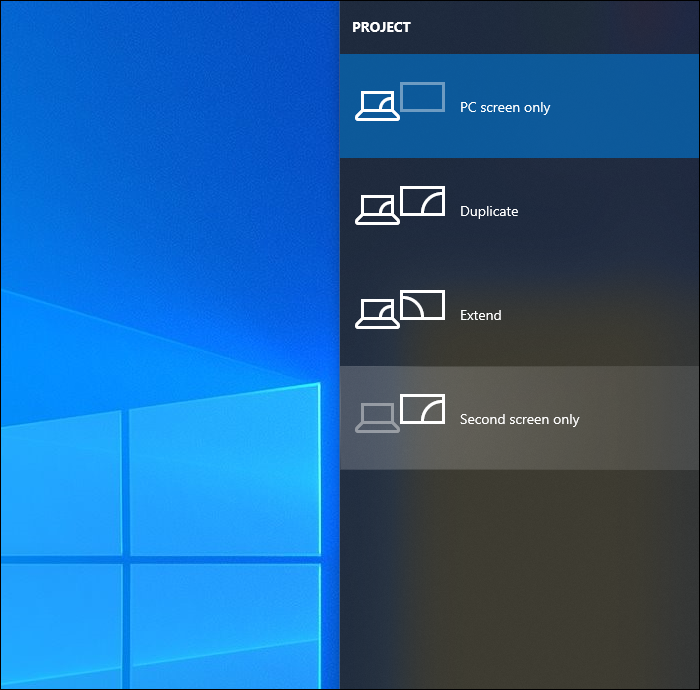

If this is the case, and you’re still having trouble solving the problem, move on to the next option.
Update Display Drivers
This method requires you to upgrade your Windows 11/10 PC’s display driver and before you can fix the problem at hand. If you previously obtained the .inf or .sys file for the driver, you may update it manually using Device Manager or Command Prompt.
Alternatively, you may download the most recent driver from the graphics card manufacturer’s website, which can be found in the Optional Updates area of Windows Update. As an alternative, you may automatically use any of the many freeware programs available to update your system’s drivers.
Here’s how to update display drivers through the device manager:
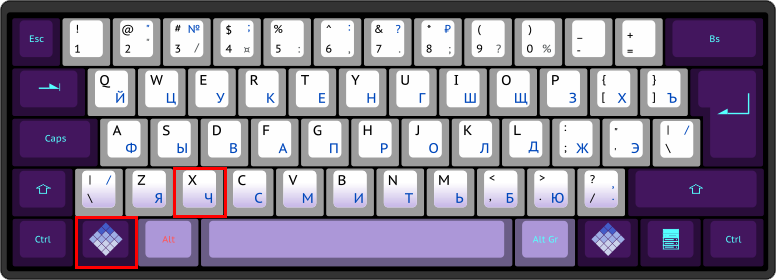
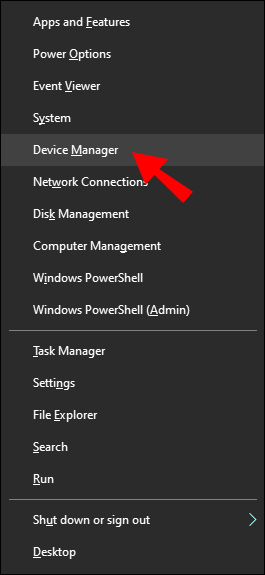
- The Windows Quick Access Menu may be accessed by pressing the “Windows key + X” on your keyboard.
- Choose “Device Manager.”
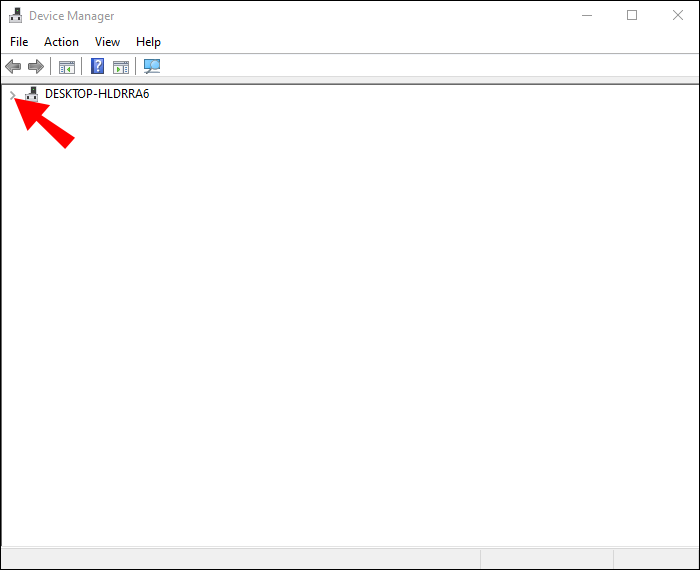
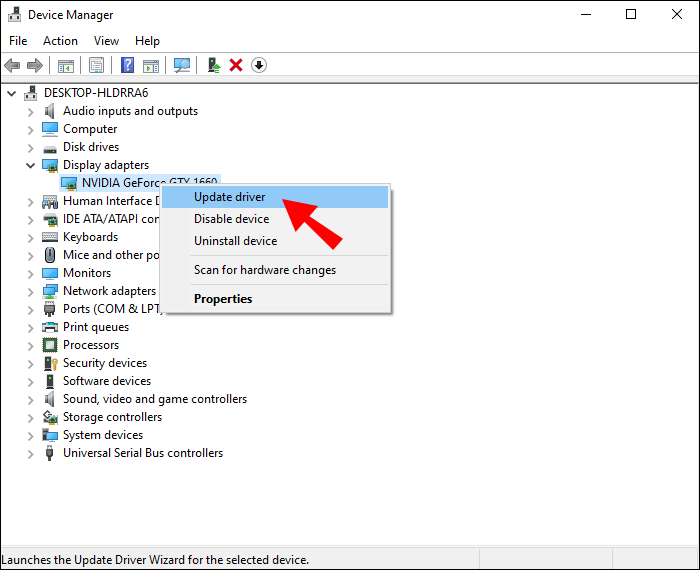
- Click twice on the drop-down symbol to show the device’s display and graphics drivers.
- Select “Update driver” from the context menu of the graphics driver. If the computer possesses a designated graphics card, you also need to update that driver. It would be best if you had a stable Internet connection to do so.
- Choose “Search automatically for updated driver software” to allow the Device Manager to look for and download the most recent graphics drivers for the windows computer from the web.
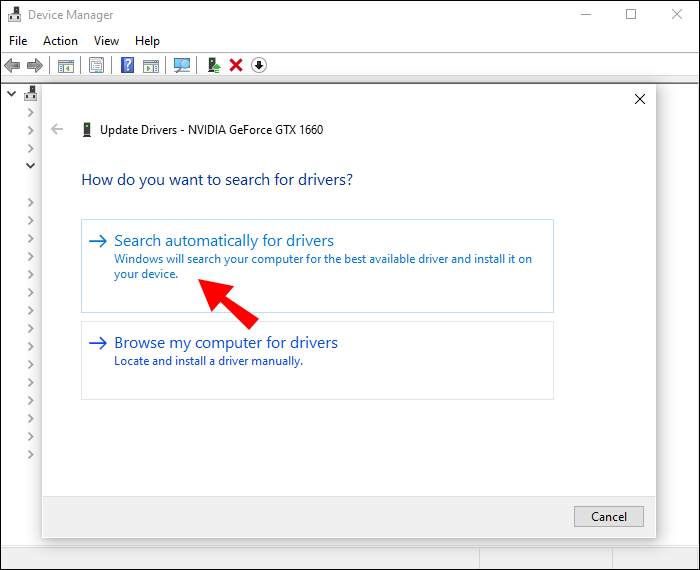
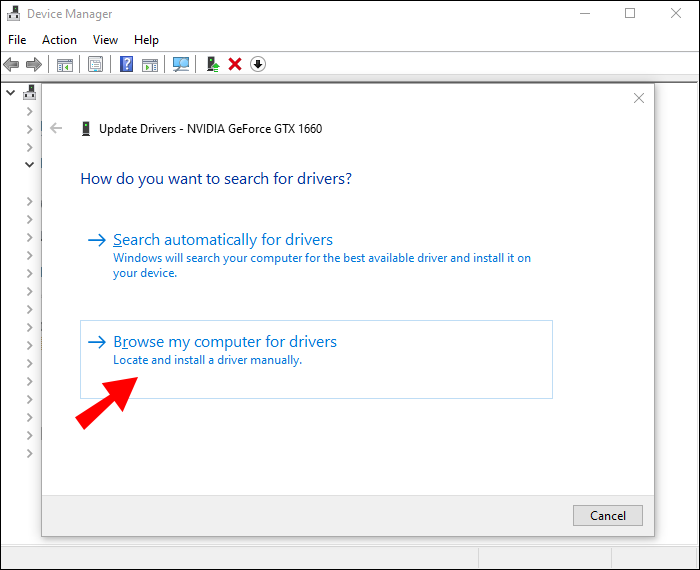
Alternative to this, you may use Microsoft’s Basic Display Adapter. Choose the option “Browse my computer for driver software.” This is advised if the display driver on your PC is updated or whether you don’t possess a stable online connection. From here, follow these steps:
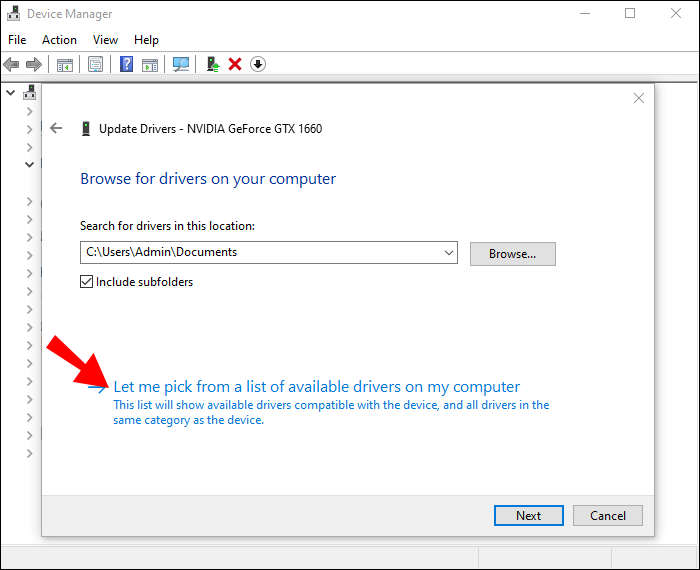
- Select the option “Let me pick from a list of available drivers on my computer.”
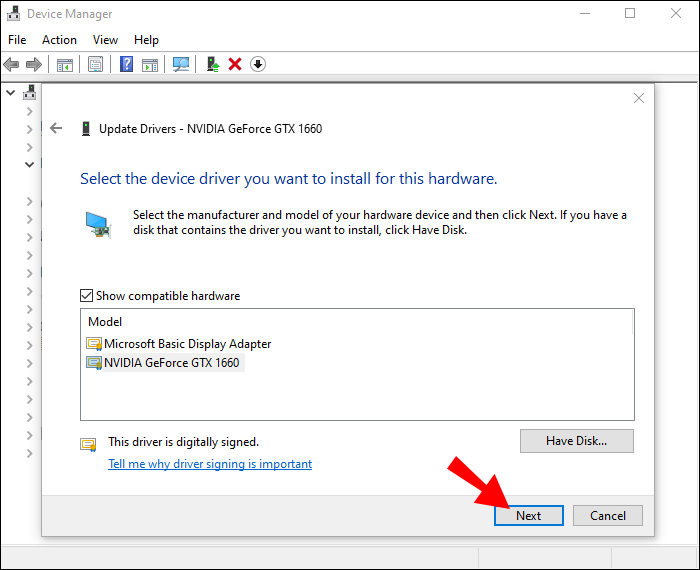
- Check the “Show compatible hardware” box.
- Select “Next” after picking “Microsoft Basic Display Adapter.”
- Restart the Windows PC once you’ve installed the Microsoft Basic Display Adapter, reconnect the monitor, and verify that your PC identifies the monitor or TV.
Change Multiple Display Operating Mode
Using the Intel Graphics Control Panel, you are able to manually adjust the PC’s Multiple Displays Operating Mode. Here’s how:
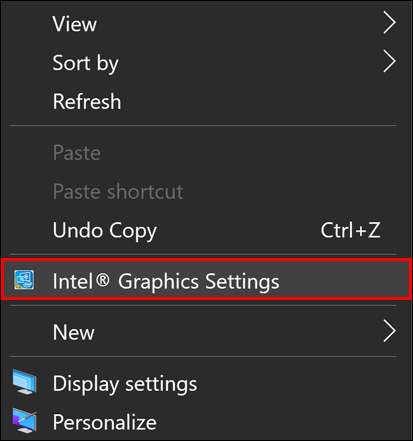
- Right-click on an empty spot on the PC’s desktop.
- To open the “Intel Graphics and Media Control Panel,” choose “Graphics Properties” from the menu.
- Select “Basic Mode” in the Intel Graphics and Media Control Panel.
- To confirm, click the “OK” button.
- Choose “Multiple Displays” in the* Display section.
- Pick “Operating mode” from the drop-down menu.

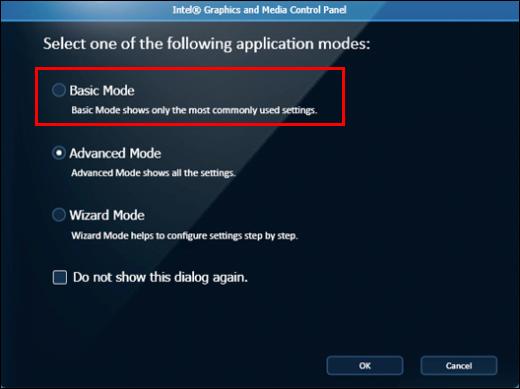
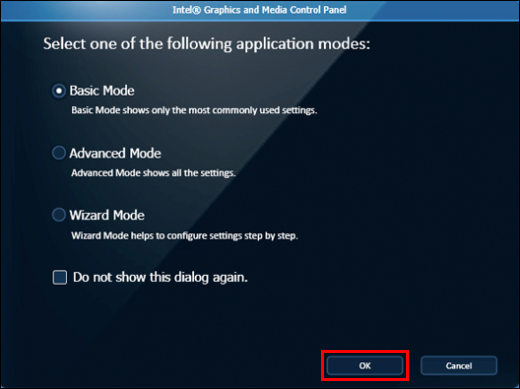


The HDMI monitor should now be listed in this control panel, so go ahead and verify. If this is the case, you’ll have the option to extend or duplicate your screen.
If you’re an NVIDIA customer, you can get the NVIDIA Control Panel that can be found on the Microsoft Store in order to try this method.
Run the Troubleshooter
This method requires you to run the Hardware and Devices Troubleshooter to fix malfunctioning devices and rule out a broken HDMI TV or monitor. Even if the problem isn’t caused by new technology, you may need to replace the HDMI TV to get it working again.
Enjoy Your Bigger Screen
You may connect your computer with a monitor or TV through HDMI to get a larger and more precise picture of whatever you want to display. If your Windows 10 computer cannot recognize or connect to an HDMI display, try some of the approaches described above.
However, if nothing seems to work, the issue might be the HDMI cable or the HDMI port. In this case, try out a new HDMI or get your HDMI port checked by a professional.
Have you ever experienced issues with connecting a monitor through an HDMI cable? Did you manage to fix it? What approach worked for you? Let us know in the comment section below!

Disclaimer: Some pages on this site may include an affiliate link. This does not effect our editorial in any way.