Microsoft Notepad has been the quietly brilliant and versatile workhorse of Windows for decades. From opening Readme files to coding in HTML, there’s a lot this little program can do. Recently, the no-frills, plain text editor received an AI boost with three brand new features for Windows 11 users. But what are they, and how can they work for you?
That’s the focus of this article.
Many More Ways to Use AI in Notepad
Microsoft staples Paint and Notepad, renowned for their simplicity and timelessness, now have AI enhancements with their move to Windows 11. There’s a lot to get excited about. Microsoft has slowly been adding more intelligent features to Notepad with every update for a while now. As of the writing of this article, here are the new machine learning features you can enjoy.
Click the Copilot icon at the top of your Notepad menu to get started.
Rewrite
Did you ever want to change the tone or style of what you’ve written without committing to the extra work? Instead of putting your Notepad text into an AI chatbot, you can now ask Copilot to rewrite things for you in the app. This was one of the first features to be added. Have some sample text ready in Notepad, and you can begin:
1. Select your text and either press (Ctrl + D) or select “Rewrite” from the Copilot or context menu (Right click).
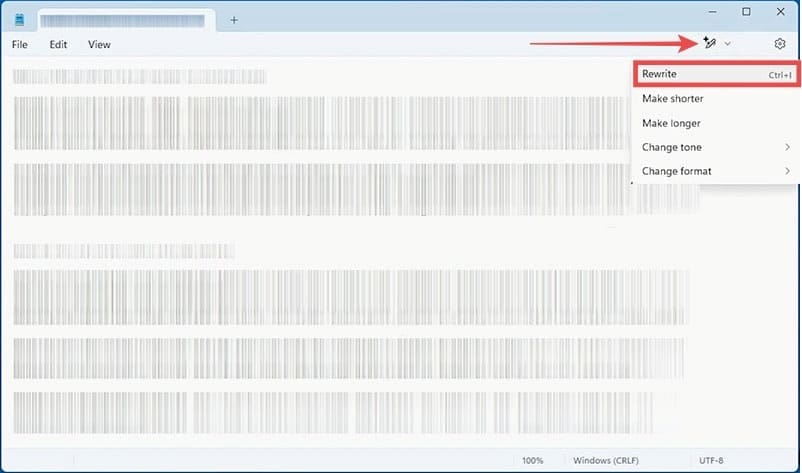
2. A new window will pop up with your text inside. You can choose to make text shorter or longer, alter the tone, or change the formatting from the buttons underneath.
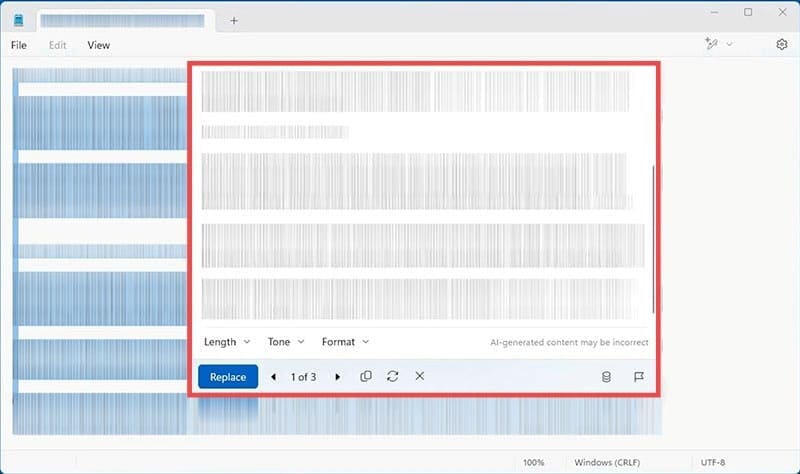
3. Once you’re happy with the settings, click the “Rewrite” button at the bottom left, and the text will be rewritten in a few ways.

4. From there, you can choose between the options, copy the text to the clipboard, rewrite it, or discard it.
Keep in mind that you can also change the format, tone, and length of any composition by selecting the option directly from the Copilot menu in the top right of Notepad.
Summarize
If you’ve got some writing you’d like cut down to its core elements, Notepad’s AI also allows summaries. Here’s what to do:
1. Select your text and press (Ctrl + M) or select “Summarize” from the Copilot or context menu (Right-click).
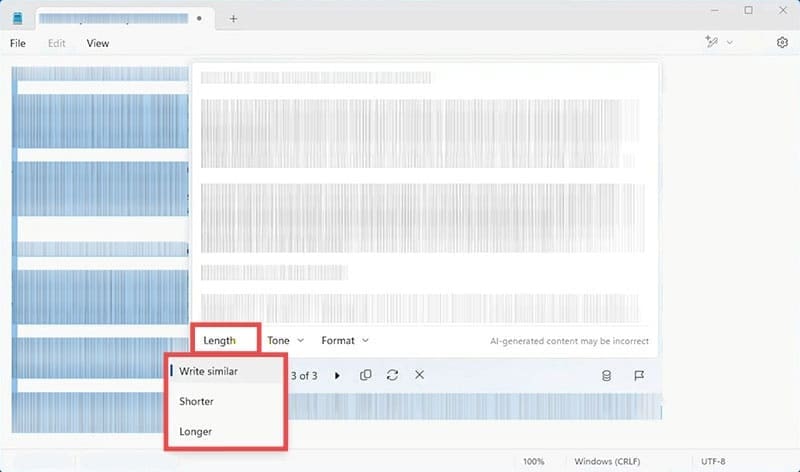
2. The summary of your selected text will appear in a new window. You can adjust the length via the “Length” button underneath.
3. You can click the “Insert Below” button to paste the summary directly into the file below your highlighted text. Otherwise, simply copy it by clicking the icon.
Write
One of the newer AI features lets you give Notepad’s AI the job of writing content. Here’s how:
1. Click a space where you’d like to insert the writing and choose “Write” from the context menu or Copilot menu. You can also press (Ctrl + Q).
2. A prompt box will pop up. Tell the AI what you’d like it to write (the more input, the better) and press the “Send” button.
3. The AI will generate your new text. You can then insert it into the document by hitting the “Keep Text” button. You can also copy, rewrite, or discard the text.
Limitations
Microsoft Notepad’s AI is connected to Copilot and, as such, has limited use. That is, unless you’re a Copilot Pro subscriber. Standard Windows 11 users who subscribe to Microsoft 365 (Personal or Family) currently have access to these features, along with 60 credits to use per month.
The tools are also currently available to Windows Insiders.

Disclaimer: Some pages on this site may include an affiliate link. This does not effect our editorial in any way.