All code editors come with issues that need resolving from time to time. We’re not talking about problems in the code today, but rather common issues that pop up and need to be addressed. In this article, we’ll be looking at a few of these in Cursor AI, Windows 11, and how to fix them.
Troubleshooting Errors in Cursor AI Windows 11
We’re listing the big issues in this article and grouping them for easy reference.
Check Your Connection

If you’re suffering from slow to no response times in Cursor, then your first check should be your network connection. Ensure that your PC is connected to a stable signal and that your router is working correctly.
Another quick way to check that both you and Cursor’s servers are working correctly is to follow the link https://api2.cursor.sh/ on any browser. If it works, then it’s not the internet or the servers.
If the network issue persists, enter your Cursor Settings, navigate to “General,” then “Network,” and change the “HTTP Compatibility Mode” from “HTTP/2” to “HTTP/1.1.”
Usage Quota
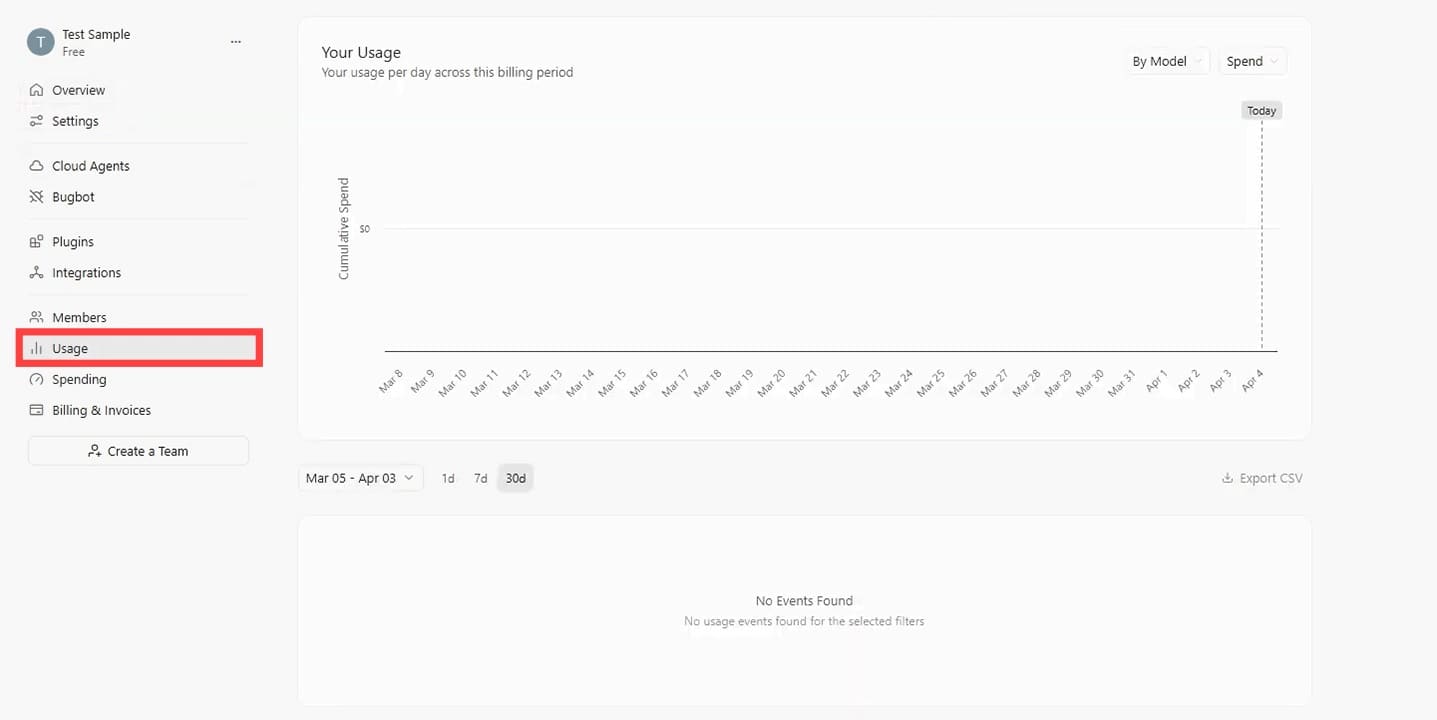
A common limiting factor in Cursor is the usage limit for your membership tier, especially if you’re using the Hobby (free) tier or a lower paid tier. To check your limits and whether you’ve exceeded them, visit the Cursor site and sign in with your details.
Model Problems
The models you use in Cursor might not always be cooperative. It’s important to note that the free tier might not support the models you want to use, especially newer models like GPT-5.5. Your available models are visible in the dropdown menu in your chat. If you don’t see one listed there, it isn’t available for your subscription.
Autocomplete Not Working
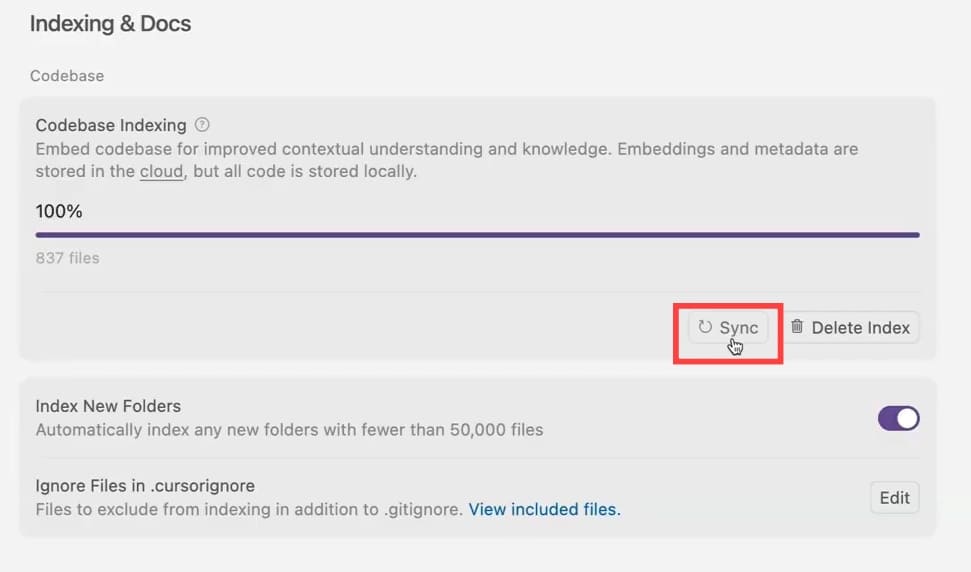
What’s the point of an AI coder if it isn’t going to offer suggestions and autocomplete things? If this is your problem, you can try resyncing the index:
Step 1. Open your Cursor settings and head to “Indexing & Docs.”
Step 2. In “Codebase Indexing,” click the “Sync” button and allow the process to run.
Step 3. Once complete, restart the app and try again.
API Issues
If the API is giving you trouble, you’ll know because you’ll receive an error message to that effect. This could be due to a key expiring, being configured for another AI platform, or a simple typing error, amongst other things. Here are some quick checks and fixes:
- Check your usage limit.
- Double-check the code, ensuring no typos exist. Pay attention to any spaces after the code, which can trigger the error.
- Try generating a new API key.
- Visit the platform itself and ensure the key is still valid.
Losing Chat History
It’s important to keep your work backed up in Cursor on the rare chance your history is deleted. You can do this by doing the following:
Step 1. Open the Run Dialog (Win + R) and type “%APPDATA%\Cursor\User\workspaceStorage” before clicking “Enter.”
Step 2. Copy the “workspaceStorage” somewhere else to back it up.
Step 3. If you’ve lost your history, return to this folder and look for a backup, too.
Related Posts
 How to Use Cursor AI Code Editor
 Something Went Wrong With Bing AI – How to Fix It
 The 6 Most Interesting AI Features in
 Windows 11 Is Becoming More Powered by AI Than Ever – What to Expect
 New AI File Renaming Tools Released in 2025 for Windows
 Can Copilot Tasks Improve Productivity for Busy Creators?

Disclaimer: Some pages on this site may include an affiliate link. This does not effect our editorial in any way.