Are you good at sketching things but not at creating precise or detail-oriented renders? Draw3D AI is here to help, allowing you to speed up image generation or ideation. By combining image and text prompts, it promises high-fidelity images, videos, and even the ability to create 3D-style compositions. Read on to learn exactly how to use the tool and the best use cases for it.
What Is Draw3D AI and How to Use It?
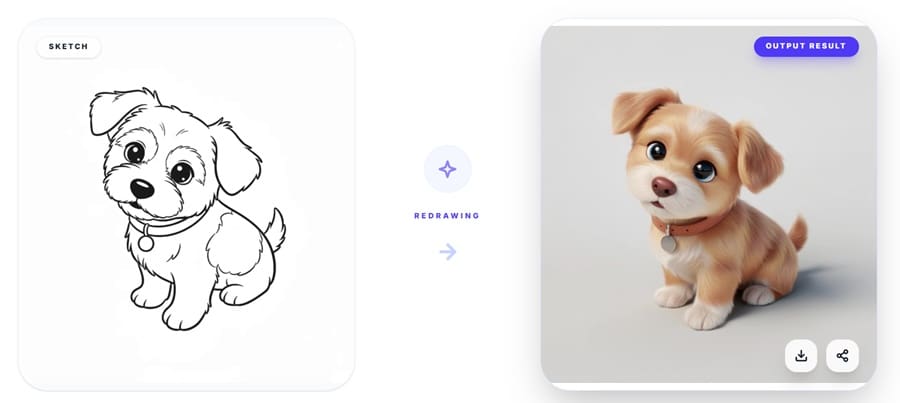
At its core, Draw3D AI is a graphics generation suite that’s designed for 2D-to-3D conversion or regeneration. In simpler terms, it uses sketches or black-and-white drawings and an existing library of stylistic templates to turn them into something more resembling traditional AI art, drawings, and models.
Using the tool is surprisingly easy, but there are a few ways to go about it.
Using the Sketch to Photo Converter
This is the basic tool that allows you to upload a sketch and convert it into different styles.
Step 1. Log in to your account (or create a new one and finalize the subscription).
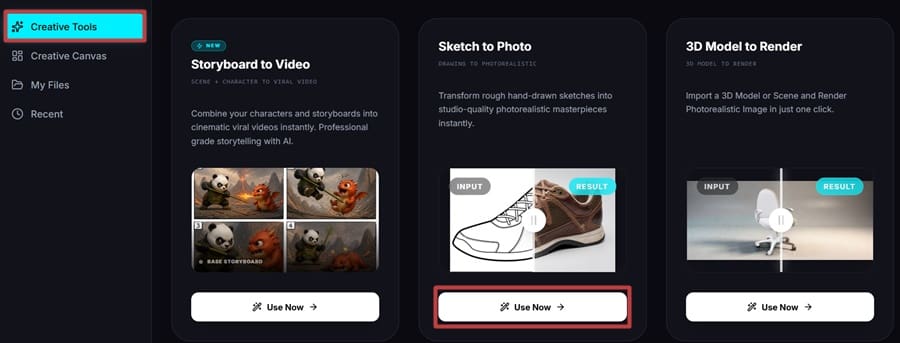
Step 2. In the main menu, go to “Creative Tools” and hit “Use Now” under “Sketch to Photo.”
Step 3. Click to upload the image and find it in the browser dialog.
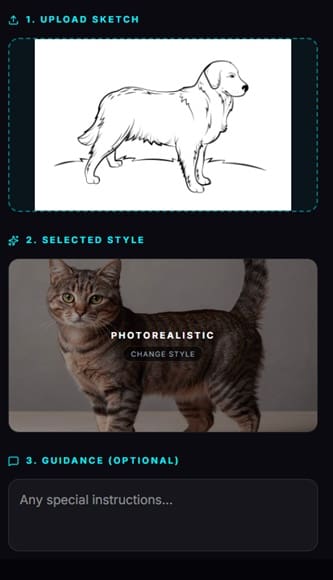
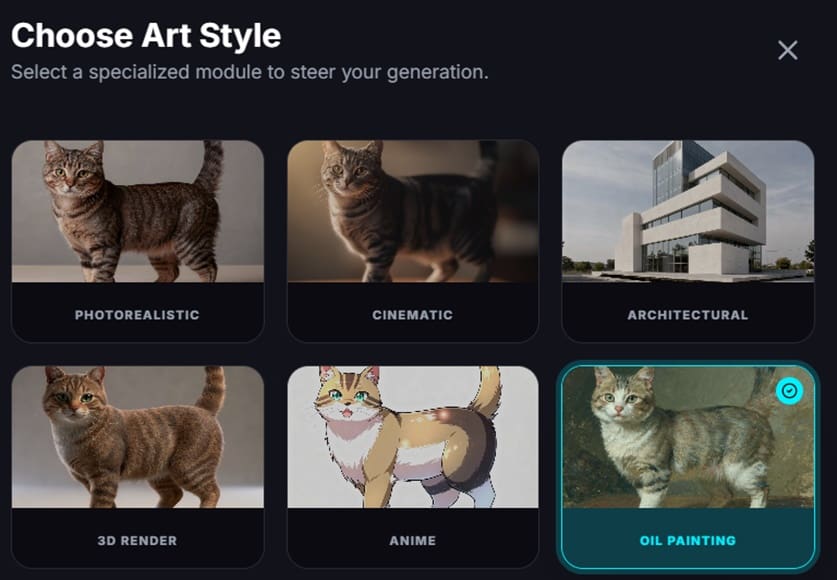
Step 4. Choose a style for the converter.
Step 5. Add an optional text guide that suggests colors or other parts of the art.
Step 6. Click on “Generate” and wait for the AI to finish.
A quirk of the UI here is that the “Generate” button might not be visible and the platform lacks a scroll option on some browsers. The way to go around this is to use the “Tab” button to scroll through options until it shows on-screen.
The results of the conversion will be highly dependent on the quality of the sketch you provide. In general, the “strength” of the sketch and contrast between the black and white will give the AI more to work with, while lower-quality scans might not render best at first or without text input.
Using the Freeform Sketch Tool
Apart from uploading finished sketches, Draw3D AI allows you to create sketches right on the platform and then convert them. To use it, go to “Creative Canvas” and start a new project, then choose “2D Sketch.”
After drawing, describe all the layers and what they represent, and give one final text prompt at the bottom before hitting “Generate.”
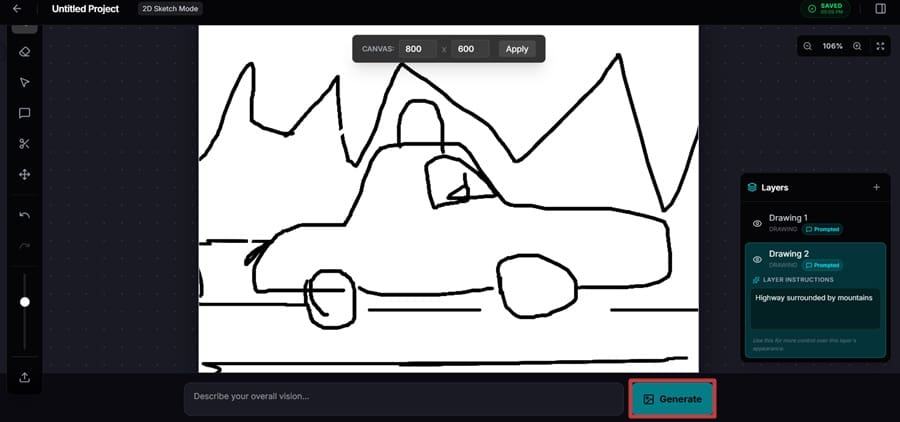
However, while the tool’s layering system allows you more freedom, one major quirk is the drawing cursor. During testing, the cursor appeared white against the white canvas in some browsers, and some browsers won’t allow you to change either. This makes the drawing process quite tedious.
Other Features
Apart from 2D conversions, the tool also animates images and creates 3D compositions and interior or exterior design shots from samples. All of these tools are included in the same bundle, so they are useful if you want something beyond converting sketches.
Verdict
One of the main caveats of the tool is that it’s not free. There is no free trial for generating images, and you can’t preview the changes or the AI-generated images or styles.
While you can make a free account, log in, and upload photos or even use the sketching option, trying to use the actual AI generator will prompt you to choose a subscription.

This makes the tool only useful if you want to commit to making 120 images (as that’s how much the “Starter” kit supports based on its credit allowance).
Related Posts
 How to Get Summaries of YouTube Videos Using AI and Save Time
 How to Make Websites and Portfolios With Trickle AI
 Combine All Image Generators Into One With Masonry
 Create New Memories From Old Photos With NovaFlick AI
 How to Use The Password App to Automate Password Management
 How to Use AI to Land Better Jobs for Upwork With Pitch Pilot AI
 How Criticly AI Transforms Your Insights – Full Review
 Origon AI Review: How to Design and Deploy Your Own AI System
 Is Deep Beat AI as Good as Writing Your Own Rap?

Disclaimer: Some pages on this site may include an affiliate link. This does not effect our editorial in any way.