If precision rounding is something that you need for work, study, or managing your finances, Excel’s rounding functions are a super useful tool. The base version can quickly round your numbers and save time working out every calculation. However, depending on the digits below the cut-off point, it will round the number up or down.
That’s where the dedicated ROUNDUP function comes in. Read on to learn how to use it and when it’s useful.
The Basics of the ROUNDUP Function
The ROUNDUP function has the following formula:
ROUNDUP(number,num_of_digits)
The first argument (number) is the number you want to round.
The second argument is the number of digits you want to round to.
Note that the second number is an integer but can also be negative. If it’s zero, it will round up the number to the next integer value (for example, 10.4 becomes 11).
However, if the second argument is negative, it will round up before the decimal space. This amounts to the multiple of 10 to the power of the absolute value of the argument. For example, if you put ROUNDUP(21523.46,-3), it will round up the number 21,523.46 to the nearest 1000 (since 10^3=1,000), so it becomes 22,000.
Note that rounding up a negative number results in a shorter negative number (-23.5 rounded up to the next whole number is -24).
Here are some detailed examples of how to use the formula.
How to Round Up to Two Decimal Places in Excel
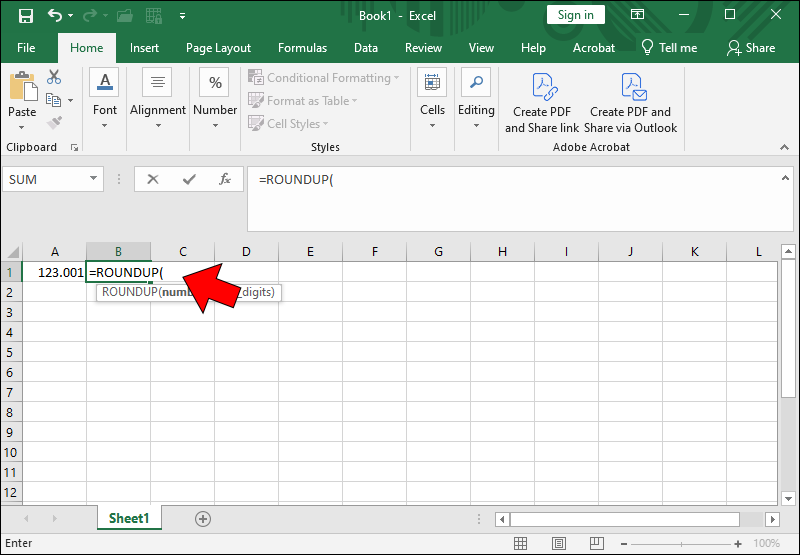
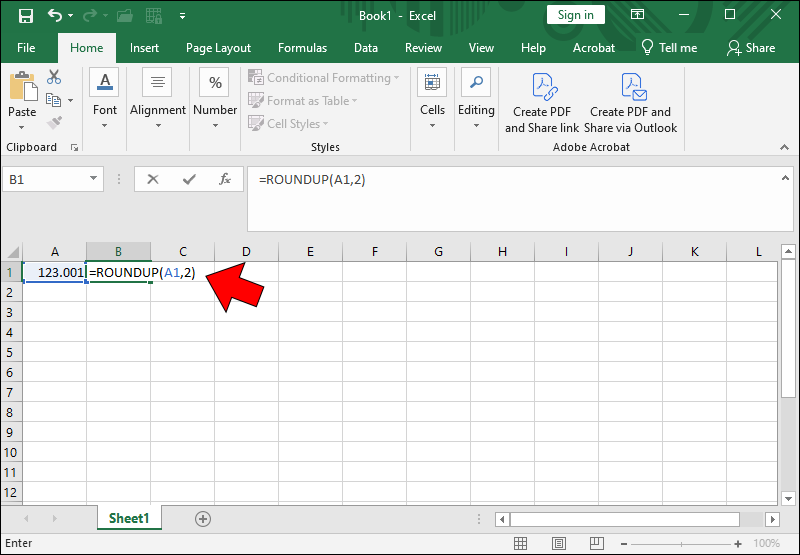
Most commonly, statistical, scientific, and school work requires the result to be displayed with two decimal digits. If you need to round up to them, here’s how:
- Click on the cell in which you want to display the rounded-up number.

- Type
=followed byROUNDUP(into the cell.
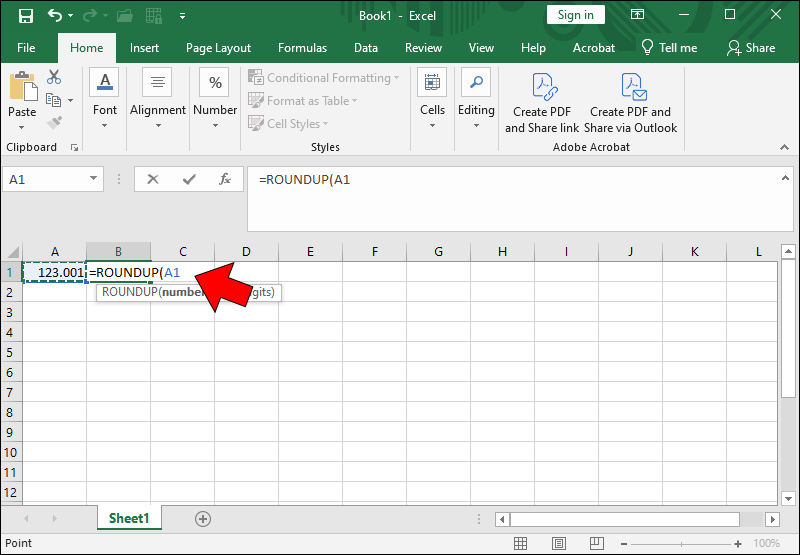
- Select the cell that contains the value you wish to round up to input it into the formula.
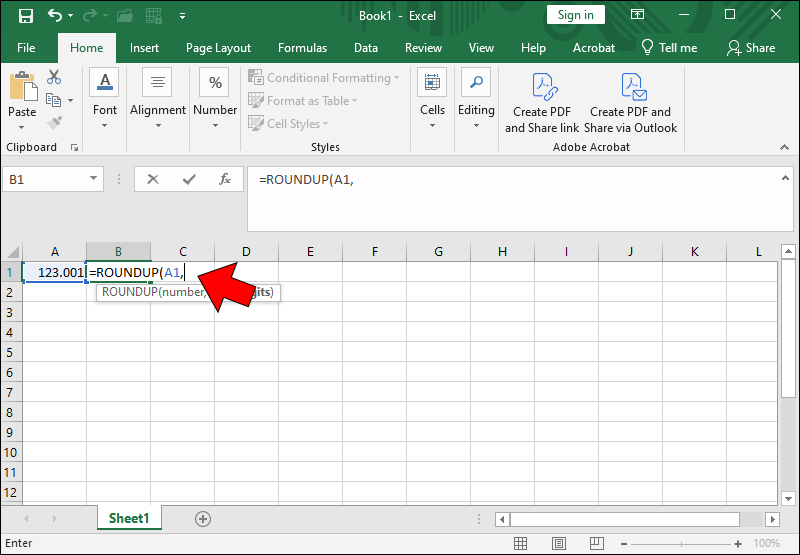
- Put in a comma.
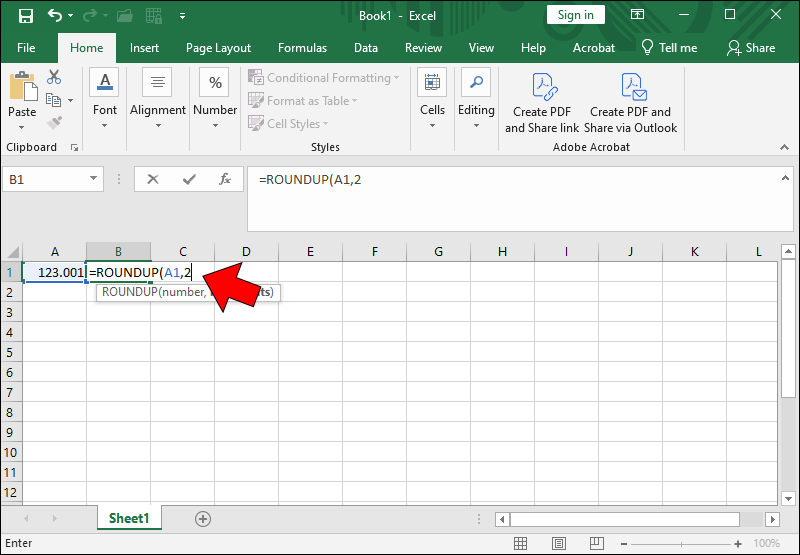
- Type
2to input that you want to round up to two decimal places. - Add the closing parenthesis.
- Press Enter.
How to Round Up to the Nearest Whole Number in Excel
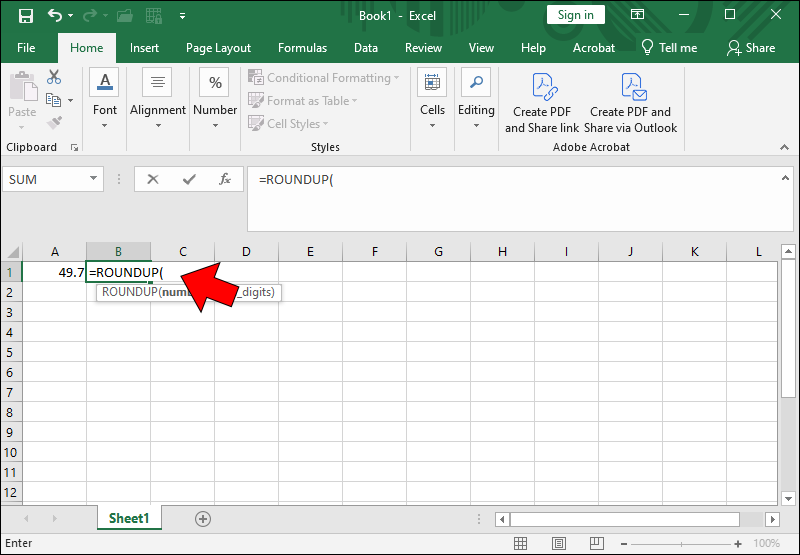
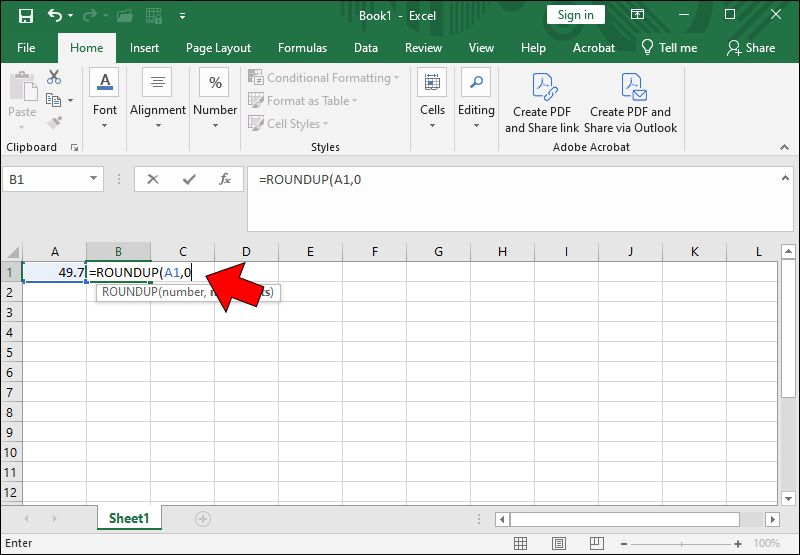
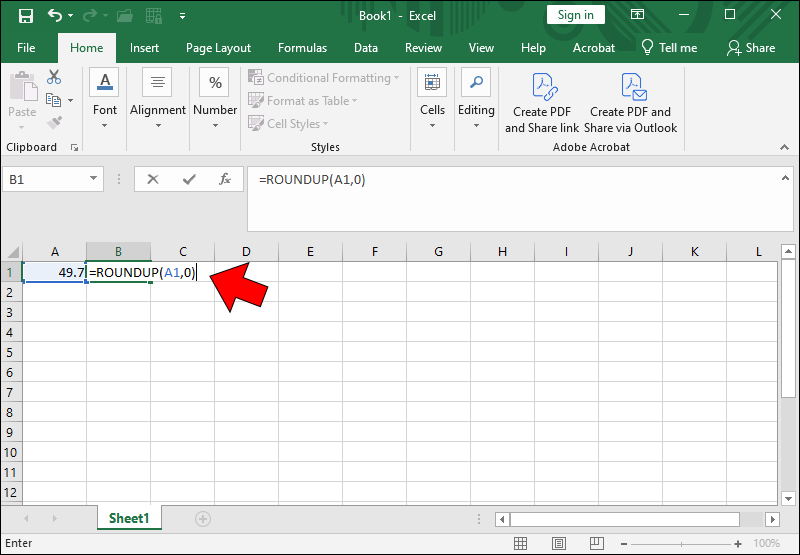
Your data set values may require rounding up to the nearest whole number rather than decimal places. Fortunately, rounding up to whole numbers in Excel is just as simple as rounding up to decimal places. Here’s how:
- Select the cell in which you wish to view the rounded-up number.
- Enter
=ROUNDUP(into the selected cell. - Click on the cell that contains the number you want to round up.
- Enter a comma (if that’s your argument separator) and type in
0to specify that you want to round up to the nearest whole number. - Type a closed parenthesis to finish the formula.
- Press Enter.


How to Round Up to Tens in Excel
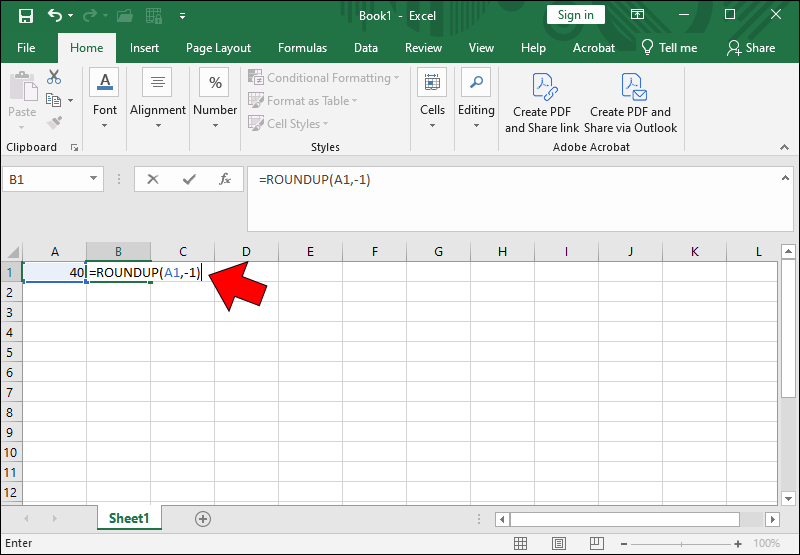
As mentioned, the ROUNDUP function can work with negative integers as the number of decimals. This is useful when you want to round up to tens in Excel:
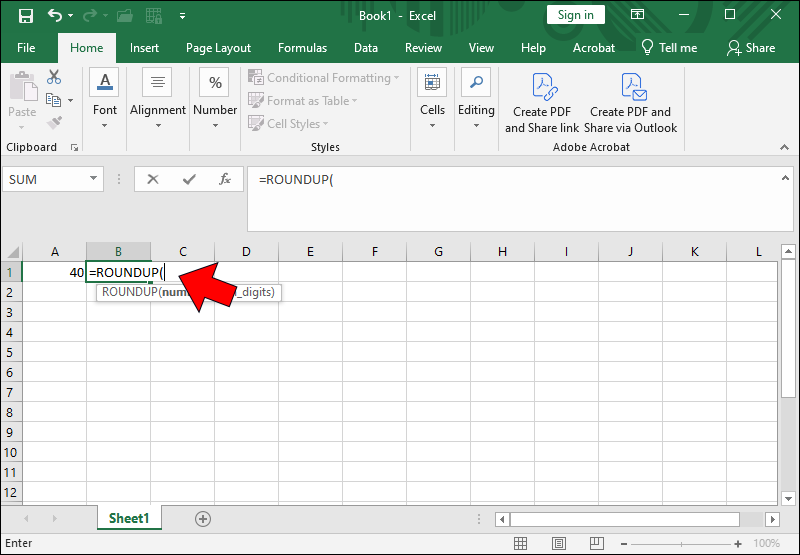
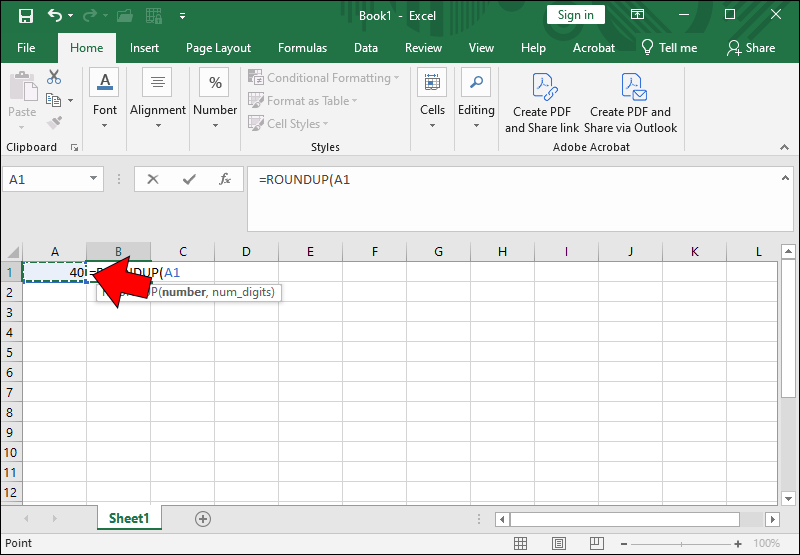
- Select a cell.
- Initiate the roundup formula by typing
=ROUNDUP(into the cell. - Click on the cell that contains the value you wish to round up.
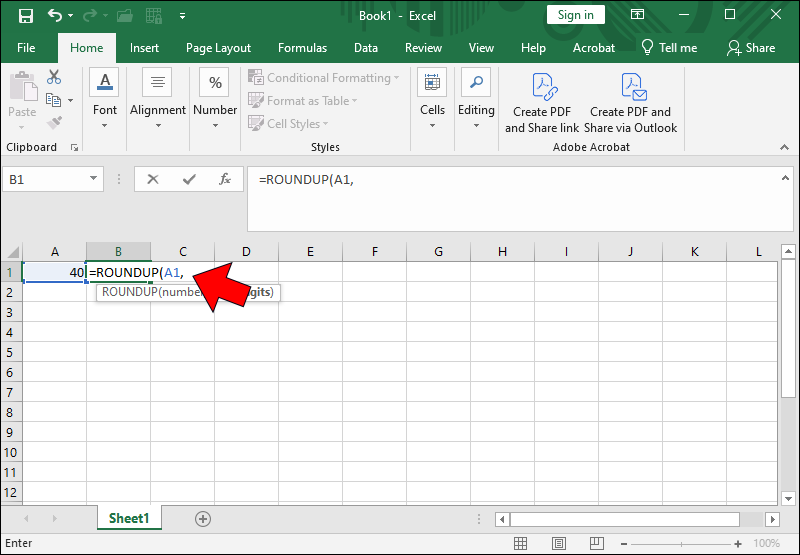
- Type a comma.
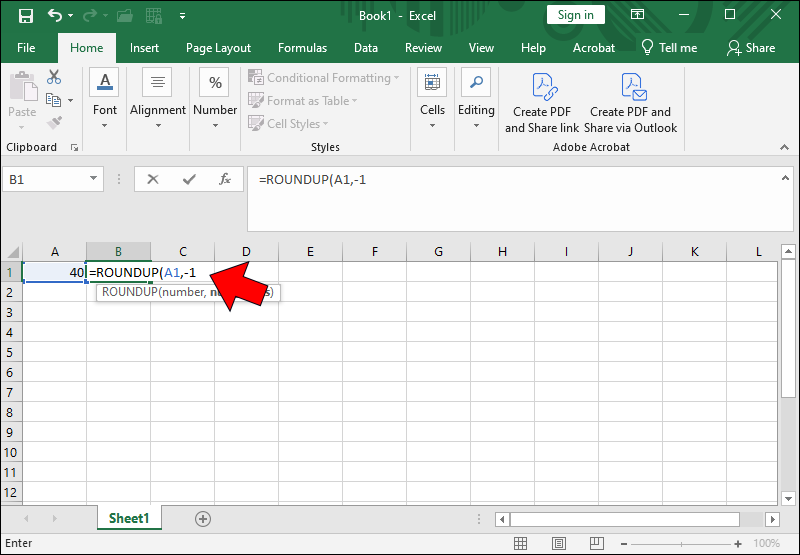
- Put
-1to specify that you want to round up to the nearest ten. - Add a closing parenthesis.
- Press Enter to finish the formula and get the result. For example, the number 1234.56 will be converted to 1240.

How to Round Up to Hundreds in Excel
You can even round up your numbers to the nearest hundred in Excel. Similar to rounding up to ten, rounding up to a hundred will present your numbers in an easy-to-read way. It also comes in handy when doing estimation work that only requires approximations rather than exact figures.
Here are the steps to round up to a hundred in Excel:
- Click on the cell where you wish to display your rounded-up number.
- Start the formula by typing
=ROUNDUP(into the cell. - Click on the cell that contains the value you wish to round up.
- Enter a comma.
- Type
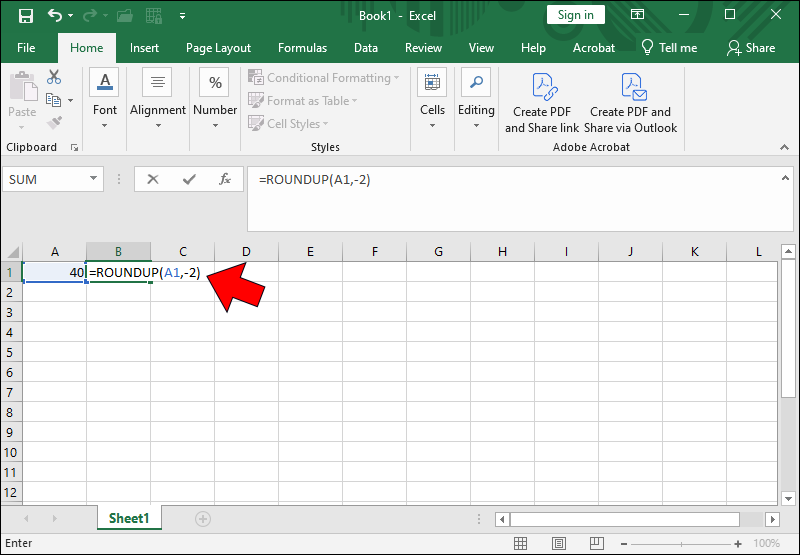
-2to specify that you want the number rounded up to the nearest hundred. - Put in
)to close the formula. - Press Enter to finish.

Difference Between ROUND, ROUNDUP, and ROUNDDOWN in Excel
As mentioned, there are three rounding functions in Excel: ROUND, ROUNDUP, and ROUNDDOWN.
ROUNDUP always rounds the number up, regardless of the value after the rounding digit (cut-off). So long as the cut-off contains more than one non-zero digit, it increments the last one.
By contrast, ROUNDDOWN always rounds the number down, ignoring any remainder after the cut-off point.
ROUND is the most complex of the three and behaves like traditional mathematical rounding:
- If the next digit after the cut-off is between 0 and 4, it will round down.
- If the next digit after the cut-off is between 5 and 9, it will round up.
Other Rounding Functions in Excel
There are also a few other rounding formulas that you’re less likely to use, but which can nevertheless be helpful:
MROUND(A,B)rounds a number A to the nearest multiple of B (so MROUND(23,5) becomes 25). It doesn’t work if one of the numbers is positive and the other is negative.EVEN(A)rounds up a positive number or rounds down a negative number to the next even integer.ODD(A)rounds up a positive number or rounds down a negative number to the next odd integer.
Outsource Your Rounding Up
The Excel rounding function takes tedious, time-consuming, and dull calculations, transforming them into something that can be done super-fast and with minimal hassle. Furthermore, it gives you many options that provide impressive flexibility when rounding and displaying your data sets precisely how you want.

Disclaimer: Some pages on this site may include an affiliate link. This does not effect our editorial in any way.