AI integration can be an invaluable tool, especially when it comes to handling the massive spreadsheets you can create in Microsoft Excel. To have a tool that works alongside you, rather than repeatedly copying and pasting into your web browser, makes all the difference. Though still officially in beta, Claude in Excel is a fantastic tool to facilitate your workflow, able to help make spreadsheets simple and data intelligible.
In this article, we’ll be taking a look at Excel data analysis with Claude AI.
How to Install Claude for Excel
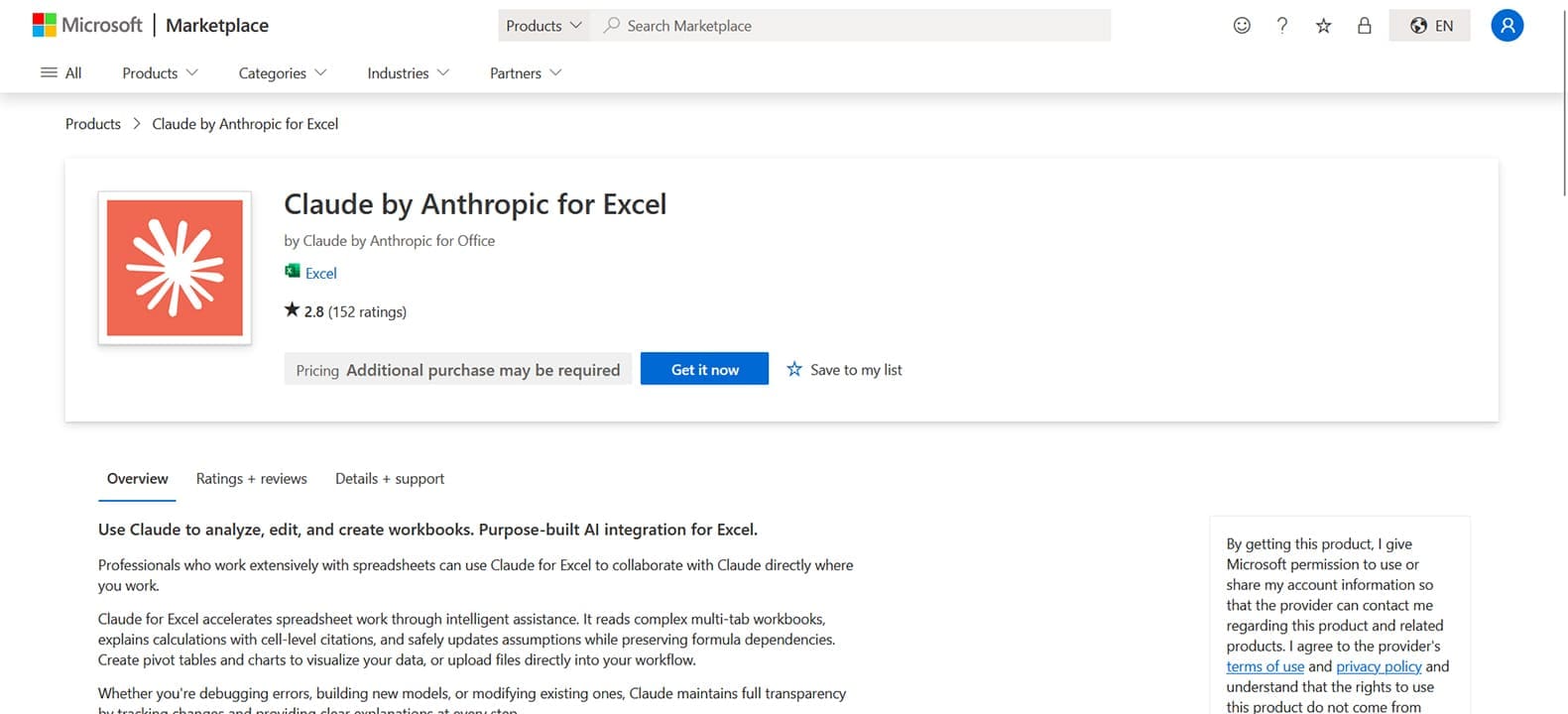
Let’s start with the practical side of things. Claude for Excel will run both on Microsoft Excel 365 and the desktop version (16.0.13127.20296 or later). What you need is:
- An active Microsoft Account, signed in online and in Excel (if desktop)
- An active Anthropic subscription to Claude (Pro, Max, etc.) and not a free account
Next complete the following steps:
Step 1. Head to Microsoft Marketplace in any browser and search for “Claude by Anthropic for Excel.”
Step 2. Click the “Get it Now” button and it will be added to your account.
Step 3. Open Excel and “Add-ins” in the “Home” tab.
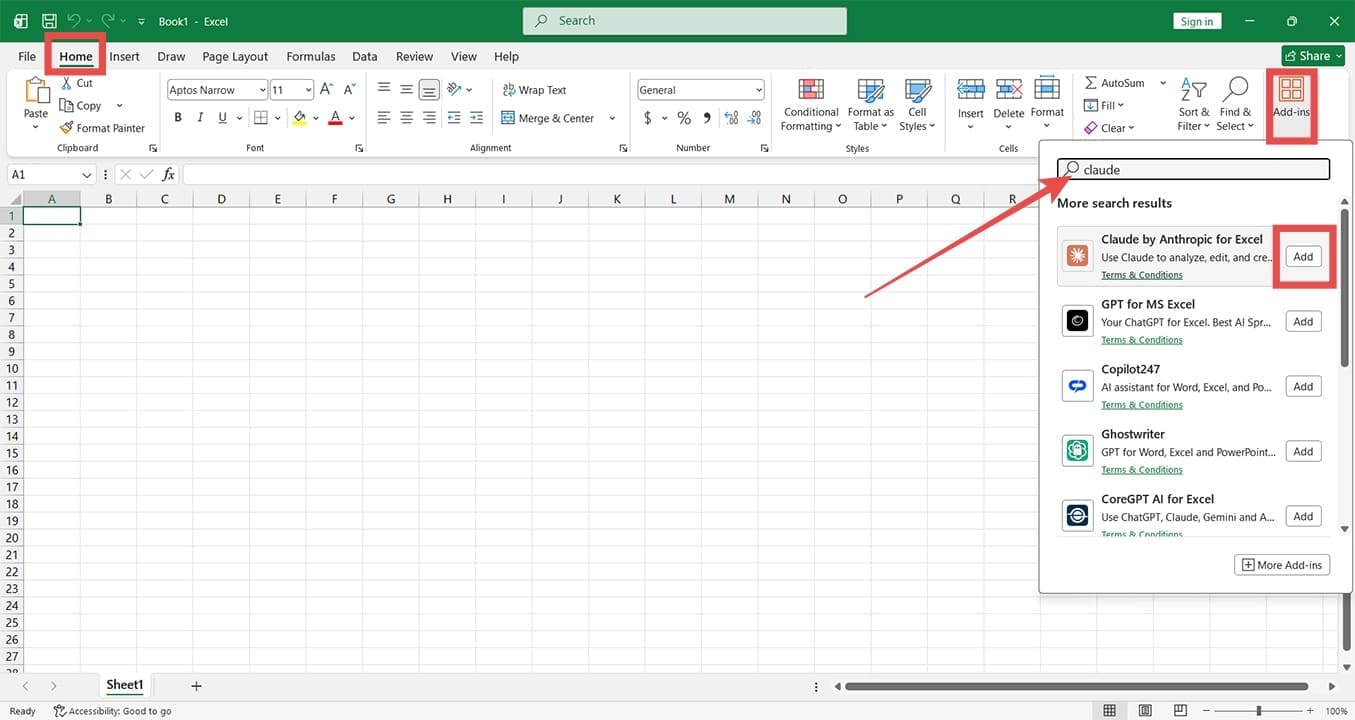
Step 4. Type in “Claude” and click “Add to include the extension.” Sign in to your Claude account and you’re ready to go.
How Excel Data Analysis With Claude AI Works
Now that you’ve got Claude AI added to Excel, it’s time to look at what it can (and can’t do). Claude has access to your sheets in real time, and there’s no need to copy and paste:
Data Cleanup
Perhaps the most useful aspect of Claude in Excel is its ability to clean everything up. If you’re looking to sort columns, format cells, or update inputs that still keep dependencies intact, then all you have to do is ask via natural text input. No longer do you have to rely on knowing how cell wrapping works or worry about manual changes disrupting existing data.
Master the Formula
Knowing all the formulas in Excel (not to mention their very finicky syntax) is something even Excel pros get wrong from time to time. Claude can explain the steps behind a formula, generate the right one on request (via text prompt), and check that all brackets and commas are in place.
Statistical Analysis
Claude is ideal for monitoring trends and spotting patterns that human eyes may miss, especially in large swathes of data over months or years. It can also help you make sense of the figures by explaining complex analysis in simple language, based on the criteria you input.
Visualization
Claude offers recommendations on which charts or graphs would work best for your data. Providing it with a data range and asking for a visualization will return a graphical output with a detailed explanation as to why.
Cans and Cant’s
As wonderful as the above is, it’s important to remember Claude AI is a tool to assist you, not a complete replacement for your own work. It’s important to be precise and detailed with your prompts to get the best results. Labeling your data and columns clearly can go a long way in helping readability. Just remember:
- Claude in Excel cannot recommend questions to ask.
- It’s still AI and not immune to hallucinations and occasional errors.
- It won’t understand the nature of your organization or its goals.
Related Posts
 DeepSeek vs. ChatGPT vs. Claude – Or None of Them?
 Best AI Tools for Dream Analysis
 ChatGPT vs. Gemini vs. Claude – How Do They Compare?
 What Is New in Claude 4?
 Get ChatGPT, Claude, and Midjourney on Telegram With Unlim AI
 Best AI Tools for Excel
 Get a Collaborative AI Assistant for Excel With Grist AI

Disclaimer: Some pages on this site may include an affiliate link. This does not effect our editorial in any way.