Perplexity AI is a useful search engine powered by machine learning that aims to give fast and accurate answers. If you’ve ever wanted to copy information and especially tables from the answers to your prompts, then this article is for you. We’ll be exploring how to copy a table from Perplexity AI.
How to Copy a Table From Perplexity AI
Let’s get straight into it. Here are a few different ways to copy tables from Perplexity AI:
The Direct Copy Method
If you aren’t fussy about formatting, then the quickest, easiest method is a direct copy. Here’s what to do:
Step 1. Drag and highlight all cells (rows and columns) in your table in Perplexity AI.
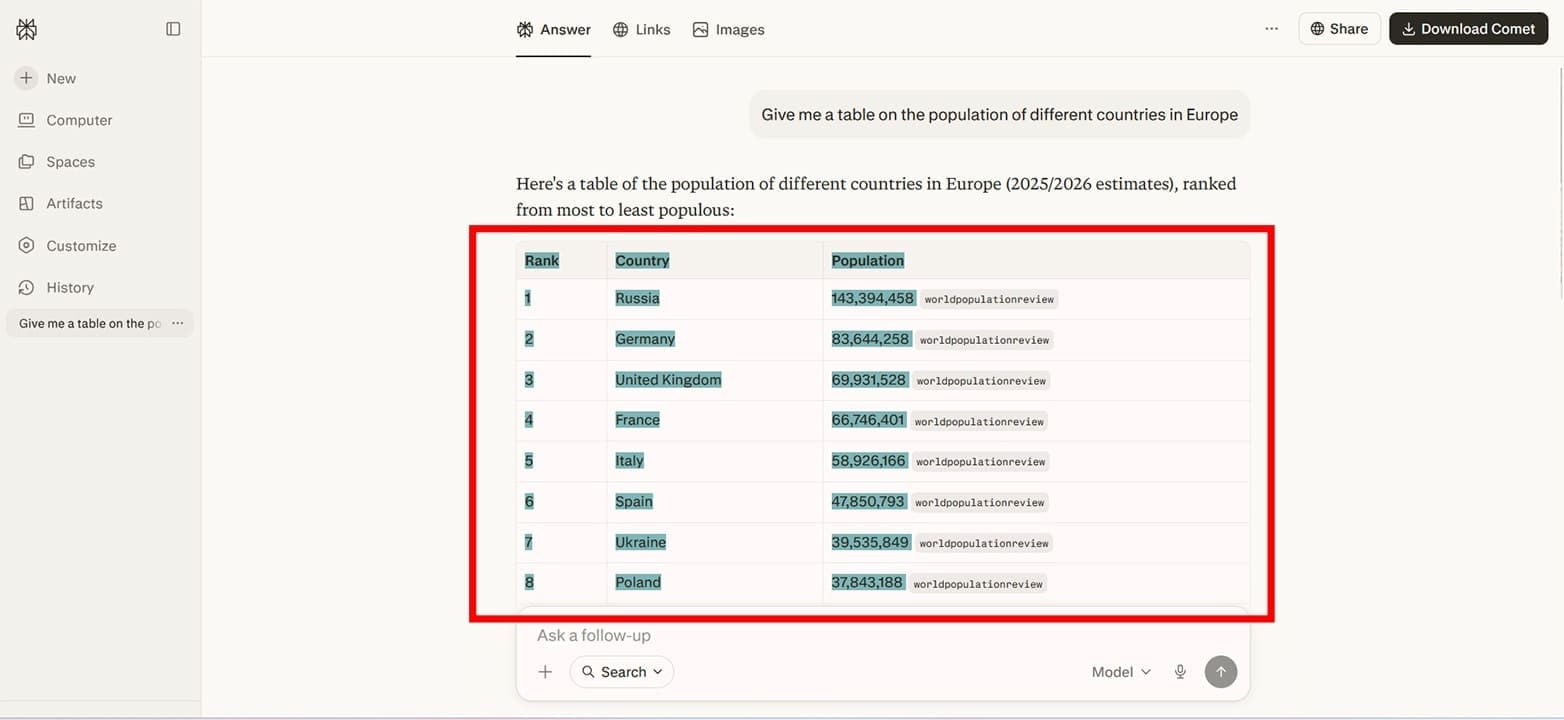
Step 2. Hit (Ctrl + C) or right-click and choose “Copy” from the context menu of your browser to copy the cells.
Step 3. In the program you want to paste it in, click a blank area, then click (Ctrl + V) or right-click and choose “Paste” to make the transfer.
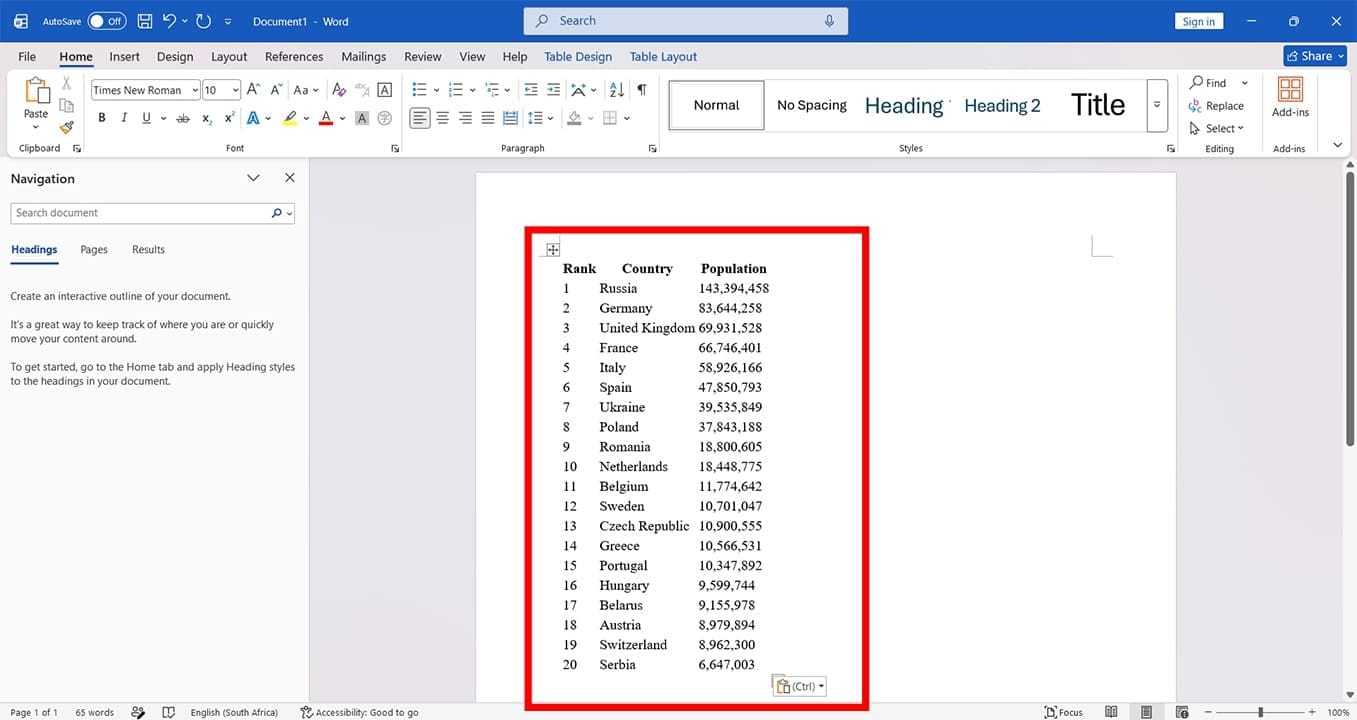
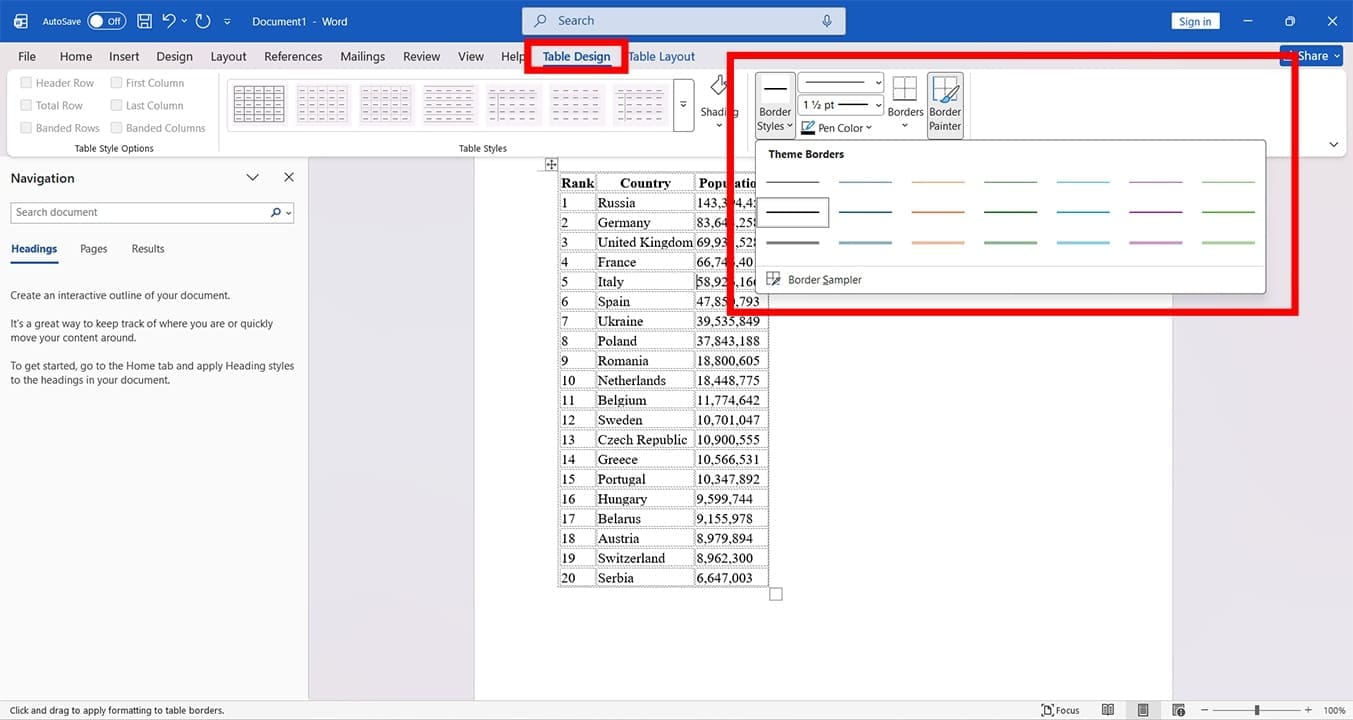
Step 4. Despite appearances, copying directly will maintain the data as a table, just with none of Perplexity’s formatting. If your app has table tools, you can adjust the color, size, and borders of the table once pasted.
Drag and Drop
This method is a variation on the above, but just without the keyboard shortcuts:
Step 1. Drag and select your entire table in Perplexity.
Step 2. Click and hold on any part of the highlighted table and begin to drag your mouse.
Step 3. Drag over the taskbar, and hover over the app you want to paste in.
Step 4. Once the app window opens up, hover the table over the main window and release to paste.
Note that in some browsers and applications, you may be able to drag and drop table content right into another window.
Using the Copy Tool
Of course, most users will want their table to retain its original formatting when pasted into another application. In this case, Perplexity AI has you covered with the built-in option to copy tables. Here’s how to use it:
Step 1. In Perplexity, hover your mouse over the bottom-right section of your table. You’ll see two icons appear. Hover over the left one (“Copy table” will appear) and click it.
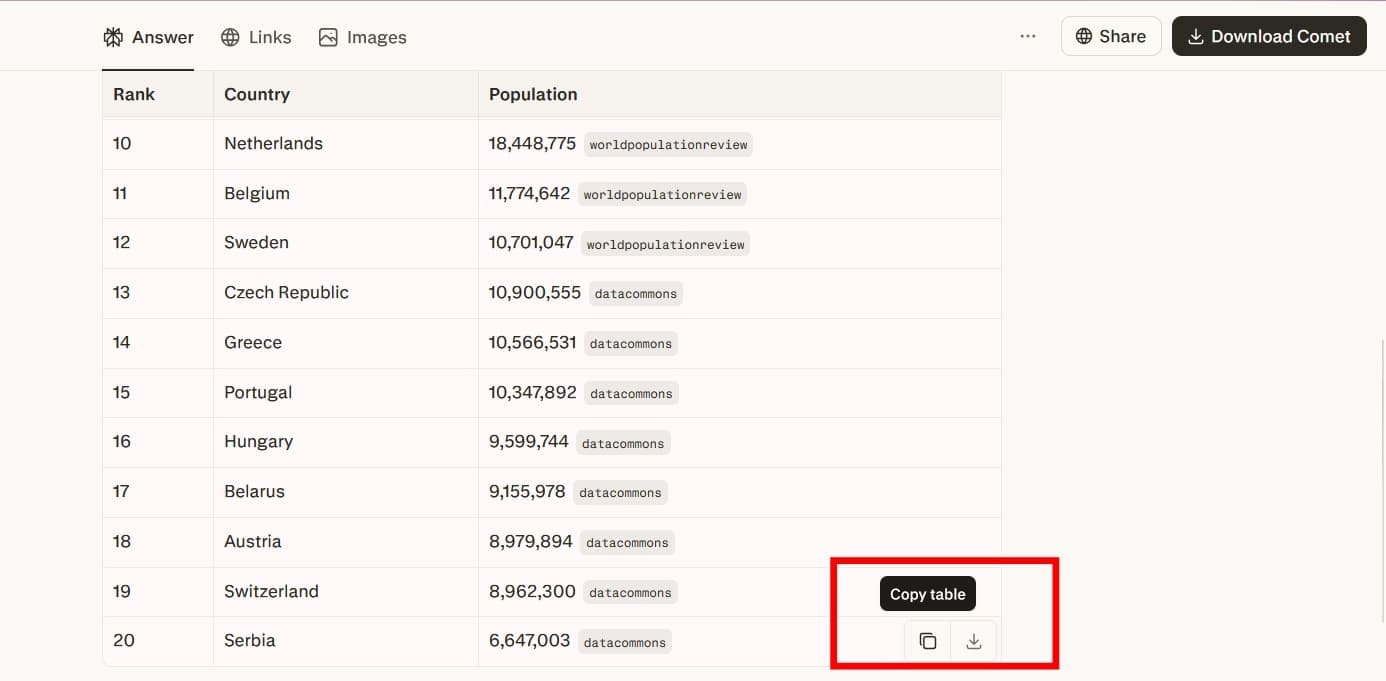
Step 2. A note will pop up that the table is copied to the clipboard. Head over to the app you want to paste in and hit (Ctrl + V) or right-click “Paste” to transfer the table. You’ll see that the original appearance remains.

Download as CSV
We mentioned the icons that appear when you hover over your generated table. The second one lets you download the table in a “.csv” format, a file type that stores data as a table. Here’s what to do:
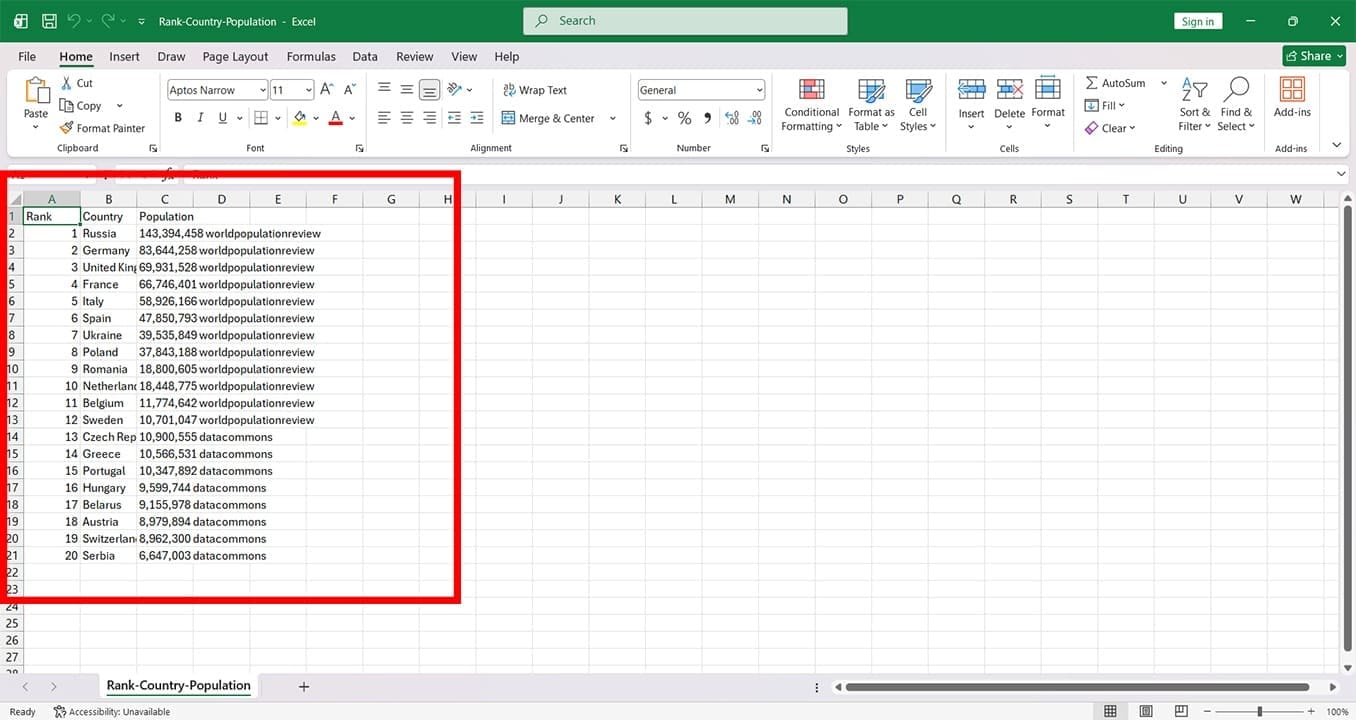
Step 1. Hover over the table in Perplexity AI, and click the right icon that appears: “Download CSV.”
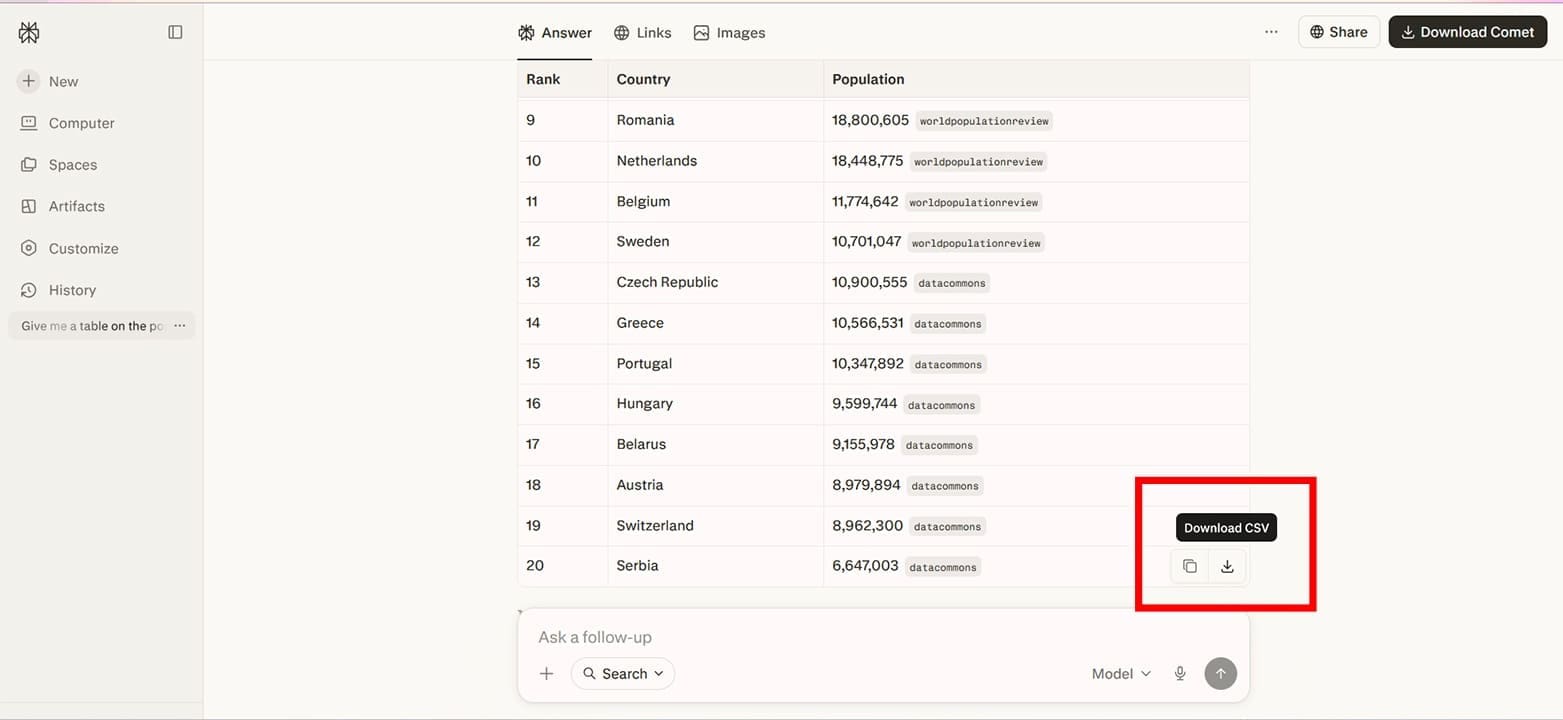
Step 2. The file will download. Once done, open it. On many systems with Microsoft Excel installed, CSV files will open in Excel by default.
Related Posts
 Can Perplexity AI Assist With Fact-Checking on WhatsApp?
 Discord Is Promoting the New Comet Browser by Perplexity AI – Is It Any Good?
 Best AI Chatbots for WhatsApp You Should Try
 3 Fun AI Minecraft Builder Tools
 Revolutionize Research With Scientific Article Summaries Done by SciSummary AI
 Using AI to Tailor Your Resume for Job Searching
 Best AI for Reddit Posts and Managing Your Reddit Content
 What Are Some Major Limitations of AI Assistants?

Disclaimer: Some pages on this site may include an affiliate link. This does not effect our editorial in any way.