
AI is moving in leaps and bounds, and there seems to be something new happening every week. Google Gemini has been busy too, and now has the option not only to visualize prompts, but also to interact with them in exciting ways.
In this article, we’re going to be looking at how to create 3D model with Gemini and what you can do with it.
A New Chapter in Interactivity
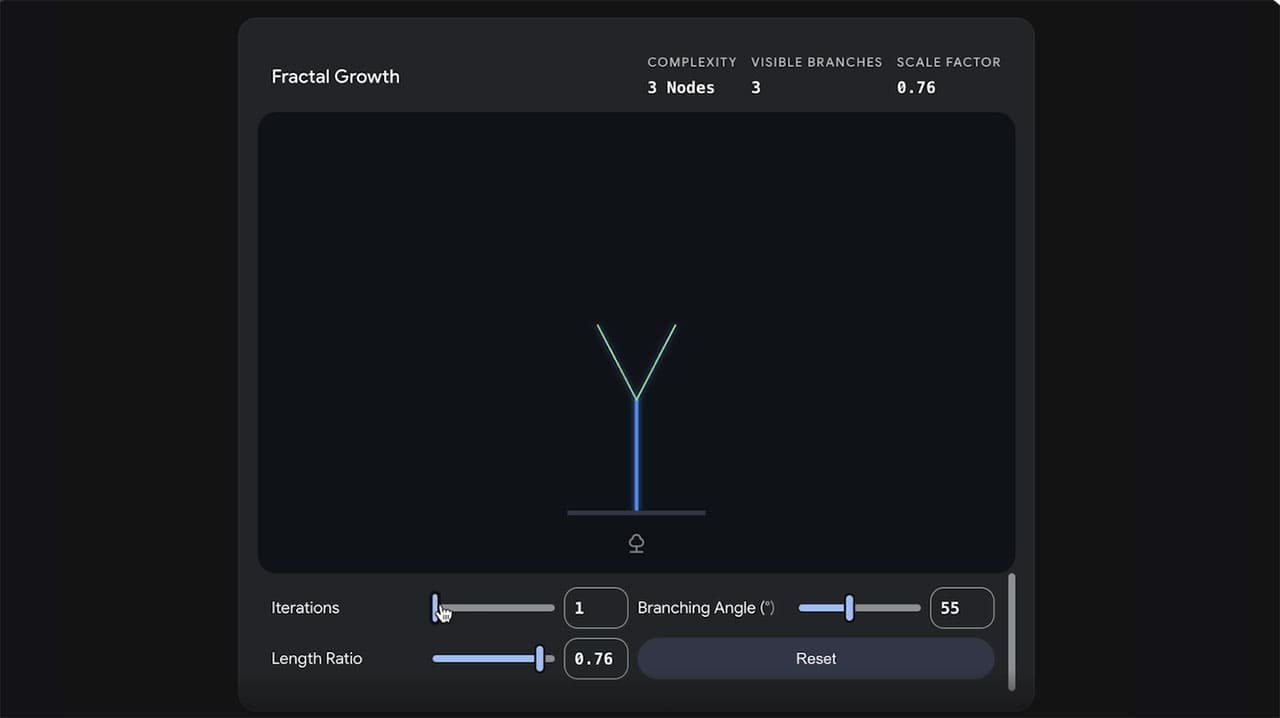
On the front end, it’s pretty exciting. You ask Google Gemini to visualize something, and you have not text, not an image, but an actual interactive object. Under the hood, though, there’s a lot to get excited about too.
The interactive modeling capability is part of Gemini’s ability to create interactive visualizations and simulations. Separately, Google’s Interactions API provides developers with server-side conversation state and execution capabilities in the background. Rather than having to resend the entire conversation history, the Interactions API lets developers use previous_prompts_to continue a conversation.
What Does Gemini Generate?
For Google Gemini, create 3D model from image or prompt is very straightforward, if understandably time-consuming. What can the tool generate? The models can be grouped into roughly three categories:
- Simulations of physics, such as pendulum swings or planets in orbit.
- Models of molecular and biological structures. Ever wonder what the inside of a cell looks like?
- Interactive charts for a better visualization of stats, from heat maps to real-time data trends.
The best part of all three is the spatial understanding they grant of admittedly very complex topics. The ability to interact with and adjust the settings of a solar system map or chart makes it easy to grasp.
Who Is It For?
As we see above, this 3D modeling is best used for informational and educational purposes. Simulations can be prototyped rapidly as proof of concept or for demonstration, data visualization can close gaps in understanding, and students and adults alike can benefit from learning about the largest and smallest systems in our universe.
What Are the Limitations?
Google initially rolled out this capability to Gemini app users in April 2026, but Education and Workspace accounts were excluded at that time. However, availability has since been expanded. As of August 2026, the feature is available to all Google Workspace customers, Workspace Individual subscribers, and eligible users, although usage limits applying.
The interactive visualization feature is part of the Gemini app experience. Meanwhile, developers can separately use Google’s Interactions API to build applications with Gemini models and agents.
How to Create a 3D Model With Gemini
Can Gemini create a 3D model? Absolutely. Provided you meet the requirements above, using the Gemini app to create an interactive model is straightforward:
Step 1. Head to the Gemini app and ensure you are signed in to your profile.
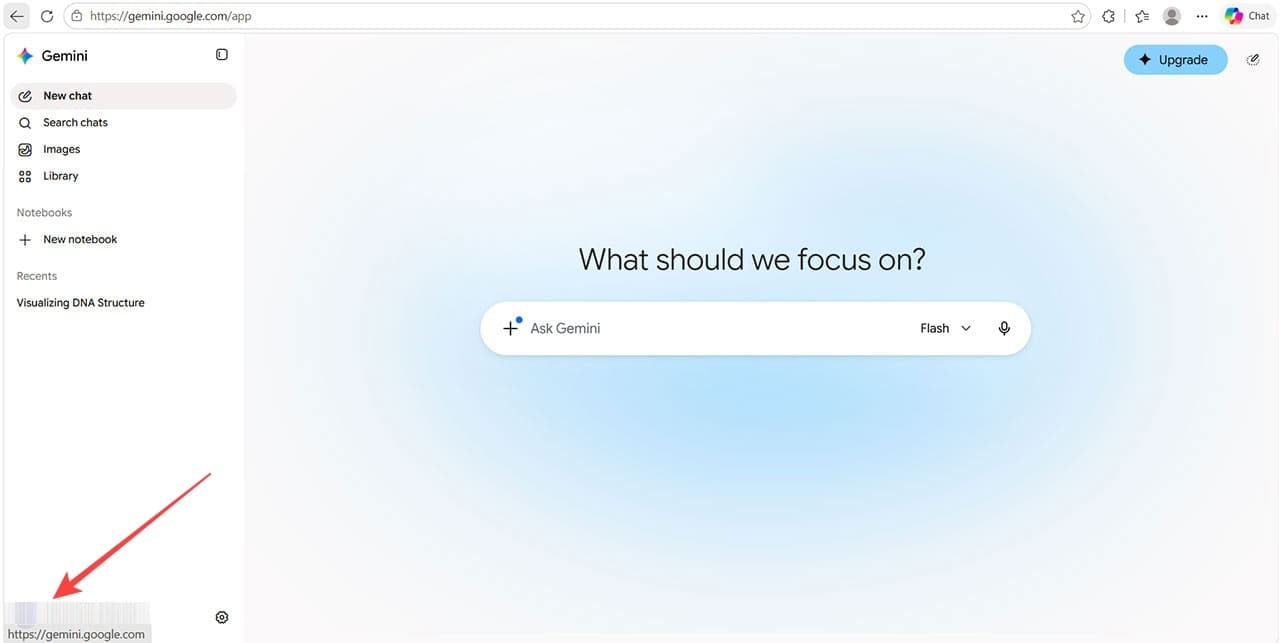
Step 2. Enter the prompt for visualization. For best results, you need to tell Gemini to create a 3D model explicitly. Use prompts that start with “Show me,” “Visualize,” “Generate a 3D interactive model,” “Help me visualize,” and so on.
Step 3. Once you’ve typed in your prompt, hit “Enter.”

Step 4. It will take time to generate the 3D model, and other images and text may appear below it in the meantime.
Step 5. After a while, your model will be generated. Adjust the interactive settings to change certain aspects and highlight others.
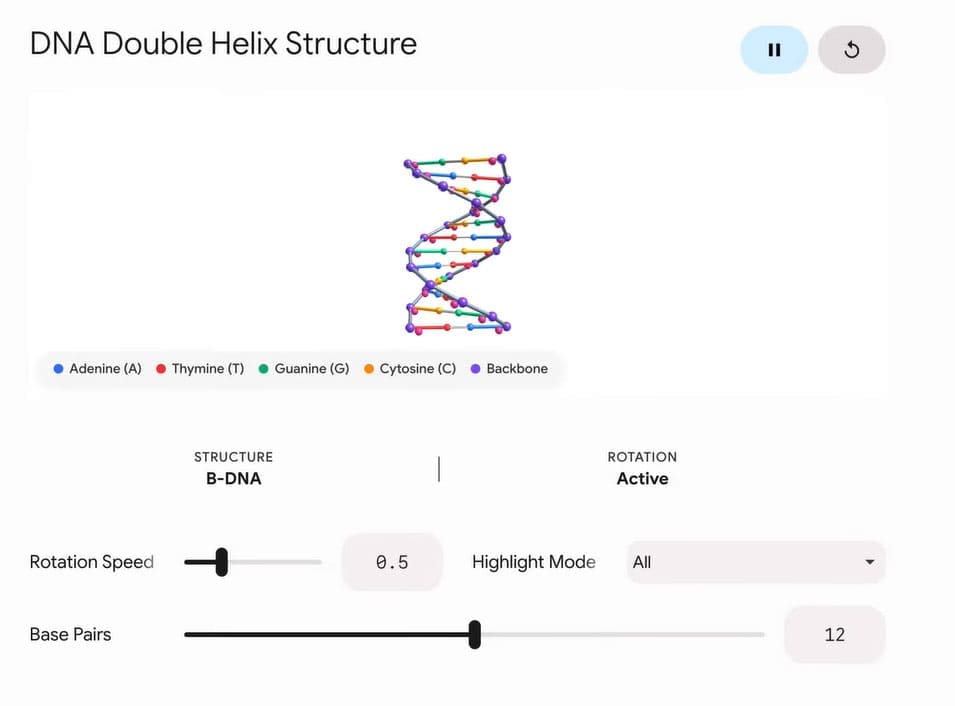
The process is fairly simple, and experimenting with different “show me” or “help me visualize” prompts can be a good way to find inspiration.
Related Posts
 4 Best Gemini Prompts for Writing
 ChatGPT vs. Gemini vs. Claude – How Do They Compare?
 How to Turn YouTube Videos Into Interactive Content With Workbookly AI
 What Is Pixtral – The New Multi-Modal Large Language Model
 Create New Memories From Old Photos With NovaFlick AI
 How to Create YouTube Shorts From Existing Video Using Reap.Video
 How to Create a Realistic Talking AI Avatar
 Freepik AI Image Generator: How to Use It to Create Custom Images
 How Do I Create a Template in ManyChat

Disclaimer: Some pages on this site may include an affiliate link. This does not effect our editorial in any way.