
Microsoft’s AI assistant, Copilot, is capable of reading PDF files for you in order to help summarize information, extract insights, or explain complex topics in simple language. However, some users have had problems with Copilot unable to read PDF files. If this happens to you, there are several quick fixes you can try to resolve the issue.
Why Is Copilot Unable to Read PDF Files?
There are several reasons why Copilot might be unable to work with one or more of your PDF files.
Often, it’s simply a question of formatting. Microsoft’s own guidance states that AI agents can struggle with files that include scanned text or images, as well as PDFs that are oversized, encrypted, or formatted in unusual ways. The Copilot unable to read PDF issue can also be linked to random bugs or outdated software.
Fortunately, regardless of why the issue is occurring, there are always methods you can try to fix it.
What to Do When Copilot Cannot Read PDF – 4 Quick Fixes
Here are four ways to help Copilot read PDFs more easily.
Check the File
If your PDF is a scanned file or has been formatted strangely, Copilot can have a hard time understanding what it’s about.
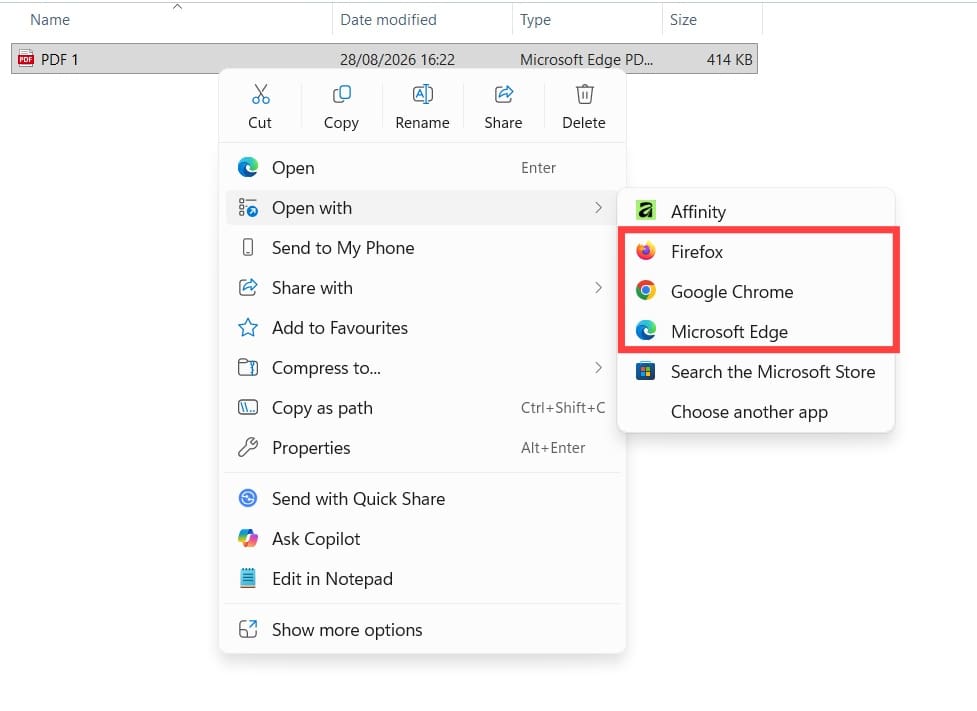
Step 1. Find the PDF and open it in your browser of choice. Then take a look at the file to see if it contains any scanned pages, oversized elements, or text that the AI might struggle to understand.
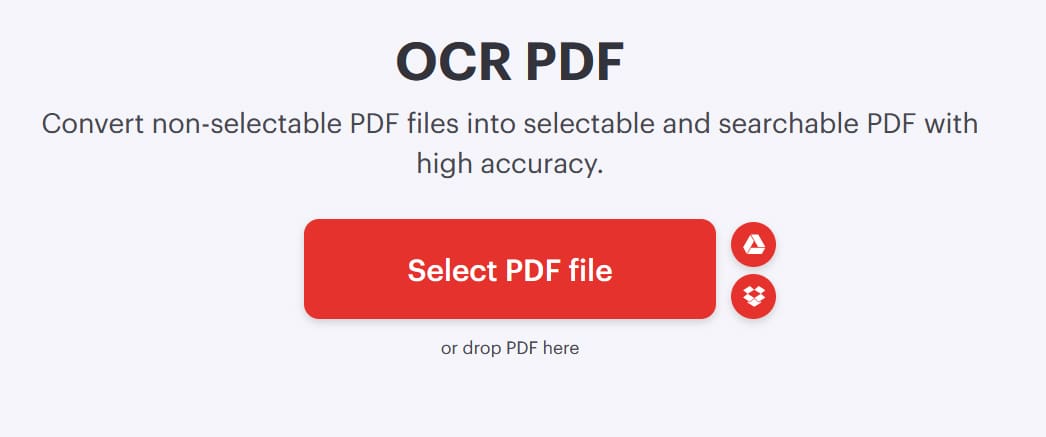
Step 2. If your PDF is primarily scanned pages, you can use OCR software to create a searchable text layer. This may make the document easier for AI tools to analyze, but does not guarantee that Copilot will process every file successfully.
Update Your Software
If you are experiencing problems with Copilot, updating the app or browser can help rule out issues that have already been fixed in a newer version.
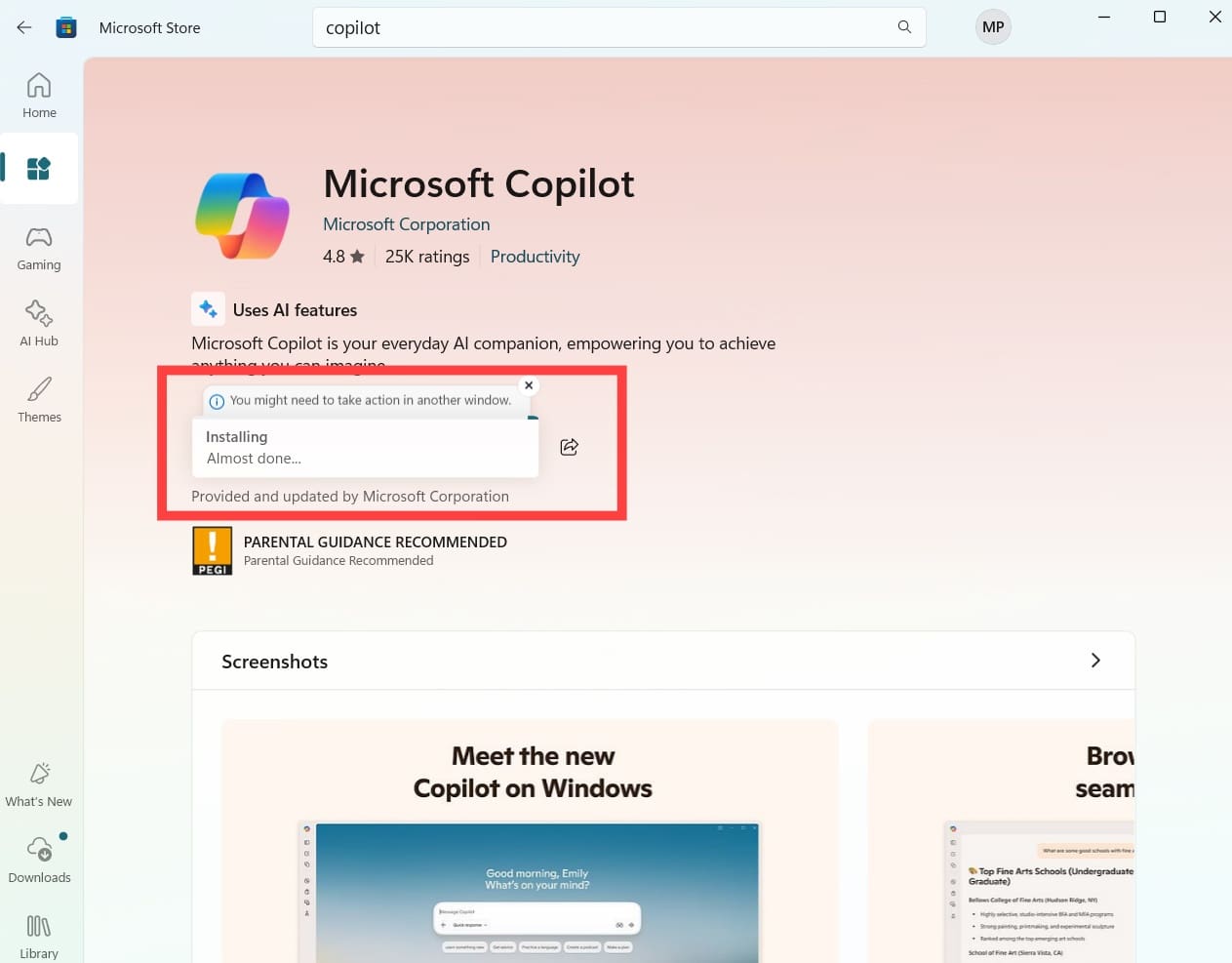
Step 1. Open the Microsoft Store and find the “Copilot” page to see if there are any available updates. If there are, click to install them and wait for the process to complete.
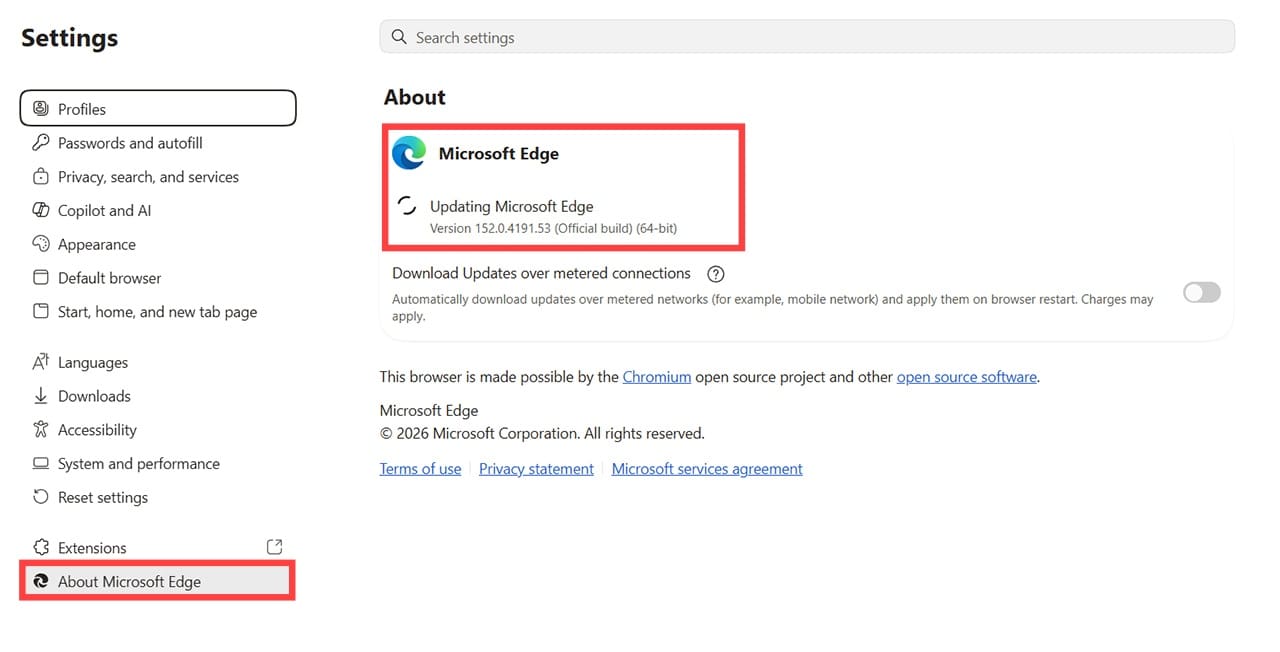
Step 2. If you use Copilot in Microsoft Edge, you can also update your browser by going to “Settings” > “About Microsoft Edge” and installing any available updates.
Repair the Copilot App
A bug with your Copilot app could also cause it to misbehave when opening PDF files. You can fix this via the Windows Settings app.
Step 1. Press the “Windows” and “I” keys together to open “Settings.”

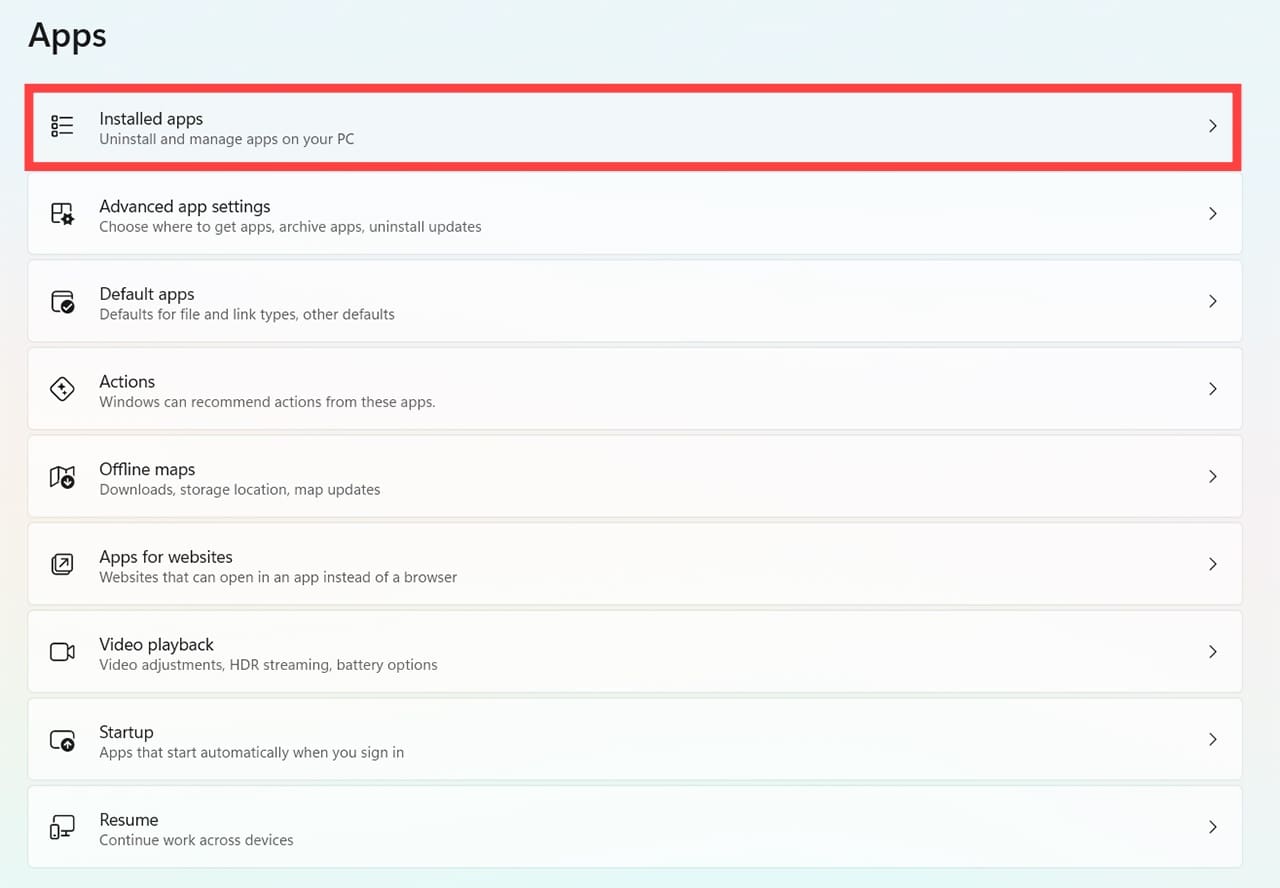
Step 2. Go to “Apps” and then “Installed apps.”
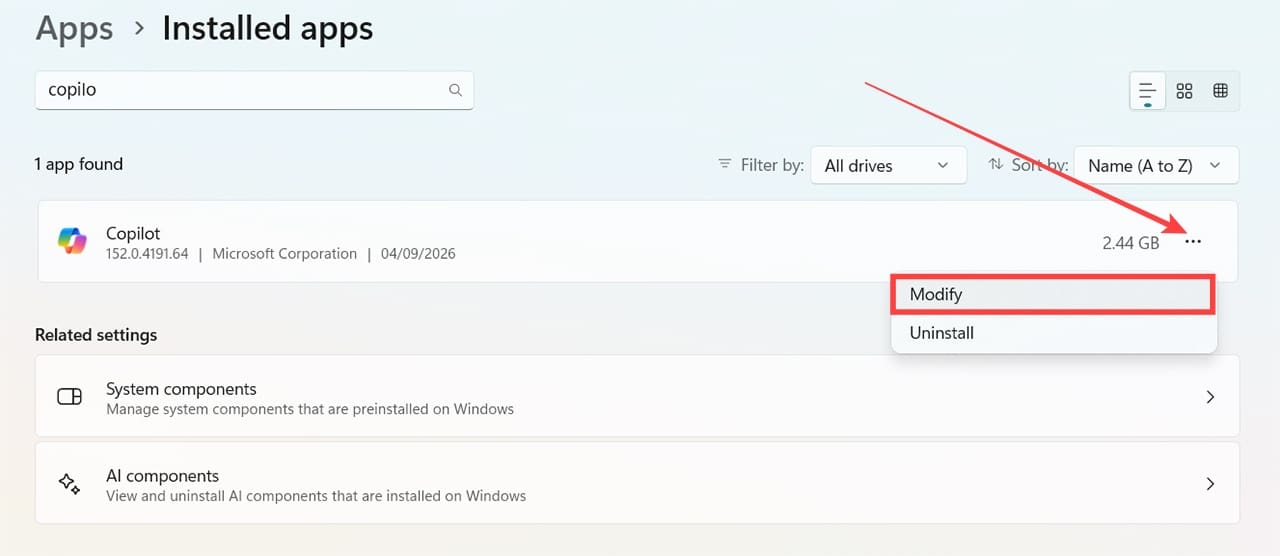
Step 3. Find “Copilot” in the list of apps and click the “three dots” button, then “Modify.”
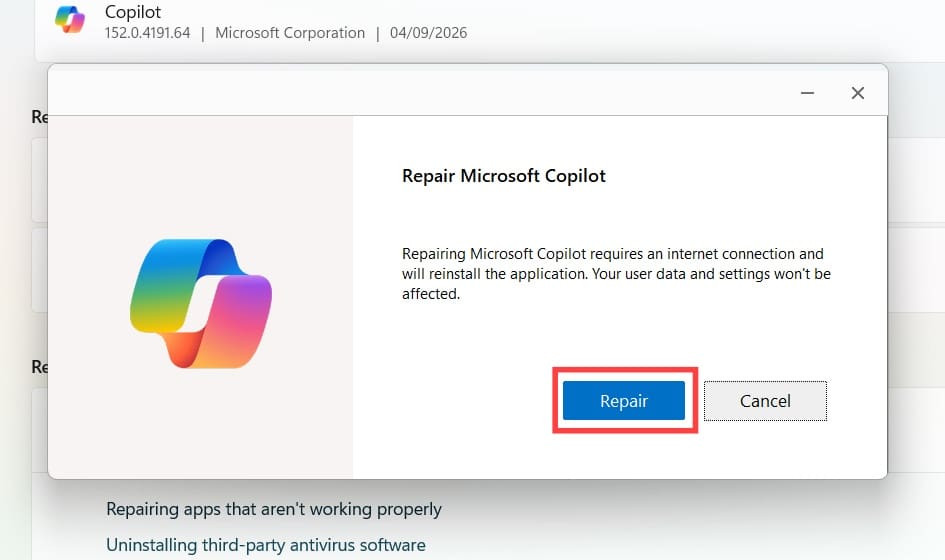
Step 4. Click the “Repair” option.
Try the Web Version
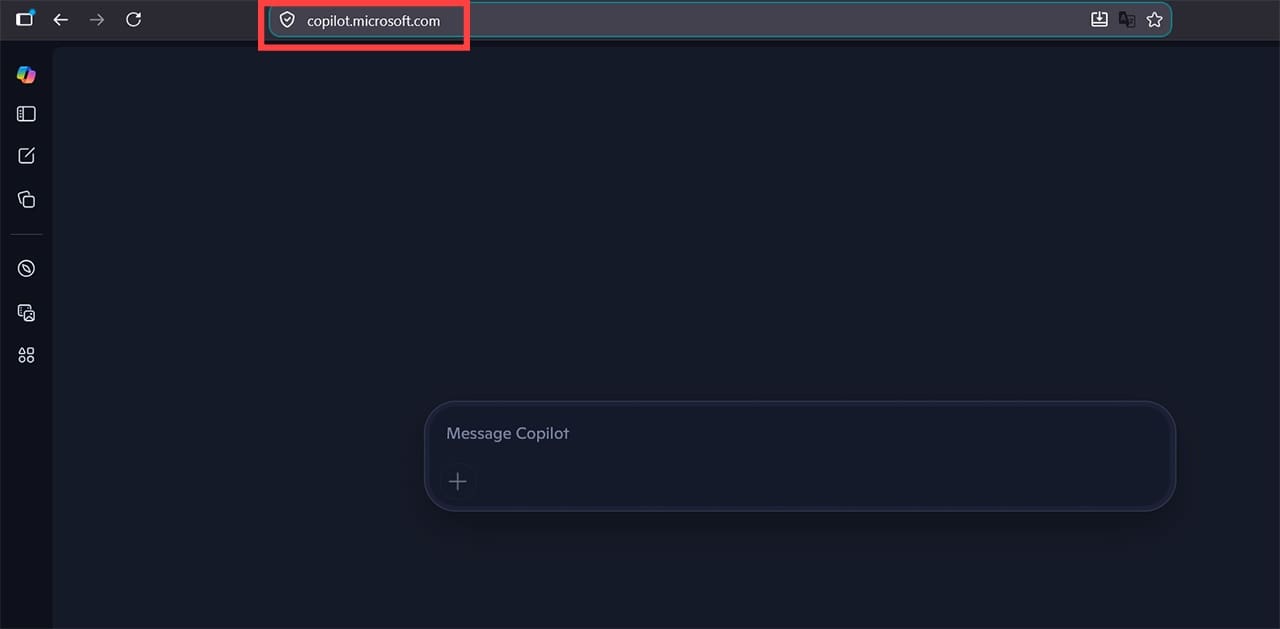
If you’re encountering issues with the desktop or mobile versions of Copilot, such as Copilot cannot read PDF, a quick alternative is to use the web version instead.
Open your browser of choice and go to copilot.microsoft.com. You can then upload your PDF directly to Copilot and ask the AI to read it.
Related Posts
 Steps to Install Microsoft Copilot on WhatsApp
 Ways to Use Microsoft Copilot on Telegram
 Get an AI Assistant on Your Phone With Dot Copilot
 Can Copilot Tasks Improve Productivity for Busy Creators?
 Can Using Microsoft Copilot Cowork Boost Your Productivity?
 Stay in the Loop by Creating Copilot Reminders
 Best AI Chatbots for WhatsApp You Should Try
 How to Use ChatGPT for Research – Quick Guide
 Quick Guide to Using AI Cursor’s Code Editor in Windows

Disclaimer: Some pages on this site may include an affiliate link. This does not effect our editorial in any way.