What if you could simply use a single keyboard shortcut to enter your currently-selected text directly into a chatbot with a predetermined prompt? Enter ClipboardAI, a nifty time-saving tool meant to streamline how much you need to interact with a chatbot. In this ClipboardAI review, we’ll go over the most important features and whether the tool is really worth it.
Getting Started With ClipboardAI
At its core, ClipboardAI takes a bit of time to get used to, simply because it needs to be set up for each possible use case.
Step 1. Go to ClipboardAI and download the installer, then install the program on your PC.
Step 2. Create the initial prompt agent.
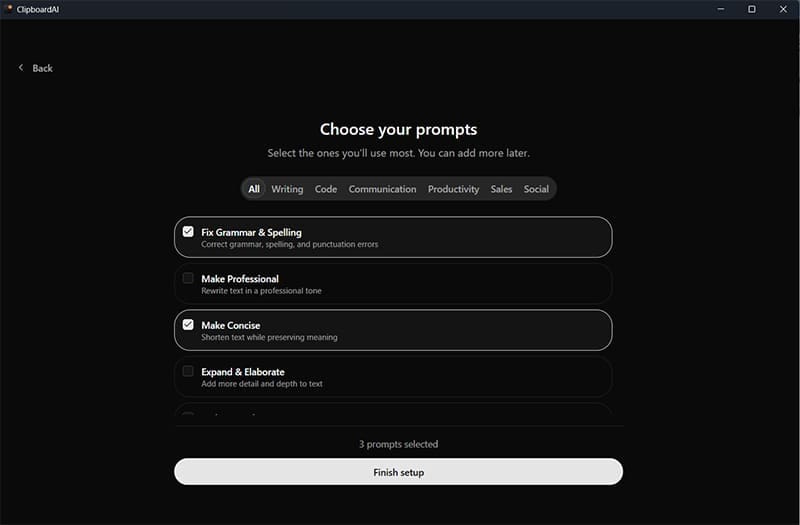
Step 3. Go to ChatGPT and extract your API link, then put it into the API configuration page. Alternatively, you’ll need to use OpenRouter to get an Anthropic or Claude API.

Step 4. Click on the prompt you want to edit, then set a global shortcut for it.

Now, whenever you press the shortcut after copying text to the clipboard, the tool will parse it through the AI model and paste the output back to the clipboard.
Using ClipboardAI
After setting up the initial prompt, using it is fairly simple.
Step 1. Select text you want to edit and hit “Ctrl + C” or “Ctrl + X” to copy or cut it to the clipboard.
Step 2. Hit the keyboard shortcut you used.
Step 3. The text in your clipboard will be automatically changed to the reply generated by the AI model. You may need to hit “Paste” for the clipboard to repopulate.
Step 4. Paste the content from the clipboard back into the app where you need it.
Clipboard AI Review
The most impressive part about ClipboardAI is how streamlined it is. By only focusing on bringing a “limited” version of the chatbot, you basically save time by preloading common prompts you use every day for work or school.
The tool’s accuracy is practically the same as having the original AI do everything, given that all it does is pass along the information through the API connection to the chatbot and extract it back.
Since the tool uses the built-in clipboard for both Windows and Mac, it’s also compatible with basically any program on your PC as long as it has anything to do with text and has a built-in text editor.
The tech showcase on ClipboardAI’s website shows that context switching from an app to the browser can basically double the time needed to craft an AI message. While this might sound like only a few seconds, consider a scenario where you need to respond to tens of emails that arrived during the night. If you use AI to translate or summarize, it usually requires the same prompt every time, which takes time to type out or copy.
However, there are a few possible drawbacks.
First off, the tool’s one-time pricing model is both lucrative and potentially damaging. Given that you still need to bring your own API (i.e. have an AI subscription), the added cost of getting the app means that the investment is relatively lower than maintaining a subscription. But, if the AI’s that are supported by the tool change drastically, and the userbase doesn’t grow to meet operating demand, the app’s pricing point could swing wildly over the next year.
Secondly, the tool does have somewhat of a steep learning curve. You need to manually enter every prompt and create a shortcut for it, then remember how you filed it for the AI. This can take some time getting used to, and the seven-day trial might not be enough to completely get used to the new workflow.
Who Should Consider It
Best for:
- Writers, developers, support agents who use AI dozens of times daily
- People who value keyboard-driven workflows
- Users already comfortable with AI APIs and custom prompt engineering
- Anyone working across multiple applications throughout the day
Skip if:
- You only use AI occasionally (for example if ChatGPT’s free tier is fine)
- You’re not comfortable with technical setup (API keys, prompt creation)
- You primarily work in one application that already has AI built in
- You want included AI usage (rather than just the interface)
Overall, the tool could be a powerhouse for power users who already use ChatGPT or similar AI chatbots daily and can get used to adding a few more shortcuts to their memory. If nothing else, use the seven-day trial wisely to get the most out of the tool.






Disclaimer: Some pages on this site may include an affiliate link. This does not effect our editorial in any way.