Midjourney AI and its small team have positioned themselves as the AI tool for designers and artists. Putting an emphasis on quality and niche functionality, it’s a well-known name, despite its smaller size. There are currently two ways to use the tool: browser and Discord, and in this article, we’ll be showing you how to install and use Midjourney.
How to Install and Use Midjourney
Let’s take a look at how to get creative with Midjourney on your PC.
Installing Midjourney Locally
Good news out of the gate: there’s no standalone app needed for Midjourney. Instead, the tool installs itself and can be used through Discord. So, provided you have an account and subscription with Midjourney (and your own Discord profile), you should be able to use it. We’ll be guiding you through the installation steps:
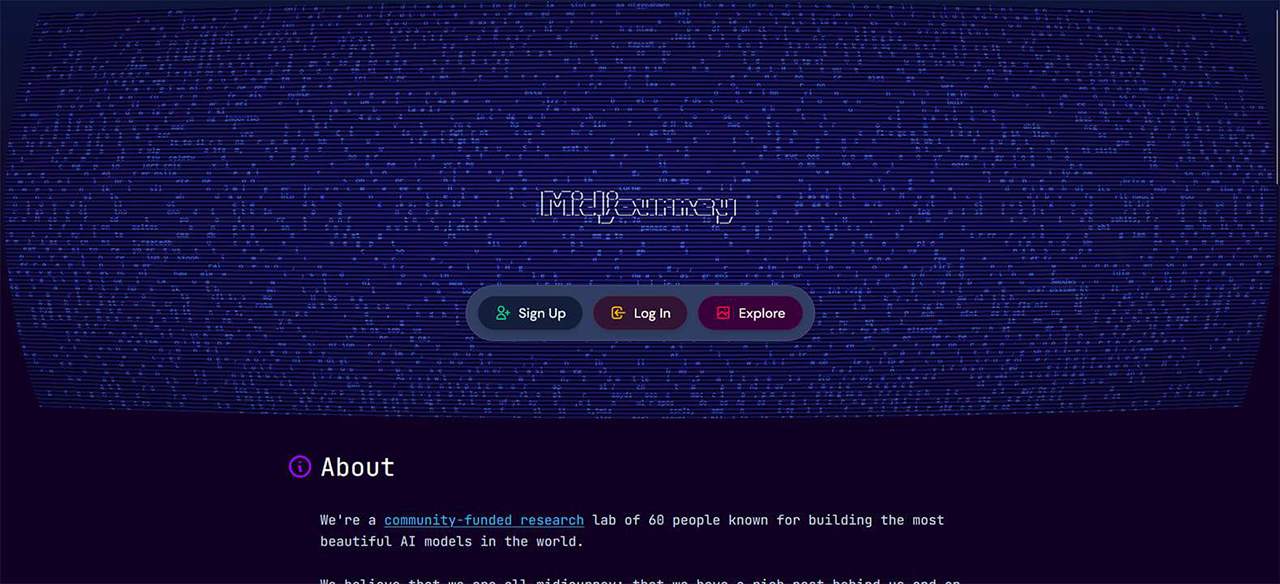
Step 1. Head to the Midjourney site on any browser.

Step 2. Click the “Sign-Up” button.
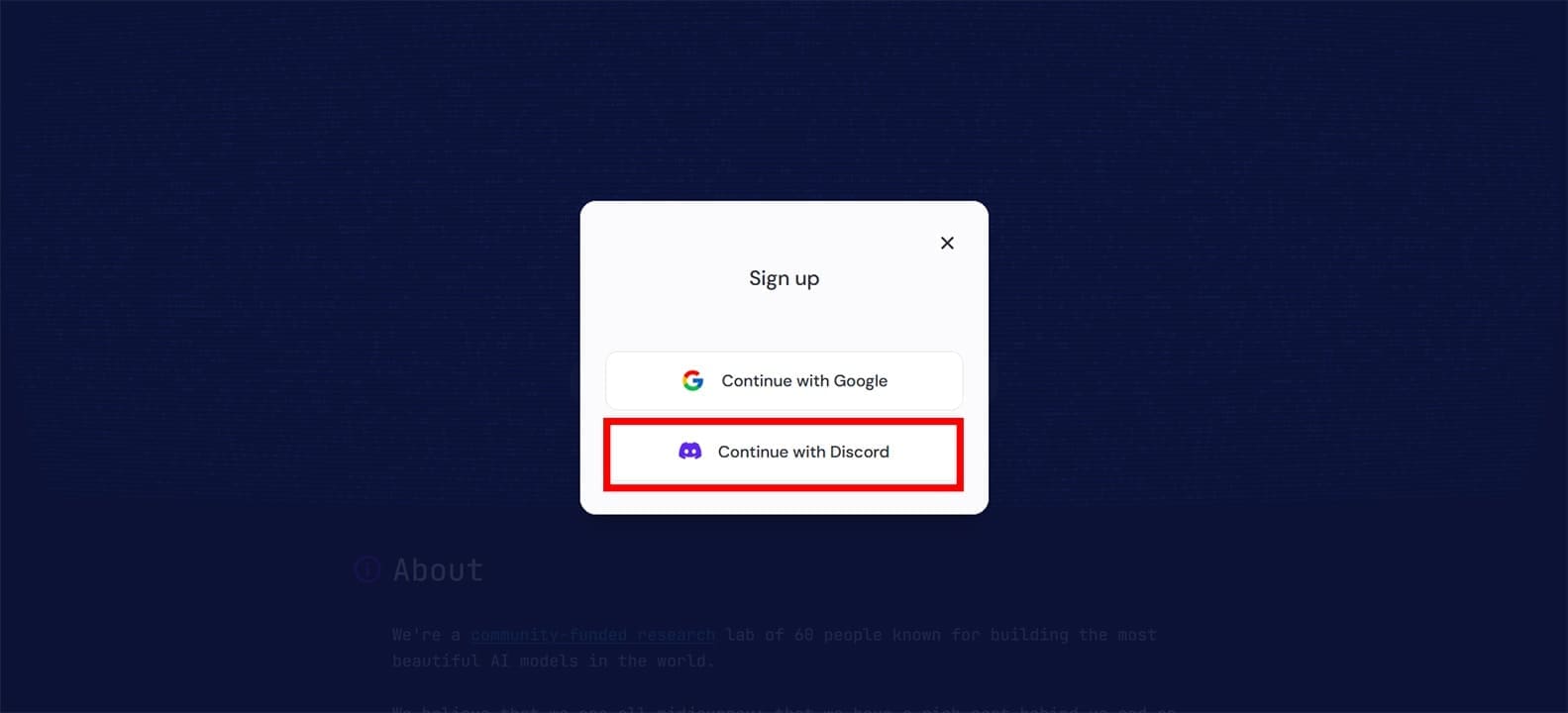
Step 3. Click the “Continue with Discord” option.
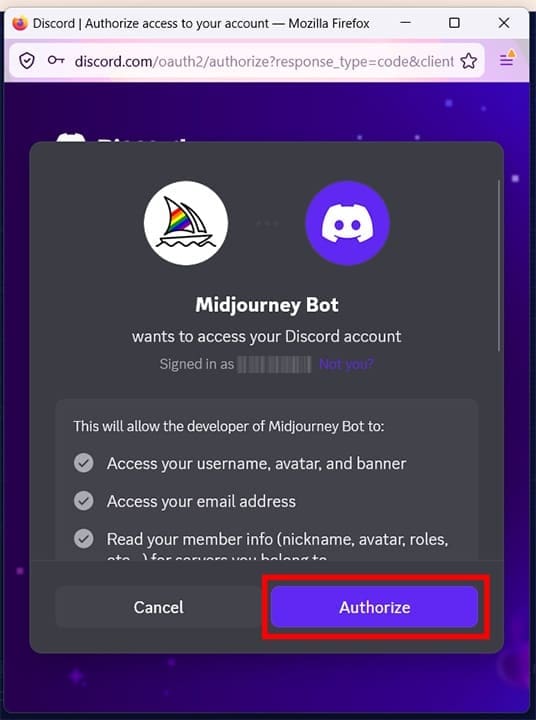
Step 4. A pop-up will show you your current Discord profile. Add another if you want.
Step 5. Click “Authorize” to allow Midjourney to access your Discord profile. If you have an existing web profile, you might need to visit your email to connect to Discord as well.
Step 6. You’ll be added to the servers. You’ll need to ensure that you have an active subscription before you can start creating images. Be sure to visit the main site to purchase your tier and verify your billing.
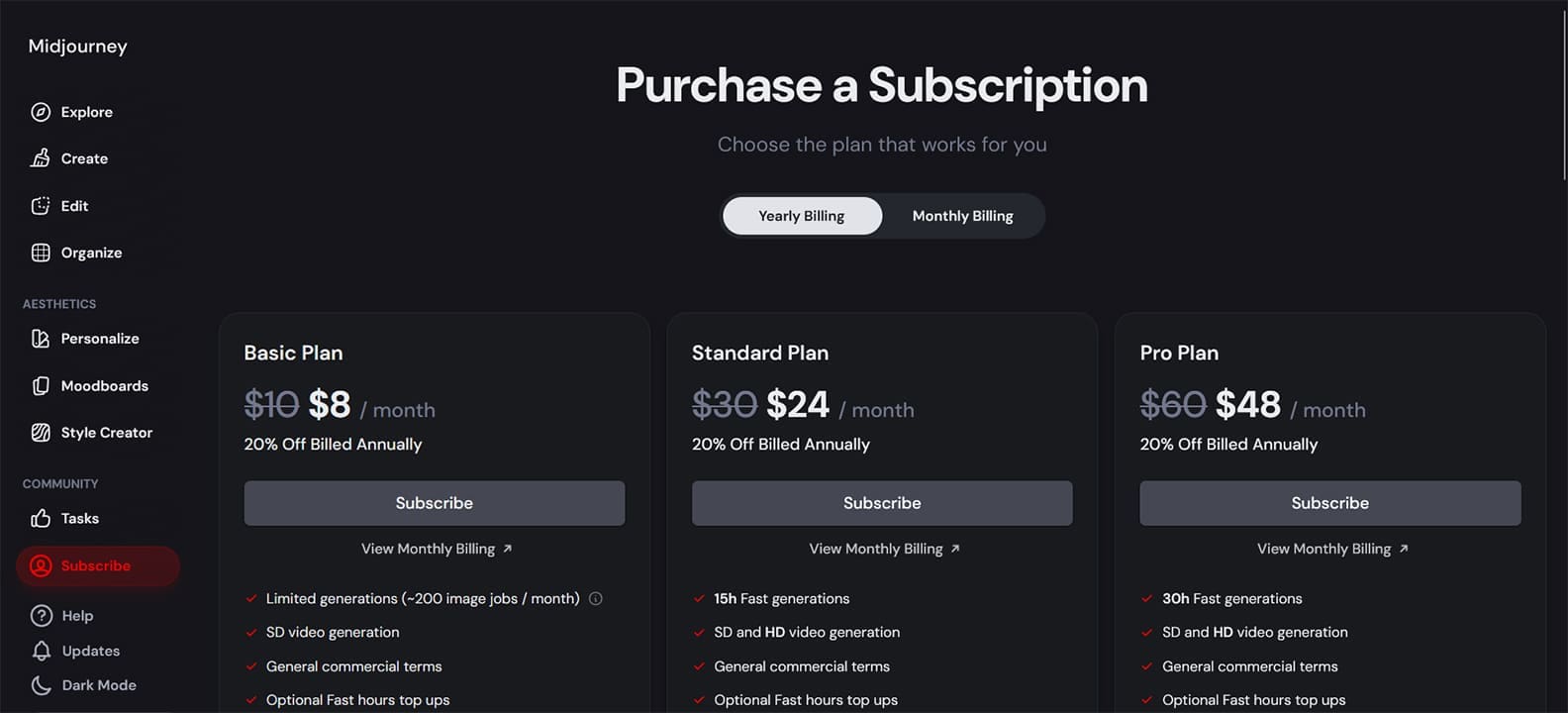
Step 7. Once subscribed, join the Midjourney Discord server, open the member list on the right of a public channel, right-click the Midjourney Bot, and select “Message.”
Creating and Editing in Midjourney
With Midjourney added to Discord and your subscription all set, you’re ready to get generating. Here’s what to do:
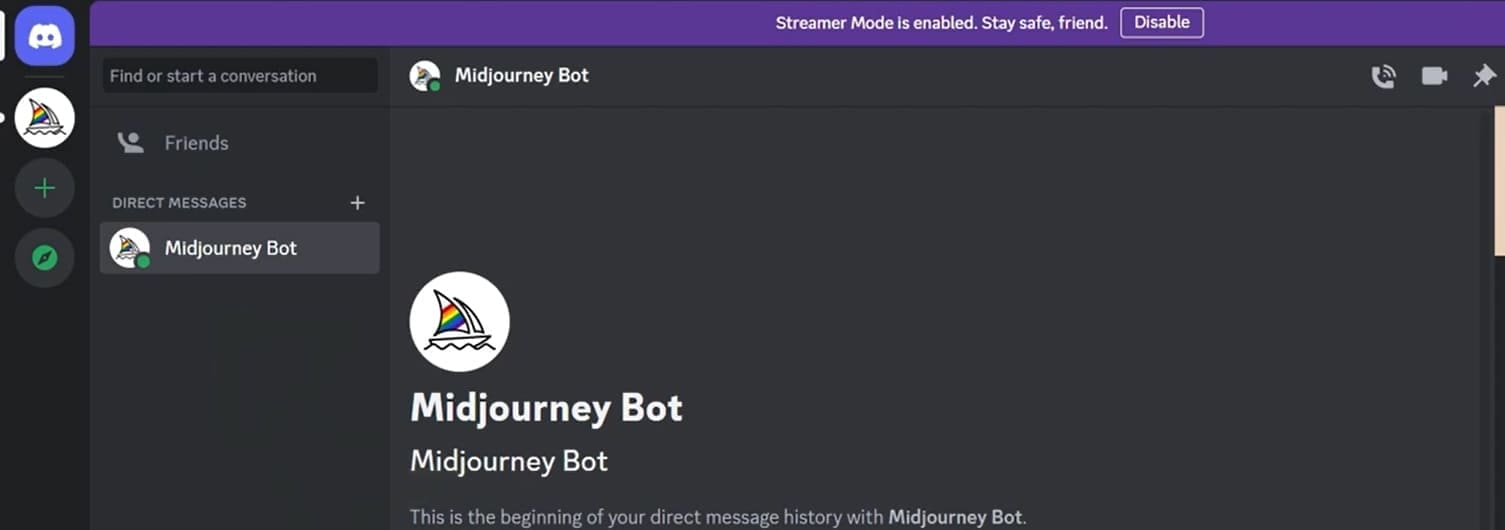
Step 1. To get started, type “/imagine” followed by a space. A “Prompt” box will appear, and you can then enter your image prompt into the message box of your DM. Accept the Terms of Service if prompted.
Step 2. Midjourney will generate a set of images based on your prompt.
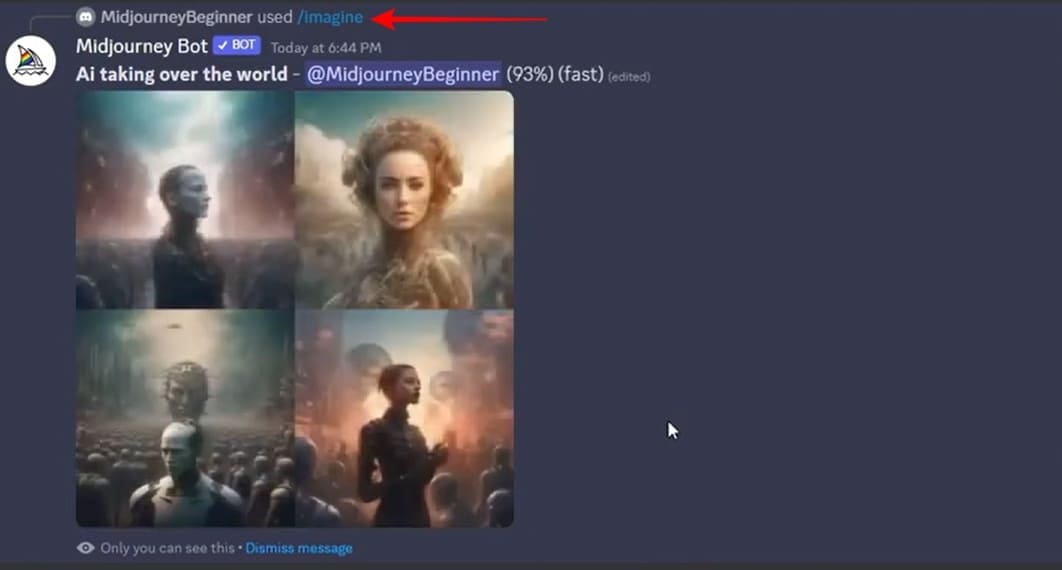
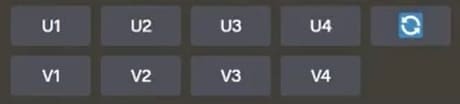
Step 3. Below the four images, you’ll see eight boxes appear: V1-4 (variations), and U1-4 (upscaling). Clicking “V1” will create a variation on the first image, while clicking “U3” will upscale the third image.
Step 4. From here, you can change the aspect ratio of the selected picture by typing “–ar [width:height]” into the text box and pressing “Enter.”
Step 5. To download the image, click on it in Discord to expand it, right-click, and select “Save Image.” Alternatively, click “Open in Browser” to save it as needed.
Using the Browser Version
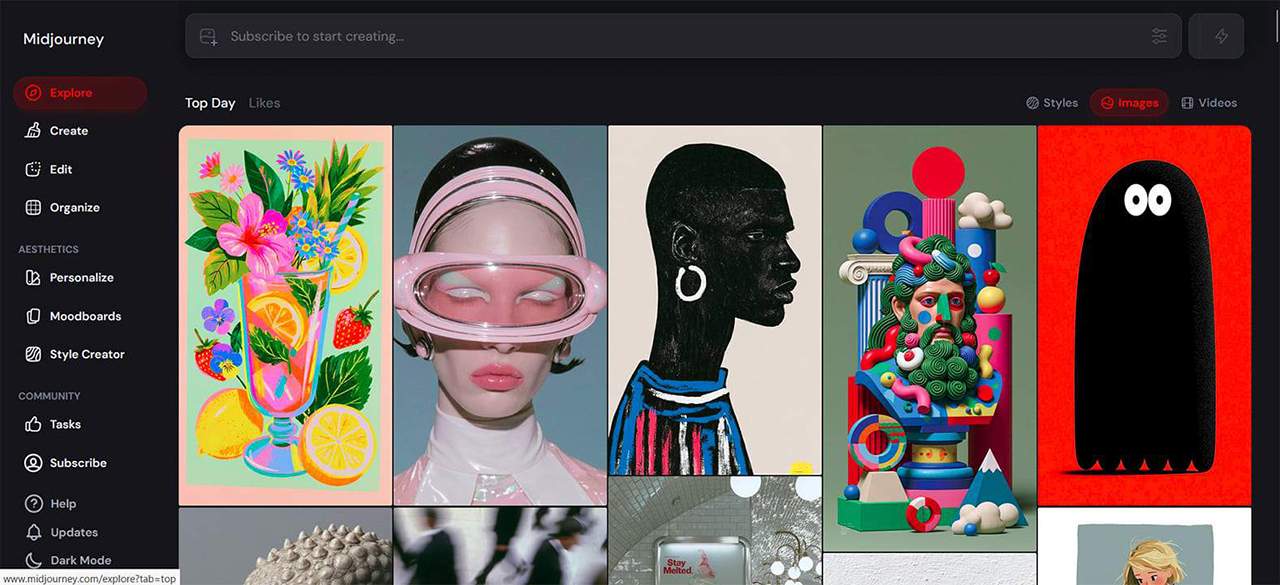
For a while, Discord was the only way to go with Midjourney, but now, the web version is available and even outperforms its predecessor in a few areas. For example, in your browser, you can have access to a dedicated editor for generated images, rather than relying on prompt messaging. It’s also a good way to access the tool, no matter what PC you’re using.
Related Posts
 Get ChatGPT, Claude, and Midjourney on Telegram With Unlim AI
 Steps to Install Microsoft Copilot on WhatsApp
 Best AI Voice Changers for Discord
 Discord Channels That Are Great for AI Newbies
 How to Use Translator in Discord to Read Multilingual Messages
 Best AI Chatbots for WhatsApp You Should Try
 How to Transcribe a WhatsApp Voice Note in Otter AI

Disclaimer: Some pages on this site may include an affiliate link. This does not effect our editorial in any way.