When you arrive at the home screen of Suno AI, the welcome message says it all: “Make any song you can imagine.” Suno AI is a tool that allows users to create music based on genre, mood, or even a thought that pops into their heads.
With so much freedom at your fingertips, you may be wondering how to use it properly. This article aims to explain how to make music with Suno AI.
Making Music

Suno AI Music Generator is a dedicated song tool that works with users. It takes your input as its starting point for generating songs. These could be lyrics, ideas, or even mood. It also allows you to tweak the generated songs and refine them to your taste.
It’s ideal for lending your musical ideas and emotions a professional edge. All songs are generated with high-quality instrumentation and quality. It runs the gamut of genres too, and can easily be downloaded after you’ve perfected it.
Keep in mind, though, that as an AI tool, the music Suno generates can never be as truly avant-garde or emotionally deep as that made by humans. Sometimes things might sound a little too perfect. But if you’re not looking to redefine a genre or break new ground, Suno is perfect.
How to Make Music With Suno AI
Suno AI draws users in with an approachable interface. It prompts you to input whatever you want and generates two tunes based on it. To listen to them, however, you’ll need to make an account. This brings us to the first step:
Sign Up
While you need an account with Suno before you can listen to or create music, the good news is that you can create one for free. Creating music works with the credit system. Basic (free) users have access to 50 credits per month. This is a good way to test things out before committing. The Pro ($10) and Premier ($30) Plans will cost you, but offer you:
- More credits.
- A general music license rather than a non-commercial one.
- The ability to generate multiple songs at once.
It’s all up to you and what you want to use Suno for.
Generate Your Song
On to the main event. Suno offers both “Simple” and “Custom” song generation options. For Simple:
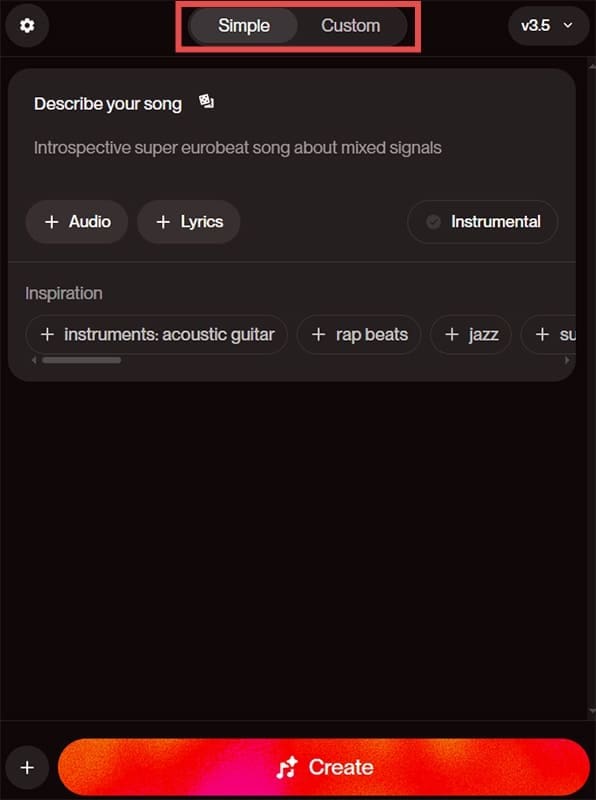
Simple song generation allows you to describe your song and choose the inspiration (instruments, genre, mood) you want in it. If you have any pre-existing audio or lyrics, input them too. Once done, click the “Create” button at the bottom.
For Custom:

You can enter custom lyrics, have them generated, include your style (or exclude it), and create a song title. This option isn’t available to Basic tier users, nor is any generation model above version 3.5.
Enjoying and Tweaking Your Songs
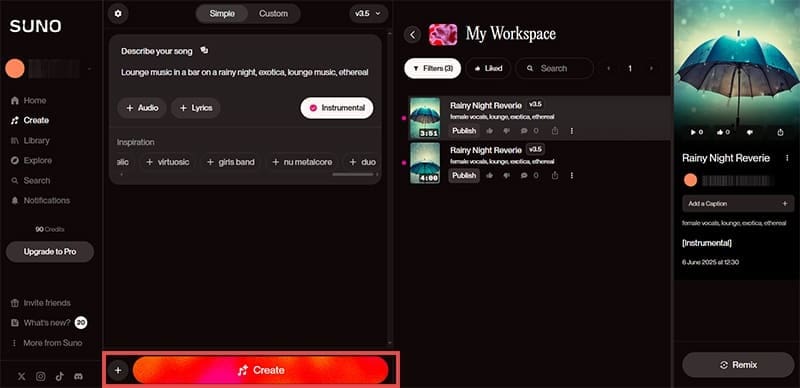
Once you hit the “Create” button, you’ll have two songs generated and placed in your “Workspace” window. From there you can click the hamburger menu (three dots) next to the song in question and you can:
- Edit or remix it to perfection (Pro and above).
- Create a persona or radio station around it (Pro and above).
- Publish it to Suno for others to enjoy.
- Download the song as an MP3.
- Add it to your existing Suno playlist or library.
The Suno sidebar allows you to search the songs of others, discover music, find friends, and check your notifications.
Related Posts


Disclaimer: Some pages on this site may include an affiliate link. This does not effect our editorial in any way.