A router outage should not leave you guessing how to open your front door. According to Grand View Research, smartphone authentication represented 33.2% of the smart lock market by 2025.
Usually, yes. Without Wi-Fi or an internet connection, a compatible Apple Home Key lock still lets you unlock locally. At close range, your phone or watch talks to the lock using near-field communication (NFC). Both the lock and device must be properly configured and powered.
At your door, NFC handles the close-range exchange. Inside your home, Wi-Fi provides the wireless network. Internet service connects it to the outside world. Neither connection supplies the lock’s power. Batteries power its electronics and motor.
How an Apple Home Key Lock Unlocks Without Internet
Locally, Home Key handles unlocking seamlessly. At close range, your compatible iPhone or Apple Watch exchanges credentials with the lock over NFC. The tap does not need an internet connection. That requires a valid credential and enough battery power in the configured lock.
Apple Home Authority’s guide describes NFC-based Home Key entry without an internet connection. At the reader, your device makes a short-range exchange instead of going through your router.
Losing Wi-Fi is not the same as losing broadband. When broadband goes down, your router still runs the local Wi-Fi network. Turning off the router takes that local network down too. If a hub stops working, the features it handles can pause without disabling the NFC reader.
Power is a different problem. Even with excellent phone reception, a lock with depleted batteries cannot read credentials. It will also fail to move the deadbolt.
Do not assume a depleted iPhone or Apple Watch will behave the same way. Check Apple’s documentation for your exact device before depending on reserve-power functions. Keep a separate entry method available outside the door.
Which Features May Need Wi-Fi or a Home Hub?
Controlling the lock or checking its status while away requires a working internet connection. It also needs a connected path back to the lock. A home hub or bridge forms that path, depending on the model and features.
Unlike a tap at the door, a command sent while away must reach equipment inside your home. Bridges connect supported devices to another network. If you are building out your hub ecosystem, reading an Apple HomePod review can help you evaluate its performance as a home hub.
| Feature | Typical connection | Likely to work during an outage? | What to verify |
|---|---|---|---|
| Home Key tap at the door | Local NFC | Usually, if both have power | Explicit Home Key support |
| Remote lock or unlock | Home hub plus internet | Usually not | Remote-access requirements |
| Status checks while away | Connected path to home | May be unavailable | Hub and network requirements |
| Remote notifications | Varies by configuration | May be delayed or unavailable | Notification dependencies |
| Access changes and guest codes | Varies by feature | Existing local access may differ | Credential issue methods |
| Automations | Home hub and accessories | Varies by automation | Local vs remote support |
Check specifications for the exact Apple Home door lock you are considering before installation. Connectivity requirements differ by model and feature.
Some locks connect directly to Wi-Fi. Other locks use a bridge or another local protocol. During an outage, a local automation can behave differently from an online automation. Local automations still require power and local device communication.
What Do I Need for Apple Home Key Setup?
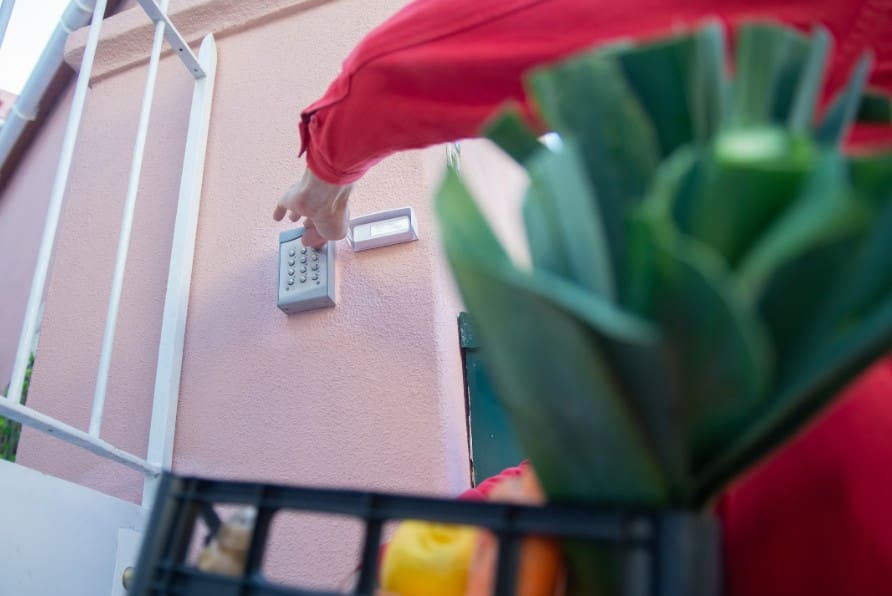
You need a lock that explicitly supports Apple Home Key. You also need a compatible Apple device with required software and account settings. Do not rely on tapping until you finish setup in the Home app. Remote access or connected functions also need a Home hub.
An Apple Home label on a lock does not guarantee Home Key support. On their own, HomeKit or Matter labels do not promise a Wallet credential. Look for explicit Home Key wording for your exact model, not a claim covering the whole brand line.
Follow Apple’s iPhone User Guide to add a compatible lock in the Home app. Keep its Home Key safely stored in Wallet. Before setting it up on an older phone, check current OS requirements. When configuring wider ecosystem settings, learning how to change Apple ID and email ensures your security credentials stay updated.
Specifications to Check Before Installation
- Look for a statement explicitly naming Apple Home Key for your exact regional model.
- Verify your iPhone or Apple Watch is a supported model running minimum OS versions.
- Check for required extra equipment, including a home hub, bridge, or Wi-Fi module.
- Check the lock’s required cutout format and physical dimensions before preparing your door.
- Know which fallback entry methods work when the lock battery dies.
- Check how household members get access, then review steps for removing permissions.
After reading Apple’s platform requirements, use the manufacturer’s guest instructions. Household access steps differ from guest workflows. Because guest codes and Home Key credentials can differ, check for separate management instructions. Write down the model number for your region.
Apple Home Key Lock Fallback Entry During an Outage
You do not need broadband for a local NFC unlock. If your lock loses power or you lack a credential, you need another supported way inside. When expanding your setup, exploring the best smart home devices and gadgets can help you select reliable offline-ready equipment.
- Internet or router failure: Local entry keeps working even when remote commands stop. Wi-Fi loss is not broadband loss, so test each outage type separately.
- Home hub unavailable: Nearby entry remains possible, but functions routed through that hub stop.
- Lock battery depleted: Follow the manufacturer’s emergency-entry procedure. Keypads and fingerprint readers will not work without lock power.
If your lock has a physical keyway or emergency power contacts, use those as backups. With power, a supported keypad code or fingerprint offers entry without your primary device. Store physical backup keys or emergency power supplies somewhere you can reach outside.
Inability to add or revoke access does not mean existing credentials stop working. Try entry and access changes in your setup during normal conditions.
Test the installation safely. Keep another way inside available during testing. Try a local tap after disconnecting your home’s internet. Note which remote functions stop working. Do not drain the lock battery as a test.
Check the Door Before You Depend on It
Before making this your everyday way in, confirm explicit Home Key support for your model. Check the connections each feature needs. Set up the fallback your lock actually supports.
Once ready, test it while you still have another way inside. Give household members the same outage instructions. Explain the difference between network failures and empty lock batteries. Keep a copy of fallback steps where authorized people can reach it.
Final Thoughts
Apple Home Key locks provide a reliable, seamless way to unlock your door using local NFC, ensuring you can still get inside even during a complete internet or Wi-Fi outage.
However, because remote management, status updates, and automated routines still depend on an active home hub and network connection, it is vital to understand where offline capabilities end.
By maintaining fresh lock batteries, keeping a physical key or emergency power source accessible outside, and educating household members on backup procedures, you can enjoy keyless convenience without getting locked out.
Related Posts
 Creating Ads Without Prompts With Reloop AI – Will It Work?
 Do AI Humanizers Work?
 Let JustPaid AI Make Your Billing Work Easier
 Surveys That Work for You – Our Review of TheySaid AI
 Librida AI Review: Turning Ideas Into Books – Does It Work
 What Is Google Workspace Intelligence and How Can It Work for You?
 Testing FaceApp AI: How Well Does It Work?
 How To Test Mobile Apps Across Regions Without Getting Blocked Or Misled
 How Well Does Whacka AI Build Apps Without Code?

Disclaimer: Some pages on this site may include an affiliate link. This does not effect our editorial in any way.