Are you feeling the cramps in your hands after taking notes for your 11th meeting of the day? Or are you so busy scribbling one point down that you’ve missed the three that followed it? Accurate transcription and note-taking can be a game changer, but we’re not always up to the task.
Thankfully, transcription and note taking is where AI excels. Today we’re going to be looking at a new note-taking tool on the block: the OpenAI-connected Tactiq AI note taker, how to use it, and what it can do for your workflow.
Tactiq AI Note Taker
There are plenty of tools out there that are leveraging the power of AI to make mundane and difficult tasks that much easier. We get it, it’s hard to stay focused for meetings, let alone recall things correctly. There are AI tools to help create transcripts and to summarize presentations. Where Tactiq shines is its real-time transcription of meetings.
This handy AI tool can be added directly to Google Chrome as an extension. It integrates seamlessly with all major channels that you’d expect for major meetings, like Google Meet, Zoom, Microsoft Teams, Webex, and more.
It doesn’t stop there either. Here are a few more connectivity features Tactiq boasts:
- Integration with automation tools like Zapier, not to mention storage platforms like Google Drive and Dropbox
- Connection to CRMs like Hubspot, Pipedrive, and Zoho CRM
- Integration with workspace platforms like Slack and Notion
Once connected Tactiq will provide a live transcript of the meeting in progress that can be shared with others and summarized around key points. You can also upload transcripts to do the same thing.
The Cost of Transcription
Let’s talk price. Like most AI tools, Tactiq does start with a free tier, provided you create an account. With this, you’ll be able to test things out and be able to generate 10 transcripts per month. All your basic functionality is included (like AI oversights) too. From the Pro tier ($8) and Team tier ($16.67), you’ll have an unlimited number of transcripts you can generate. An Enterprise option also exists, but the price isn’t fixed.
Using the Tactiq AI Note Taker
Installing, integrating, and using Tactiq is pretty straightforward. We’ve got a few guides below.
Installing Tactiq
To install Tactiq:
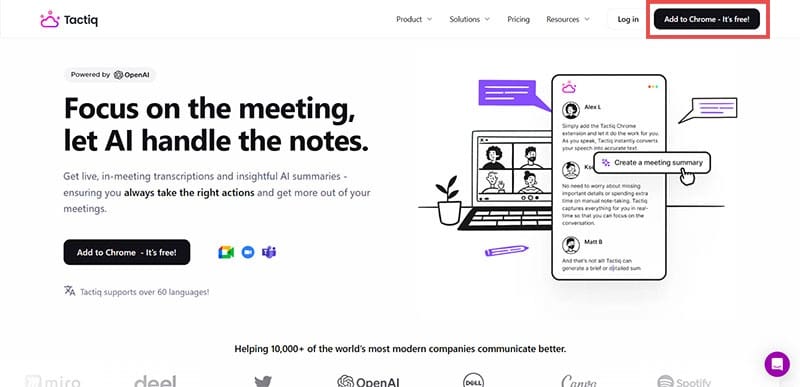
1. Visit the website and click the “Add to Chrome – It’s Free” button in the top right corner.
2. Tactiq will then be added as an extension to your browser. In the new tab that opens after installation, you’ll be prompted to add your most used meeting apps. Click “Continue” once done.

3. In the next new tab, click “Enable Tactiq” to grant access to these apps.

4. You’ll then be prompted to create an account with Tactiq or use a single sign-on instead.

Integrating Tactiq
If you sign up for new meeting tools or forgot one you’d like to add to Tactiq after the initial installation, you can still do so:
1. Head to the Tactiq dashboard in a new tab.
2. Click on “Account & Settings” in the sidebar, then select “Integrations.”

3. Scroll to an app you’d like to integrate, then click the “Connect” button under it.

4. You’ll then be asked to sign in. Enter your details and Tactiq should then be integrated the next time you open that app.
Using Tactiq
Now for the main event. Here’s how to use Tactiq during a meeting:
1. Open up your online meeting. For example, we’ll use Zoom.
2. Tactiq will appear as a sidebar in your app.

3. As the meeting takes place, Tactiq will transcribe the dialogue.

Here’s a rundown of the features:
- You can switch between transcripts and notes.
- From the bottom panel, you can choose to (in order): share the transcript, open it in a separate tab, take a screenshot, or pause the whole process.
- You can also choose the language you wish to transcribe from the top control bar.
- Hover your mouse over any paragraph to tag it with an icon.
Following the meeting, you can head to “Workflow Templates” in the Tactiq sidebar and choose from the automated processes for your transcript (for meetings over two minutes).

Related Posts


Disclaimer: Some pages on this site may include an affiliate link. This does not effect our editorial in any way.