Creating professional video content for work traditionally requires time, research, and specific video editing skills. But no one can deny the effectiveness of video content for explaining project features, employee training, or even company updates.
To bridge these two concepts together, you can now use Google Workspace’s newest feature: Google Vids. Let’s go over what is Google Vids and how it works to make engaging short-form and long-form content.
How to Get Started with Google Vids
Accessing Google Vids is pretty straightforward given that it’s built into Google Workspace.
Step 1. Log into a Google Workspace account of your choice on any platform you’re currently using.
Step 2. Click on the app selector menu (the nine dots next to your profile picture and account link). You’ll see “Google Vids” as one of the options, which brings you to the main menu.
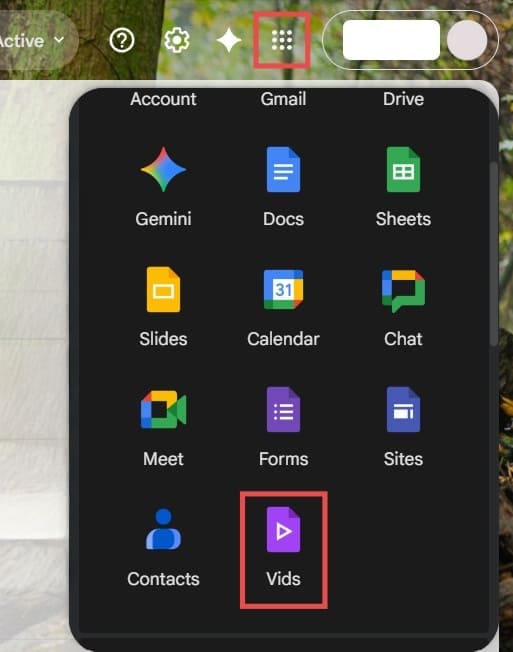
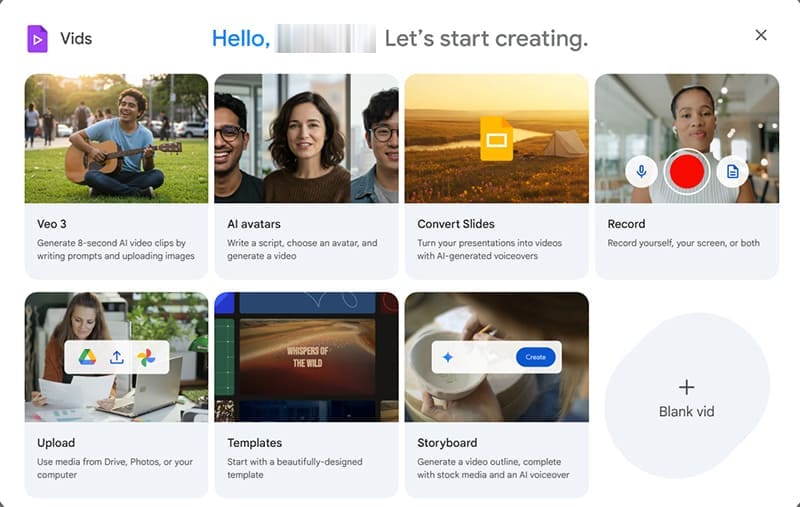
Step 3. Choose which feature you want to use. If you want short-form fully-generated content, click “Veo 3.” To edit existing videos (with or without AI assistance), go to “Upload.” To create a video from a combination of your company’s content and video resources, use “Storyboard.”
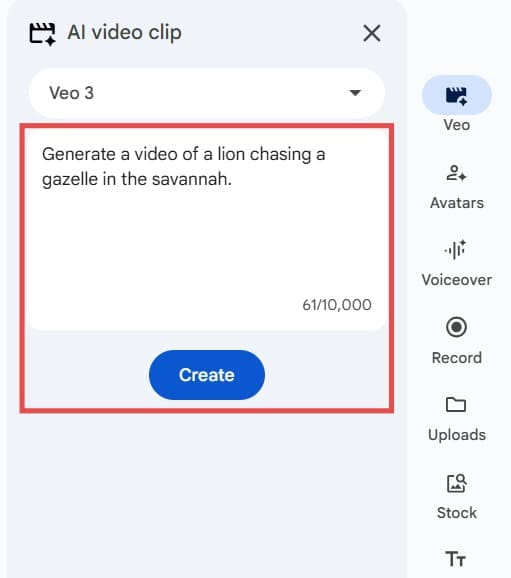
Step 4. If you’re using AI generation, type in a prompt in the “AI video clip” box (accessed through the “Veo 3” tab on the right rail). Be as specific as you can, but note that Veo is limited to only 8 seconds of content with full audio, so even if you request a longer length, it might go to 10 seconds tops.
Step 5. Once complete, Veo will present you with a clip you can use as a scene in the video for further editing. You can click on the “+” sign in the scene viewer (the bar on the bottom) or use the shortcut “Ctrl + M,” then hit “Insert” or “Replace” from the Veo 3 tab to place it inside the video.
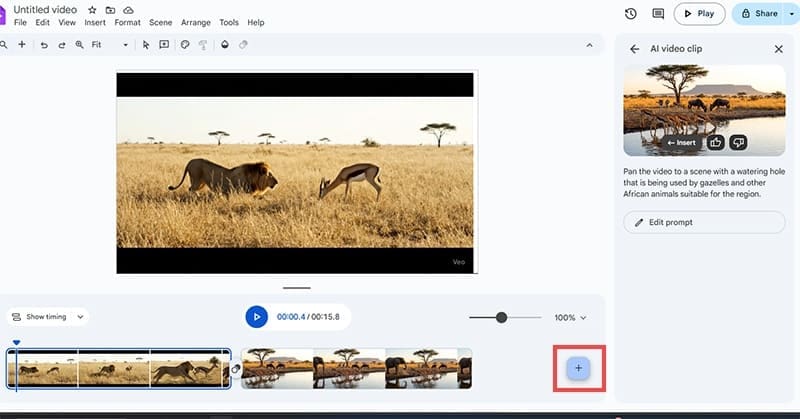
The combined length of the video is capped at 10 minutes, but the scenes themselves can be around 8 to 15 seconds long depending on whether you’re using stock media or fully-generated content. You can also insert existing video content that can get longer but you don’t get much opportunity to refine it.
Key Features and AI Capabilities
Gemini-Powered Assistance
The storyboard feature here is likely going to be key if you’re already using Google Workspace for your business. It allows you to combine existing materials and easily get content from your library. Then, Gemini can use your text input and the suggestions to brainstorm scripts and map up a video narrative for you to follow.
Veo 3 Video Generation
Veo 3 is one of the more advanced video creation models out there. It can create videos from scratch using nothing but text input. However, where it gets exponentially better is using existing content. You can upload an entire Slides presentation then have it animated entirely through AI or use a simple product image to create more interesting effects and transitions.
AI Avatars and Voiceovers
Teams can also write a script, then select an AI avatar to deliver the message, eliminating the overhead of recording yourself or coordinating with a spokesperson. This feature is great for training videos, demos, and onboarding content since they can be easily scaled up without additional costs.
For audio, Vids offers you the option of creating a fully AI-generated audio with a template, or you can record your own voiceover and have the suite help you to script and time it properly.
Content Library and Customization
Vids contains plenty of royalty-free stock media assets including images, videos, and music tracks, plus direct integrations with Google Drive and Google Photos for using your own content. This can help you get ideas for content, even if you’re not fully satisfied with the base templates.
Collaboration and Sharing
Like other Google Workspace tools, Vids has similar real-time collaboration with familiar commenting and sharing workflows that exist on Docs or Slides. Multiple team members can work on the same video simultaneously, with each able to see what and where their colleagues are editing. You can share videos as editable Vids files with the same three-tiered permission levels, or export them directly as MP4 files to Drive or download directly.
What Works and What Doesn’t
Google Vids excels at making video creation accessible to non-specialists. The platform is relatively intuitive to use, and the AI assistance can greatly accelerate the process of going from blank pages to first drafts.
However, Vids is ultimately designed for desktop use, with the editor’s capabilities still lagging behind professional suites in dedicated apps. Furthermore, the AI generator is limited to only eight or so seconds of content at a time and might not directly recognize the context of the previous scene to make seamless transitions.
Ultimately, the tool is useful for animating presentations and creating simple scripts and voiceovers. But for professional-grade content, you’ll likely be better off by using dedicated tools or hiring specialists.
Related Posts
 Minecraft GPT – What You Need to Know About the AI-Powered Minecraft Guide
 What Is Dating Killer AI – The AI-Powered Way to Improve Your Online Dating
 Discover AI-Powered Adaptive Learning with Learn Earth AI
 How to Use ChatGPT for Research – Quick Guide
 What Is the Best Meeting AI Transcription App

Disclaimer: Some pages on this site may include an affiliate link. This does not effect our editorial in any way.