As a long-term YouTube user, you’ve probably wondered when you subscribed to a particular channel. Unfortunately, YouTube doesn’t provide that information. As such, it’s impossible to find out when you subscribed to a YouTube channel on the platform itself. However, there are certain workarounds you can use.
In this article, we’ll show you how to tell when you subscribed to a YouTube channel.
How to View the Date You Subscribed to a YouTube Channel
On YouTube, you can view a list of the channels you have subscribed to by tapping “All” on the subscriptions page. But the list only shows “Most relevant,” “New activity,” or “A-Z.” You can’t sort your subscriptions by subscribing order in this section.
Luckily, there are a few ways to find out about your YouTube subscription history. One way is by using xxluke.de. The other way is available to Google account users, as the platform provides a list of subscribed dates.
Using xxluke
As mentioned, you can view the date that you subscribed to a YouTube channel using the third-party tool “xxluke.de.” Here are the steps you should take.
Step 1: Make Your Subscriptions Visible to the Public
Making your subscriptions visible is the first step. Your subscriptions are private by default, so you need to disable that option. The tool won’t work if your subscriptions were hidden at the time you originally subscribed.
Here’s how it’s done:
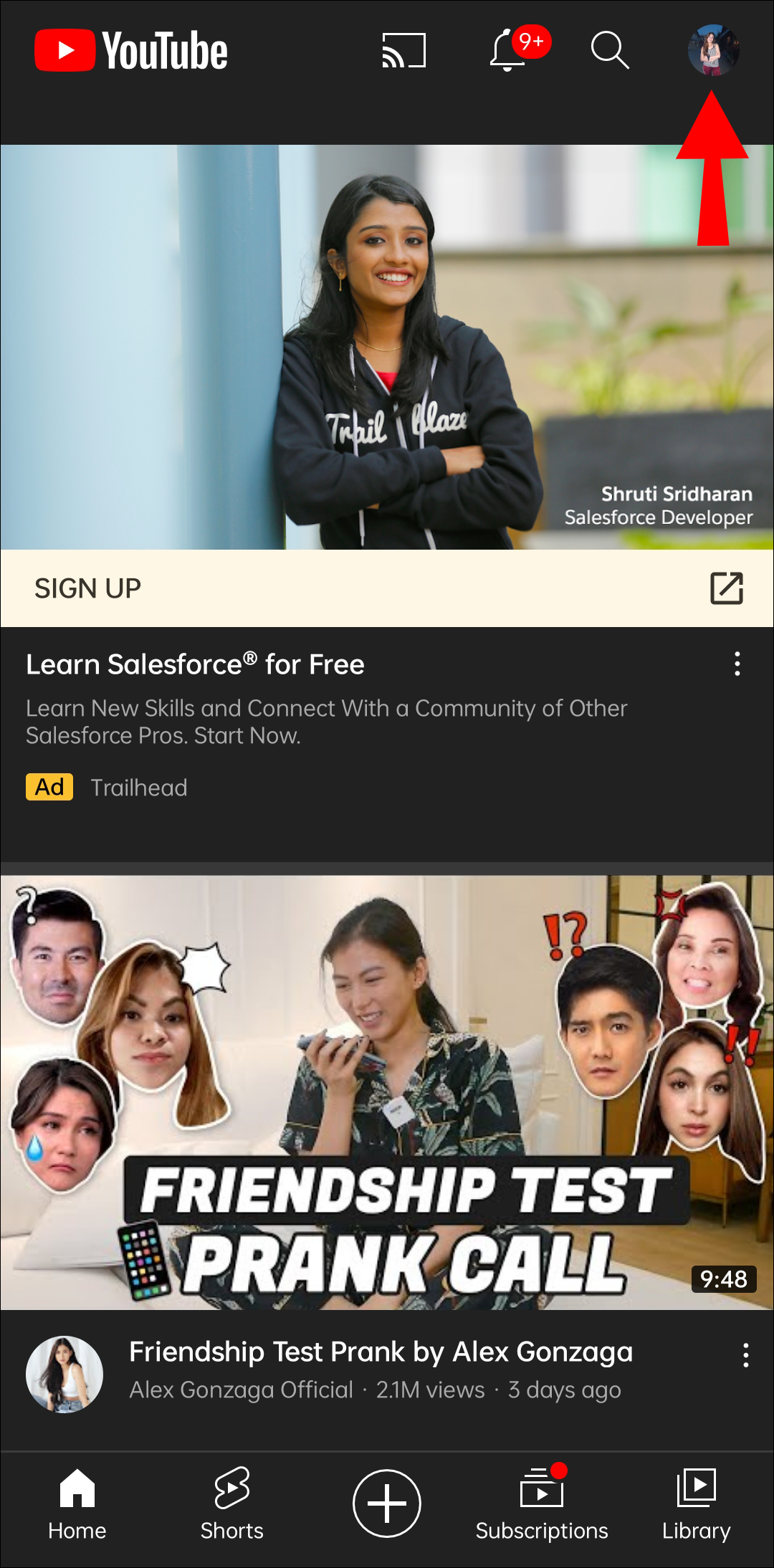
- Open the YouTube app.

- Click on your profile photo on the navigation bar at the top.

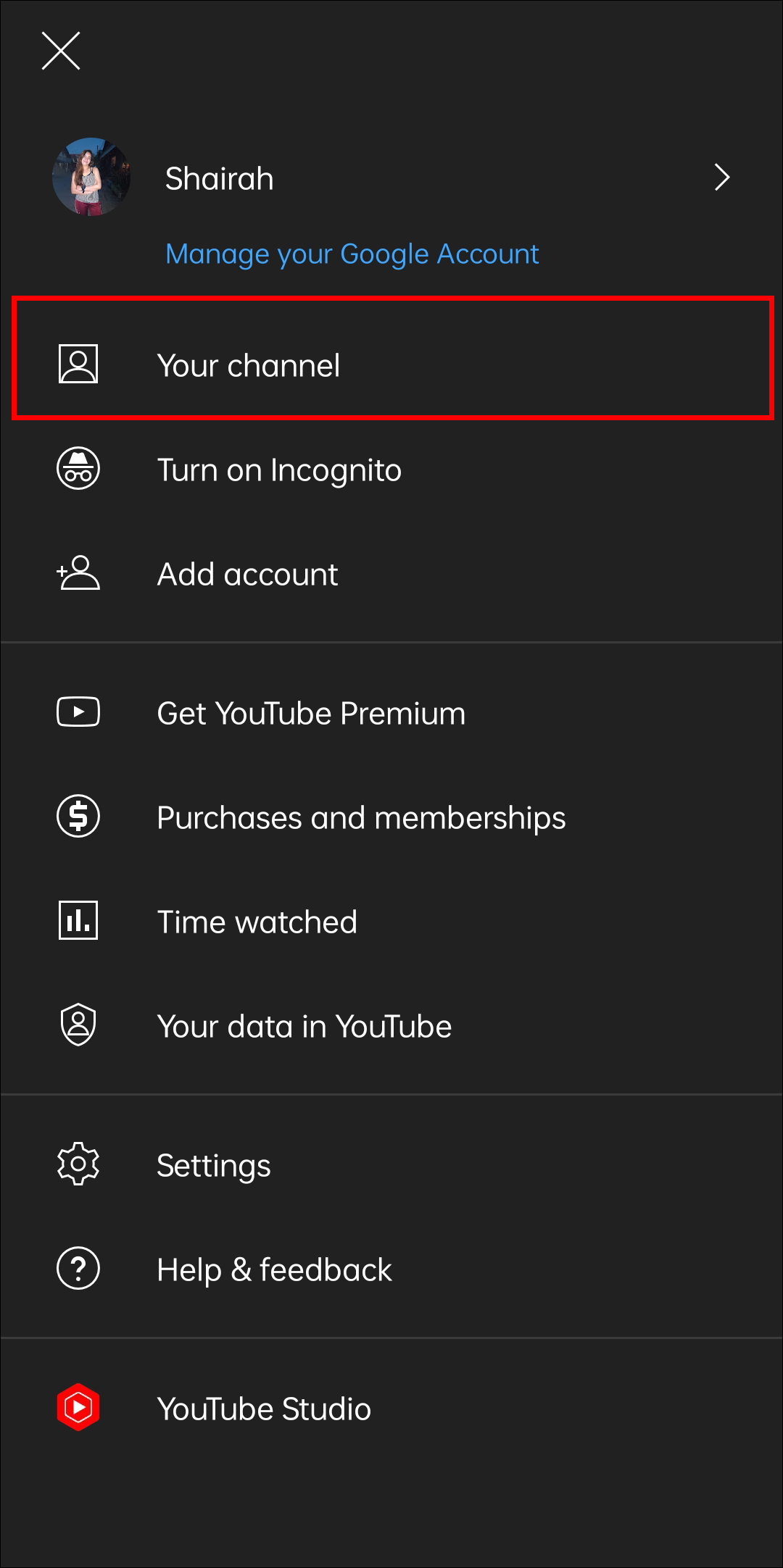
- Select “Your channel.”
- Click on the “Pencil” button.
- Under Privacy, toggle the “Keep all my subscriptions private” option off.


When you finish this, the third-party tool will be able to collect your subscription information.
Step 2: Get the Channel’s Link
The easiest way to get the subscription info is to have your own channel. First, you should copy the URL to your channel. To do so, follow the steps below:
- Open the YouTube app.
- Click on your channel’s profile photo in the navigation bar at the top.
- Click on “Your Channel”.
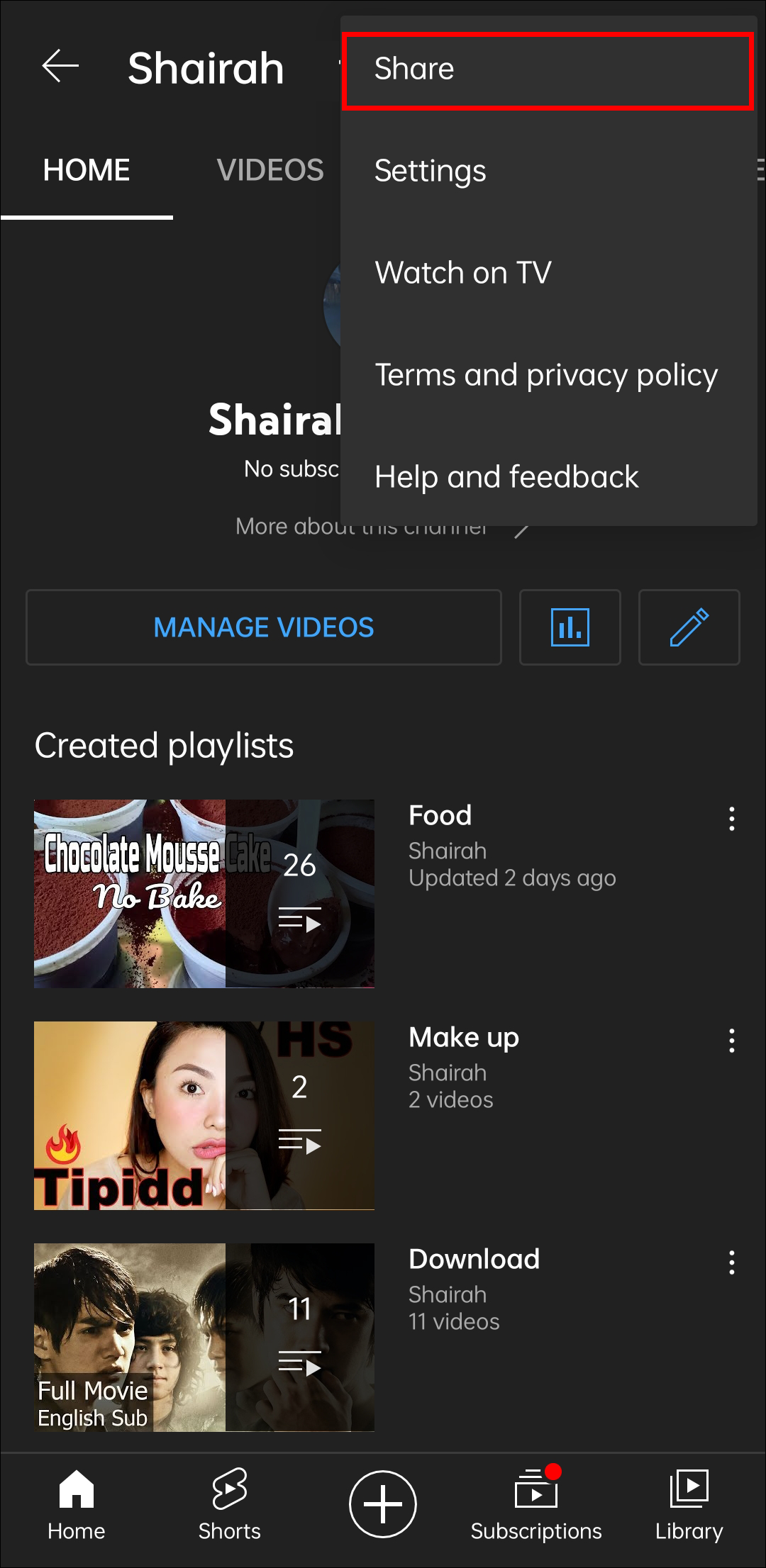
- Tap on the kebab menu (vertical three-dot menu) in the navigation bar at the top.

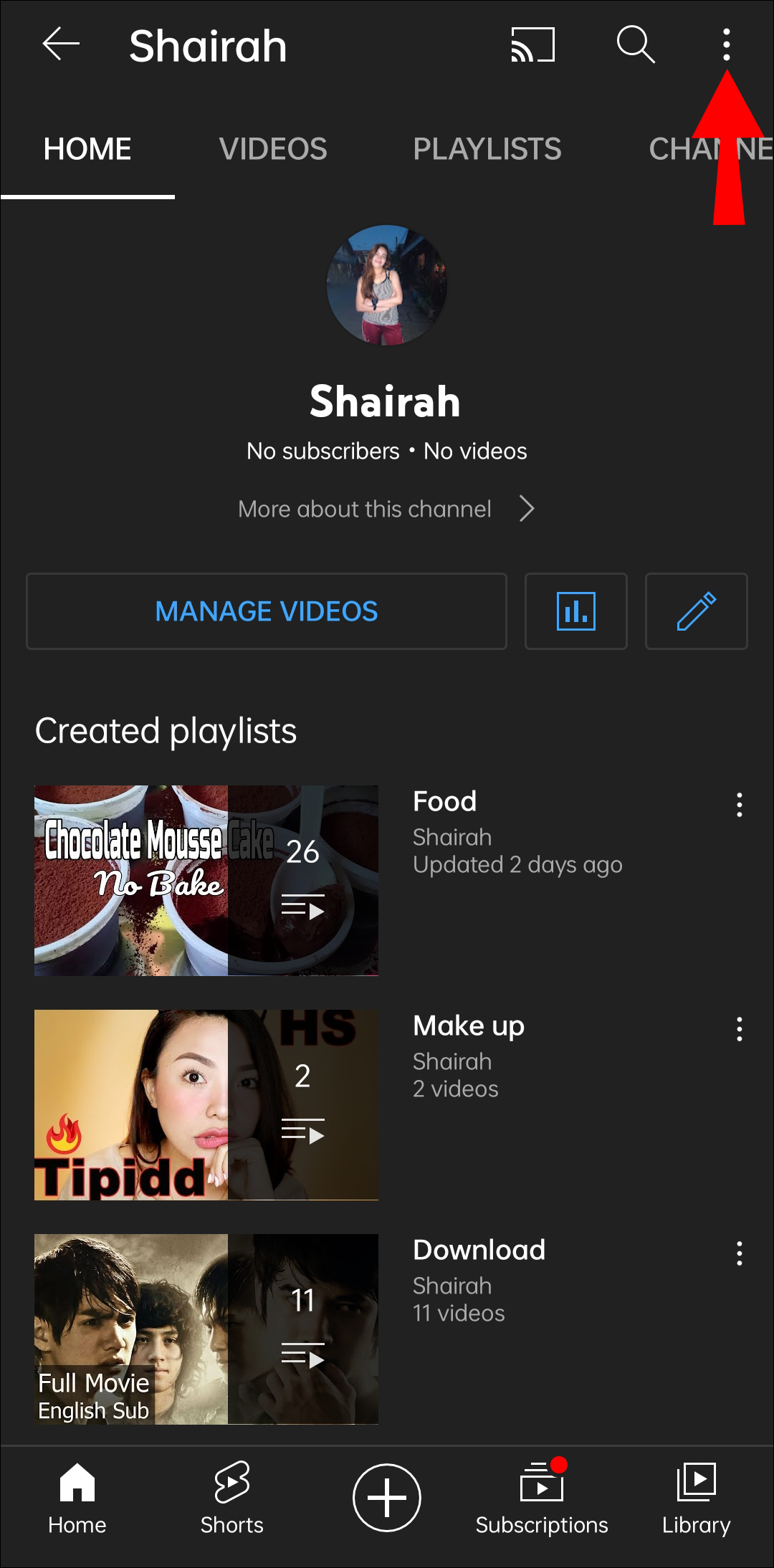
Doing this will show a navigation section where you have two options – “Share” and “Help and feedback”.
- Click on the “Share” button to share your YouTube channel.
- There will be many sharing options. To copy the link to your channel, select “Copy link.”
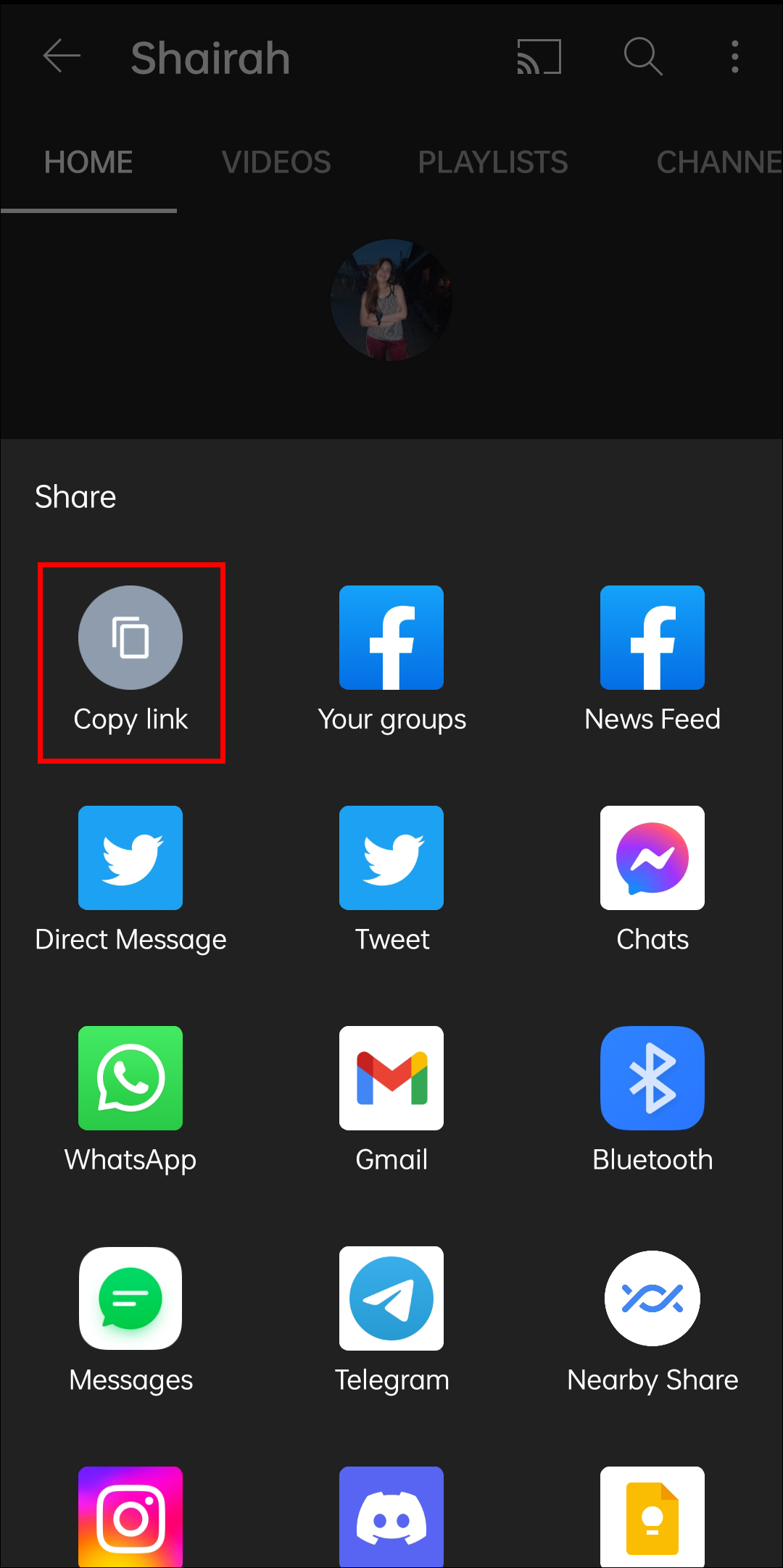
Doing this will transfer your channel’s URL to your clipboard.
Step 3: Paste the URL Into the Third-Party Tool
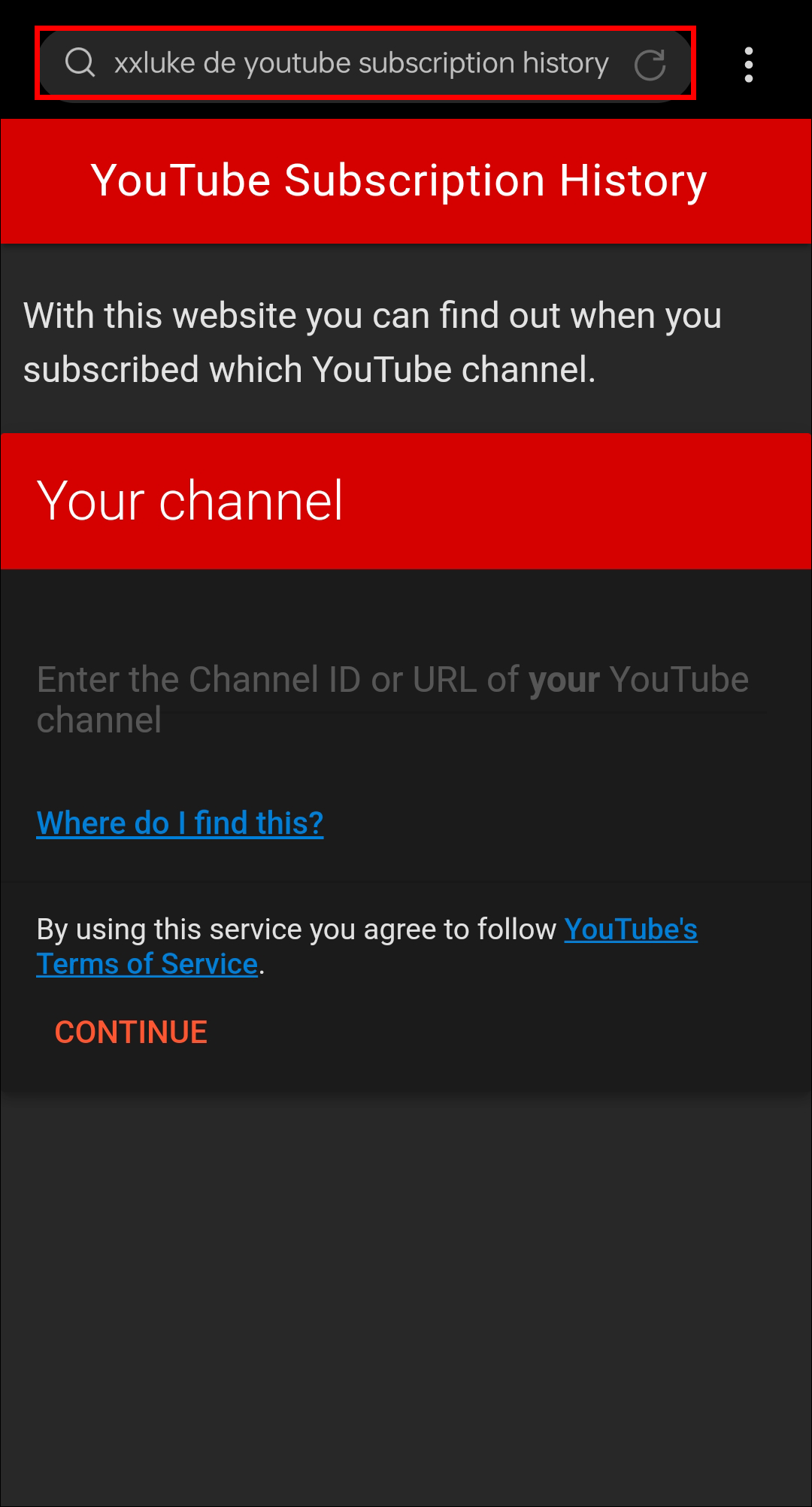
- Visit xxluke.de/subscription-history.
- Put the required URL in the “Enter the Channel ID or URL” box.
- Press “Continue”.

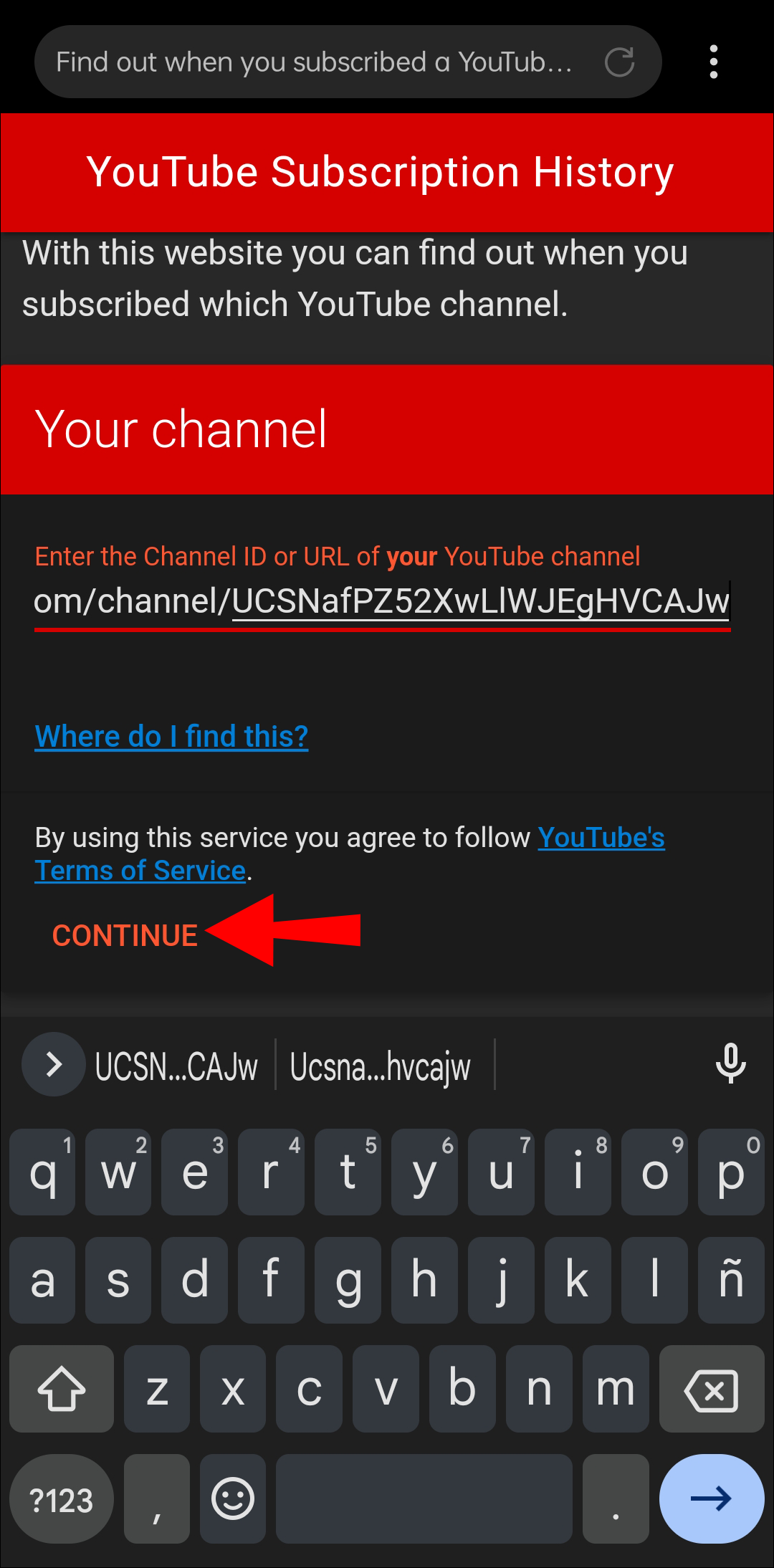
You will find the information about your subscriptions under the “Subscriptions” section. The date on which you became a subscriber will be next to the channel’s name. The list will be in reverse chronological order. Just scroll to the bottom of the list to see the first YouTube channel you subscribed to and so on.
Additional FAQs
Is xxluke safe?
Xxluke is a completely safe website as it has an active SSL certificate. You only need to enter your YouTube URL to view your subscription history. According to SimilarWeb, the site gets over 200,000 visitors every month.
Are there alternatives to xxluke?
Google users have another way for finding out how long ago they subscribed to a YouTube channel. Simply follow these steps:
1. Open “My Google Activity” and choose “YouTube History.”
2. Once you have found your YouTube history, select “Manage History.”
3. There you’ll find a place for interaction.
4. Click on interactions and you will learn about all of your YouTube subscriptions.
They will find the exact date you subscribed. This is an easy way to find out the information you require.
Found a channel you’re no longer interested in?
If you’ve discovered an old channel that is no longer creating content, or if you’ve simply lost interest in a specific channel, use these steps to unsubscribe:
1. Open YouTube.
2. Select the hamburger menu (three lines in the top left corner).
3. Choose “Unsubscribe from channels.”
4. Select “Yes, I want to unsubscribe from this channel” in the pop-up window.
You will no longer receive recommendations from those channels.
Learn About Your Subscriptions
Until YouTube adds an option to see the date of your channel subscriptions, the two methods outlined in this article are the only solutions to find out your history with a particular YouTube channel. If you own a YouTube channel, xxluke is the easiest method to gather the information you need.
How simple was it to find out when you’ve subscribed to a YouTube channel? Were you surprised by some of the results? Let us know in the comments section below.

Disclaimer: Some pages on this site may include an affiliate link. This does not effect our editorial in any way.