Viewing and sharing pictures in groups and conversations is a key GroupMe feature. However, you may encounter situations when pictures fail to load. To help you in this situation, here are some solutions to try if pictures aren’t loading in the GroupMe app.
GroupMe Pictures Not Loading can mean two things. First, you cannot view the picture in the phone’s album or gallery, and second, the images received or sent in GroupMe are not loading. While the former is because of permission issues, the latter is caused by a server or internet outage.
1. Check the App Permission
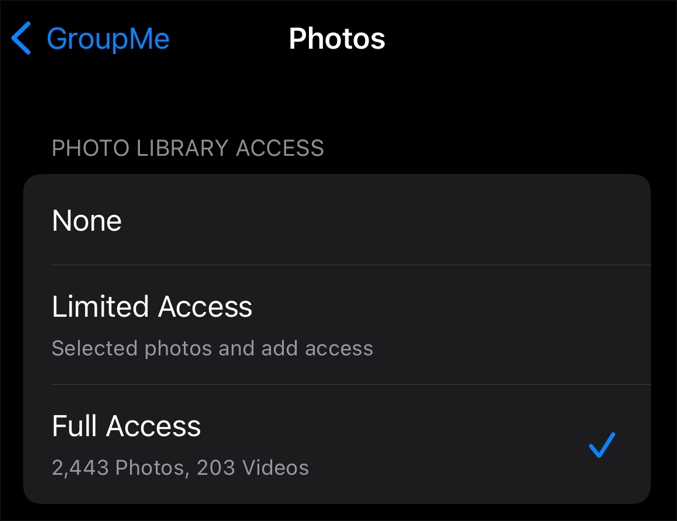
One of the main reasons pictures might not load on GroupMe is that they are denied photo access. When you first try sending a photo, you’ll see a prompt asking permission to access your photos. At this point, be sure to select Allow. If you initially denied GroupMe access to your photos, you might face loading issues later. Thankfully, fixing this is relatively simple.
On iPhone:
- Open the Settings app.
- Select GroupMe.
- Choose Photos and then select Full Access.
On Android:
- Open the Settings app on your Android phone.
- Select Apps.
- Find and tap on GroupMe.
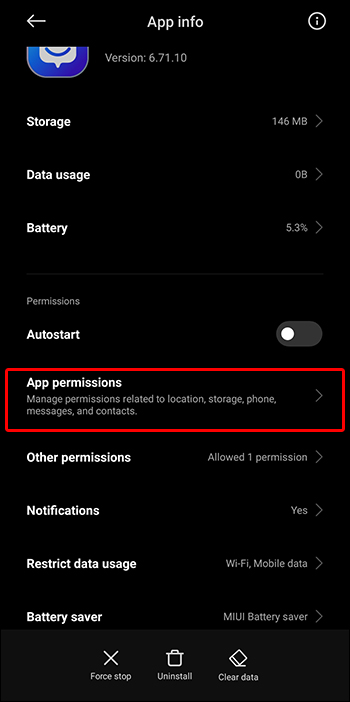
- Select the App permissions option.

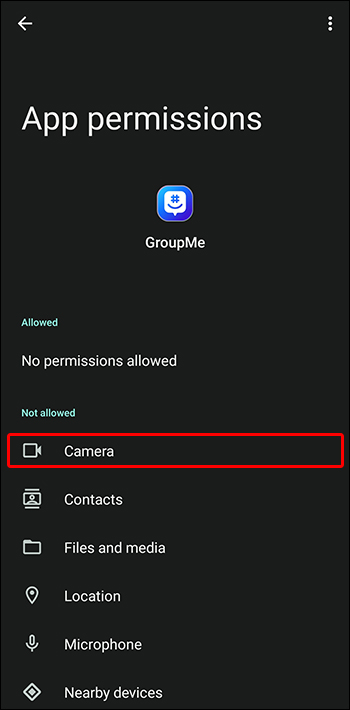
- Choose Camera.
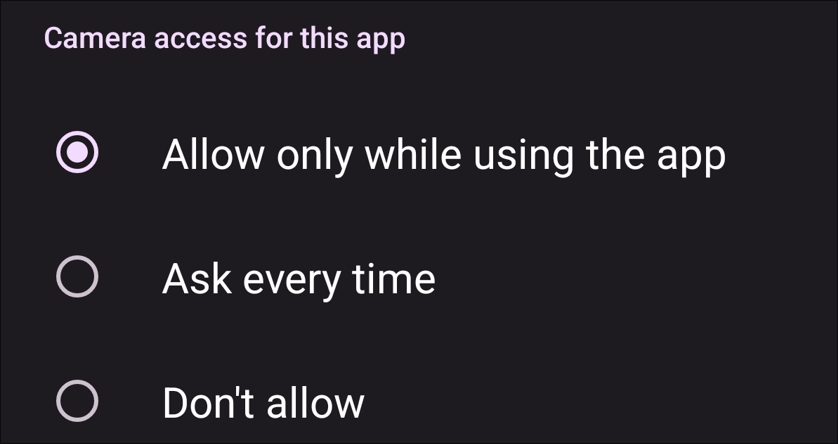
- Select Allow only while using the app.
- Similarly, choose Allow only while using the app for the Photos and videos option.
2. Check Your Internet Connection
The internet plays a significant role in certain features of GroupMe, including loading images. You’ll need a reliable and stable internet connection to load pictures. To confirm if your connection is weak, visit an internet speed checker website like Fast.com.
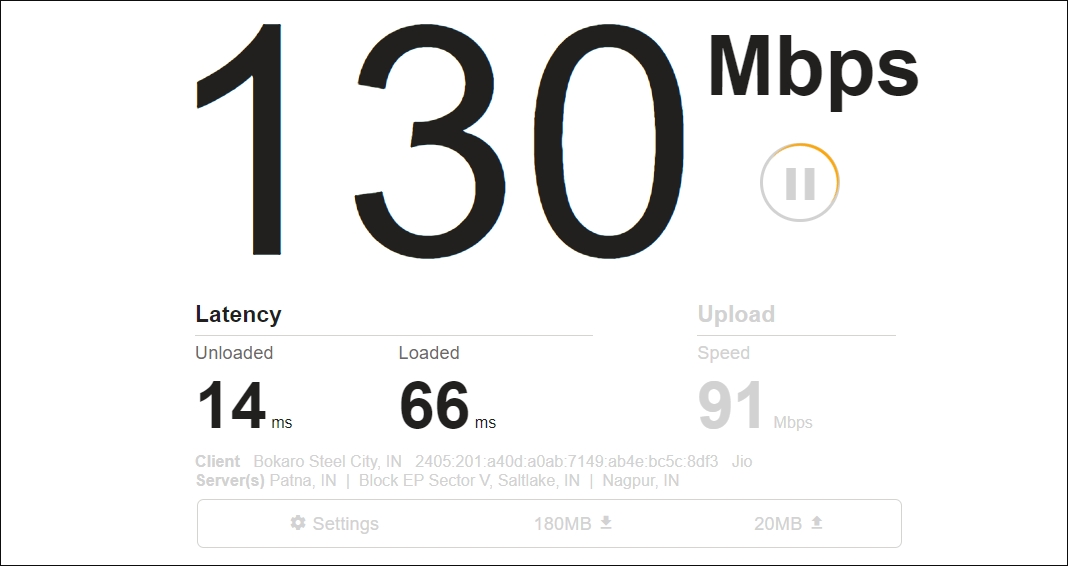
If the results show that your connection is slow or has problems, consider switching to a different network. If needed, restart your router and modem.
3. Refresh the App or the Conversation
Sometimes, the issue might be temporary and can be solved by refreshing the GroupMe app. To refresh, drag down your screen to reveal the reload circle with a rotating arrow. Also, try closing and reopening the app. This helps reload the conversation and fix the issue at hand.
4. Check the Storage
If you’re running low on storage space, you might have trouble loading pictures on GroupMe. Make sure you have enough space for new media files. You can free up space by deleting unused apps and files.
5. Check the Format and File Size
GroupMe has file size limits and allows specific image formats. So, be sure the images you’re sharing or viewing meet the size limits and are in compatible formats. The image needs to be no larger than 50 MB. Additionally, if the image is in a less standard format, you should convert it to JPG or PNG by visiting websites like CloudConvert.
6. Disable Battery Saving Mode
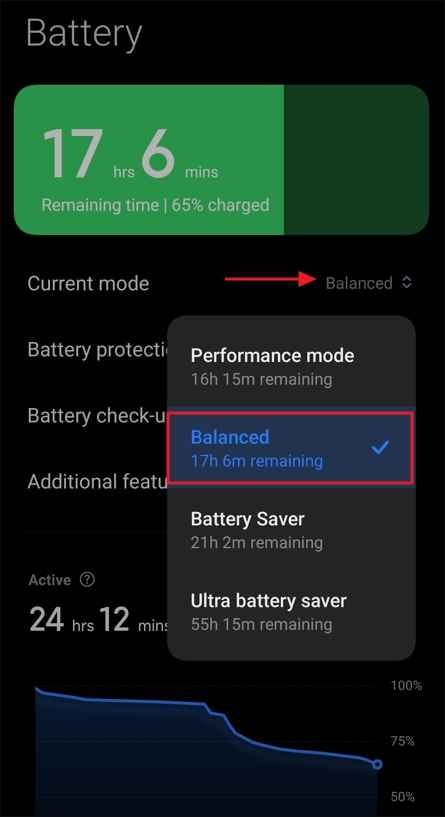
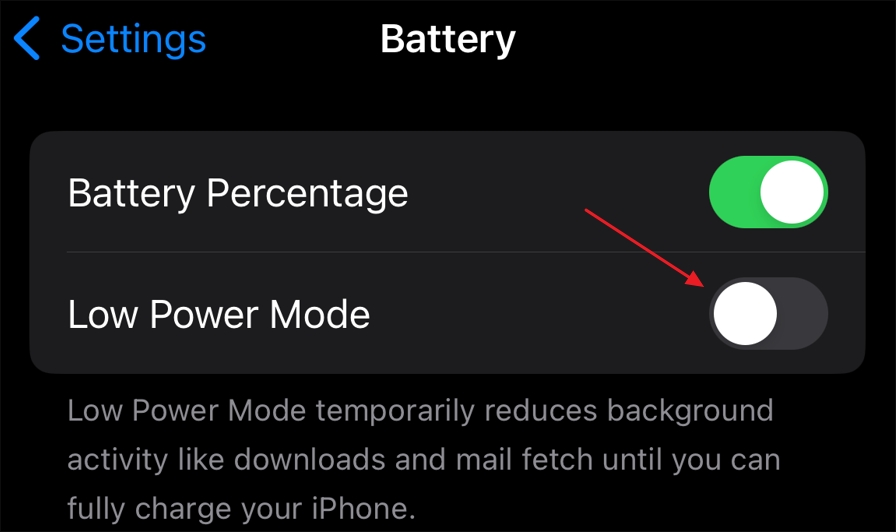
Battery saving mode can restrict app features to save power. The mode may interfere with picture loading on GroupMe. You must disable this mode to see if it affects the pictures’ loading ability. Here’s how to disable it:
On Android:
- Open the Settings app and select Battery.
- Choose Balanced from the Current mode drop-down menu.
On iOS:
- Launch the Settings app, and select Battery.
- Disable the Low Power Mode toggle.
7. Check the Server Status
If the GroupMe server is down, that could explain why some features, like pictures, aren’t working properly. You can check GroupMe’s server status through Downdetector. If the results show that the servers are under maintenance or experiencing downtime, there’s not much you can do other than wait until the server issue is resolved.
8. Clear GroupMe Cache Data
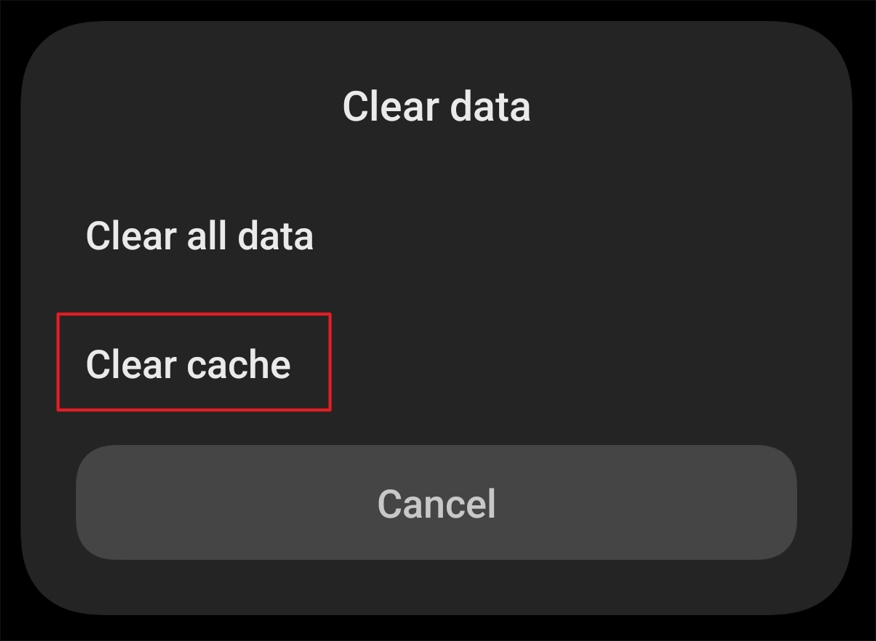
Often, apps start acting up due to corruption in their cache data. In this case, you can clear the cache data to resolve the issue. Here’s how to clear the cache:
On Android:
- Open the Settings app.
- Select Apps.
- Choose GroupMe from the list.
- Tap on Clear data and choose Clear cache.
- Choose OK.
On iOS:
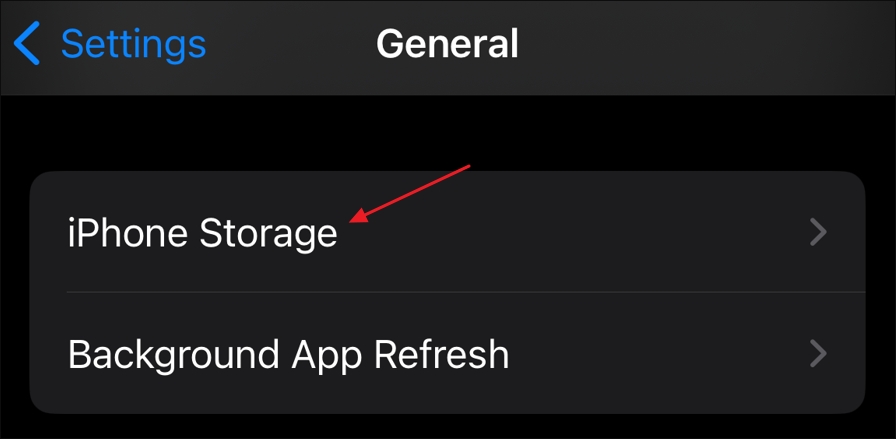
On iOS, you don’t have a direct option to clear an app cache. Instead, you’ll have to offload the app, which will remove the app itself while keeping its data. When you reinstall the app, it will download fresh data and rebuild its cache. To offload GroupMe, follow these steps:
- In the Settings app, open the General option and choose iPhone Storage.
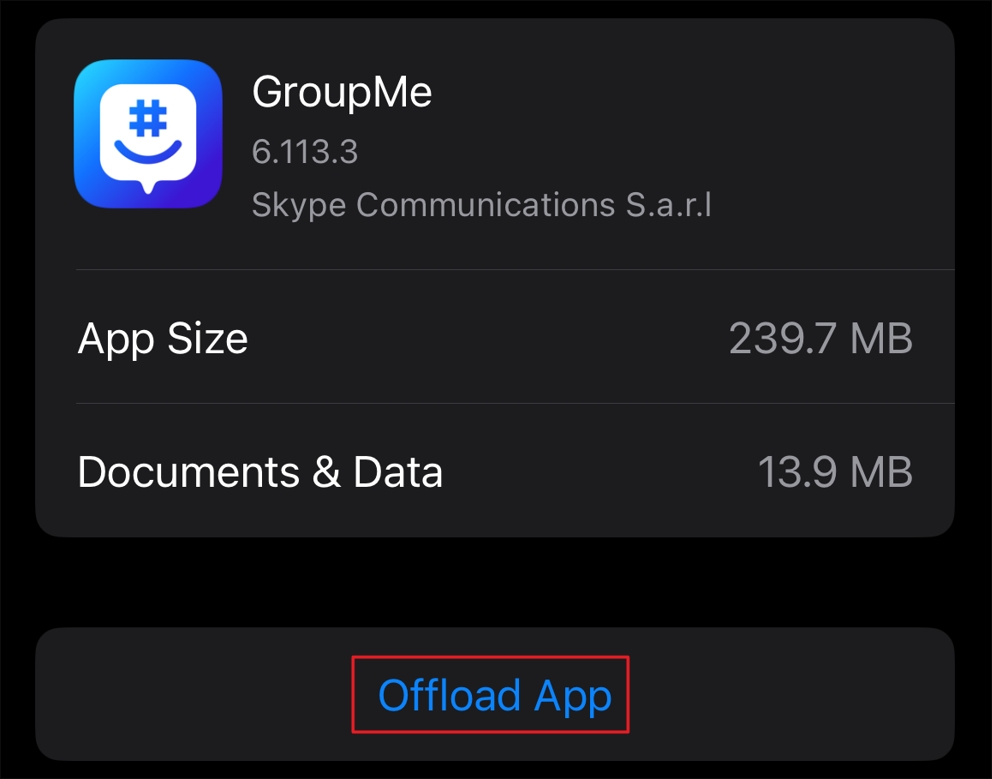
- Select GroupMe from the list of installed apps, and then tap Offload App.
- Choose Offload App again to confirm.
- After that, tap the Reinstall App option to reinstall GroupMe.

9. Update the App
Another way to fix the issue is to update the app. This way, you’ll be able to update the app and enjoy the new features that come with the update.
On Android:
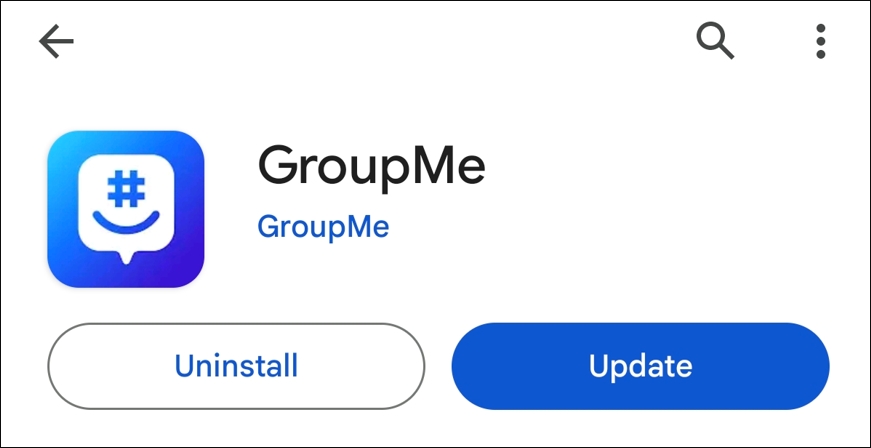
- Launch the Google Play Store and search for GroupMe.
- If any update is available, click the Update button to download it.
On iPhone:
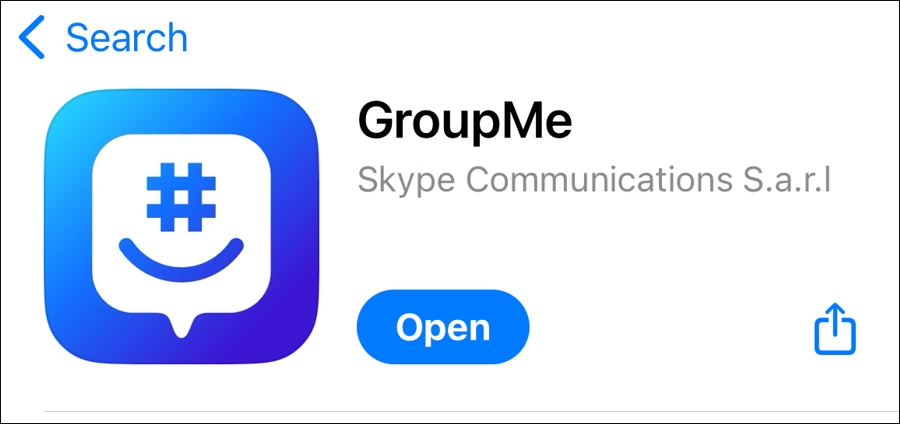
- Open the App Store on your iOS device.
- Check whether there’s an available update. If yes, tap the Update button to install it.
10. Disable Proxy or VPN
Using a virtual private network (VPN) or proxy service on your phone might cause issues with loading pictures in GroupMe. If you’re connected to one, try disabling it (check how to disable VPN) and see if the pictures load normally. If they do, then the VPN or proxy is likely causing the problem. To avoid similar issues in the future, it’s best not to use a VPN while using GroupMe.
11. Contact the Support Team
If the issue is unresolved, contact the GroupMe support team for more assistance. This way, you get guidance based on your device, account, or the nature of your problem. To contact the customer support, follow these steps:
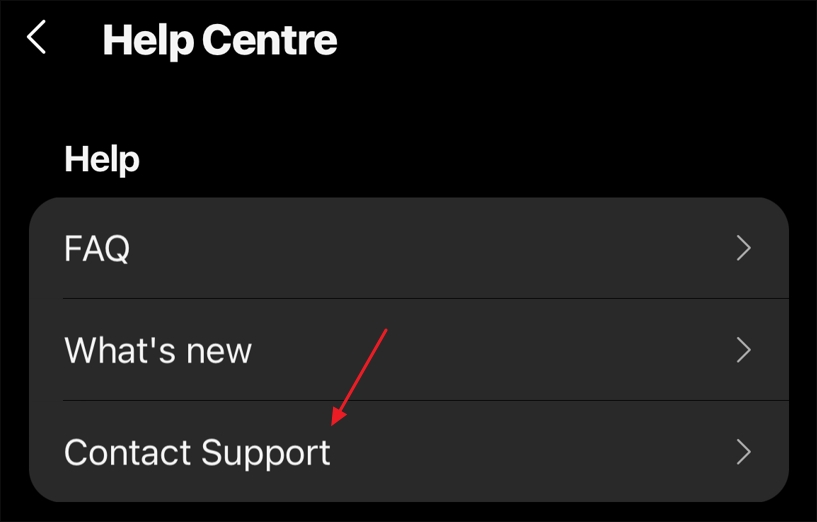
- Open GroupMe, go to your profile, and choose Help Center.
- Select Contact Support. After that, follow the on-screen instructions to contact the support.
Enjoy Full Picture Functionality on GroupMe
GroupMe provides a wide range of features, but you can only enjoy them if they work properly. Some issues, like when the pictures fail to load, can lead to a frustrating experience. Knowing the cause of the problems and remedying them promptly helps you enjoy the full app functionality and keeps you connected with your loved ones and colleagues.
Once you’ve fixed the issue, you might be interested in learning other GroupMe basics, like how to send a message on GroupMe.
FAQs
There can be several reasons why GroupMe isn’t loading pictures. However, the problem often occurs because of missing permissions. Other potential causes include an outdated app, a weak internet connection, an active VPN, insufficient storage space, and corrupted cache data.
GroupMe might not be showing your chats due to a temporary glitch. You can fix this quickly by restarting the app. Additionally, you can try updating the app or clearing its cache data to resolve the issue.
If you can’t open a file on GroupMe, the platform probably does not support it. In this case, you can either convert the file to a supported format yourself or ask the sender to resend the file in a supported format.

Disclaimer: Some pages on this site may include an affiliate link. This does not effect our editorial in any way.