OpenAI’s text-to-video generator Sora AI is a wonderful tool with many possibilities. As ChatGPT continues to push the bounds of what machine learning is capable of, Sora is right alongside it, delivering videos that a few years ago would’ve been unthinkable.
“All well and good,” you say, “but how do I use it?”
This article will be your guide in using Sora AI.
Immersive Video Creation
Sora AI Video Generator is a fantastic way to turn words into frames, to animate images, and to bring outrageous concepts to life easily. OpenAI allows users to create videos in a variety of styles that have a more complex understanding of the world (and its physics) than ever before. Gone are the days of static videos, and now scenes and people can move in dynamic ways.
As you might already have guessed, creating videos with AI is a very intensive process in terms of computing power. As such, OpenAI restricts access to this powerful tool by hiding it behind a paywall. As technology advances, perhaps it will become more accessible, but for now, you’ll have to pay either $20 per month (Plus) or $200 (Pro).
A notable exception is Bing mobile app users, who can create five-second-long clips using Sora’s technology.
Using the Sora AI Video Generator
Much like ChatGPT, OpenAI makes it very easy for both newcomers and pros to make use of the Sora video generator. Amateurs can enjoy inputting text, while creators have plenty of options to tweak footage and use different tools. Let’s take a look:
Enter Your Prompt
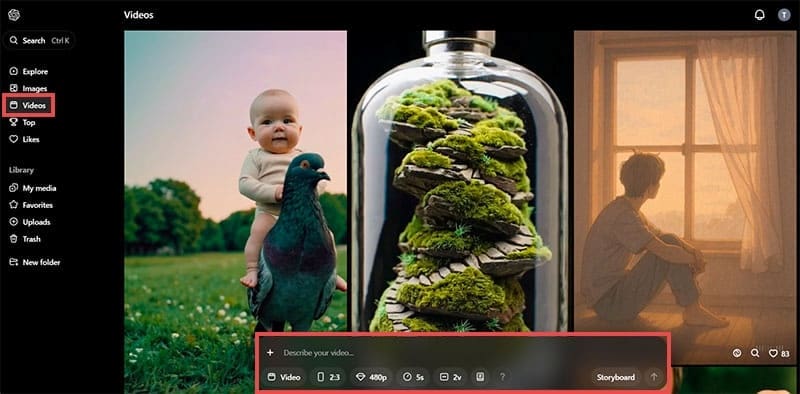
The first step is to enter your prompt into the dialog box provided. Tell Sora what you want in your video. The more detail, the better. Don’t worry if you don’t think of everything right away; there’ll be plenty of chances to tweak things later.
At the bottom of the dialog box are a few features to help you customize your video:
- Upload – The Plus icon allows you to upload a photo or video to help Sora better understand what you’re going for. In the case of a static image, it can even animate it for you.
- Type – You can alternate between video and image production with a click of this option.
- Aspect Ratio – This option helps you to design videos for different formats and screens, offering five different ratios.
- Resolution – If you want a quick video, choose 480p. Videos at 1080p will take the longest to produce, but 480p is a good resolution to work in before the final product.
- Duration – You can create videos up to 20 seconds long.
- Variations – Choose how many videos Sora generates to give you more choice.
- Presets – These shorthand options allow you to get a certain look for your video, be that Film Noir or Pixel Art.
- Storyboard – Collect different videos together to make a storyboard. This is helpful for projects.
Tweak Your Video

Once you’ve had Sora generate your videos, click the one you like and begin tweaking. Sora gives you many ways to refine your videos, including:
- Edit Prompt – Change the wording of your prompt, add, or remove keywords to get a result closer to what you’re looking for.
- Remix – The do-it-in-one button. This allows you to edit the video according to your requests. Need more fish in the sea? Tell Sora, and it’ll add them. The strength of the remix (Strong, Mild, Subtle, or Custom) allows you to select how hard your suggestions are adhered to.
- Blend – Add existing footage to your video.
- Loop – Play the video again and again.
Find Inspiration
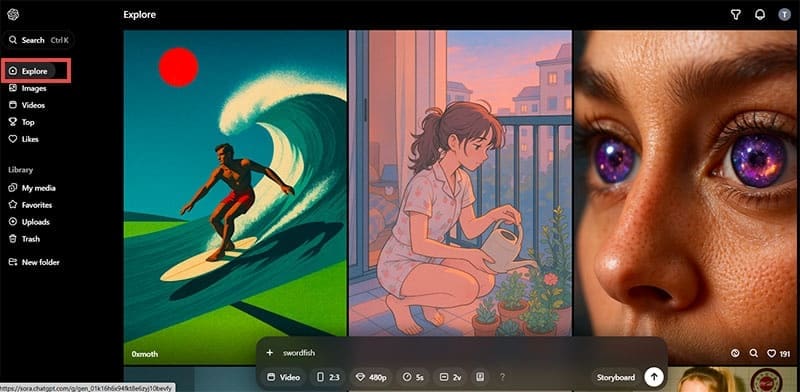
If you’re not sure why your video isn’t looking quite like you wanted it to, check out how everyone else is doing things. Click on the “Explore” option in the sidebar, then on any image or video that you like to see the prompts that went into its creation. You can even remix it in your own way.
Related Posts
 Best Minecraft Skin AI Generator
 Best AI Username Generator for Instagram
 How to Use AI Caption Generator for Instagram
 Is Automateed the Most Impressive AI eBook Generator Yet?
 What Is the Best AI Recipe Generator for Easy Meals?
 Freepik AI Image Generator – Should You Use It?
 How to Create YouTube Shorts From Existing Video Using Reap.Video

Disclaimer: Some pages on this site may include an affiliate link. This does not effect our editorial in any way.