You have probably already heard of the Dish Network and the Amazon Firestick. You’ll be happy to know that the two are integrated, meaning that now you can watch the Dish Network content on your Amazon Fire Stick!
If you are wondering how to install Firestick with Dish Network, you’re in the right place. Read on for a detailed installation guide for your Firestick, followed by the Dish Anywhere App installation guide on the Firestick.
The Dish Anywhere app lets you watch all of the Dish Network content on the big screen, thanks to the Firestick integration that happened in late 2017.
Install Firestick
Before you can watch the Dish Network on your TV, you need to properly set up your Amazon Firestick. That is not difficult at all if you follow our step-by-step guide:
- Unbox your Amazon Firestick and get the power adapter. Plug it into any available power source.
- Connect the Firestick to your TV, using the included HDMI cable. Make sure you to remember which HDMI port you used, if you have multiple ports on your TV. You will need this information later.
- Turn on your TV. Use the Input or Source button on your TV remote. Choose the corresponding HDMI input you used a moment ago (e.g. HDMI 1).
- Follow the on-screen instructions for pairing the Firestick remote with your TV.
- Then, connect your Firestick to the internet. We recommend at least a 10 Mbit/s internet connection for video streaming.
- Register your Firestick on the Amazon website. You can use your existing Amazon account or sign up for a new one.
Now you can connect it with Dish Network.

How to Connect Firestick with Dish Network
You can install many apps on your Firestick or Fire TV and Dish Anywhere App is Dish Network’s dedicated app. You can use it on many other platforms too. Android, iOS, and other apps are available.
However, here is how to install the Dish Anywhere app on your Firestick:
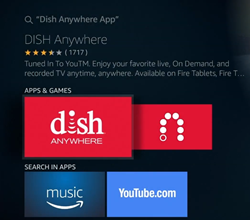
- Use your Firestick remote (microphone button) to give Alexa voice command “Search for the Dish Anywhere App”. Alternatively, you can use the Search option on your Firestick Home screen and type in Dish Anywhere App into the search bar.

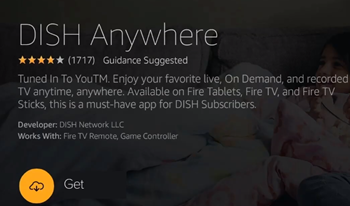
- When you find the app, select it, and press the Get button below.
- The app will download shortly, and you can select Open when it finishes.
- Accept the end-user license agreement after reading it.
- Go to the Dish Anywhere activation page using any browser on your smartphone, tablet, or computer.
- Click on the Activation Code box and enter the activation code displayed on your TV screen.
- Confirm with Activate Device.
- If the code is right, you will see the Device successfully registered screen.
- On your Firestick, you should see the Dish Anywhere home page. Here you will see all the content available on the regular Dish Network. Browse and play the content freely on your Firestick device.
What You Get in the Deal
If you wonder why you should get the Dish Anywhere app on your Amazon Firestick, here is some incentive. If you are subscribed to Amazon Prime Video, you will get a bunch of content from Dish. Some of the offered apps or channels include:
- Dish
- History
- CNN
- ESPN
- ABC
- Disney channel
- NBA
- FOX NOW
- Lifetime
- National Geographic Channel
- Cooking channel
- Freeform
- And a few others
If you like what you see, feel free to get the Dish Anywhere app on your Firestick and start streaming your favorite sports, action, news, nature, history, and other channels.

Powerful Duo
Amazon and Dish Network are very popular and successful companies. The integration gives both platforms a significant improvement and can boost their standings even further. If you have a Firestick device, you can enjoy a lot of Dish content with your Amazon Prime subscription.
Why do you want to install Dish Anywhere on your Firestick? What are the Dish channels you are looking forward to? Tell us in the comments section below.

Disclaimer: Some pages on this site may include an affiliate link. This does not effect our editorial in any way.