A good linking strategy is key to the success of your Squarespace website. Whether you use internal or external links, they’ll help boost your online presence and increase the number of return visitors. They can also help provide useful information to your visitors, like contact information or calendar events. But how exactly do you add links to your Squarespace website?
Read on to find out everything you need to know.
How to Add an External Link in Squarespace
If you want to support your claims by linking to other websites, you can do so with external links. Alternatively, you may wish to promote a third-party service or your friend’s page. Either way, these steps will help you add an external link correctly in Squarespace:
- Choose Website in the upper part of your Squarespace home page sidebar.

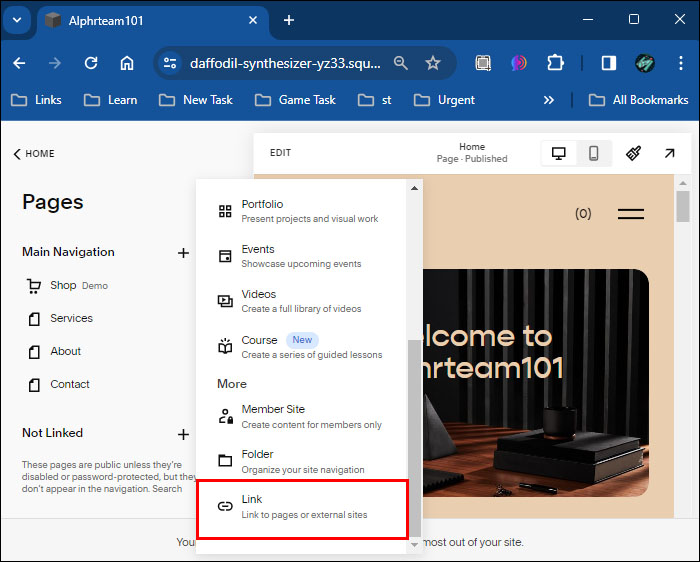
- Click Link in the Create New Page menu.

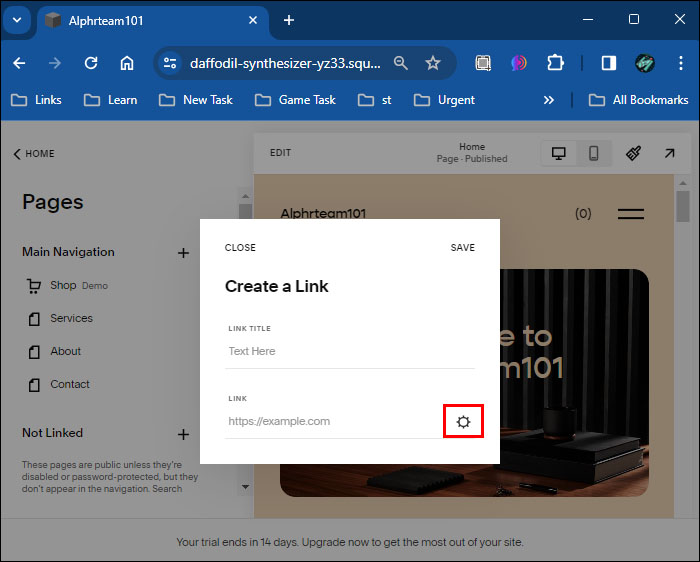
- Press the Settings button represented by a gear symbol in your URL box.
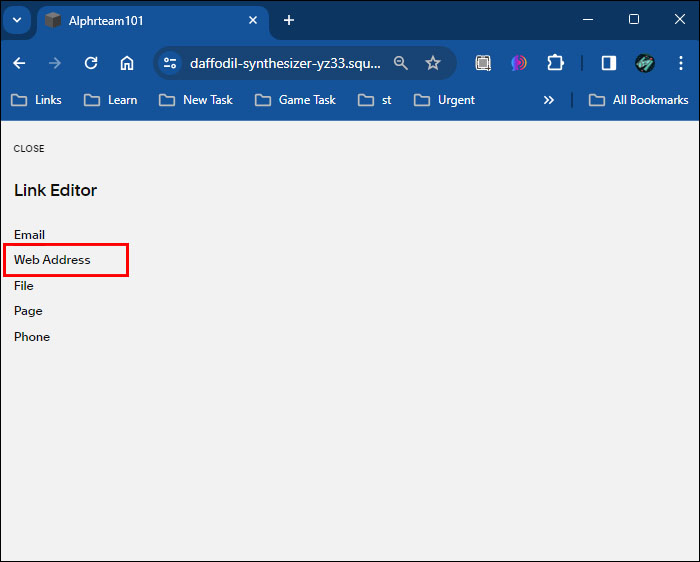
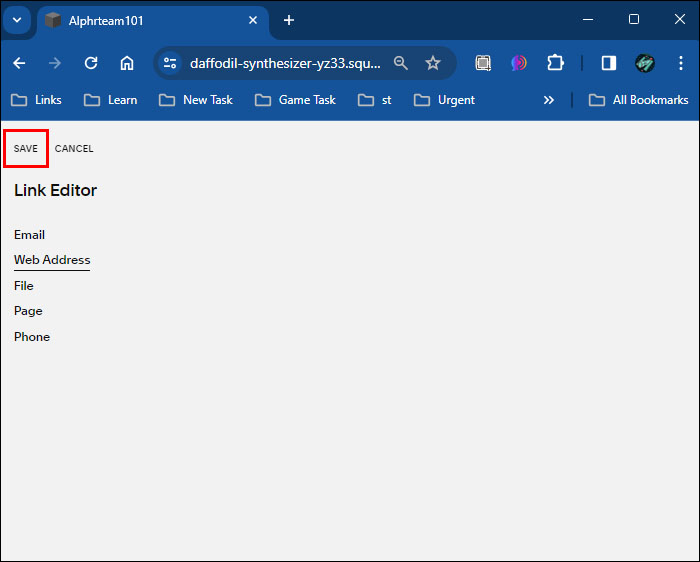
- Choose Web Address.
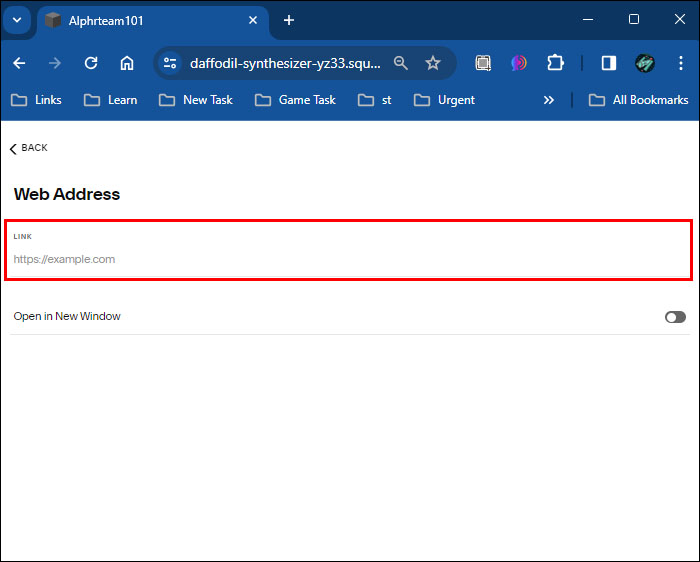
- Copy and paste the desired URL.
- Toggle the switch labeled Open in New Window to ensure the link opens in another tab.
- Select Save, followed by Save or Apply, depending on your Squarespace version.

You can also embed a Google Calendar in Squarespace to easily show upcoming and relevant events to your site visitors.
How to Add an Internal Link in Squarespace
Internal linking is a must-have if you want to draw traffic to important pages and contents of your website. You can also link to collections, which are usually filtered by tags or categories.
Here’s how to add links to your website content in Squarespace:
- Press Website from the main menu of your Squarespace admin panel.
- Choose Link.
- Navigate to the URL window and tap Settings.
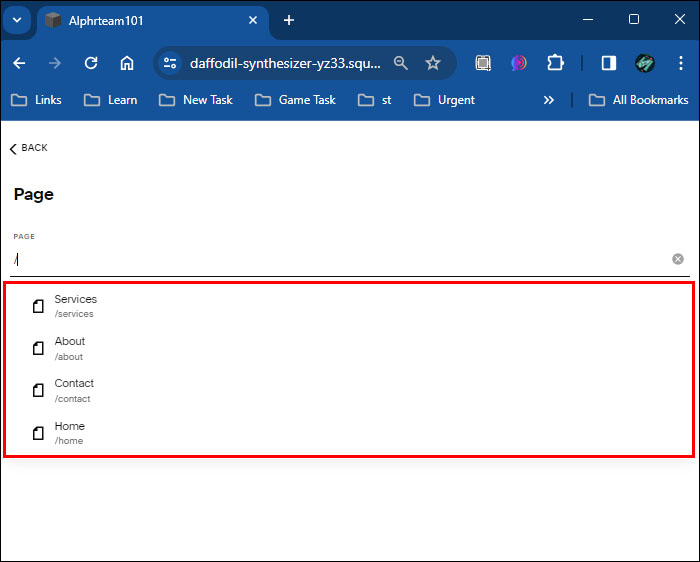
- Choose Page in your link editor and click Search to browse your entire website.
- Select the desired page. If you want to link to a collection with tags or categories, choose the tag or category from the provided menu under Tags or Categories.
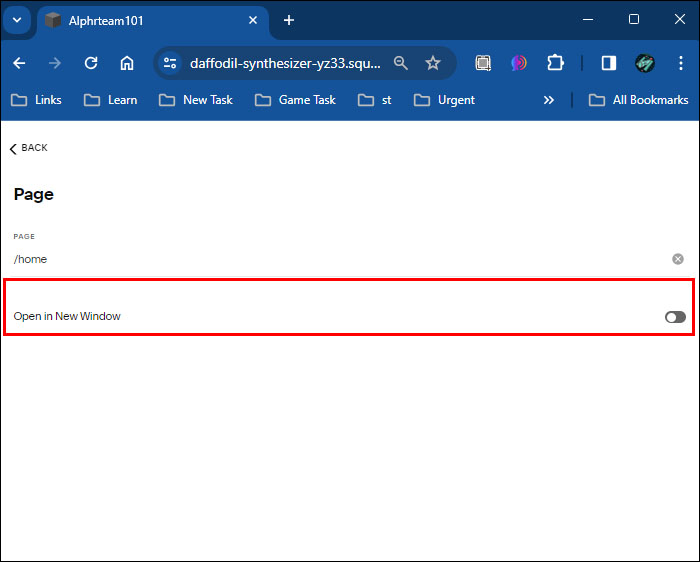
- Go to New Window and enable Open to have the page open in another tab.
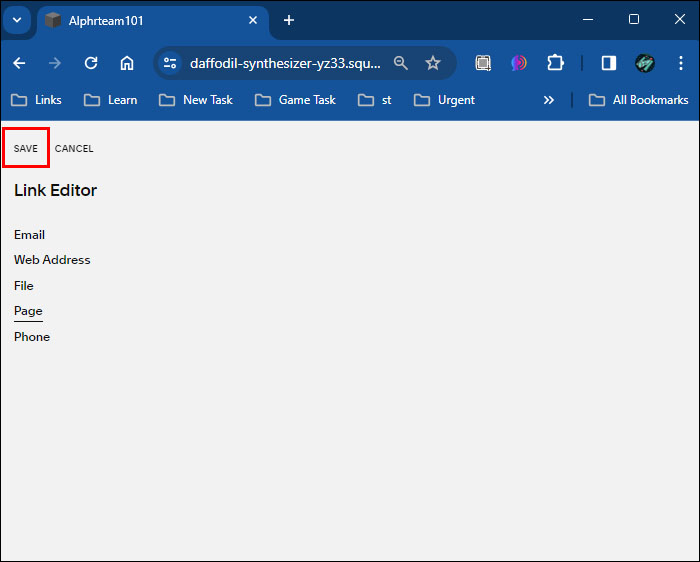
- Press Save, followed by another Save or Apply.

Adding internal links is straightforward, but keep the following details in mind when doing so:
- If you edit the URL slug of the source page, you need to access and reselect the link in your “Page” window to update it.
- If you want to link to a single gallery image, product, event, or blog post rather than multiple collections filtered by categories or tags, you’ll need to add the complete address in your “Web Address” field.
- If you link to an index sub-page, you’ll take the audience to the standalone edition of your page. If you wish to direct them to a sub-page in the primary index layout, you’ll need to include the anchor address in your “Web Address” field.
How to Link to an Email Address in Squarespace
One of the most common uses of links in Squarespace is to encourage your audience to send you an email. When they tap the link, it’ll redirect them to their email provider and populate the message box with your website information.
Linking to email addresses in Squarespace is similar to external and internal linking:
- Navigate to the top part of your main menu and choose Website.
- Press Link and tap the cog symbol to access the Settings of your link.
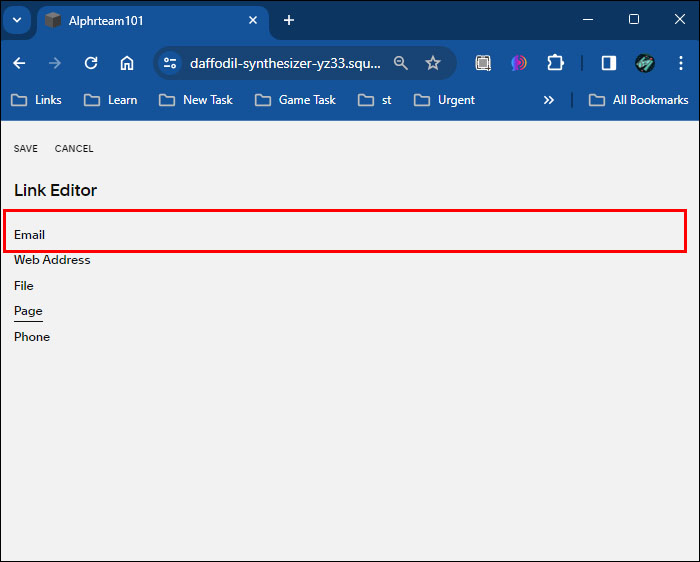
- Pick Email and type in the address you wish your audience to email you in the To field. You can’t add multiple addresses.
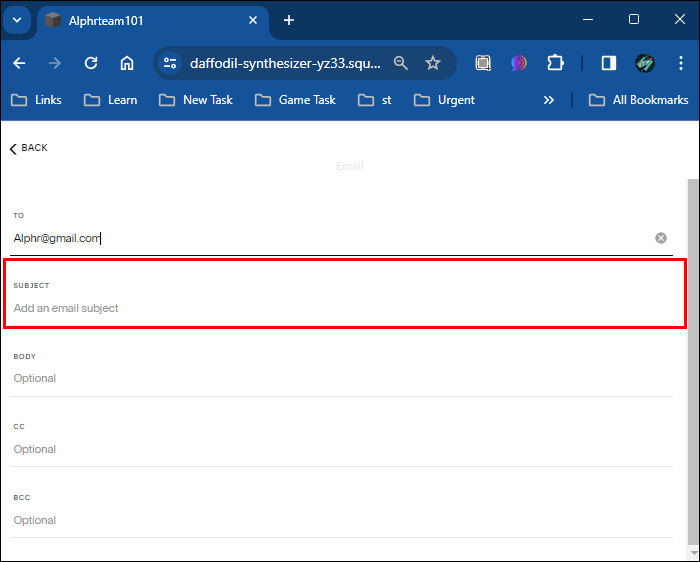
- Enter the subject line of your messages in Subject.
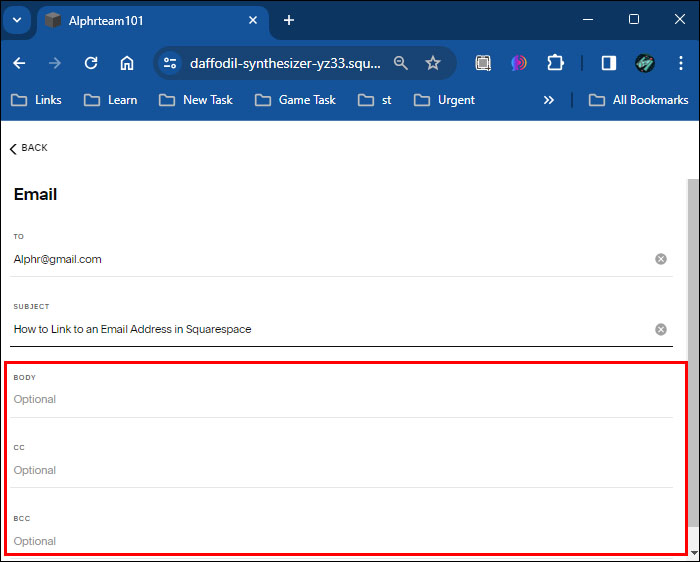
- Type in your body text and a cc or bcc address if necessary. Don’t forget that visitors can edit the populated windows before mailing you, and the formatting depends on their email service.
- Choose Save and Apply/Save.
Bear in mind that your visitors need some sort of email software to open your email link. Otherwise, they’ll need to copy the address manually.
Also, the above method isn’t the only way for users to contact you:
- Use the Form Block option if you want to keep your email address private. It protects sensitive information and allows you to reply directly to submitted forms by email.
- Display your email as a standard Social Icon. This will add a visual element to your email strategy by creating an envelope symbol with a “mail to” prompt that shows up with other icons on your website.
- Provide mobile information from the Mobile Information window to enable others to contact you on the fly.
How to Link to a Phone Number in Squarespace
Squarespace also allows you to link to your phone number, encouraging users to give you a call. Whenever someone clicks this type of link from their smartphone, it’ll open the Phone app on their phone with your number.
However, some people add their numbers without linking to them, which can cause formatting issues on some devices. Not all smartphones detect unlinked numbers automatically, requiring the reader to copy them manually.
To avoid this problem, follow these steps:
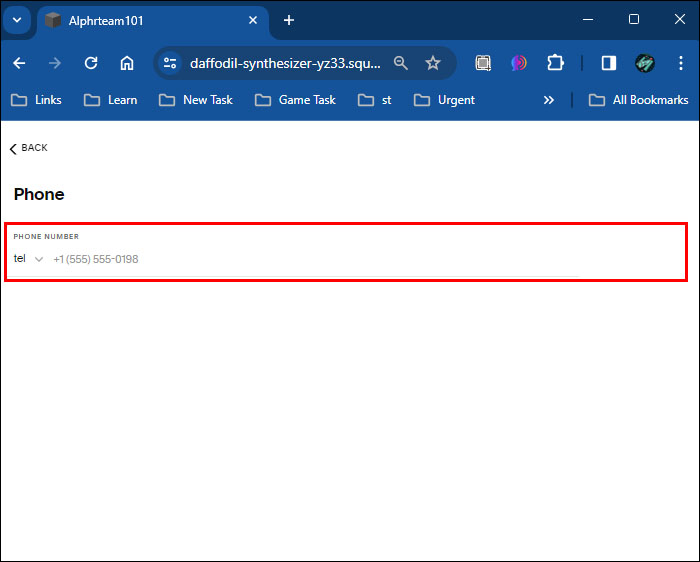
- Click Website from your home page and tap Link.
- Strike the Settings key in your URL section.
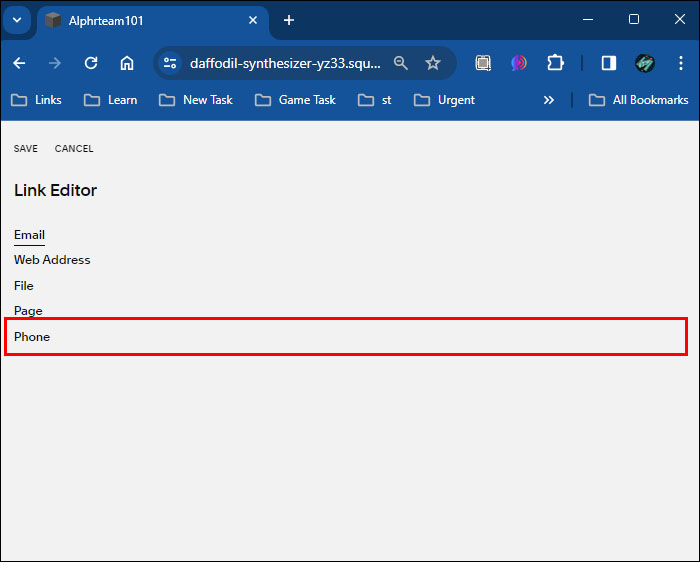
- Choose Phone.
- Type in your number in the Phone Number field. Include any area or country code and omit zeroes at the start of your number to keep the link from malfunctioning.
- Select Save and another Save or Apply.
How to Link to a File in Squarespace
Depending on the type of website you’re running, you can upload different kinds of content for your visitors to download. The list includes audio files, size charts, images, and PDF menus. Once they click the link, it’ll automatically download the file or open it in a new tab for users to preview the content and/or save it manually.
Here’s how to add links to files.
- Head to Website in the main menu of your website.
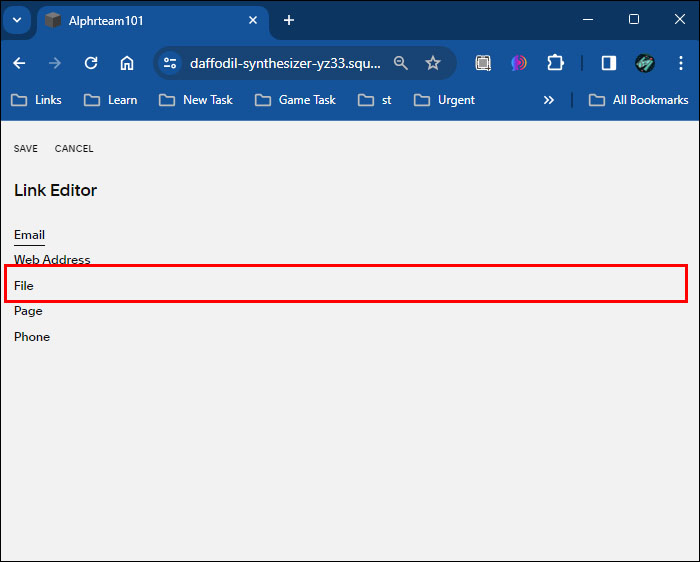
- Press Link and open Settings by pressing the gear symbol.
- Choose File.
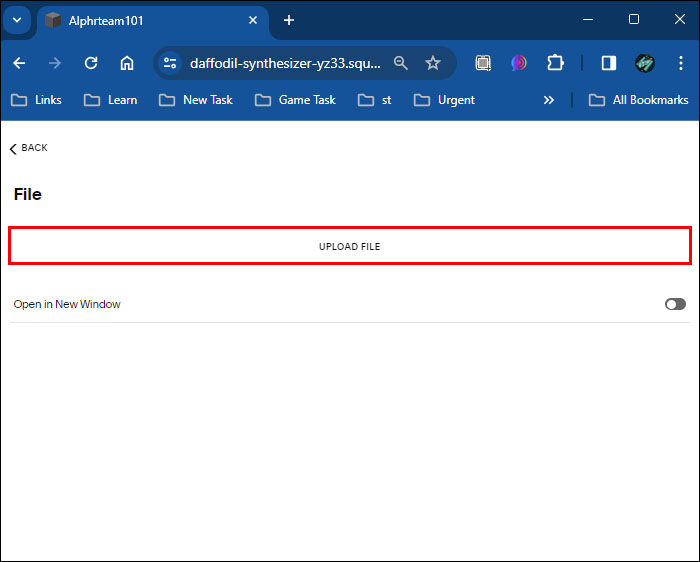
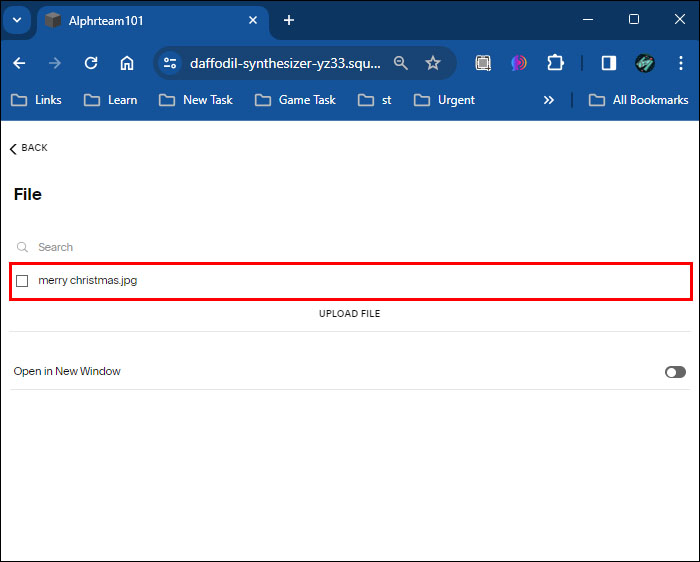
- Tap the Upload File prompt and choose the file you wish to upload from your PC. Alternatively, you can browse previously uploaded files to your Squarespace workstation.
- Click the file and wait for a checkmark to appear next to it.
- Hit Save again or Apply to finalize the changes.
How to Create Links in Squarespace
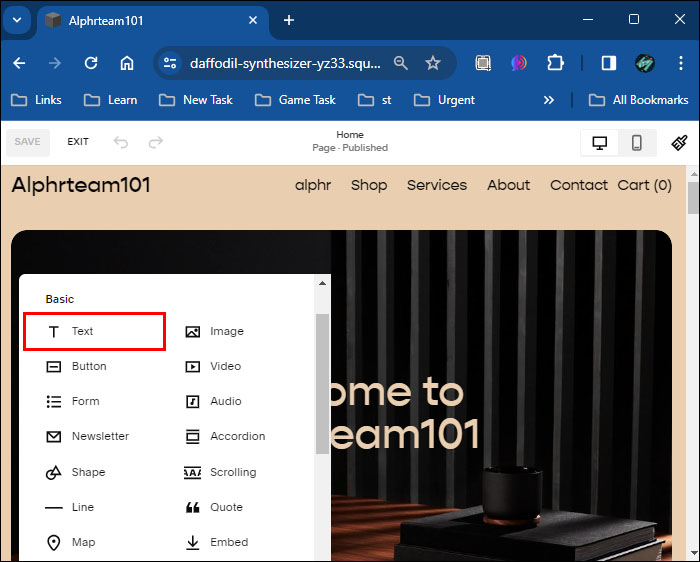
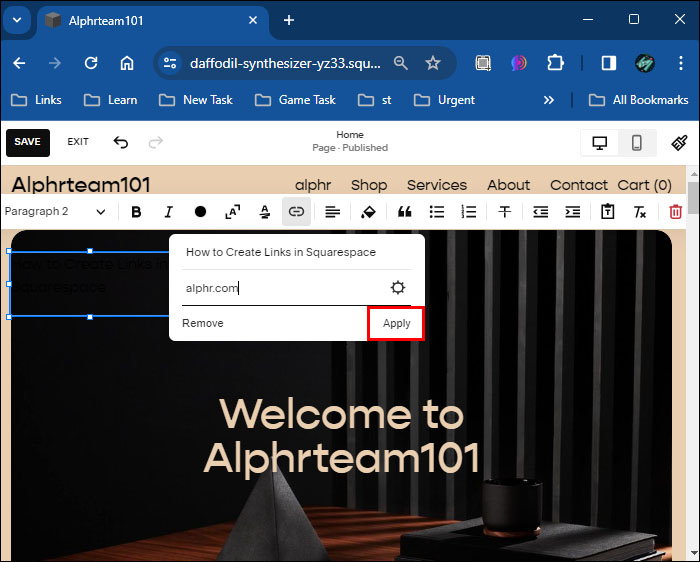
Another great thing about Squarespace is that it lets you add links while editing your website. To do so, you’ll need to add a text block in the edit menu:
- Access your website and press Edit.
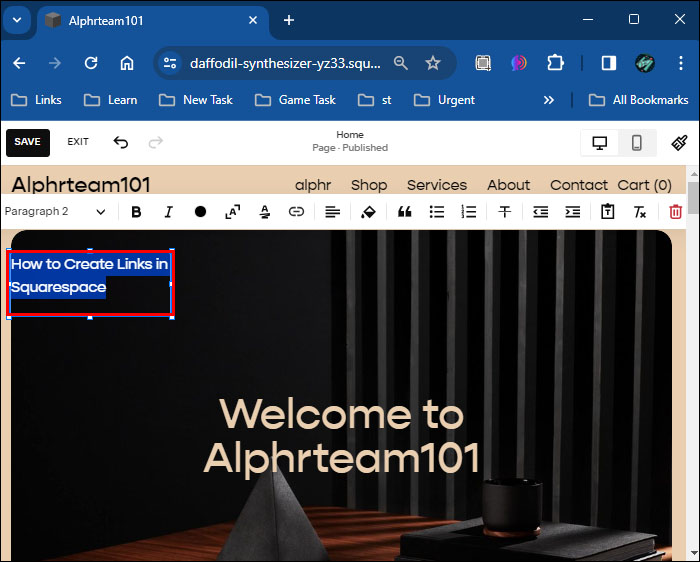
- Choose the prompt that lets you add insert points and blocks. Select Text and type in the text of the link.
- Highlight the part of the text that will serve as the link.
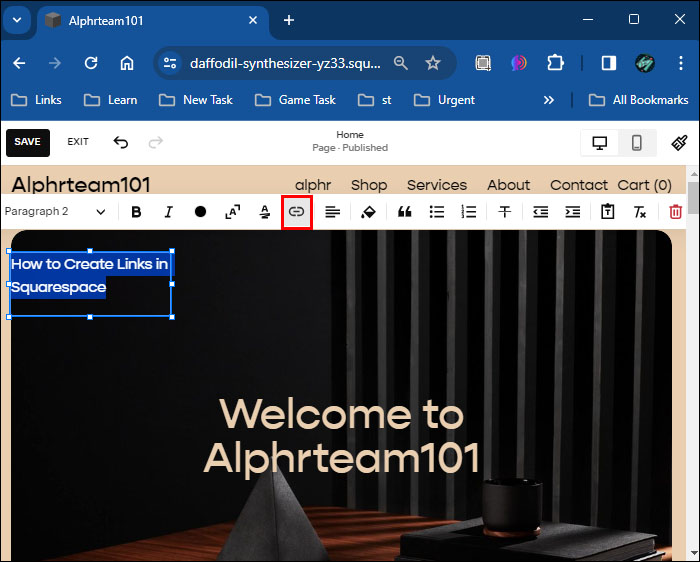
- Press the link symbol in your text toolbar.
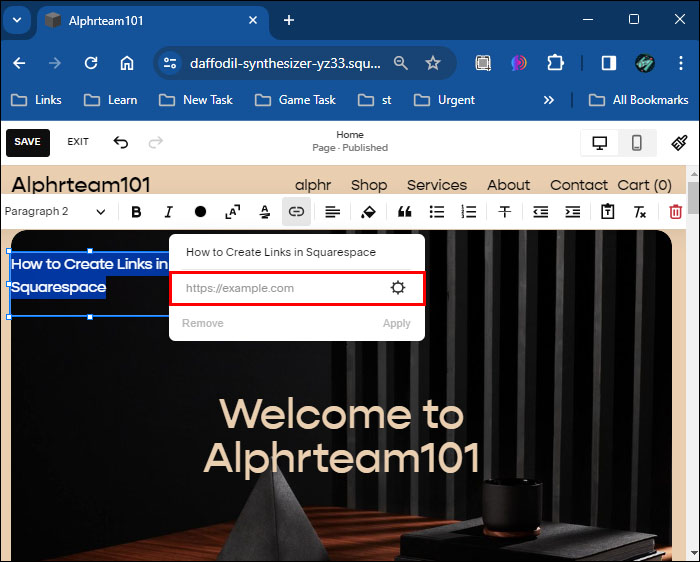
- Add a web address and edit your highlighted text. Alternatively, tap the gear symbol for more link options and pick Save once your link is ready.
- Click Apply, and you’re good to go.

Squarespace doesn’t limit you to text blocks when adding text links. You can link from many other sections of your page:
- Markdown blocks
- Image captions
- Blog excerpts
- Announcement bars
- Event excerpts
- Cookie banners
- Product descriptions
- Lock screens
Making Your Website Experience Smoother
Your website should make different types of content easily accessible. Adding links to your pages does just that. You can also add links to your social media accounts in Squarespace so that your visitors can follow you. Incorporate these relevant changes for your visitors, and they’ll keep coming back for more.

Disclaimer: Some pages on this site may include an affiliate link. This does not effect our editorial in any way.