Patience is a virtue, but for many, it’s in short supply when you’re waiting for ChatGPT to generate your image. You’re eager to see what OpenAI has been cooking up, only for the image to be stuck in the generation phase. This is quite a common and frustrating experience, but one with a few fixes. In this article, we’ll be covering what to do with a ChatGPT stuck generating images.
Fixing ChatGPT Stuck Generating Images
Whether it’s ChatGPT images not working or things running a little slower than usual, we’ve got some varied troubleshooters below for you to try. Hopefully, there’s one for your scenario:
Branch or Create a Chat
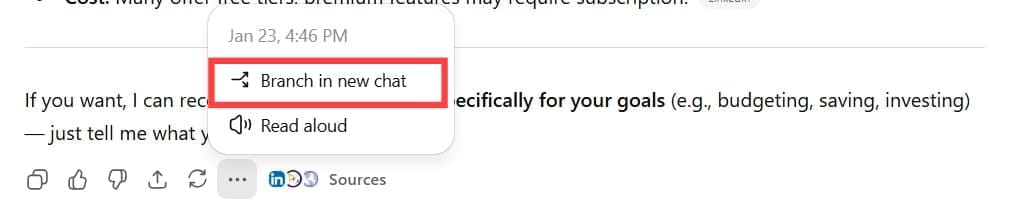
If your image is failing to generate, it might be helpful to start fresh, or at least semi-fresh. Branching a chat is a way of creating a chat while keeping the prior conversation, and should be your first step. Simply click the three dots next to the image and choose “Branch in new chat” and retry the prompt.
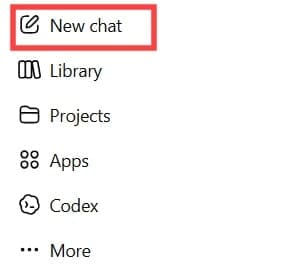
Creating a new chat is just as easy, but it takes you out of the previous chat history. To do this, click the “New chat” option in the sidebar.
Clear Your Browser Cache
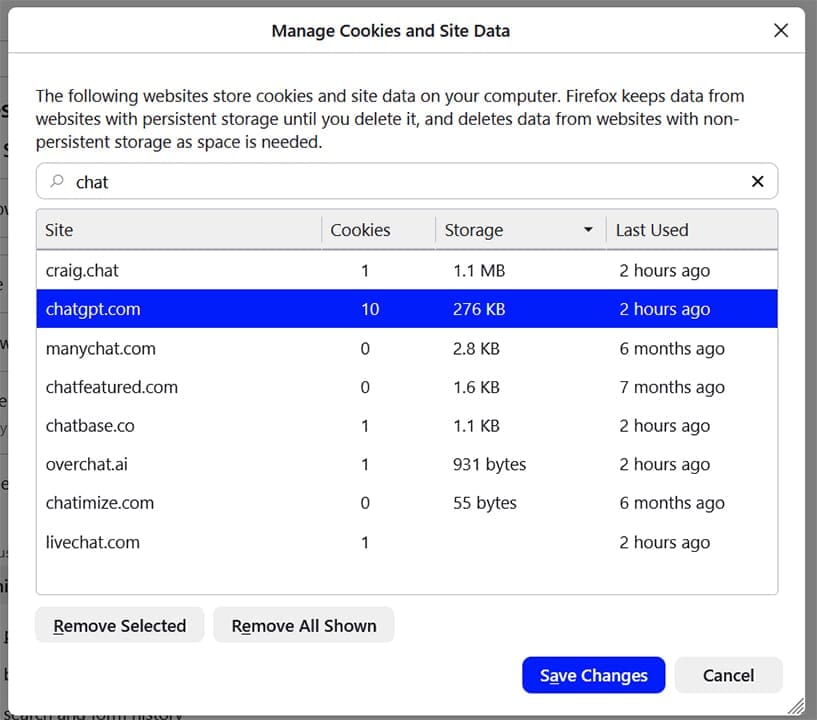
Over time, a browser cache can cause erratic behavior on different sites, including ChatGPT. You can try flushing your cache entirely, but a less severe approach is to just clear ChatGPT’s cache. All browsers have the option to delete stored data site by site.
Clear Memories
Memories, much like a cache, can cause problems with image generation. Try clearing them to see if this resolves the issue. Here’s how:
Step 1. Click your profile picture icon and select “Settings” from the menu that pops up.
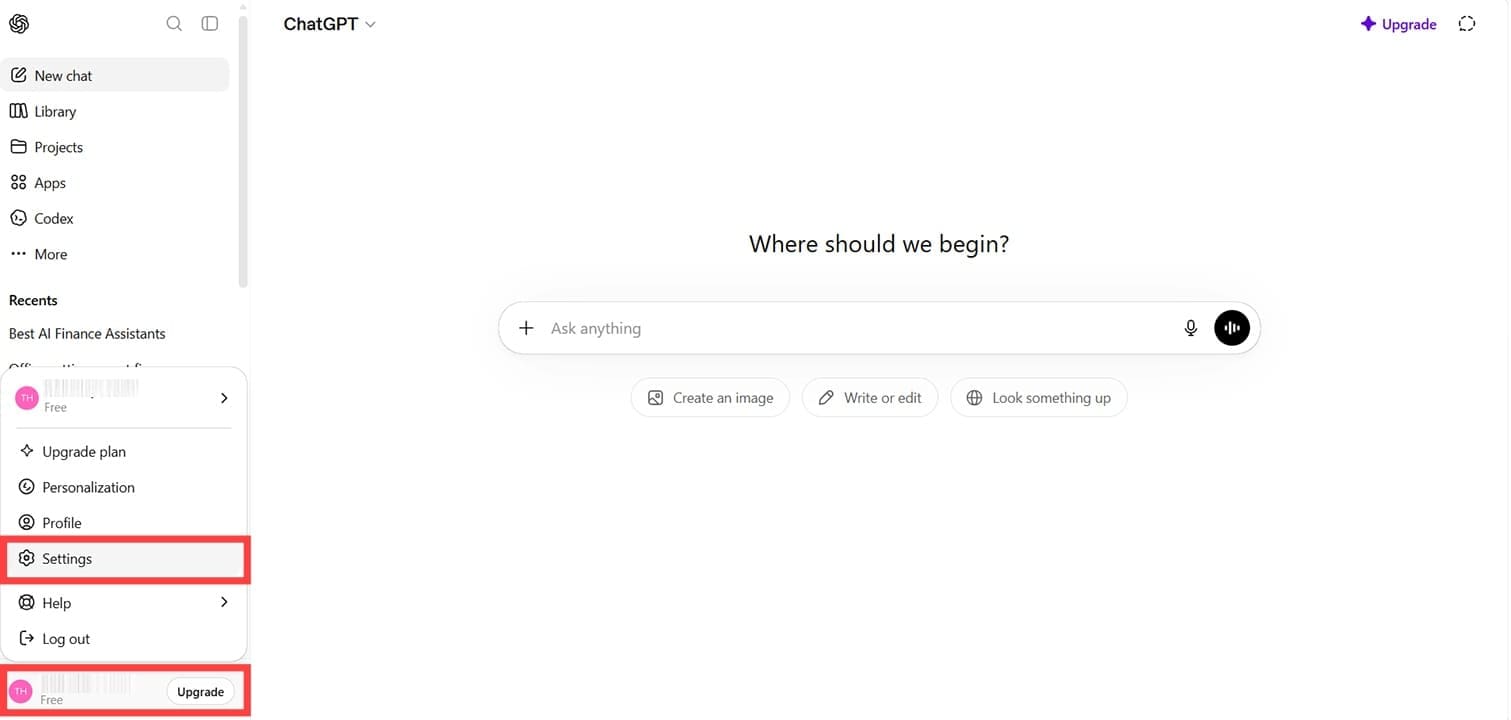
Step 2. In the Settings window, click “Personalization” in the sidebar.
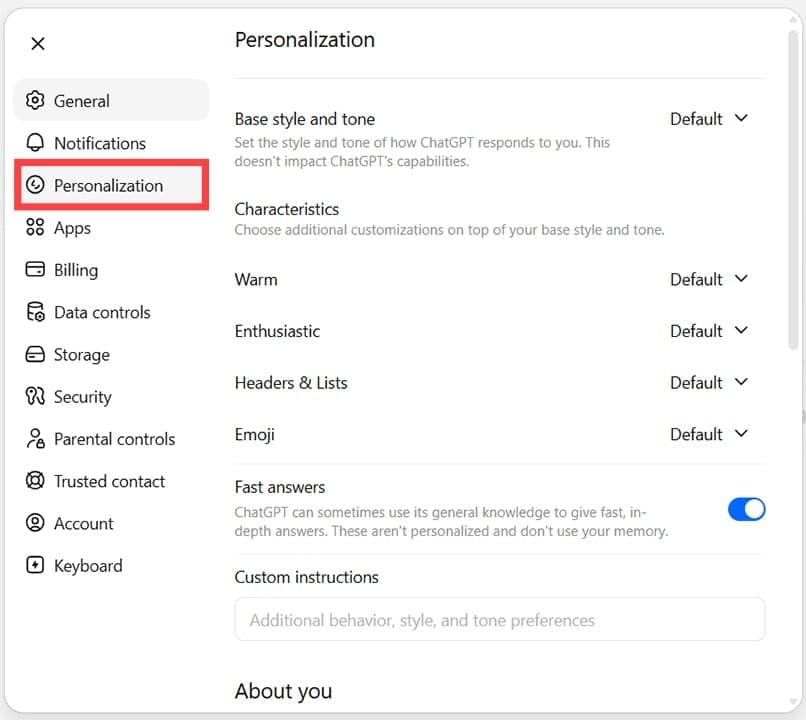
Step 3. Scroll down to “Memory” and click “Manage.”

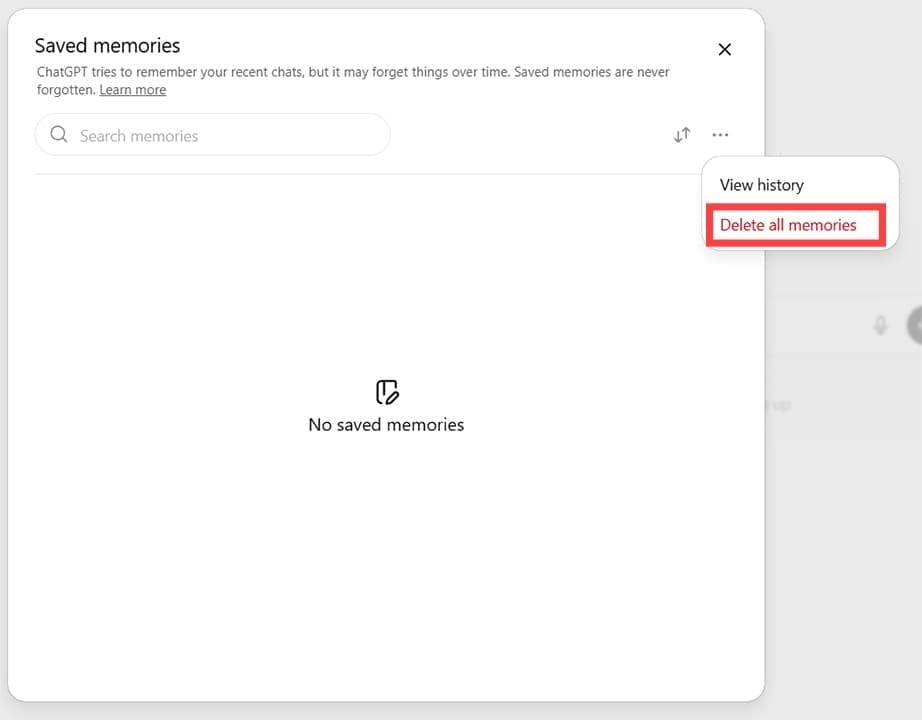
Step 4. You’ll see a list of your memories. Delete unwanted ones, or click the Context menu and select “Delete all memories” to wipe things completely.
Delete Chats
Much like memories, chats can also pile up and cause issues. You can also delete these in Settings:
Step 1. Open your GPT settings.
Step 2. Click “Data Controls” in the sidebar and then click the “Delete all” button next to “Delete all chats.”
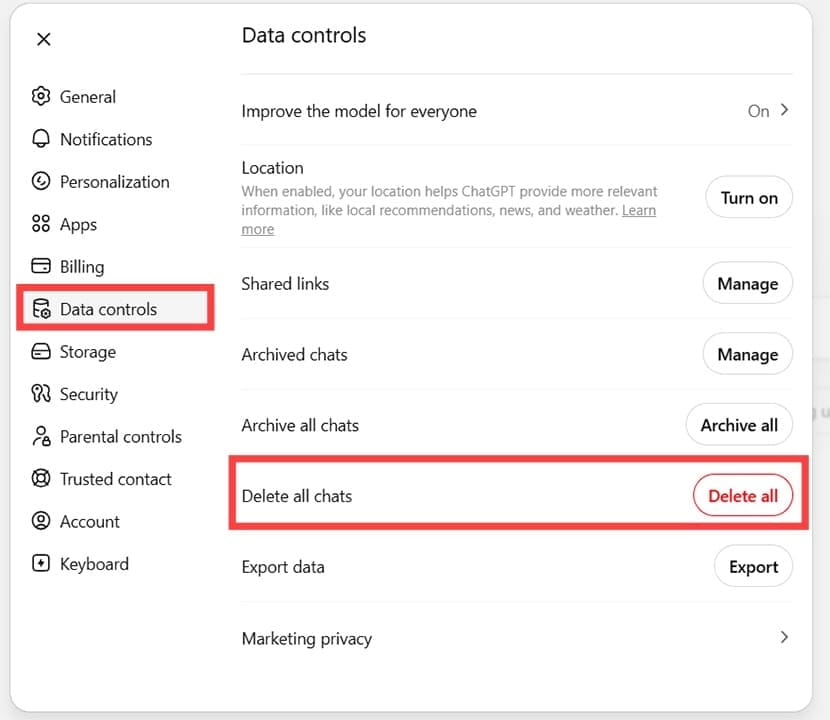
Step 3. Confirm the pop-up and then try generating an image in a new chat.
Check the Library
Sometimes, even if your generating image is still spinning its wheels in the loading circle, the image may, in fact, have already been generated. To be sure, you can click the “Library” option in the sidebar and check your gallery of images. If you see it there, your problem is solved.

Disable Third-Party Extensions
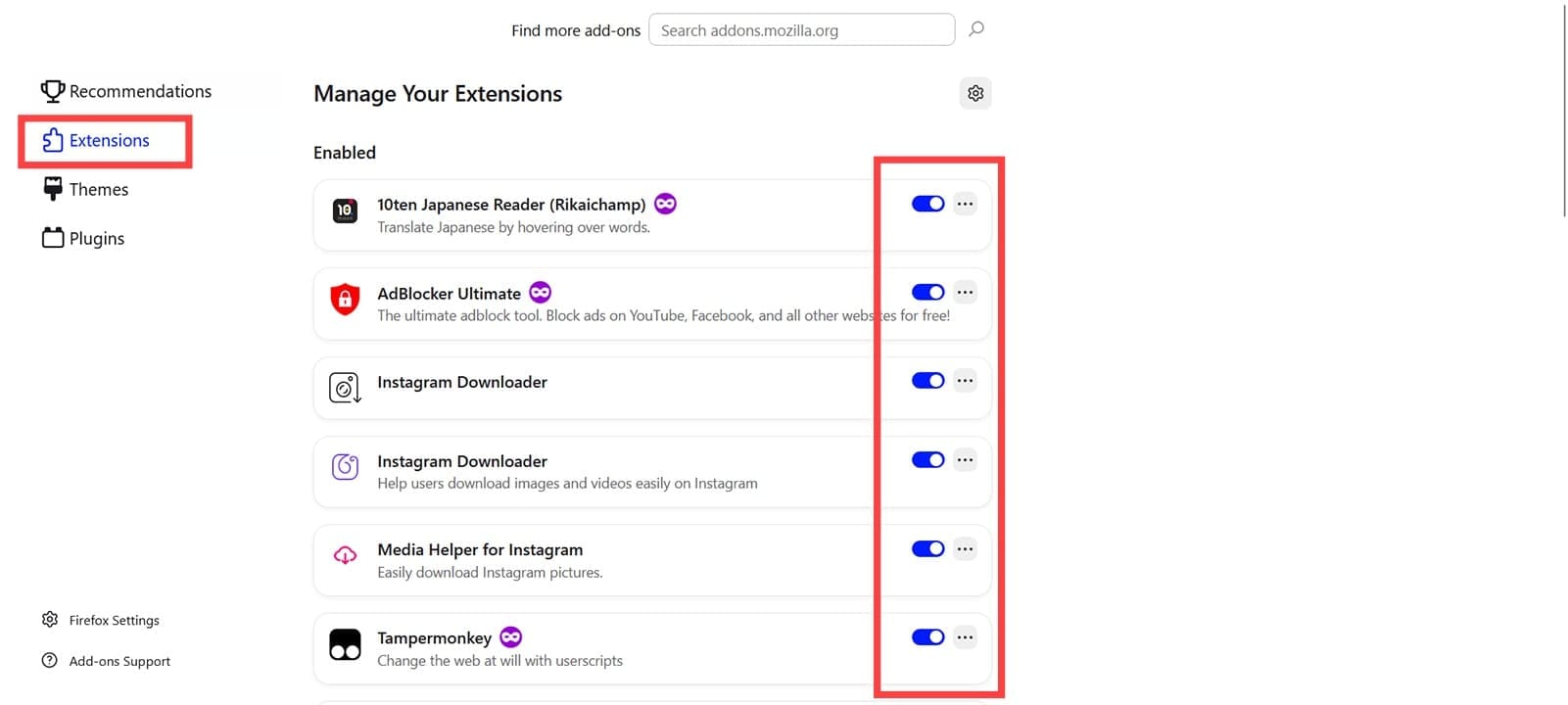
Not all extensions are designed to play well with each other. If you suspect an extension might be holding your image back, head to your browser’s extension menu and disable each one. If the image then generates, enable them one by one until you find the offender.
Repair the App
If using the Desktop app, you can also try repairing things via Settings:
Step 1. Open “Settings” (Win + I) and click “Apps” in the sidebar.
Step 2. Click “Installed Apps.”
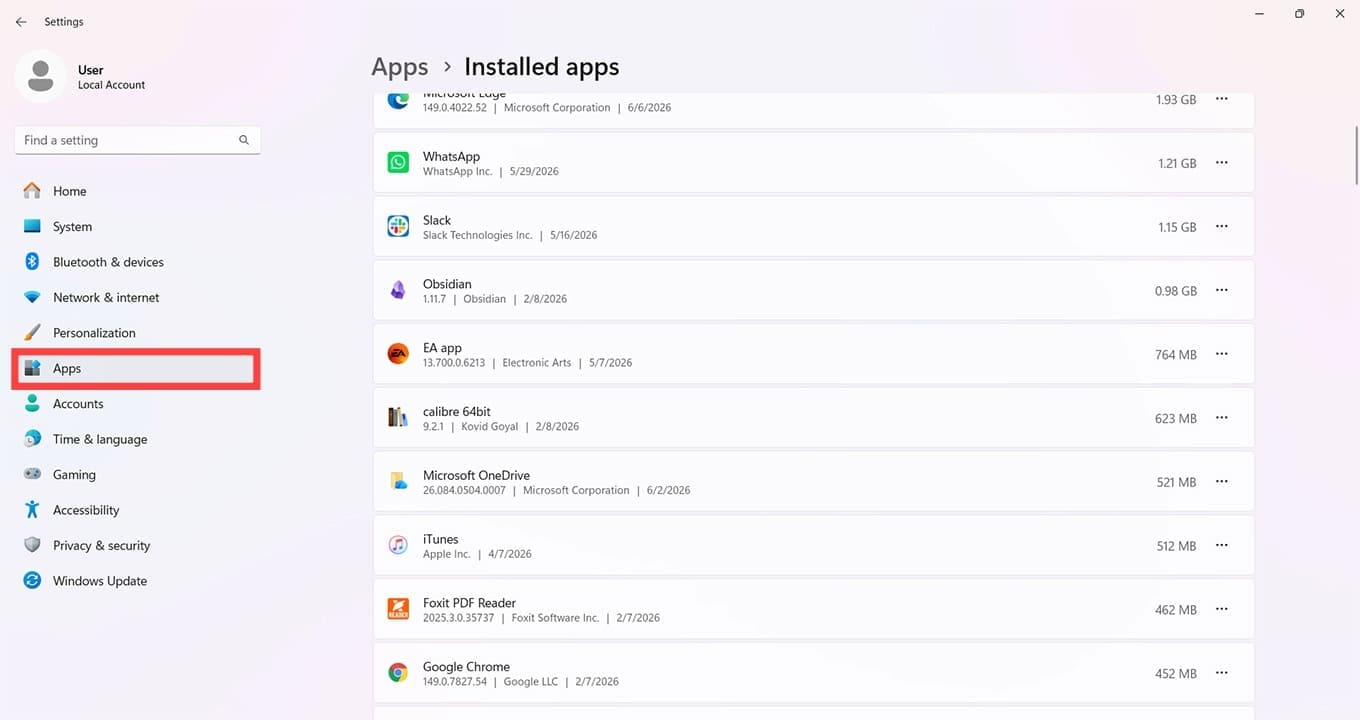
Step 3. Scroll down to “ChatGPT” and click the three dots next to it. Choose “Advanced Options” from the menu.
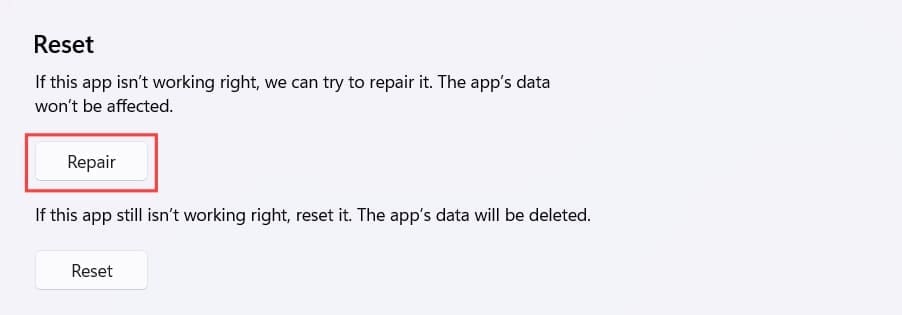
Step 4. Scroll down to the “Reset” subsection and click “Repair” from the menu. Let the process run. Your data won’t be lost.
Related Posts
 How to Use ChatGPT as a Search Engine and Should You Do It?
 How to Generate Lip Sync Videos From Images
 How to Integrate ChatGPT into WhatsApp
 Discover PocketAI – The ChatGPT for WhatsApp
 What’s New in ChatGPT o3-mini?
 How to Use ChatGPT for Research – Quick Guide
 Notion AI vs. ChatGPT – Which One to Use?
 Is ScalerX the ChatGPT for Telegram It Claims to Be?
 What’s New in ChatGPT 5.1 and Is It Better than Old Versions?

Disclaimer: Some pages on this site may include an affiliate link. This does not effect our editorial in any way.