Adding AI agents to your Microsoft Teams can help you get even more value and utility out of this popular communication and collaboration platform. Your Teams AI agents can take on tasks for you, summarize discussions, and more. Fortunately, you don’t need to be a coding expert to create your own AI agent for Teams; you can do it all with the help of Microsoft Copilot Studio.
How to Create an AI Agent for Teams Using Copilot Studio
The simplest way to make and deploy Teams AI agents is via Copilot Studio. This is Microsoft’s AI building platform, allowing users to create their own autonomous assistants with the help of the Copilot AI model. It’s primarily designed for business and organizational use. Access is available through Microsoft 365 Copilot licensing, Copilot Studio licensing, or trial licenses, depending on how your organization has it set up.
If your organization has Microsoft 365 Copilot or Copilot Studio, you should be able to access AI agent for Teams:
Creating Your Agent
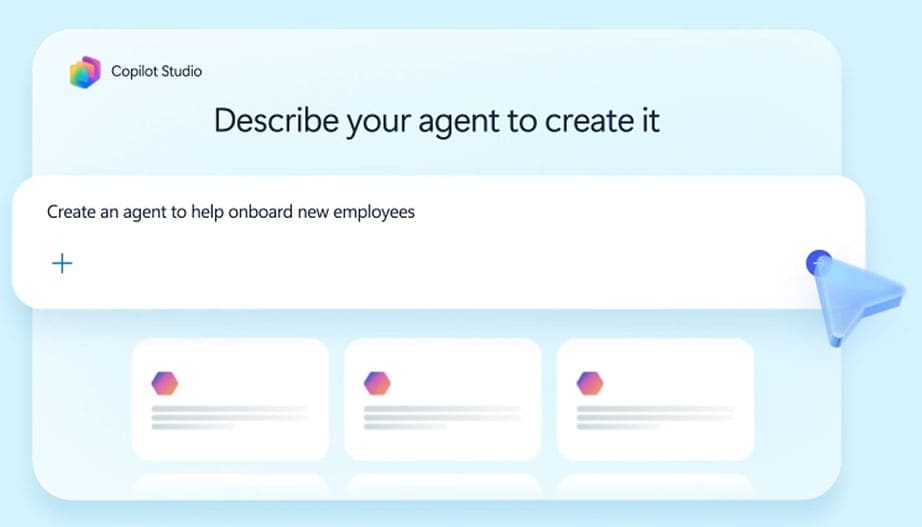
The first step is to form the foundations of your agent, which you can do in a couple of different ways. On the home screen of Copilot Studio, for example, you’ll see a text box inviting you to “Describe your agent” to start creating it from scratch. Alternatively, you can head to the “Create” tab of the app to find a range of presets and agent templates to choose from.
Sharing Knowledge
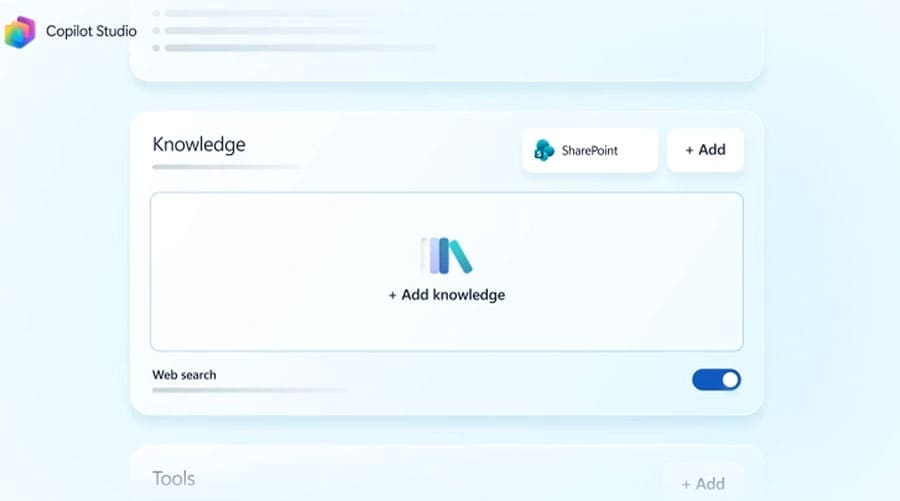
Once you’ve outlined your agent’s basic role, you’ll need to provide it with relevant information about your organization, so it has frames of reference and can provide accurate responses. You can add knowledge sources in the form of website links, SharePoint files, documents, and so on. The more relevant data your agent has, the more efficient it should become.
Configuring Actions and Responses
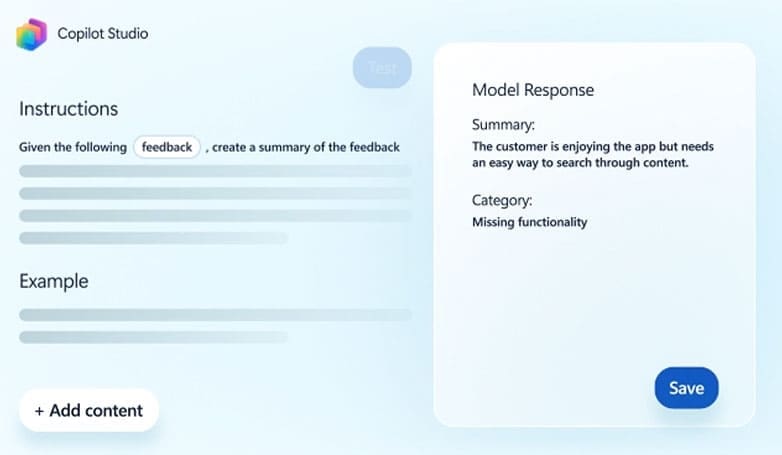
You can then configure and customize your Teams AI agent exactly as you desire. You can provide it with clear instructions about what it should do and how it should respond to certain prompts and inputs. You can also decide on the kind of tone your agent uses and adjust various other characteristics and criteria.
Deploy Your Agent to Teams
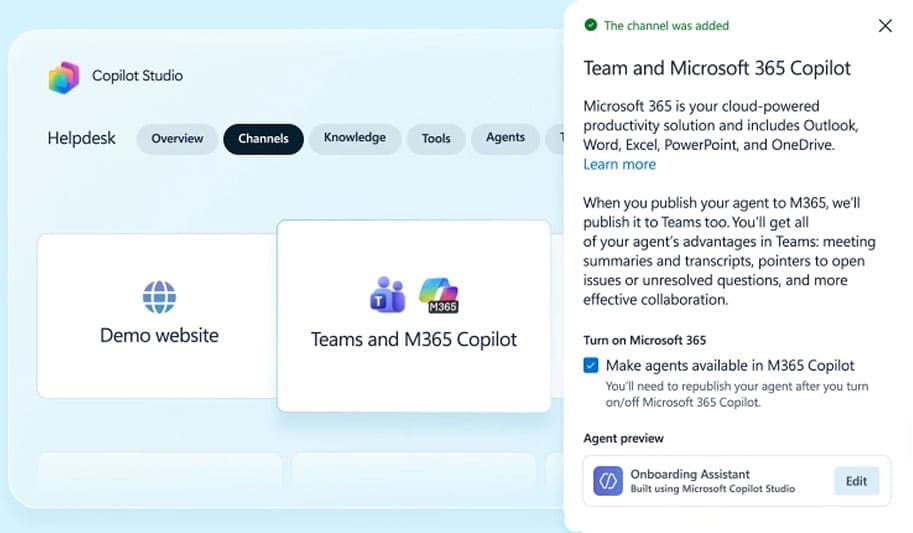
Finally, once you’ve completely customized your agent, all that’s left to do is use the “Publish” option to finalize and deploy it to the Teams app. You can deploy it to specific chats and channels, as needed, or submit it for approval to your organization’s IT admin.
What Can Microsoft Teams AI Agents Do?
Teams AI agents can actively participate in your future chats and meetings. They can list key talking points, draft summaries, and track action items. They can also help you retrieve knowledge instantaneously by accessing their own configurable libraries of data, and may also take automated actions on your behalf, which can include responding to support tickets and emailing reports.
Related Posts
 Testing Watermelon AI: How Simple Is Agent Creation?
 The AI Orchestration Platform for Security and IT teams – Our Look at Tines AI
 Control Almost All PC Apps With Your Voice Through VoiceType AI
 What Is DiscordPal – Explaining the Discord-Based AI Friend App
 How to Chat with Meta AI in a Group Chat on WhatsApp
 4 Best Gemini Prompts for Writing
 How to Disable AI Answers in Search Engines
 How to Animate Children’s Drawings With AI

Disclaimer: Some pages on this site may include an affiliate link. This does not effect our editorial in any way.