Adobe Firefly is my first choice for AI-generated artwork that will form part of a professional creative workflow, particularly when working with Premiere Pro or Photoshop.
Adobe Firefly is the AI art generator I’d try first for artwork headed into Premiere Pro, ChatGPT Images is my first pick for an illustration that has to follow a detailed brief, and Google Gemini is a good choice for targeted image revisions. Midjourney is also worth considering for style exploration and visual concept development.
To compare these AI art generators, I tested three creative briefs covering a film title sequence background, character illustration and editorial poster. I assessed image quality, prompt accuracy, creative control and how the resulting artwork could be used in professional production workflows.
Tested in November 2026 on macOS 26.5.1 using Adobe Firefly Image 5, ChatGPT Images 2.6, Google Gemini in Auto mode, and Adobe Premiere Pro 27.0.0 (build 88).
Best AI Art Generators at a Glance
| Tool | Best For | Pricing and Usage Considerations |
| Adobe Firefly | Painterly backgrounds and design assets you’ll finish in an Adobe app | Limited free access. Firefly Standard is $9.99/month with 2,000 generative credits. Adobe says output from its own Firefly models can be used commercially and asks users to evaluate partner-model output separately. |
| ChatGPT Images | Detailed written briefs and conversational revisions | Limited image generation on Free. ChatGPT Plus is $20/month. OpenAI assigns its rights in output to you as between you and OpenAI, to the extent permitted by law. Outputs can be similar to those other users receive. |
| Google Gemini | Making targeted changes to an existing illustration | Image generation is available with limits. Google AI Pro expands access and costs $19.99/month. Google says it does not claim ownership over original content generated with its services. Gemini’s prohibited-use policy still applies. |
| Midjourney | Moodboards and visual exploration using style references and variations | Basic is $10/month. Standard, Pro and Mega are $30, $60 and $120/month. Companies grossing over $1 million a year need Pro or Mega for commercial use. Stealth Mode is available on Pro and Mega. |
All prices are listed in USD and may vary by region, billing period and subscription.
A platform’s usage terms and the copyright status of a particular image are separate questions. For client work, check whether your agreement permits AI imagery and whether any supplied reference material is cleared for that use.
How I Tested Image Quality and Prompt Accuracy
I gave Firefly, ChatGPT Images and Gemini the same three briefs: a lighthouse background, a character illustration and a two-color poster.
I reviewed the first output for each brief without rerolling. For the lighthouse, I also asked ChatGPT and Gemini to change only the red tower body to pale mint green.
I checked the lighting, composition, lettering and whether adjacent details shifted between revisions. These are observations from one run per prompt. Results can change on another run.
Midjourney is included based on its documented features and capabilities, as I wasn’t able to access its image generation tools for the hands-on comparison.
Film Title Sequence: Can the Tools Follow a Composition Brief?
For the first test, I wanted to create an illustrated background that could be used in a professional video production workflow, with enough negative space to add editable typography in Premiere Pro.
I used the following prompt across all three generators:
Create a widescreen 16:9 digital environment painting for a short film title sequence. A solitary red lighthouse stands on the far right third of a rocky headland at blue hour, looking out over a dark indigo sea. A narrow amber beam projects to the right. Leave the left half mostly empty with low-contrast navy sky and sea for a title to be added later. Use layered painterly gouache textures and a restrained navy, teal and vermilion palette. No text, no lettering, no border.

Character Concept: Can the Tools Place the Props Correctly?
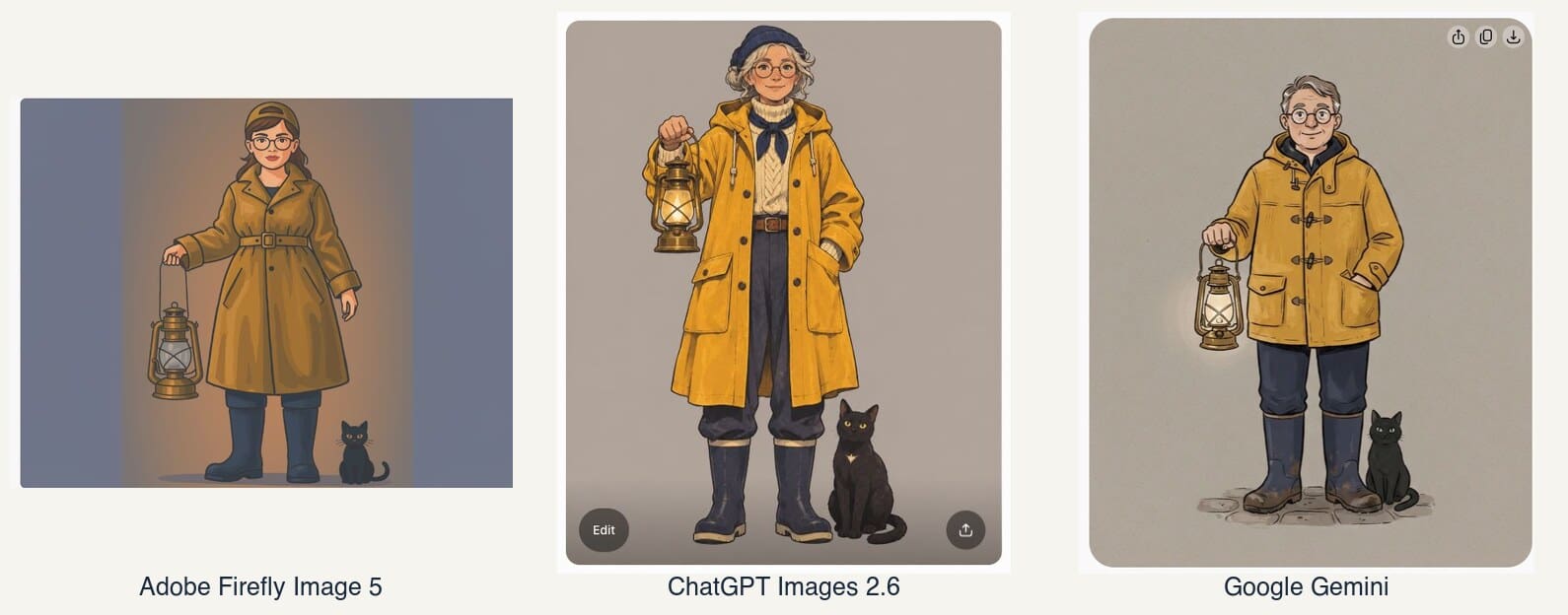
I asked for a 4:5 full-body lighthouse keeper with round glasses, a mustard raincoat, navy boots, a brass lantern on the viewer’s left and a black cat on the viewer’s right.
All three got the two placements right.
I’d use Firefly’s simplified outline for an early silhouette study, ChatGPT’s clothing detail for a costume reference and Gemini’s more open composition for a character sheet that needs room for notes.
Firefly’s preview showed broad side bands around the portrait, so I’d check the exported canvas before using that output in a fixed-size layout.
Editorial Poster: Can the Tools Spell and Set a Title?
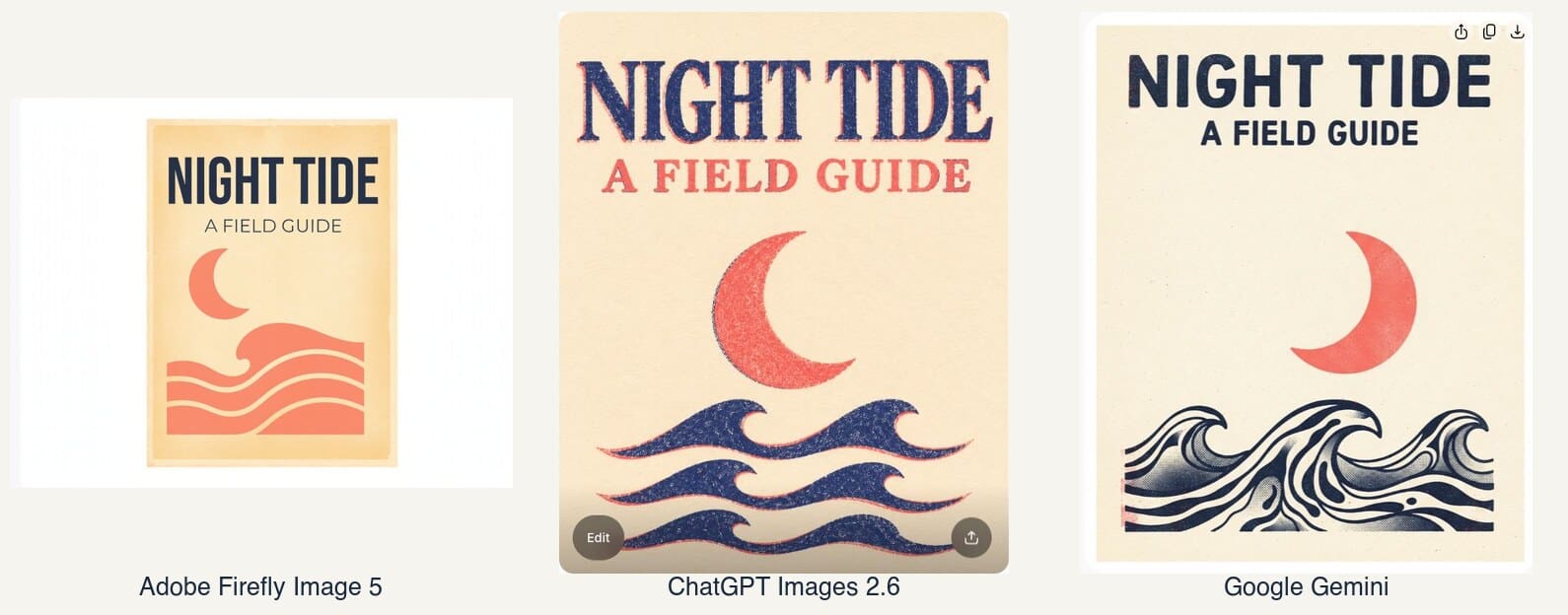
I asked for a 4:5 risograph-style poster with only NIGHT TIDE and A FIELD GUIDE, plus one crescent over three waves in navy and coral on cream paper.
All three spelled both lines correctly on the first pass.
Firefly kept the artwork simple, with a compact block of coral waves. ChatGPT’s ink texture and slight color offset looked closest to a risograph print to me, although it used two crests per row across three wave rows.
Gemini gave me three prominent crests and the most room between the subtitle and moon.
I’d keep editable type in the layout app for a print run or a client handoff.
1. Adobe Firefly – Best for Connected Creative Workflows
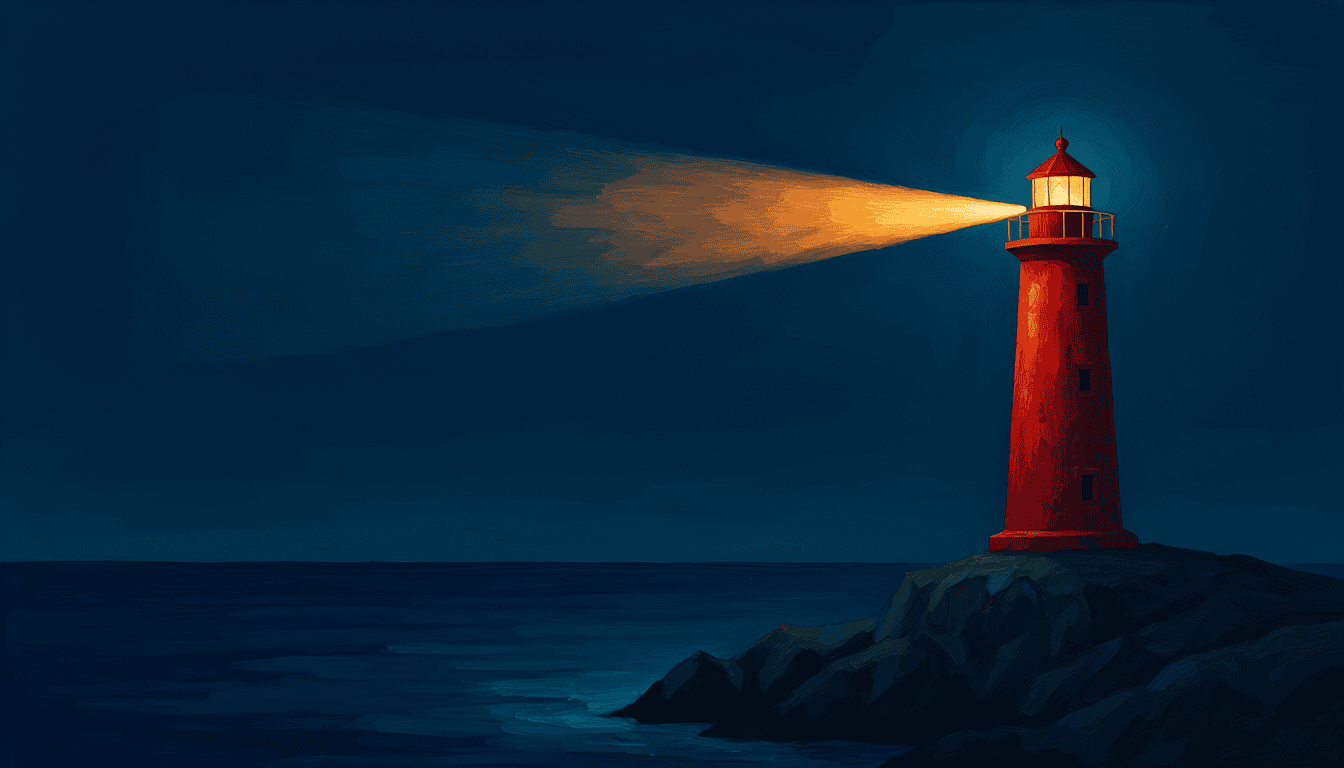
Adobe Firefly produced the most graphic lighthouse of the three. The red tower popped against the navy sky, and the simplified rock shapes were easy to read at thumbnail size.
The beam pointed left, though, and cut into the space I’d requested for the title.
I set one line of type in the dark space below the beam and above the horizon.
The 1K file I downloaded measured 1,344 × 768 pixels, despite selecting Widescreen 16:9 in the interface. Check the exported dimensions before committing to a sequence or print layout.
For professional creators, one of Firefly’s advantages is how the generated artwork can be incorporated into existing Adobe workflows. Rather than treating the generated image as a finished asset, creators can bring it into Premiere Pro, Photoshop or other creative applications for further refinement.
- Pros: Strong color separation, a clear silhouette and explicit model, aspect ratio and resolution controls.
- Cons: It missed a directional instruction in the first run. The downloaded size also differs slightly from an exact 16:9 frame.
- Best for: Background plates for a title sequence, a pitch deck or an illustration you’ll keep refining in another app.
2. ChatGPT Images – Best for Detailed Creative Briefs
ChatGPT Images followed the lighthouse layout most closely on the first pass. The beam pointed right, the tower sat well to the right, and the left half stayed open.
The rock face and waves had the most visible brushwork, which made the scene feel painted.
Its texture is also something to watch. I’d keep small type off the brighter wave highlights, where the tighter brush marks would compete with it.
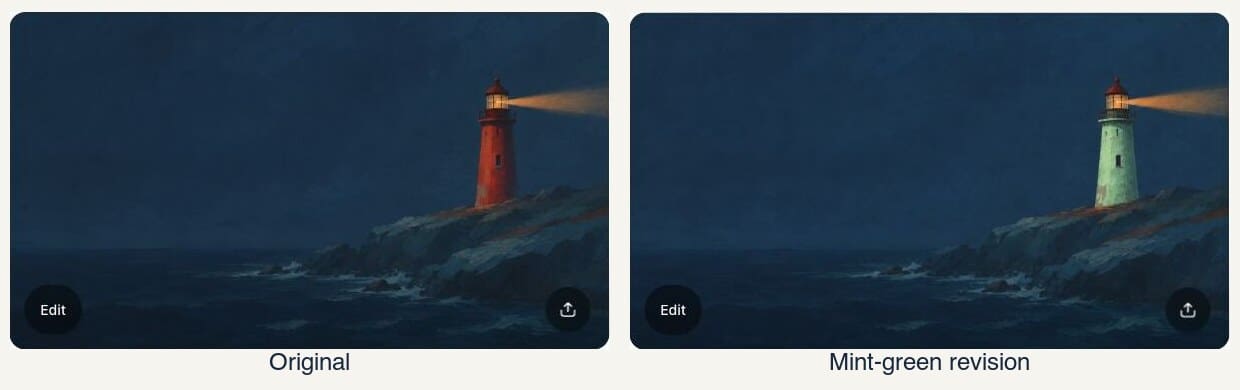
In the recolor, ChatGPT kept the tower’s red cap and the beam direction. The rock textures and small shoreline details shifted.
For continuity between shots, I’d compare the two frames at full size before swapping them in an edit.
- Pros: Followed the placement and direction requests well. You can ask for a change in the same conversation or select an area in the image editor.
- Cons: A conversational edit can change nearby details. Check the original beside the revision when placement or continuity matters.
- Best for: Editorial illustration, concept development and translating a written brief into a composition you can revise quickly.
3. Google Gemini – Best for Targeted Image Revisions
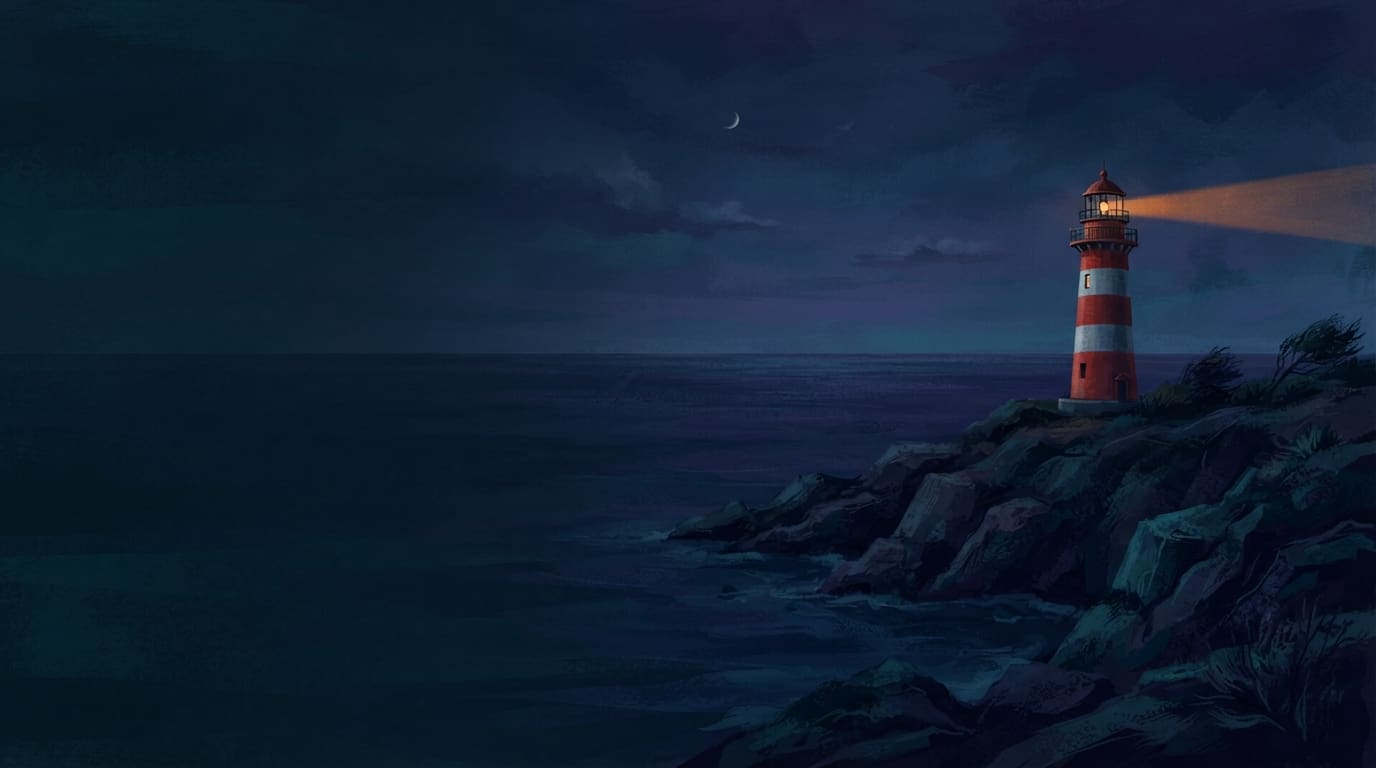
Google Gemini got the beam direction and the title space right. It added a crescent moon and horizontal white bands to the lighthouse.
Those extras worked visually, but I’d call them out if a client had already approved a solid red tower.
For the revision, I asked it to change only the lighthouse body to pale mint green.
The coastline, moon, beam and overall framing stayed close to the original. The roof changed toward green too, which is easy to miss if you only glance at the smaller preview.

- Pros: The recolor kept the layout and most of the surrounding scene stable. Follow-up prompting is straightforward.
- Cons: The first pass introduced unrequested details, and the edit also affected the roof.
- Best for: Color variations on a concept that already has the right composition.
4. Midjourney – Best Suited to Style Exploration
Midjourney’s Style Reference and variation tools are a reason to consider it if you build moodboards or explore several art directions.
I wasn’t able to run the shared prompt because the account required an active subscription, so I haven’t ranked its prompt accuracy or image quality against the three results above.
- Pros: Documented controls for visual style, variations and refinement. Standard and above include unlimited Relax Mode image generation.
- Cons: Paid access is required for this workflow, and creations are public by default. Private client briefs may require Stealth Mode and a private workspace.
- Best for: Exploring a visual direction when you can spend time iterating and the project’s confidentiality requirements allow it.
How to Use Firefly Artwork in Premiere Pro
Generating AI artwork is often only the first stage of a professional creative project. For video editors, filmmakers and motion designers, the next step is incorporating that artwork into a sequence where typography, movement and timing can be refined.
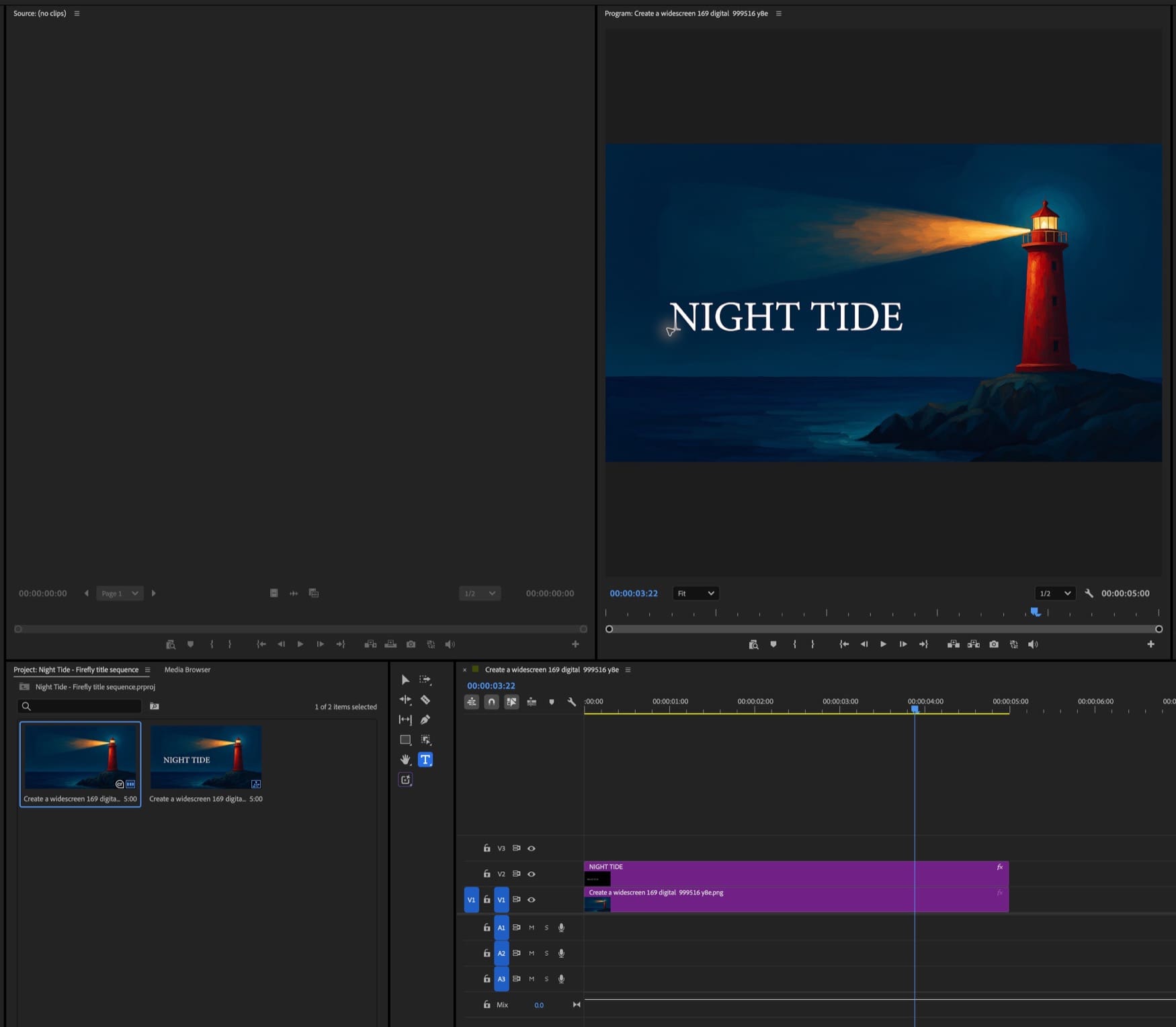
I imported the Firefly PNG into a new Adobe Premiere Pro project and dragged the still from the Project panel into the empty Timeline.
Premiere created a five-second sequence.
The left-pointing beam suggested a simple layout fix: place the title beneath it, where the sea and sky are darkest.
I added NIGHT TIDE in white Minion Pro on V2, leaving the Firefly PNG on V1. Keeping type on its own layer lets an editor revise the name without regenerating the illustration.
- Generate and download the still. Pick an aspect ratio for the edit, leave space for text in the prompt, and check the downloaded pixel dimensions. For a delivery with fixed dimensions, create a sequence at that size and inspect how the artwork fills it.
- Import the PNG and place it in the Timeline. Put the artwork on V1. Use the Type tool in the Program Monitor to add NIGHT TIDE as editable text above it. Check the title at playback size to make sure the beam and wave highlights don’t reduce legibility.
- Optional: Animate the artwork in Effect Controls. Select the still and open Motion → Scale. Turn on the Scale stopwatch at the first frame. Move near the end of the clip and enter a slightly larger Scale value, for example 106% if the still starts at 100%. Premiere adds the second keyframe. Play the sequence and check whether the tower stays clear of the frame edge. Keep the text stationary for an opening card that’s easy to read.
- Capture a frame for review. Pause where the full title is visible and use Export Frame in the Program Monitor to save a PNG. A screenshot of the timeline and keyframes shows how the effect was built, and an exported still isolates what a viewer sees.
With more than 40 years of experience developing creative technology, Adobe continues to build tools that support professional creators throughout the creative process.
The ability to generate artwork in Firefly and refine it in applications such as Premiere Pro and Photoshop allows creators to incorporate generative AI into established production workflows while maintaining control over composition, typography, motion and final delivery.
As this example demonstrates, AI can provide a starting point for a creative project, while the final design and editorial decisions remain with the creator.
FAQs
What is the best AI art generator for professional creators?
Adobe Firefly is a strong choice for professional creators working within the Adobe ecosystem, particularly when generated artwork will be refined in Premiere Pro or Photoshop. ChatGPT Images is worth considering for detailed creative briefs, while Google Gemini can be useful for targeted image revisions.
Can AI-generated artwork be used commercially?
Many AI art generators allow commercial use, but the applicable rights depend on the platform, selected AI model, subscription and licensing terms. Professional creators should also confirm that they have permission to use any reference images and that their client agreements allow AI-generated content.
Can you use Adobe Firefly artwork in Premiere Pro?
Yes. Artwork generated in Adobe Firefly can be downloaded and imported into Premiere Pro as a compatible image file. Creators can then add editable typography, animate the artwork using keyframes, combine it with video footage and refine the final composition.
Which AI art generator is best for following detailed prompts?
In my lighthouse composition test, ChatGPT Images followed the placement and directional instructions most closely on the first attempt. However, all three tested generators successfully handled the requested character prop placements and poster lettering. Results can vary depending on the prompt, selected model and individual generation.
Which AI Art Generator Should You Choose?
My testing showed that different AI art generators offer distinct advantages depending on the creative brief and intended use of the artwork.
ChatGPT Images performed particularly well when following detailed composition instructions, while Google Gemini demonstrated good consistency when making targeted revisions. Midjourney remains an option worth considering for visual exploration, although I wasn’t able to include it in the hands-on comparison.
Adobe Firefly is my overall choice for professional creators working within the Adobe ecosystem. Its generation controls and the ability to bring artwork into Premiere Pro or Photoshop make it particularly useful when AI-generated images form part of a larger creative project.
As demonstrated in my title sequence test, generating the artwork is only the beginning. Keeping typography, animation and other design elements editable gives professional creators greater control over the finished result.
Explore Adobe Firefly to generate artwork for your next professional creative project.
This article is sponsored by Adobe and contains affiliate links. We may earn a commission if you make a purchase through these links, at no additional cost to you. All opinions and testing observations are our own.
Related Posts
 Best AI Presentation Generators in 2026: Tested on PDFs, Reports and Spreadsheets
 Best AI Character Generators for Creators
 Copilot vs Cowork vs Scout: Comparing Microsoft’s AI Tools
 Comparing AI: DeepSeek V4 vs. Claude Opus 4.7
 When Digital Art Meets Skin – Designing Tattoos With InkDrop AI
 Best AI Resume Builders
 Are Vibe Coding Apps Any Good – Our Top Picks
 Best AI Personal Finance Assistants You Should Try
 The Best AI Website Builders to Try

Disclaimer: Some pages on this site may include an affiliate link. This does not effect our editorial in any way.