To ask Adobe Acrobat AI Assistant questions across multiple PDFs, add your documents to a single PDF Space. Open the AI Assistant chat and ask it to summarize information, compare documents or locate specific details. When an answer includes numbered citations, select them to review the relevant source passages.
For professional creators and video production teams, this can be particularly useful when working across client briefs, call sheets, production schedules and talent releases.
In our test, Acrobat pulled together campaign deliverables and call times, identified conflicting deadlines and found a specific restriction on how footage could be used. It also missed an important detail a producer would need to verify before publishing.
See also: Adobe’s official guide to asking questions using Acrobat AI Assistant
Tested in November 2026 with Adobe Acrobat Pro 26.003.22110 on macOS Tahoe 26.5.1, using Adobe Acrobat AI Assistant.
How to Ask Questions Across Multiple PDFs Using Adobe Acrobat AI Assistant
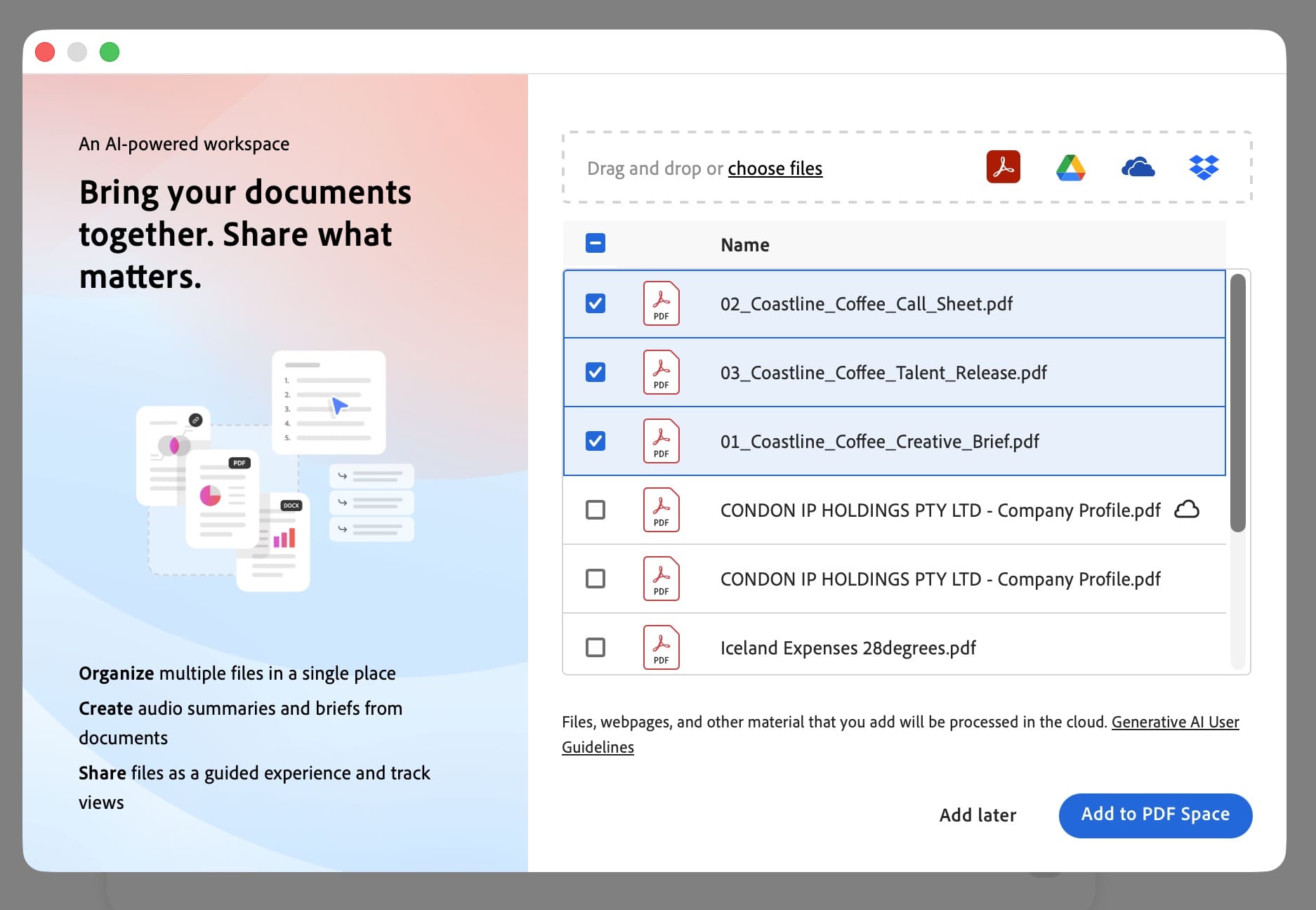
We used three fictional PDFs for Harbour Light, a brand film and social campaign for an Australian coffee company. The test packet gives a small production team a realistic problem to solve before the shoot and edit.
| What it contains | |
|---|---|
| Creative Brief | Campaign direction, deliverable formats and the client review schedule |
| Call Sheet | Shoot location, crew and talent call times, and the production team’s post schedule |
| Talent Release | Sample terms for where, how and for how long the performer’s footage can be used |
- Open PDF Spaces. In the left panel of Acrobat Home, select PDF Spaces, then Create a PDF Space.
- Add the files. Upload the three PDFs from your device or select them from Adobe cloud storage. Choose Add to PDF Space and check that all three files appear in the Files panel.
- Ask your first question. Open the AI Assistant chat in the Space and enter a prompt. Name the files when you want a specific comparison, and ask for a source for each date, number or restriction.
- Open the citations. Select the number beside a claim to jump to the source passage. Check whether the passage supports the full answer, especially when a sentence combines information from more than one file.
The web workflow starts from PDF Spaces → Create a PDF Space on the Acrobat web homepage.
If you’ve already opened a PDF in desktop Acrobat, you can also select AI Assistant → Add files to start a PDF Space.
What Acrobat AI Assistant Returned in Our Test
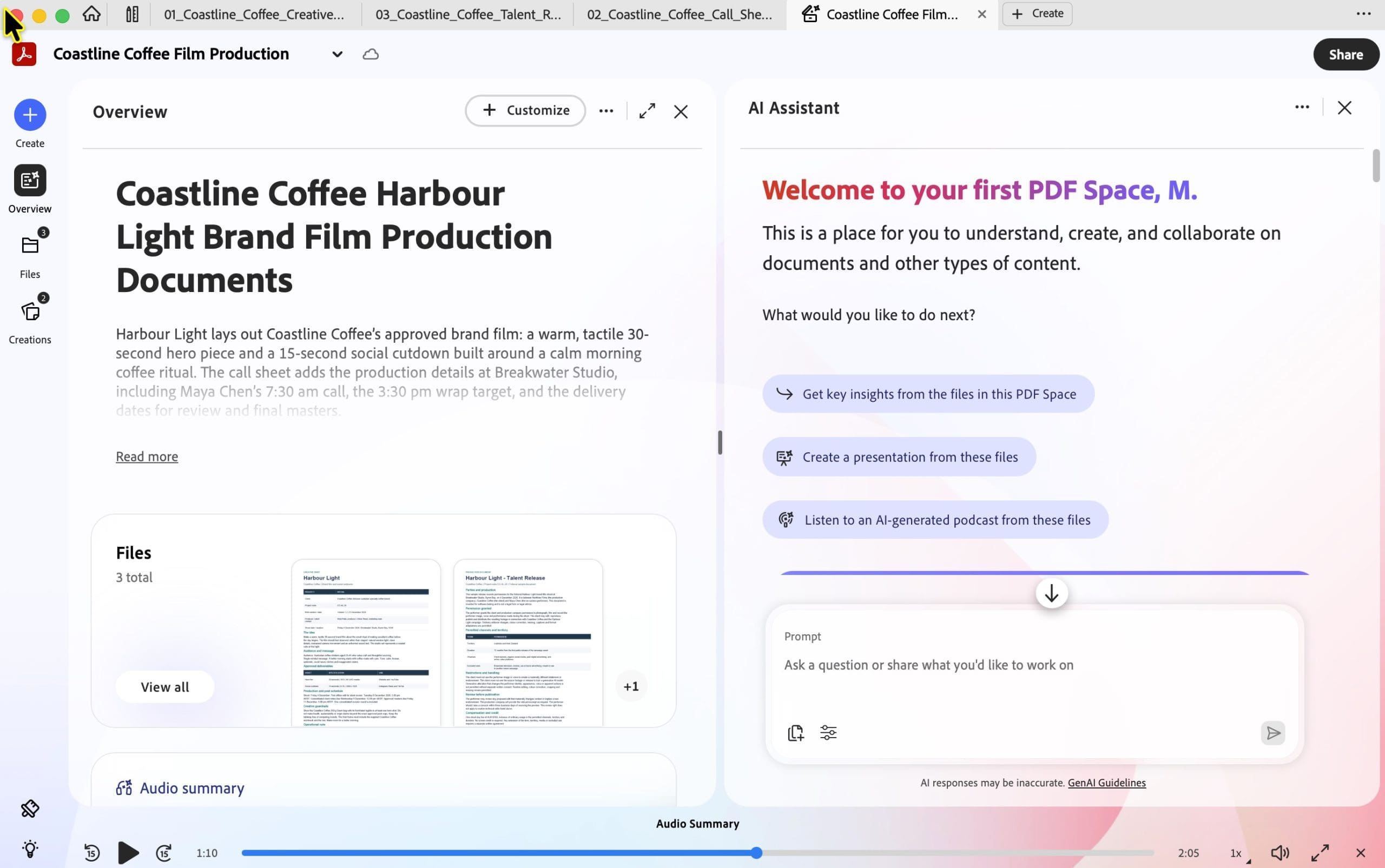
The excerpts below are from the actual Acrobat session. Source numbers refer to citations in the original responses. The checks beneath each excerpt identify the corresponding PDF and page.
1. Summarize the entire production packet
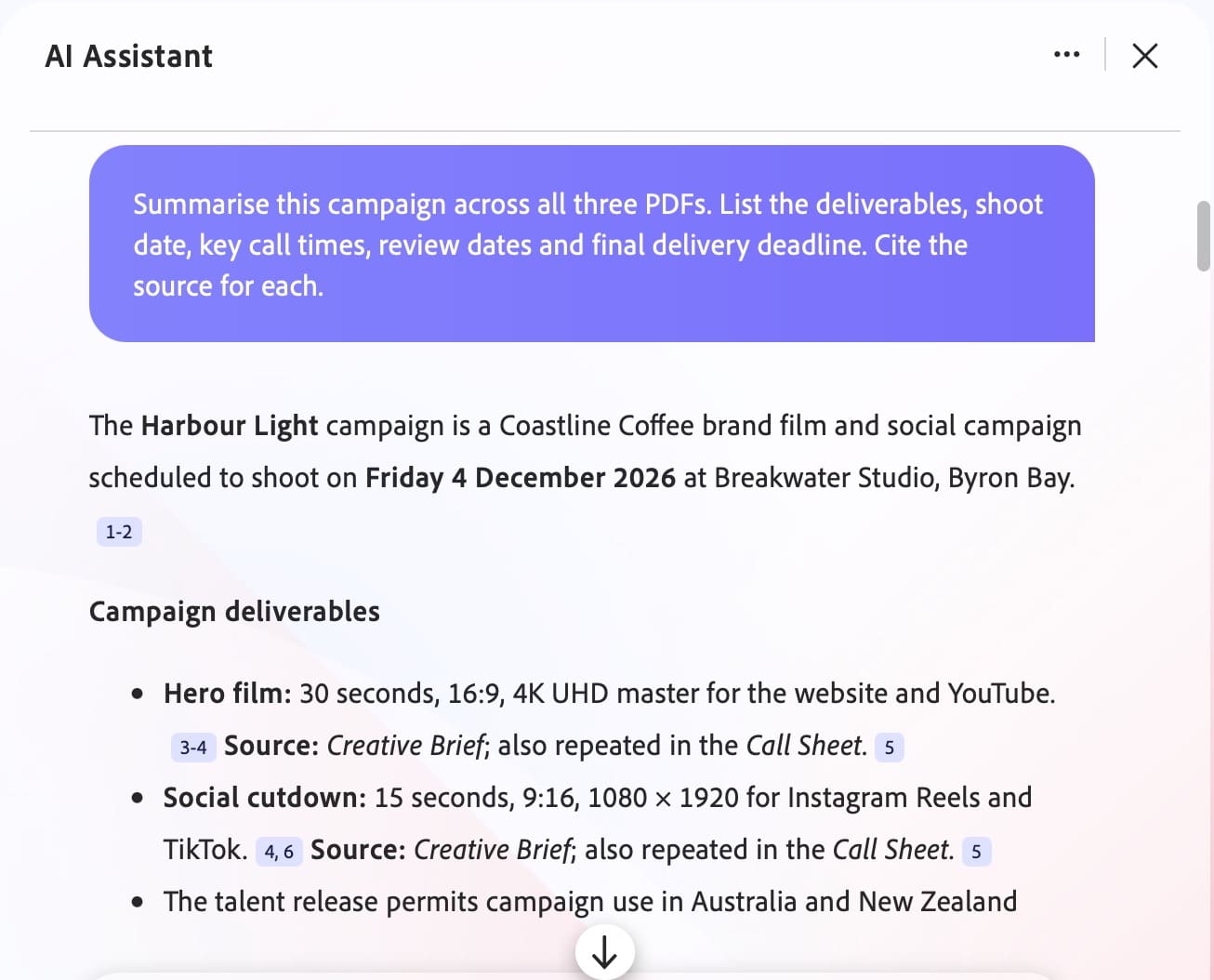
Prompt
Summarise this campaign across all three PDFs. List the deliverables, shoot date, key call times, review dates and final delivery deadline. Cite the source for each.
Acrobat response excerpt
Hero film: 30 seconds, 16:9, 4K UHD master for the website and YouTube.
[…]
Social cutdown: 15 seconds, 9:16, 1080 × 1920 for Instagram Reels and TikTok.
Acrobat correctly gave the Friday 4 December shoot date, the 6:45 am core crew call, the 7:00 am hair and makeup call, the 7:30 am talent call, the 8:15 am client call and the 3:30 pm wrap target. It distinguished the 8:00 am camera-ready target from the talent call. It also correctly identified the approved masters deadline as Friday 11 December at 5:00 pm AEDT and pulled in the sample release’s territory and usage window.
The Creative Brief’s Approved deliverables table (p. 1) contains the platforms and export specifications. The Call Sheet confirms the formats (p. 2), while its call-time table (p. 1) supplies the arrivals. For the editor, that’s enough to set up the 16:9 master and vertical cutdown before the footage arrives.
2. Compare the two client review dates
Prompt
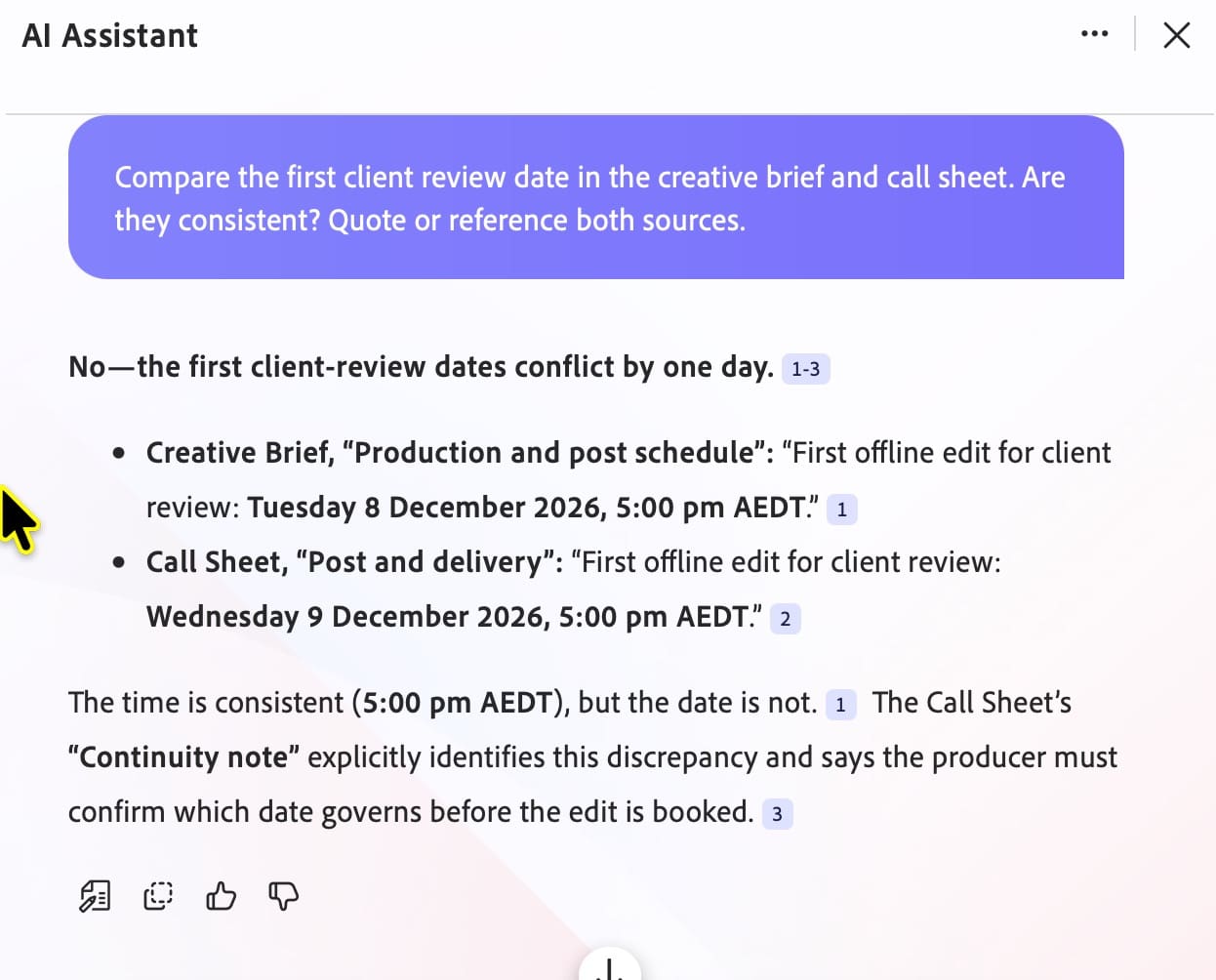
Compare the first client review date in the creative brief and call sheet. Are they consistent? Quote or reference both sources.
Acrobat response excerpt
No, the dates are not consistent.3
[…]
The review times match, but the call sheet schedules the review one day later.1–2
Both claims check out. Acrobat cited the Production and post schedule in the Creative Brief and Post and delivery in the Call Sheet. The broader summary had also caught a second difference in the deadline for consolidated client notes.
| Milestone | Creative Brief, p. 1 | Call Sheet, p. 2 |
|---|---|---|
| First offline edit for client review | Tue 8 Dec, 5:00 pm AEDT | Wed 9 Dec, 5:00 pm AEDT |
| Consolidated client notes | Wed 9 Dec, noon AEDT | Thu 10 Dec, noon AEDT |
| Approved masters | Fri 11 Dec, 5:00 pm AEDT | Fri 11 Dec, 5:00 pm AEDT |
The Call Sheet’s Continuity note already spells out the first discrepancy. This result shows Acrobat could retrieve and explain a documented conflict. The two source schedules also support the second discrepancy, which the note doesn’t spell out.
3. Check the talent terms and ask a follow-up
Prompt
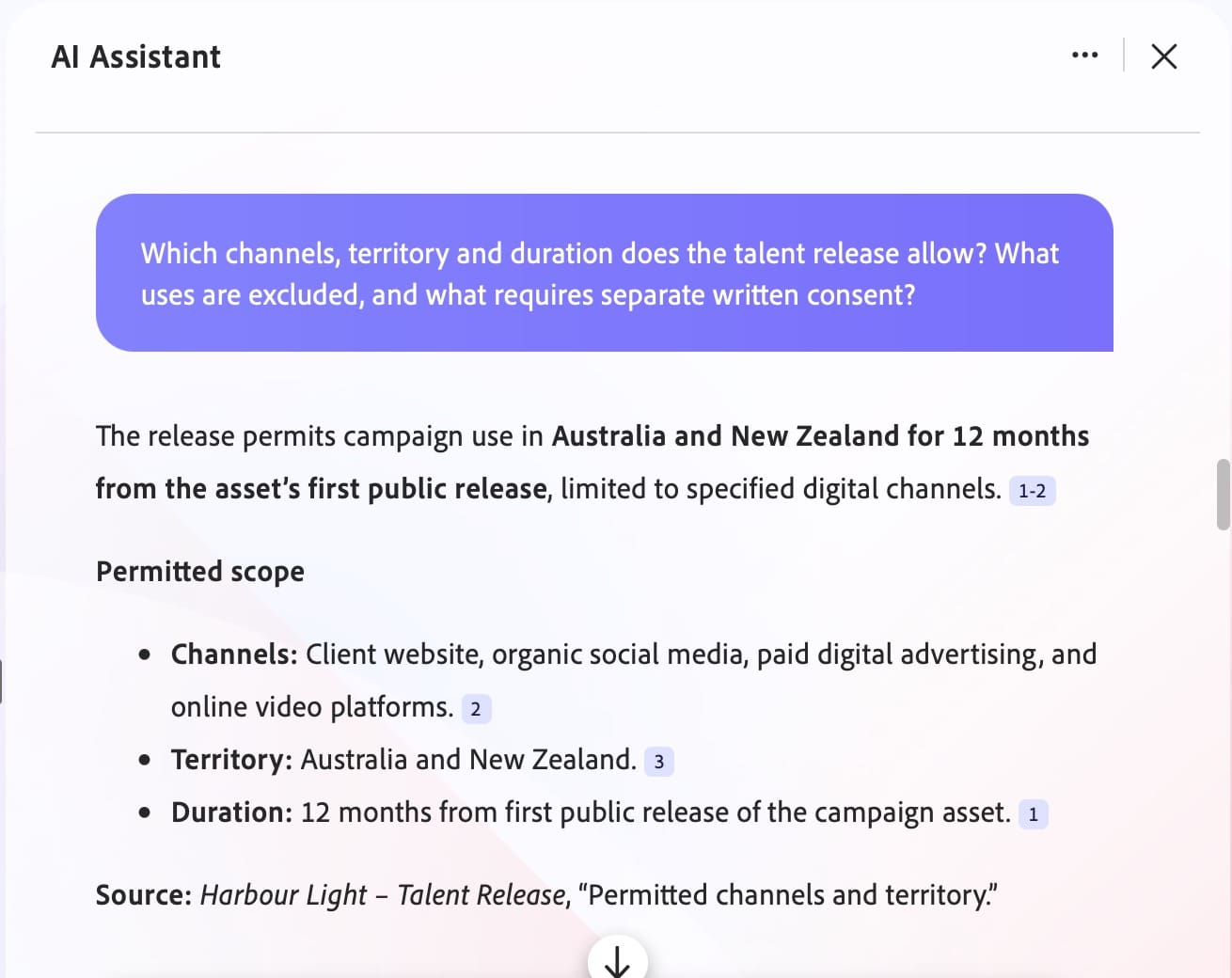
Which channels, territory and duration does the talent release allow? What uses are excluded, and what requires separate written consent?
Acrobat response excerpt
The release permits campaign use in Australia and New Zealand for 12 months from the asset’s first public release, limited to specified digital channels.1–2
Acrobat correctly listed the client website, organic social, paid digital ads and online video platforms. It also identified the exclusions for broadcast TV, cinema, out-of-home advertising, resale and use in another brand campaign. Those details match Permitted channels and territory on page 1.
There were two details to tighten before turning that answer into a clearance checklist. Restrictions and handling calls for separate written consent for certain generative alterations. Compensation and credit calls for a separate written agreement for extensions to the term, territory, media or excluded uses. The answer grouped both under “separate written consent,” and the copied response showed no numbered citation beside the extensions bullet. It also didn’t mention that the sample was unsigned. That wasn’t asked directly, but it’s the first thing a producer should verify before relying on any release.
Follow-up prompt
Can we use the footage to train a generative AI model? What source clause supports your answer?
Acrobat response excerpt
No. The footage cannot be used to train a generative AI model.1
The answer quoted the sentence in Restrictions and handling (p. 1) that expressly prohibits using the source footage or the release to train a generative AI model. It correctly treated this as a separate restriction from generative alterations that change the performer’s identity, appearance, voice or apparent actions.
4. Turn the comparison into a production decision
Prompt
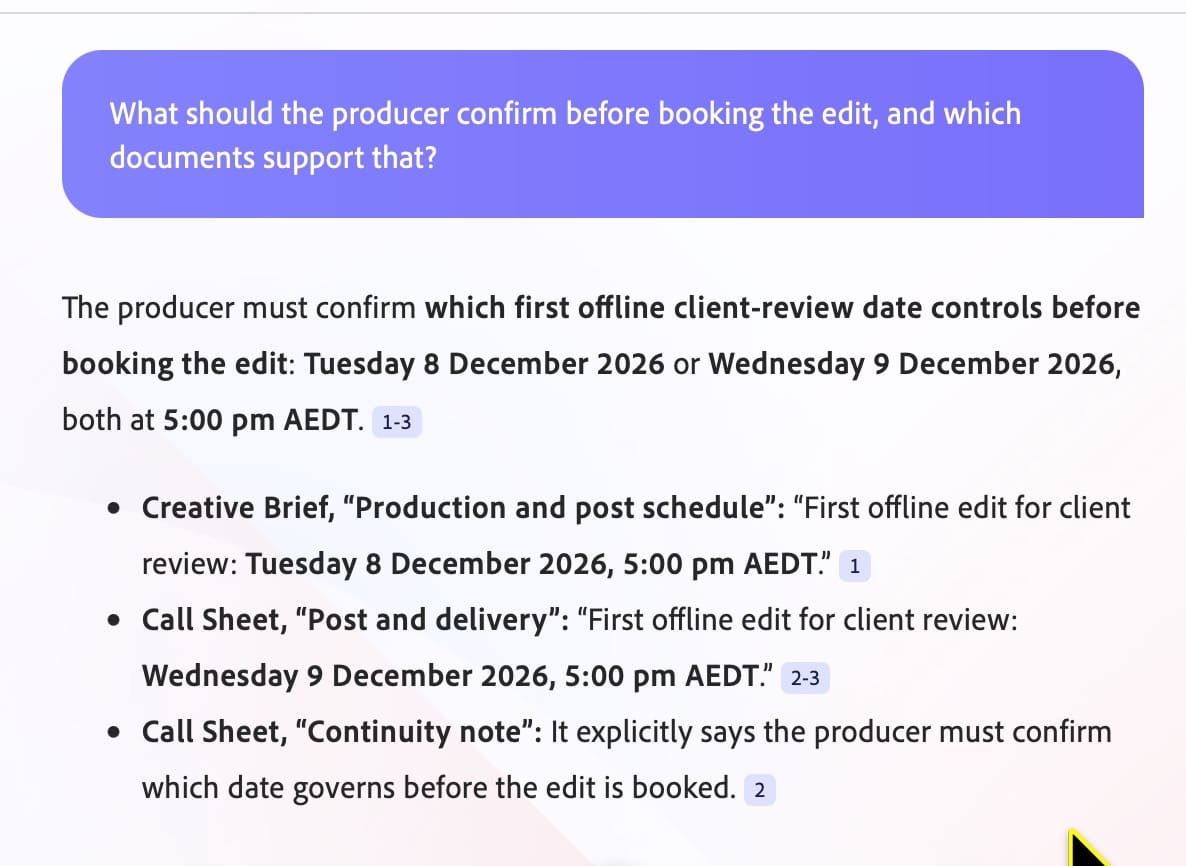
What should the producer confirm before booking the edit, and which documents support that?
Acrobat response excerpt
The producer must confirm which first offline client-review date controls before booking the edit: Tuesday 8 December 2026 or Wednesday 9 December 2026, both at 5:00 pm AEDT.1–3
The answer also noted that the client notes deadlines differ. That gives the producer a concrete next step: confirm both dates with the client and circulate one approved post schedule so the editor knows how much time is available for revisions.
Where Acrobat AI Assistant Worked Best
Across all five prompts, Acrobat AI Assistant got the key facts right. It pulled the deliverables, crew call times and final deadline into one summary, then flagged that the creative brief and call sheet gave different dates for both the first edit review and consolidated client notes. For a producer, that’s a useful catch before booking an editor or promising a review date to the client.
The standout feature was being able to trace an answer back to the source. Acrobat named the sections behind its answers, including Post and delivery for the review date and Restrictions and handling for the talent release’s AI training clause. A focused follow-up brought that clause straight into the conversation, complete with a quote from the release.
We checked the answers against the three short PDFs. The copied transcript preserved the citation numbers, though it didn’t show exactly where each link landed. In Acrobat, click the citation beside any detail that affects a booking, delivery or usage rights so you can read the original wording in context.
Using Adobe Acrobat AI Assistant in Professional Video Production Workflows
Professional video production involves managing information across multiple documents before editing even begins. Creative briefs, production schedules, talent releases and client feedback can all contain details that influence the editing process and final delivery.
Adobe Acrobat AI Assistant can help production teams identify deliverable specifications, review deadlines and usage restrictions before setting up their projects in Premiere Pro.
For example, an editor preparing a campaign in Premiere Pro can use information extracted from production documents to confirm aspect ratios, export resolutions, video durations and platform requirements.
With more than 40 years of experience developing creative technology, Adobe continues to build tools that support professional creators across different stages of production. From reviewing production documentation in Acrobat to editing and delivering video in Premiere Pro, Adobe’s tools help creative teams manage information while maintaining control over their creative decisions.
Document Limits, Subscriptions and Privacy
File limits. Adobe lists up to 100 files per PDF Space, with a limit of 100 MB and 600 pages per file. Password-protected files, videos, images with complex vector graphics and handwritten notes are listed as unsupported. Adobe also says citations are unavailable in the Insights dashboard when the app locale differs from the source language.
Subscription. Adobe offers a limited number of complimentary requests on some plans. Continued access requires a plan that includes AI Assistant, such as Acrobat Studio, or an eligible AI Assistant add-on. You don’t need an existing Acrobat Pro or Standard subscription to buy the add-on. Adobe lists 1,000 requests per user per month for eligible individual and Teams plans, subject to throttling. Check your local Adobe plans page for pricing and inclusions. Adobe’s AI Assistant plans
Privacy. AI Assistant uses cloud processing. Adobe says it does not use customer content to train the generative AI models that power Acrobat features. PDF Spaces has private, organization and public link settings. If a call sheet contains personal numbers or a release contains signatures, check the client’s cloud processing rules before adding it, and choose Private if you share the Space with invited collaborators. Prompt and response history can still contain information from a PDF after the file is removed. Acrobat offers a separate option to clear that chat history.
FAQs
Do I need to merge my PDFs first?
No. Add the PDFs individually to one PDF Space. Keeping the files separate makes it easier to see whether an answer came from the brief, the call sheet or the release.
Can I use scanned PDFs?
Adobe lists support for ingesting scanned documents in PDF Spaces on desktop. If a scan produces incomplete or inaccurate answers, try running OCR to add searchable text and check the cited passage against the visible scan. Pay particular attention to dates, names and small print.
Can Acrobat tell me which document takes precedence?
It can look for a clause or note that says which version governs. If the files disagree and the answer depends on an approval outside the PDFs, confirm it with the person who owns the decision. In this example, the call sheet itself sends that decision back to the producer.
Can I use Acrobat’s answer to clear footage for publication?
Use it to find the relevant wording, then check the signed release and any amendments. Verify the channel, territory, duration and signature status against the intended use. Our sample release showed how readily a useful terms summary can omit execution status when the prompt doesn’t ask about it.
Final Thoughts
Adobe Acrobat AI Assistant made it straightforward to pull a campaign summary from three PDFs and see where the production dates diverged.
For professional creators preparing projects in Premiere Pro, the most practical workflow is to ask for a summary, compare the details that could affect the shoot or edit, and open the cited passages before making decisions.
Try Adobe Acrobat AI Assistant with your next project brief, call sheet and talent release.
This article is sponsored by Adobe and contains affiliate links. We may earn a commission if you make a purchase through these links, at no additional cost to you. All opinions and testing observations are our own.
Related Posts
 Best AI Presentation Generators in 2026: Tested on PDFs, Reports and Spreadsheets
 How To Test Mobile Apps Across Regions Without Getting Blocked Or Misled
 The Privacy-First Meeting Assistant: Our Meetily AI Review
 GPT Assistant – Is It the Next Clyde for Discord?
 Is The Librarian the Best WhatsApp AI Assistant?
 Get an AI Assistant on Your Phone With Dot Copilot
 Is Concierge AI the Best Connected AI Assistant?
 Get a Collaborative AI Assistant for Excel With Grist AI
 Kin AI App Review: A Private AI Assistant You Can Actually Trust?

Disclaimer: Some pages on this site may include an affiliate link. This does not effect our editorial in any way.