Tested on October 17, 2026 with Acrobat 26.003.22110 and Express v32.0.3 · Updated 19 November, 2026. This article contains affiliate links in partnership with Adobe Acrobat.
Turning a report into a presentation is more than chopping paragraphs into bullet points. The useful tools find a story in the source material, build a sensible slide order, and give you a design you can work with. The best AI presentation generators also let you check the outline before they generate the full deck.
Here’s how I’d choose an AI presentation generator when starting with a document, PDF, or spreadsheet.
AI Presentation Generators Compared at a Glance
| Feature | Adobe Acrobat + Express | Gamma | PowerPoint Copilot | Canva AI | Gemini in Google Slides | Beautiful.ai |
|---|---|---|---|---|---|---|
| Source inputs | PDF, Word, PowerPoint, spreadsheets | Prompt, pasted text, Word, PDF | Prompt, Word; PDF on eligible plans | Prompt; uploaded PDF or Word as context | Prompt plus Docs, Sheets, PDFs, prior decks | Prompt, outline, attached documents/PDFs |
| Outline review before generation | Yes, in Express | Yes | Yes | May propose an outline | Yes | Yes, editable outline |
| Editor | Adobe Express | Gamma (web-first) | PowerPoint | Canva editor, Brand Kit | Google Slides | Beautiful.ai (web) |
| Export | PowerPoint, PDF | PowerPoint, PDF; Google Slides via PPTX | Native PowerPoint | PowerPoint, PDF | Native Google Slides | PowerPoint, Google Slides, PDF; plan-dependent |
| Access limits | Plan and language restrictions | Free plan has generation limits | Depends on subscription | Monthly AI usage limits | Eligible Workspace/AI plans; English-only availability | Export features tied to plans |
| Price | Free in Express; premium plans from US$9.99/month (no annual commitment) | Free; paid plans from US$9/month | From US$8.99/month | Free tier; Pro from US$12/month | From US$14/month | From US$14.50/month |
| Best for | PDF/document-first workflows | Fast first drafts | Microsoft 365 users | Design flexibility | Google Workspace teams | Guided design |
Prices are in US dollars and were checked in November 2026. Paid prices reflect the lowest available individual plan. Monthly equivalents are based on annual plans unless stated, excluding promotional offers. AI features, usage limits, and availability vary by plan.
Adobe Acrobat and Express: Best for PDF- and Document-First Presentations

If your source material is a PDF or a mix of documents, I recommend you look at Adobe’s Acrobat and Express workflow.
In Acrobat, the Generate presentation feature can create a draft deck from an open PDF, which you can then open in Adobe Express for further editing.
Alternatively, you can use the Generate presentation feature directly in Adobe Express to create slides from your source files:
- Upload your file: Start with a PDF, Word document, PowerPoint file, or spreadsheet.
- Review the outline: Check and adjust the AI-generated outline, including the slide order and content.
- Choose a template: Select a design that suits your presentation.
- Generate the slides: Let Express turn the outline into a presentation.
- Edit, present, or export: Refine the slides in Express, present directly, or download the deck as a PowerPoint or PDF.
Adobe explains how to generate presentations from files.
Moving from reading a source document to shaping a presentation in connected tools gives you room to review and correct what the AI has picked out before you get attached to a polished-looking deck. In our test, we used a six-page project brief. The outline captured the main sections, but we reordered two slides and shortened a few points before generating the deck. One thing to note: the generation feature has plan and language availability limits, so check access before you build a workflow around it.
Availability (as of November 2026): Generate presentation is available on Adobe Express Free, Premium, Teams, Enterprise, and Higher Education plans, in English and French. It is currently unavailable for K–12 accounts. Adobe Express availability details. Compare Acrobat & Express plans or start a free trial.
Best for: People whose starting point is a PDF or document and who want to generate, edit, and present within Adobe’s tools.
Gamma: Best for a Fast First Draft
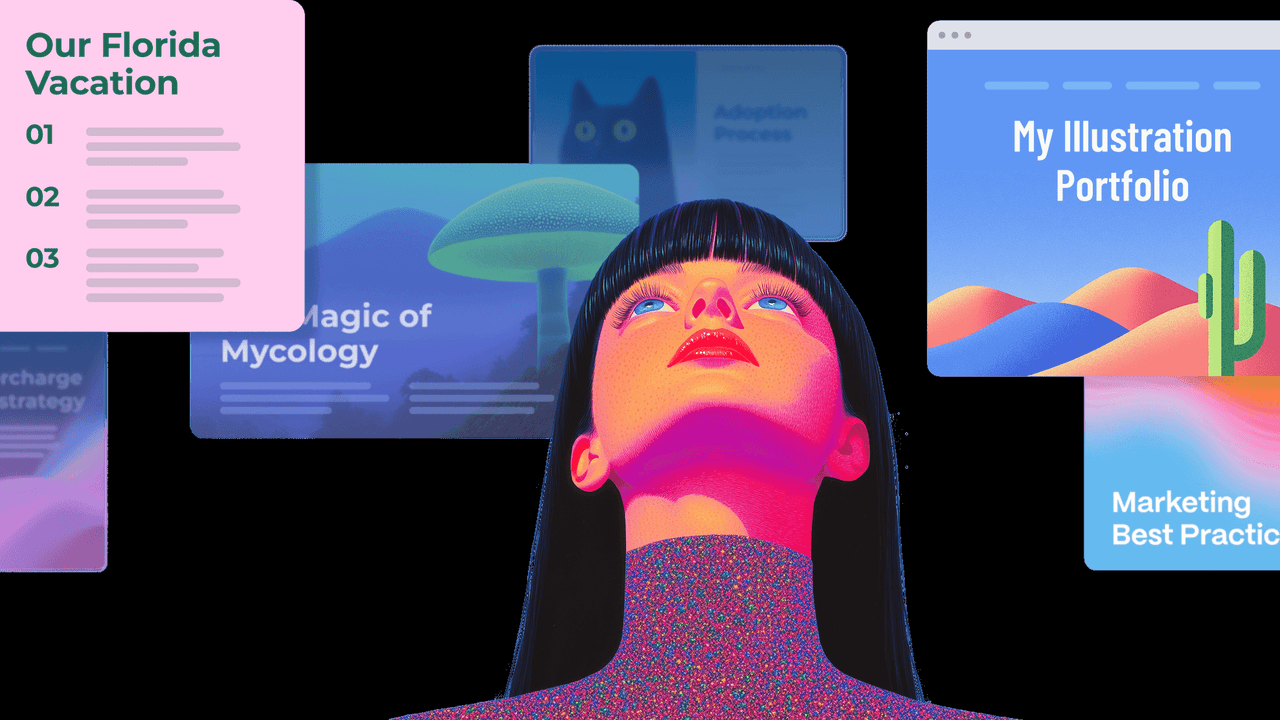
Gamma is designed to turn written material into visually structured presentations. You can provide a prompt, paste text, or import a Word file or PDF and ask it to make something new from the content. It can also import existing slides and let you preserve or restyle their layout.
That makes Gamma an appealing option when you have a report or rough notes and want to get to a presentable outline quickly. It’s a web-first tool, so before choosing it for a team, check whether its export options fit your needs.
The free plan includes a limited number of slides per prompt (up to 10 slides per prompt as of November 2026) and exports to formats including PowerPoint and Google Slides. Paid plans remove Gamma branding and add more capacity. See Gamma’s current plans.
Best for: Turning existing text into a quick, visually coherent first draft.
PowerPoint Copilot: Best for Microsoft 365 Users
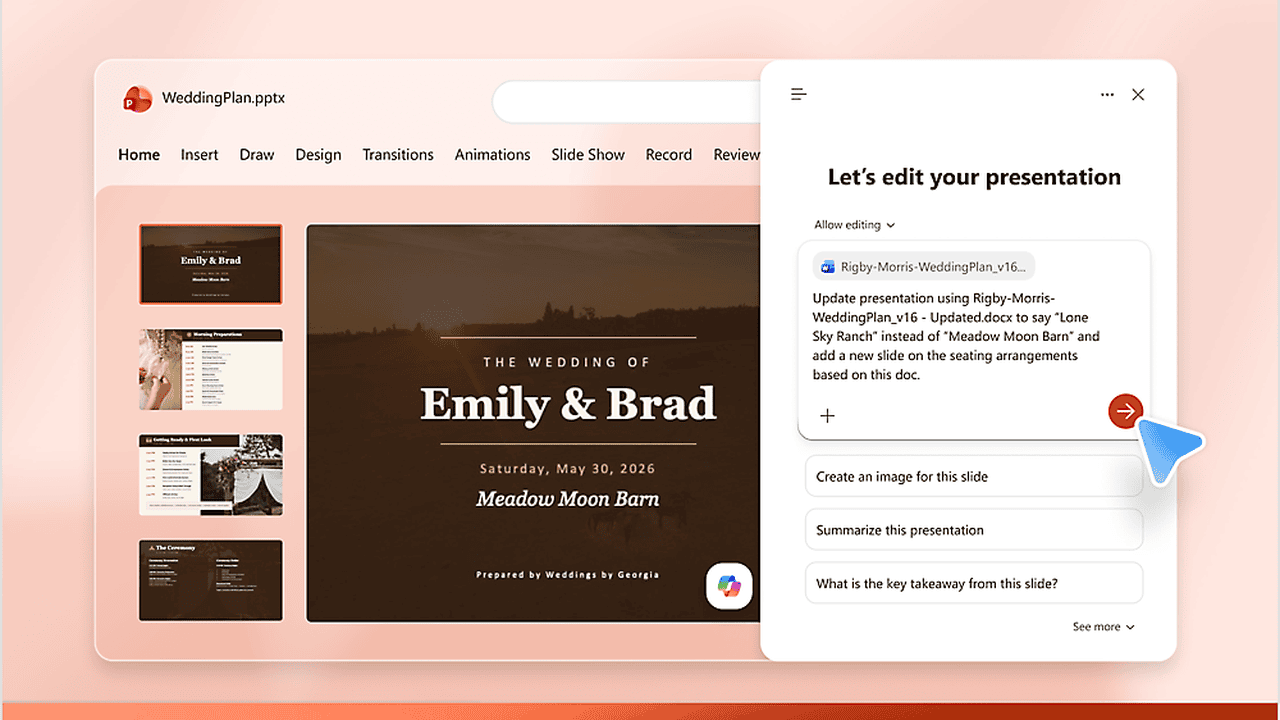
If the final deck needs to live in PowerPoint, Copilot is a natural option to consider. It can create a presentation from a Word document, using the source material to build a draft with images and speaker notes.
Microsoft also recommends preparing the source document clearly which makes sense since headings and a logical structure give the AI better cues for how to divide the content. Microsoft’s instructions cover creating a presentation from a file.
Copilot is especially relevant for people already working in Microsoft 365 and for organisations with established templates and review processes. Availability depends on your subscription and account settings, so it may not be included in every version of PowerPoint.
Best for: Microsoft 365 users who want to start with a Word file and keep working in PowerPoint.
Canva AI: Best for Design Flexibility
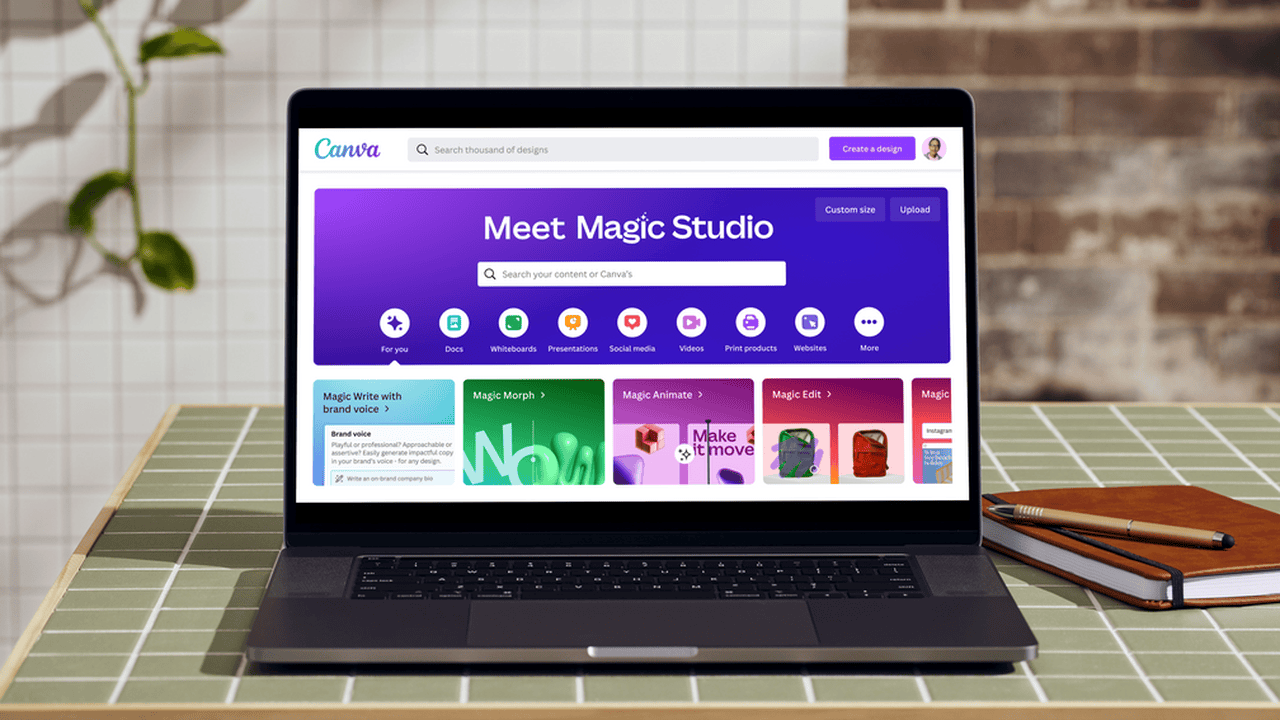
Canva AI can create a presentation from a prompt and use an uploaded PDF or Word file as context. It may propose an outline before generating slides, and you can apply a Brand Kit or edit the result in Canva’s design editor.
I’d consider Canva when visual style matters and I want a large library of templates and design assets close at hand. That said, its AI presentation feature counts toward monthly AI usage, and access depends on your plan.
As with any generator, the first draft is only a starting point: check that the deck reflects the source accurately and that the layout suits the audience.
Best for: Individuals and teams who want a design-focused editor and flexible templates.
Gemini in Google Slides: Best for Google Workspace Teams
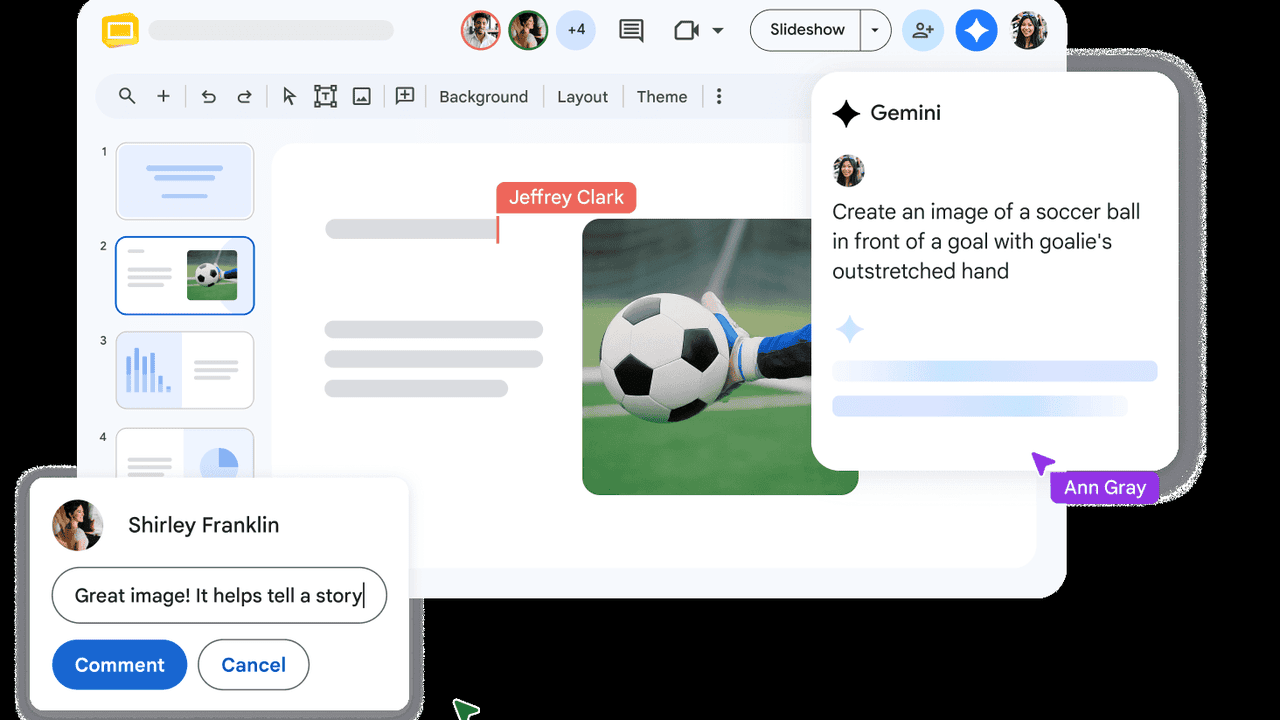
Gemini can create presentations in Google Slides using a prompt and reference files such as Google Docs, Sheets, PDFs, or previous decks. It can propose an outline for review before generating the slides, and Google says the generated slides remain editable. You can also provide an existing presentation as a style reference.
This is a good fit if the source documents and collaboration already happen in Google Drive. The feature is tied to eligible Google Workspace or Google AI plans, and Google’s announcement says the initial rollout is in English.
Best for: Teams that store source files in Drive and want to build and revise decks in Google Slides.
Beautiful.ai: Best for Guided Slide Design

Beautiful.ai takes a more guided approach. You can start with a prompt, paste an outline, or attach supporting files such as a document or PDF. Its process is designed to help shape the story as well as the slides, rather than producing a finished deck from one instruction.
It’s worth considering if you want help with layout as you build. If you need an editable PowerPoint or Google Slides file, I recommend you check the export details: those options are limited to certain plans, and animations may not carry over to other platforms. See Beautiful.ai’s export options.
Best for: People who want design guidance and are comfortable working in a web-based presentation tool.
Which AI Presentation Generator Should You Use?
For a presentation built from a PDF or a collection of documents, my choice is definitely Adobe Acrobat combined with Express. You can try it for free for seven days. If you need the finished deck in PowerPoint, Copilot is a strong fit for a Microsoft 365 workflow. Canva is a flexible choice when design and templates are a priority, while Gemini makes sense for teams working in Google Slides. Beautiful.ai offers a guided design process.
Related Posts
 From Idea to App With Rocket AI – We Tested It So You Don’t Have To
 5 Best Apps for Identifying Plants for iPhone
 Best Budget Apps for iPhone
 Are Vibe Coding Apps Any Good – Our Top Picks
 Best AI Personal Finance Assistants You Should Try
 The Best AI Website Builders to Try
 Combine All Image Generators Into One With Masonry
 Best AI Logo Generators
 Create PowerPoint Presentations Effortlessly With Gamma AI

Disclaimer: Some pages on this site may include an affiliate link. This does not effect our editorial in any way.