If you’re tired of searching Freepik for the perfect image that never quite matches your vision, its AI image generation capabilities might be the answer. The tool’s image generation AI is not quite on the level of the top-of-the-line AI models, but considering it’s free to use and easy to start with, it’s a great option if you need images fast. Here’s how to use Freepik AI image generator.
Getting Started with Freepik AI Image Generator
Using the tool is straightforward especially since you can get started with a free account on Freepik.
Step 1. Go to the website and select “Image Generator” on the left-hand side of the dashboard.
Step 2. You’ll find the prompt fields on the left. For the text prompt (on the bottom), type a clear, detailed description of what you want to create. For example: “A cozy coffee shop on a rainy day, with warm lights, people reading books, and reflections on the window.”

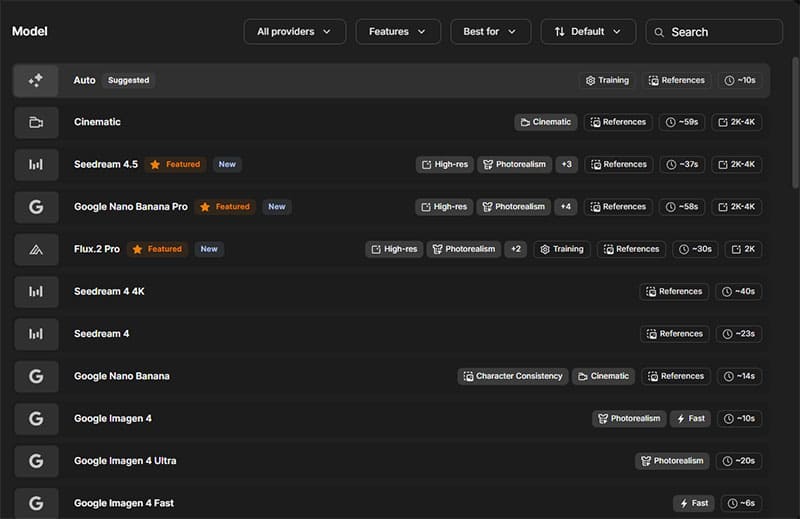
Step 3. Choose your AI model. This is where Freepik shines, as you get dozens of different models (but most are locked behind the Premium subscription).
Step 4. Select the style of the image you want. Notably, this is one of the only sections that’s available for free users. You have a lot of different styles, including various drawings, photorealism, illustrations, and even simple lineart.
Step 5. Select the number of pictures you need, then click on “Generate” and wait for the result.

Step 6. Freepik’s AI will automatically update the prompt to include details relevant to the selected style, then slowly generate images. You can see the entire image generation history on the right.
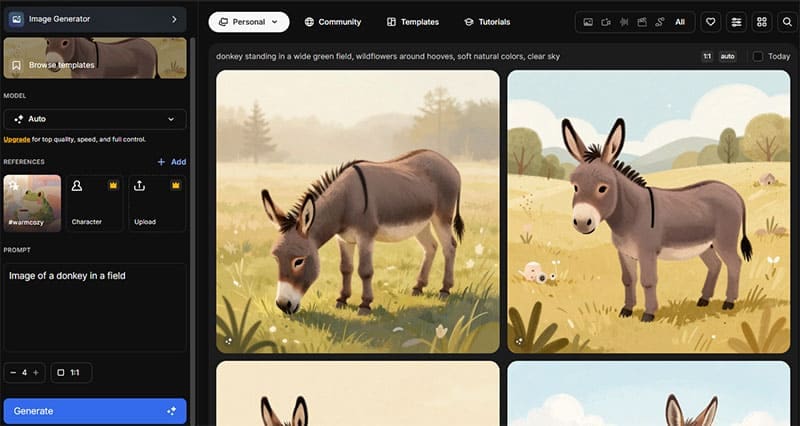
Note that while the generator says you have 20 images per day with the free account, that’s actually 20 credits and different AI models and styles will use up credits faster. In most cases, you’ll get 5-10 images per day.
Does Freepik Image Generator Work Well?
Freepik’s multimodel approach combined with the credit structure allows you to quickly iterate between different styles and models until you find something that works for the type of content you need.
Quality-wise, the photorealistic images can be a bit hit-or-miss. The AI has a hard time lining up people in natural-looking poses, especially if you need a photo of a group generated.
Usually, you’ll get better results going for more abstract images that have a singular subject that can be neatly extracted from a background.
What’s particularly convenient is integration with Freepik’s broader ecosystem. Generated images can be instantly edited in the editing tools, combined with stock assets, or exported for use in presentations.
However, Freepik still has a large learning curve due to the sheer amount of options you get. You can use the free account limits liberally, but the key is to be as specific as possible both in terms of the subject and background, but also the overall look and style of the image. Luckily, you can get better at it over time and testing what types of prompts work for a particular image model (since most are available on Freepik).
Related Posts
 Freepik AI Image Generator – Should You Use It?
 How to Use Freepik AI Image Generator
 Best AI Anime Image Generator
 Best Free AI Image Generator
 How to Use the Sora AI Video Generator
 Best Minecraft Skin AI Generator
 How to Use AI Caption Generator for Instagram
 Is Automateed the Most Impressive AI eBook Generator Yet?
 Imagine Anything AI Review – Is This the Best AI Content Generator So Far?

Disclaimer: Some pages on this site may include an affiliate link. This does not effect our editorial in any way.