AI image generators seem to be a dime a dozen these days, with more popping up every month. They’re part of the AI boom after all. But not all generators began life with the rise of AI. Today’s example, Freepik, began life as a site to find royalty-free images for projects. It still does this, but it now also allows users to generate their own AI images.
In this article, we’ll be exploring this side of Freepik and looking at how to use the image generator too.
What Does Freepik Offer Users?
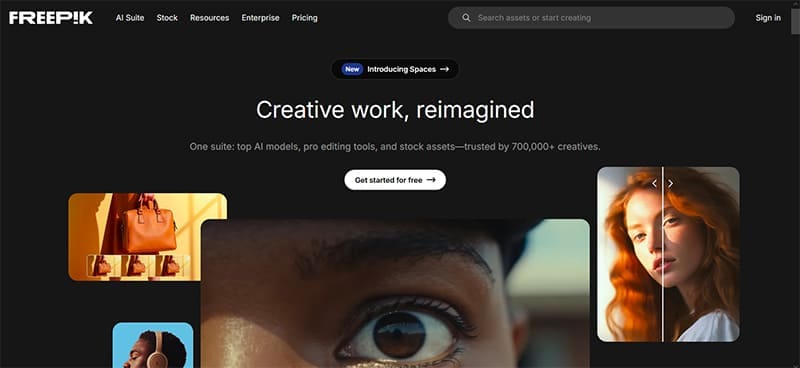
Royalty-free images aside, what’s there to appreciate about its image generator? Freepik AI offers:
- Freepik uses some of the most popular and advanced text-to-image models out there. They even provide F Lite, their own open source model.
- A fair amount of user input options, to control style, image upload, special effects, color palettes, and post-processing tweaks. This is combined with a user-friendly UI for both pros and noobs.
- Multiple image generation off a single prompt and editing options for generated images.
- Integration with API and smartphone or PC compatibility.
That’s a lot of versatility on offer and a lot of control. Users can upload, tweak, and refine to get the best image they can get. Compared to other image generators (think Stable Diffusion), it might not have the most customizability, but it’s a solid middle of the road option to appeal to newcomers and veterans alike.
This quality comes at a price, unlike Freepik’s royalty-free images. If you’re looking to generate anything more than 20 images a day, you’re going to have to sign up to a subscription, starting at $8.50. Freepik AI uses credits for all image, video, and sound generation. Beyond the credits, more advanced tiers have better models, more styles, and customizability.
How to Use Freepik AI Image Generator
Now you know what’s on offer, let’s take a look at how to use the image generator. If you don’t want to sign up to a tier, just yet, you can stick with the free version to test the water. Keep in mind, you’ll still have to create a user profile to do so.
Step 1. The tool should take you to the Pikaso Image Generator by default. Enter your prompt in the dialog box provided. Provide a custom seed if you want or use Auto Prompt to generate an idea. These are icons that appear in the dialog box.

Step 2. Choose the model of your image from the dropdown list. If you’re on free, not all will be available.
Step 3. Choose your image style. There’ll be a few to choose from and you can even upload inspiration of your own.
Step 4. If you want to add a character for repeat use, you can choose or upload a reference image.
Step 5. Choose the number of images to generate, and their aspect ratio. Click the “Generate” button to get your images.
Step 6. The images will generate for you to view. If you want to make changes, click one and choose “Edit.”

Step 7. The dialog box will allow you to make specific changes. If you want to adjust certain aspects, the options (“Retouch,” “Upscale,” etc.) appear in boxes below.

Step 8. Click the “Upload” buttom (the arrow) and the image generator will apply the changes.

Step 9. From here, you can save the image, download it, or edit it further.
Related Posts
 Freepik AI Image Generator – Should You Use It?
 Best AI Anime Image Generator
 Best Free AI Image Generator
 Is Automateed the Most Impressive AI eBook Generator Yet?
 Best Minecraft Skin AI Generator
 Best AI Username Generator for Instagram
 How to Use AI Caption Generator for Instagram
 What Is the Best AI Recipe Generator for Easy Meals?
 How to Use the Sora AI Video Generator

Disclaimer: Some pages on this site may include an affiliate link. This does not effect our editorial in any way.