CrazyFace AI is an AI tool with a very specific purpose: editing expressions. It invites users to upload their own images and adjust their facial expressions with a single click, making them look angry, shocked, joyful and more, all with the power of AI. In theory, it’s the perfect tool for making eye-catching YouTube thumbnails, but does it really work? Find out in this CrazyFace AI review.
Overview of CrazyFace AI
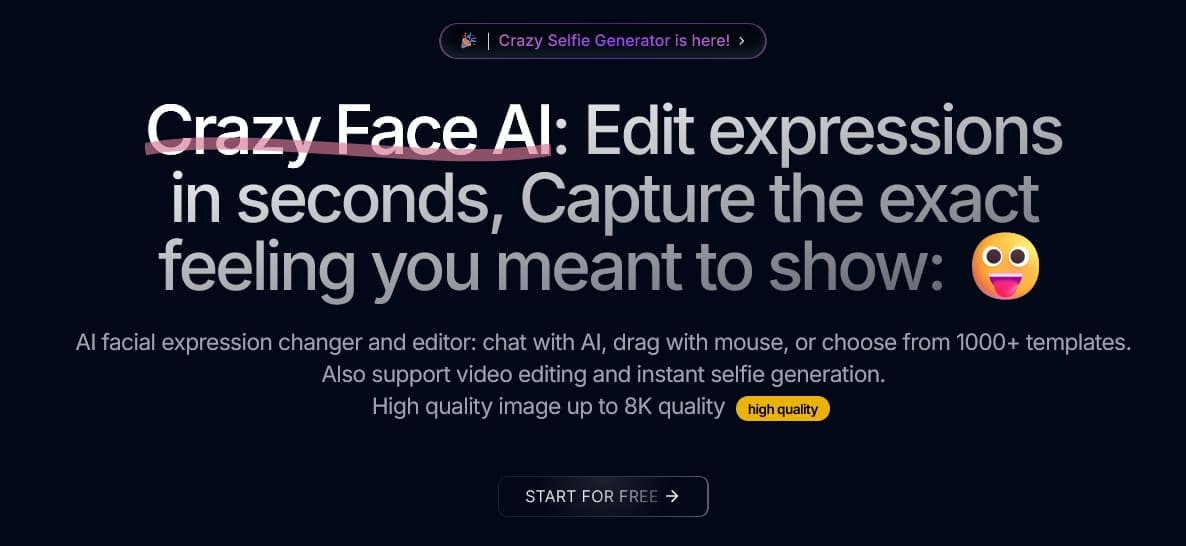
CrazyFace AI is a free-to-try tool designed for changing facial expressions in photos and selfies. After uploading an image of themselves or someone else, users can either type in an AI prompt or search through the platform’s “Expression Library” to change the subject’s expression. They can then fine-tune their images, adjusting the exact positions and angles of different facial features, as desired.
It’s a quick, reliable, and effective tool that provides quite a deep amount of customization. Users can experiment with different kinds of prompts to get different outputs, as well as adjust the various expression sliders to refine their results. Once they’re happy with the outcome, they can download the final images in up to 8K quality.
In addition, CrazyFace AI offers dozens of related bonus features and tools, such as the “ouTube FaceHub, which analyzes thousands of real viral YouTube thumbnails to help you see which expressions work best, and the “Expression Video Generator,” which lets users turn a still image into an animated clip.
CrazyFace AI Review – How Does It Work?
Creating fun and expressive images with CrazyFace AI is simple:
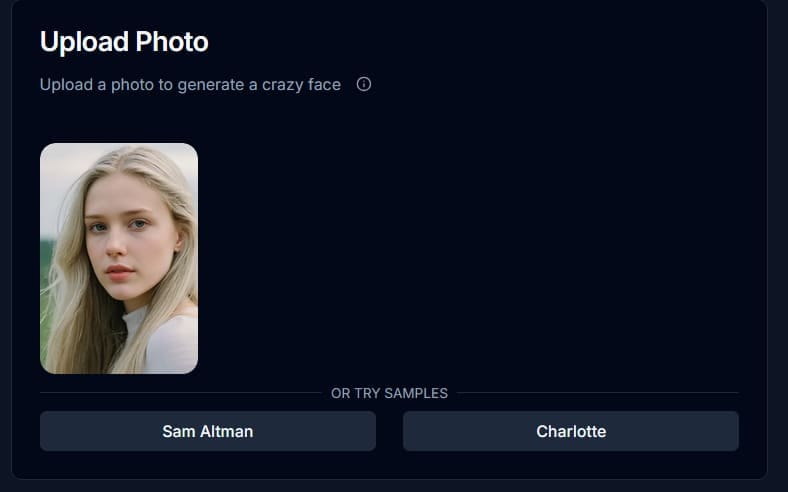
Step 1. Create and sign in to your CrazyFace AI account and access the “AI Facial Expression Changer.” From there, click to upload the photo you want to edit.
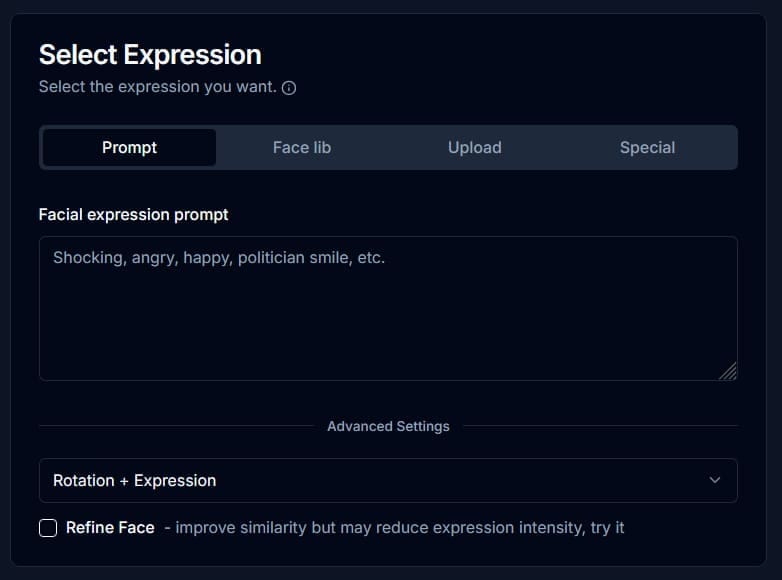
Step 2. Next, you need to decide what expression you want to generate. There are several ways to do this. You can either describe the expression as an AI prompt, use the “Expression Library” via the “Face Lib” button, upload a reference image, or click the “Special” button to access unique expressions like “Facepalm.”
Step 3. Once you’ve selected the expression you want to create, click the “Generate” button and wait a moment while CrazyFace AI makes it for you. It should only take a matter of seconds.
Step 4. After CrazyFace AI generates your new picture, you can use the expression sliders to adjust it, redo it with a new prompt or reference image, or save it to your device.
CrazyFace AI Pricing
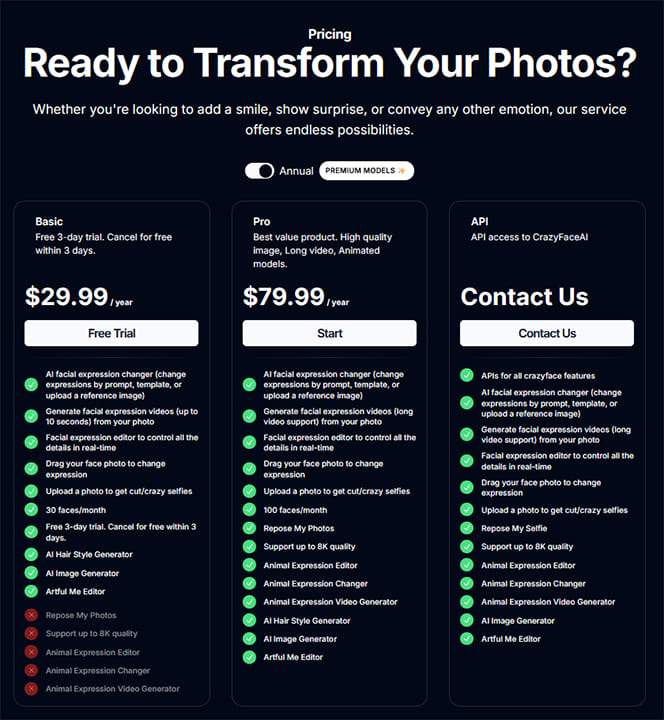
CrazyFace AI offers a three-day free trial with the Basic plan. You won’t be charged unless you continue to use the platform after three days. Here are the three pricing tiers to suit different user needs:
- The Basic plan is the cheapest, available for just $29.99 per year, but has a strict 30 faces per month limit. You can also pay $3.99 per month, but that increases the yearly cost to $47.88.
- The Pro plan costs $79.99 per year and lets you edit up to 100 faces monthly. It also unlocks additional features that aren’t available to Basic subscribers. There is also a $9.99 per month plan but that raises the annual cost to $119.88.
- The API/Enterprise plan is aimed at business users and uses custom pricing, depending on the business’ requirements.
Final Word on CrazyFace AI
Overall, CrazyFace AI has a specific goal in mind and does an excellent job of achieving it. It works well at changing facial expressions in realistic ways and can save users, such as YouTubers and content creators, plenty of time when making thumbnails or social posts. It may also appeal to other groups, like photographers or marketers, but its pricing may be too high for casual users.
Related Posts
 Make Your Own YouTube Thumbnails With AI ThumbnailCreator
 Best AI Tools for Novel Writing and Creative Writing
 How to Use Cursor AI Code Editor
 Is The Librarian the Best WhatsApp AI Assistant?
 How to Increase Your Support Team’s Productivity with IllumiChat AI
 Get ChatGPT, Claude, and Midjourney on Telegram With Unlim AI
 Using PowerTelegram to Get Immediate AI Assistance on Telegram
 Best AI Logo Generators
 DiscMeet AI Review: How to Get Instant Transcriptions From Discord Meetings

Disclaimer: Some pages on this site may include an affiliate link. This does not effect our editorial in any way.