You might be on a roll with generating images with ChatGPT or DALL-E, only to have the action stop and an error message show up instead. There are a few reasons your prompt isn’t turning into the image you hope for, and a few ways to troubleshoot it. In this article, we’ll be covering how to address a DALL-E image error.
How to Fix a Dall-E Image Error
There could be any number of reasons DALL-E, on its own or as part of ChatGPT isn’t cooperating. For ease of troubleshooting, we’ve grouped these reasons and potential fixes into different subsections below.
Connectivity
Let’s start easy and probably obvious. Check that the device you’re using has a stable connection to the internet. Reset your router and restart your browser for good measure.
Safety Policies
DALL-E has guardrails in place to prevent any extreme sexual or graphically violent images being generated. It might be that your prompt has crossed a line into one of these. The use of real people (celebrities and famous political figures) can also be restricted. Ensure that your prompt is free from anything too graphic or sensitive and try again. If a normal prompt generates an image, this might be the problem.
Account Limits
Endless image generation might be nice to have, but isn’t possible yet in OpenAI. Free accounts are limited in their image generation, and even paid subscriptions cap the number of images users can create. There’s no hard and fast limit; it’s dynamic and depends on server loads and current users. If you aren’t having luck on DALL-E, ChatGPT, or any API, wait for a while and come back.
Server Errors
Just like server load limits, the generation problems you’re experiencing could be server side. If this happens, try switching generation models between, say, DALL-E 3 and DALL-E 3.5/4, to see which might work. It could also be a wider server issue, which means waiting for resolution.
Your Browser
Generation issues can also be caused by your browser. A good first step, if you’re encountering generation trouble, is to sign into DALL-E or ChatGPT via another browser and see if the issue persists. It’s also a good idea to disable third-party extensions, one by one, especially those relating to AI.
Disable Hardware Acceleration
Hardware acceleration is another area that, while designed to help performance, can also hinder it.
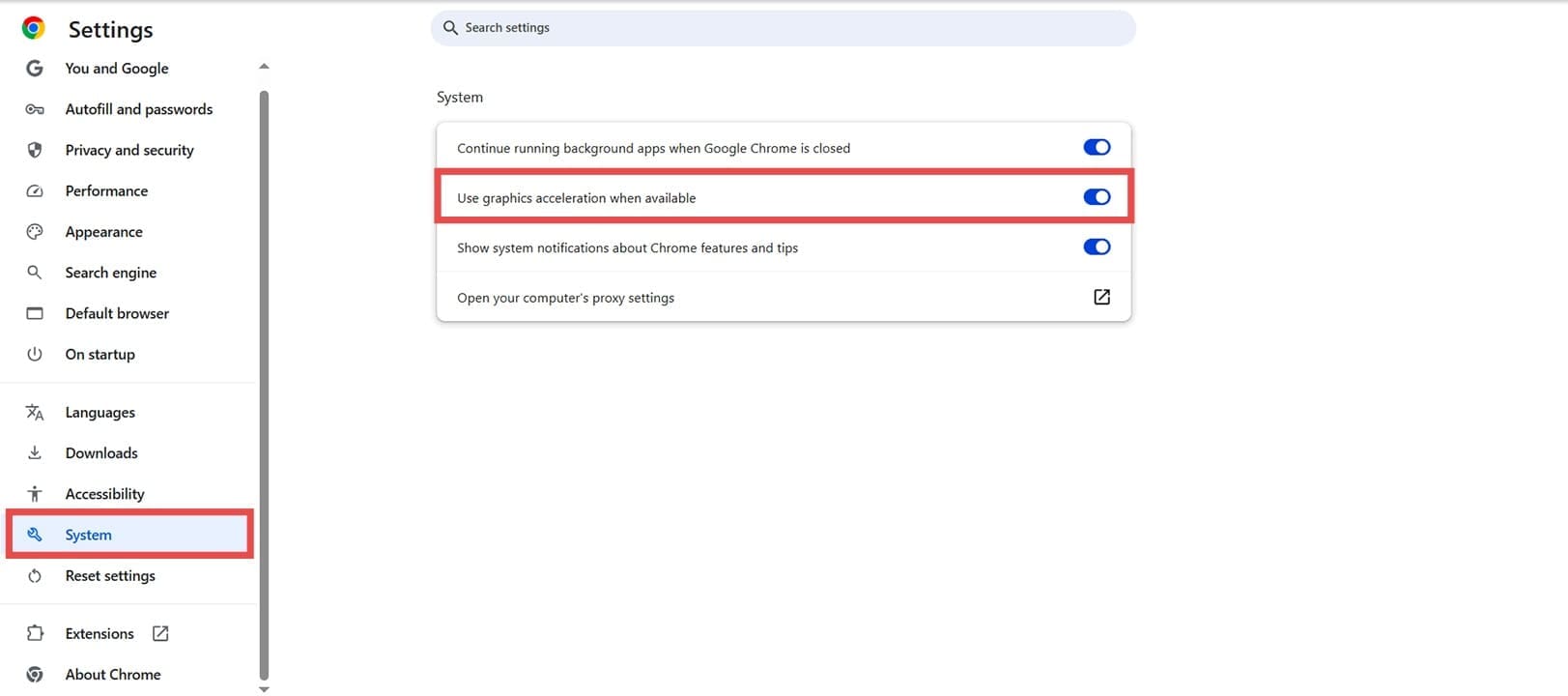
If your Chrome screen goes black:
Step 1. Open up the More Menu (three dots) in the top-right corner and click “Settings.”
Step 2. Choose “System” on the sidebar and uncheck “Use graphic acceleration when possible” in the main window.
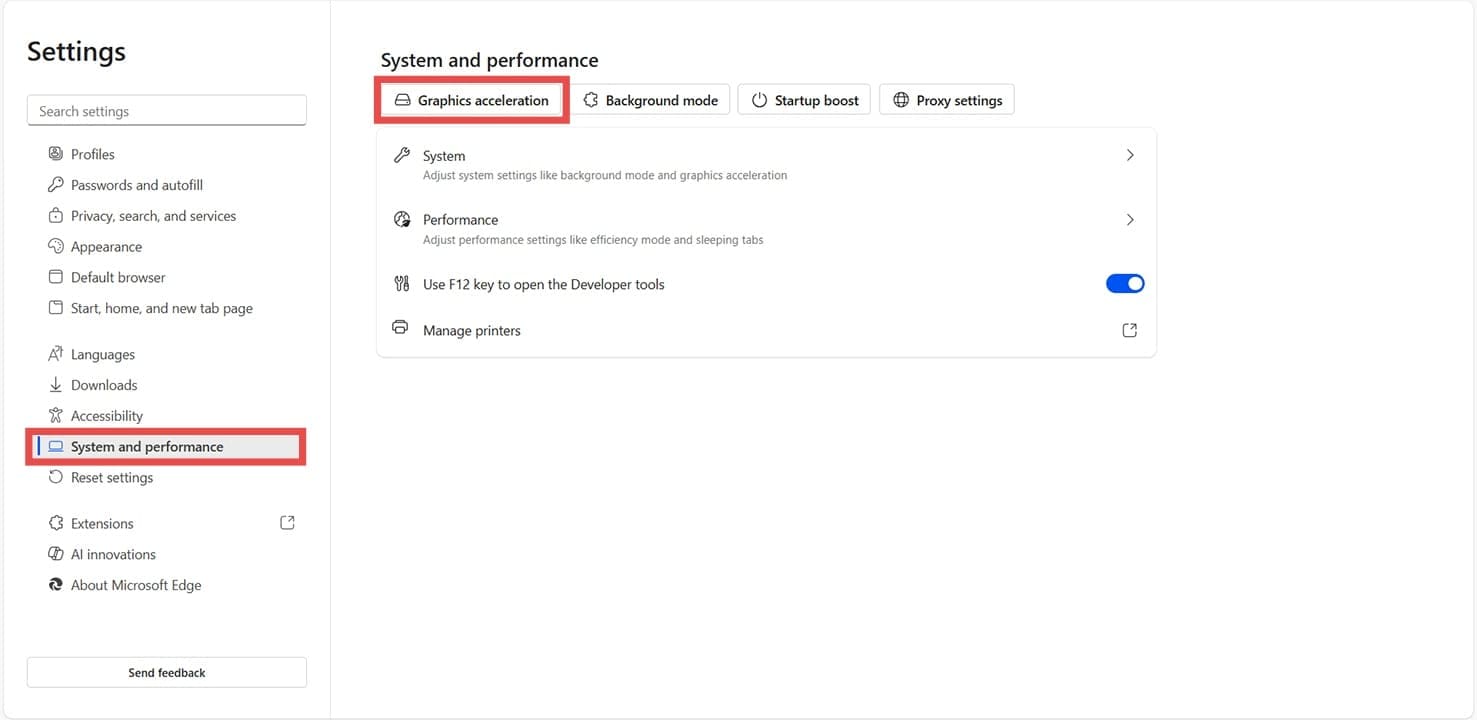
If your Edge screen goes black:
Step 1. Open up the menu in the top-right and click “Settings.”
Step 2. Go to “System and performance” in the sidebar, and click the “Graphics acceleration” button.
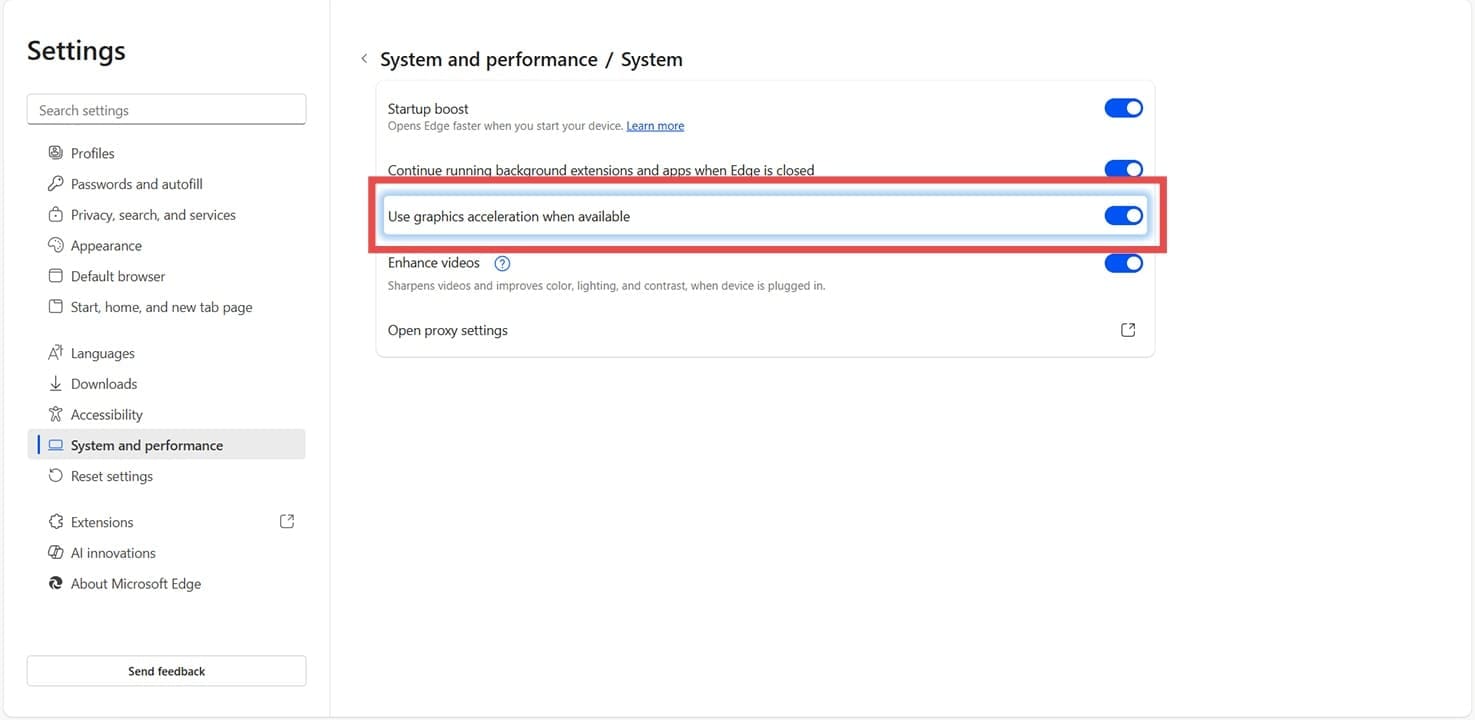
Step 3. Uncheck “Use graphics acceleration when available” and restart the browser.
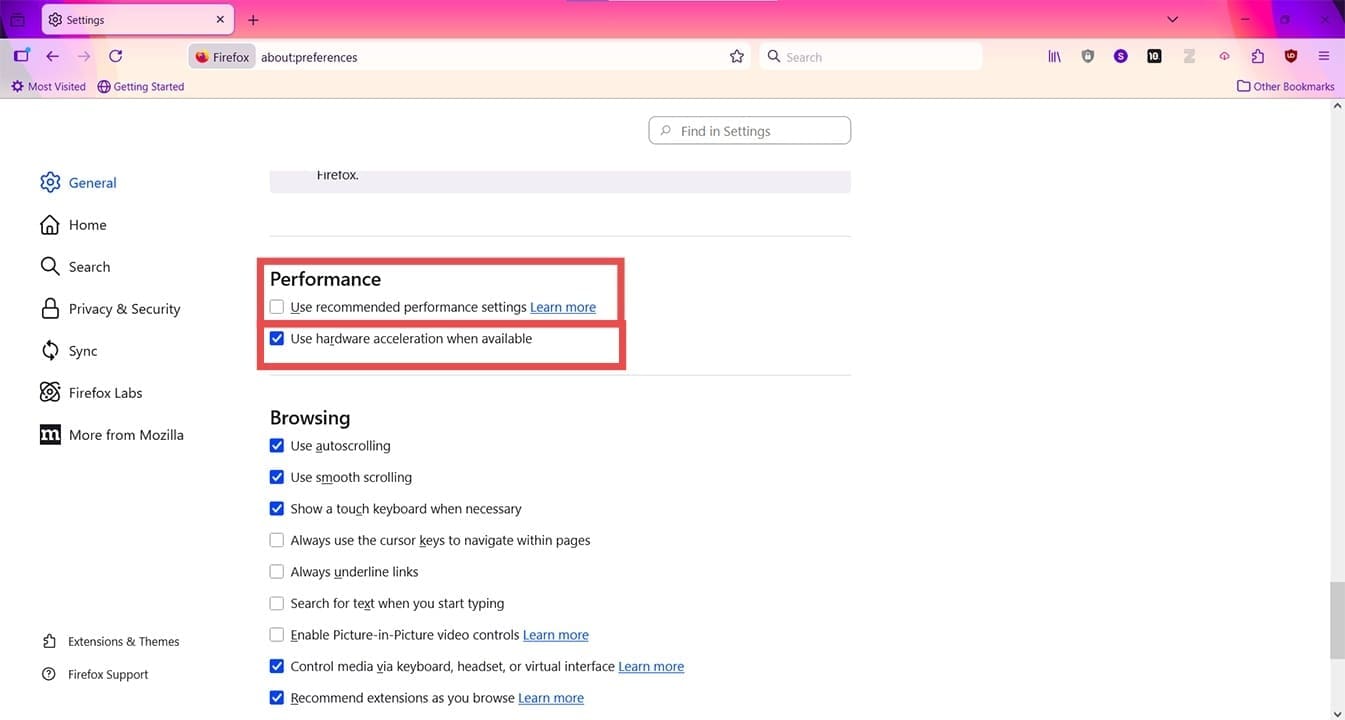
If your Firefox screen goes black:
Step 1. Click the “More” button and select “Settings.”
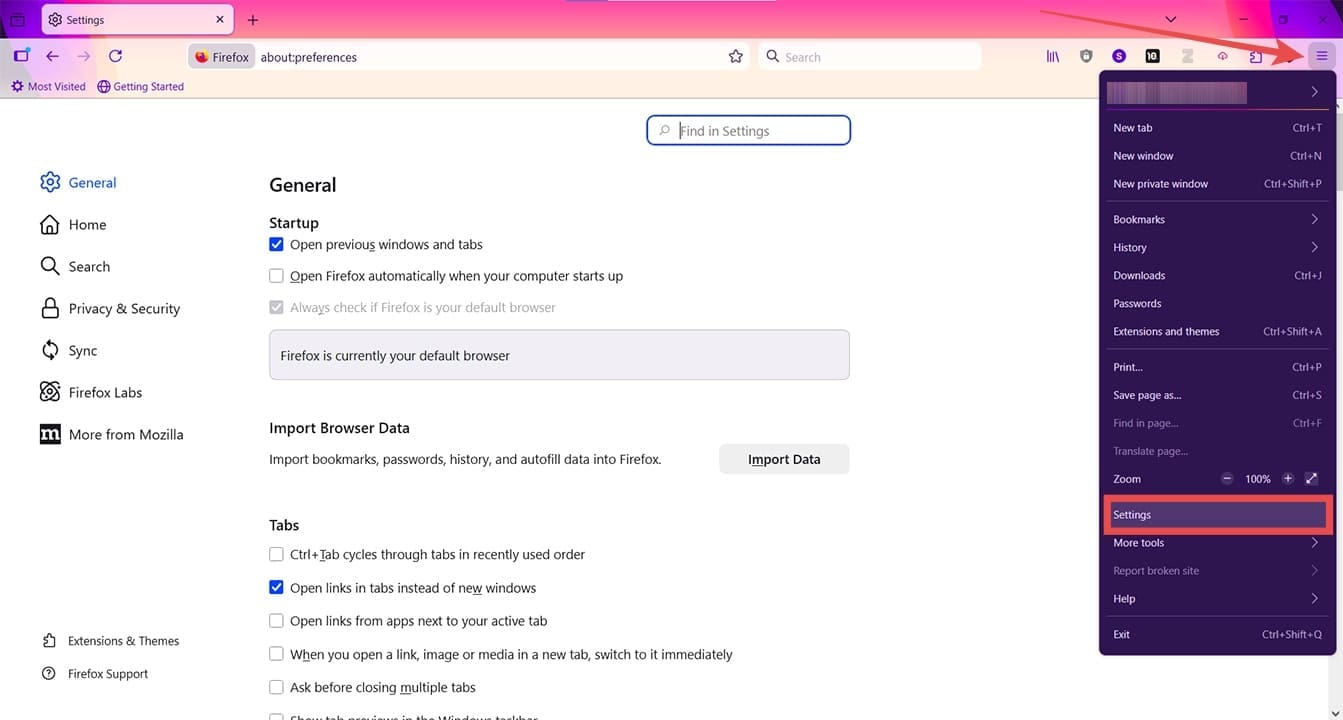
Step 2. Scroll down to the “Performance” subsection and uncheck “Use recommended performance settings.”
Step 3. A new option will appear called “Use hardware acceleration when available.” Uncheck this too.
Clear the Browser Cache
The browser cache can also cause behavior issues on sites, including DALL-E image generator and ChatGPT. Try clearing the cache to start fresh:
For Chrome:
Step 1. Press (Ctrl + Shift + Del).
Step 2. Select “Cached images and files.”.
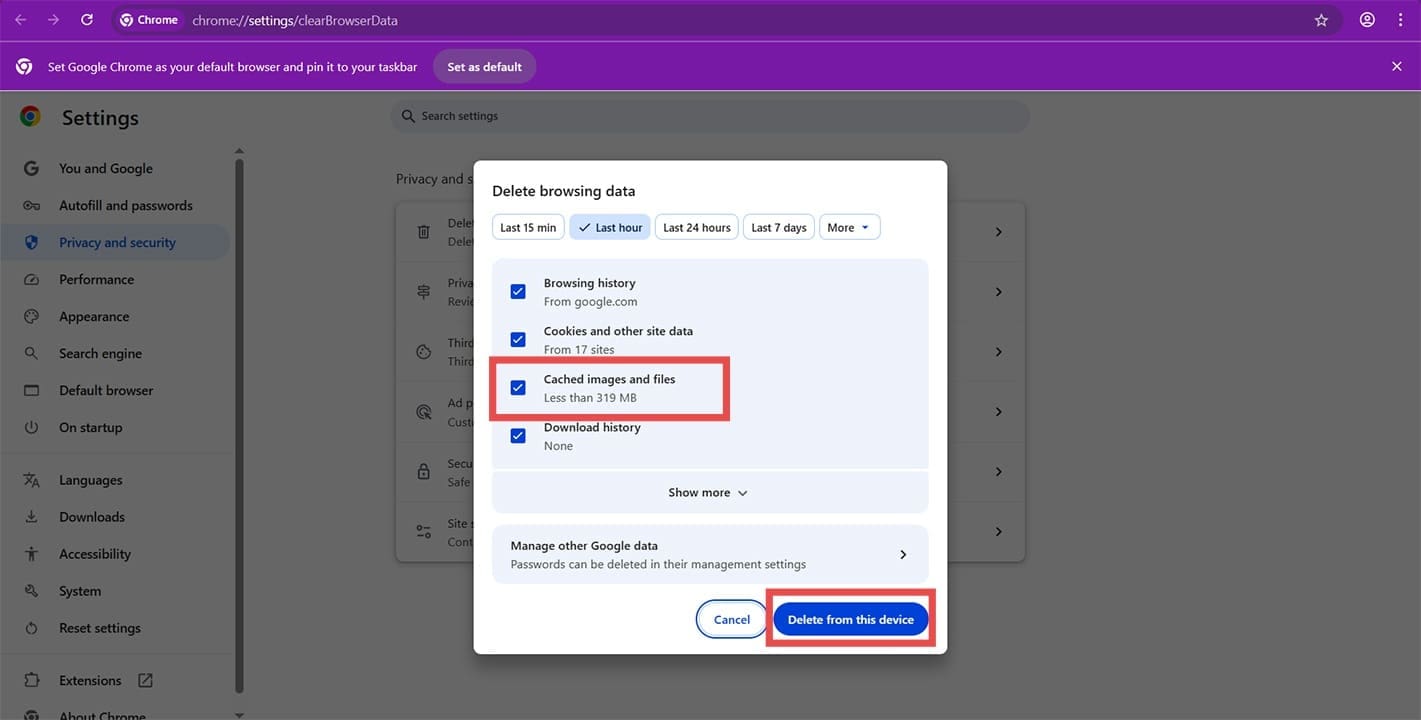
Step 3. Click “Delete from this device” to finalize.
For Edge:
Step 1. Press (Ctrl + Shift + Del) to see the “Delete browsing data” window.
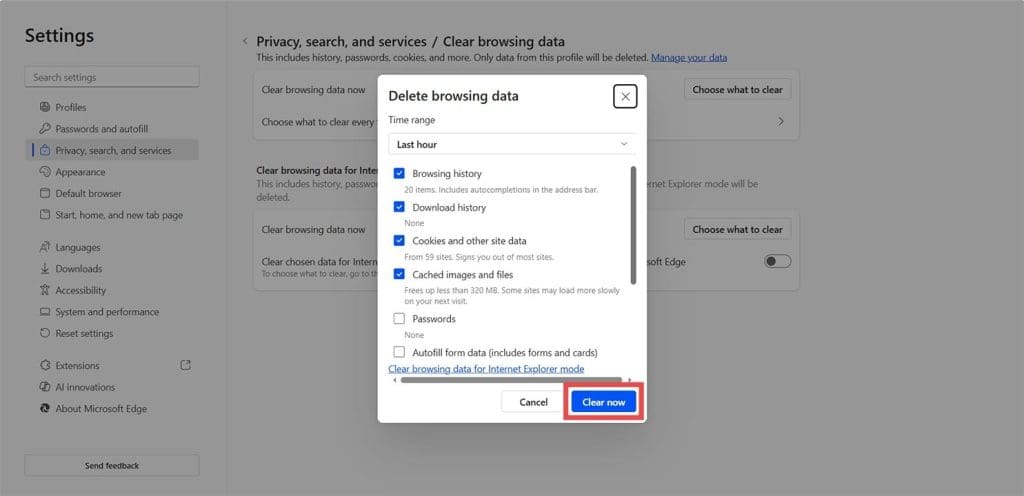
Step 2. Select what’s to be deleted and click “Clear now” to finalize.
For Firefox:
Step 1. Press (Ctrl + Shift + Del).
Step 2. Check “Temporary cached files and pages.”
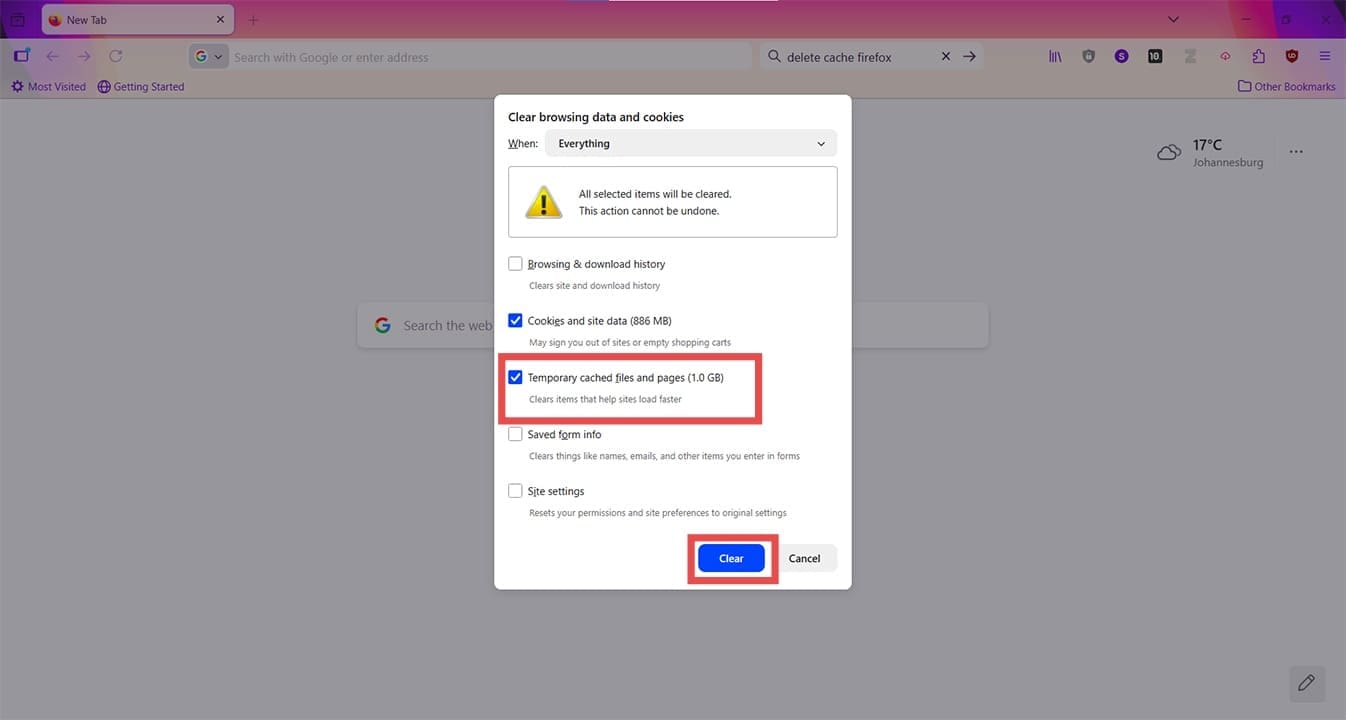
Step 3. Click “Clear” to execute.
Related Posts
 Freepik AI Image Generator – Should You Use It?
 Best AI Anime Image Generator
 Combine All Image Generators Into One With Masonry
 Reasons Why Watchdog.chat Can Replace Your Discord Moderator
 How to Generate a WhatsApp AI Image
 Best Free AI Image Generator
 How to Use Freepik AI Image Generator
 Freepik AI Image Generator: How to Use It to Create Custom Images

Disclaimer: Some pages on this site may include an affiliate link. This does not effect our editorial in any way.