Is your video file unplayable, or is the video player throwing the error “Cannot Play Video File” while trying to play it? Well, that’s possibly a corrupt video. But worry not, you can repair a corrupted video file for free. Yes, in most cases, you can fix it for free as long as the corruption is limited to the file’s header or index rather than the actual video data.
Online Video Repair Tools, VLC Media Player, and video repair utilities, such as Untrunc, can often restore a broken MP4, MOV, or MPEG4 file without costing you anything.
Video corruption happens when a video recording gets interrupted, a phone shuts down mid-transfer, or other similar interruptions. All of this can leave a video file unplayable. The frustrating part is that the footage is usually still there. What’s actually broken is the file’s structure, the part that tells your media player how to decode and display the video.
This guide covers how to check whether your file can be saved, the quick fixes worth trying first, and the more advanced free tools that can bring a corrupted video back to life.
Can a Corrupt Video File Be Fixed?
Yes, a corrupt video file can usually be fixed, especially if the corruption affects the container or index rather than the video data itself. Most video formats, including MP4, MOV, and MPEG4, store complete data in two separate layers: the audio and video data, and a header or index that tells the player where each frame begins and ends.
When only the header is damaged, the raw footage is intact and recoverable. When the data itself is overwritten or physically damaged, for instance by continued use of a failing SD card, recovery becomes far less likely. Before you try anything else, copy the file to your computer instead of editing it, to avoid complete loss.
Causes of Video File Corruption
- Recording interrupted by a dead battery or sudden shutdown
- Storage device removed before the transfer finished
- Power loss while a video was being saved or edited
- Bad sectors or file system errors on the SD card or drive
- A crash during video editing or format conversion
- Incompatible codec after converting between formats
- Malware or virus interference
6 Troubleshooting Steps for Fixing a Video File for Free
Try these quick checks before moving to repair tools. They take a few minutes and solve a surprising number of playback problems.
- Play it in a different media player. VLC handles far more formats and partial corruption than the default Windows or Mac player.
- Test it on another device. A file that won’t open on your phone might play fine on a laptop.
- Check the file size. If it’s 0 KB or unusually small compared to similar clips, the data likely didn’t finish writing.
- Update your codecs and player. An outdated player sometimes can’t decode a file, and that gets mistaken for corruption.
- Try a different file extension. Renaming .mov to .mp4 (or the reverse) occasionally allows a player to open a file that was tagged incorrectly.
- Copy the file before doing anything else. Work on a duplicate so you always have the original to fall back on.
Advanced Free Methods to Fix a Video File
If the quick checks don’t solve it, these are your best options at no cost.
Method 1: Use a Free Online Video Repair Tool
An Online Video Repair Tool is the easiest place to start, and there are certain genuinely free options among the popular repair tools we tested. Free video repair claims are common, but most of them come with a catch. Although, tools like Stellar, and Wondershare lets you fix videos at no cost.
Here’s how each free tool performs:
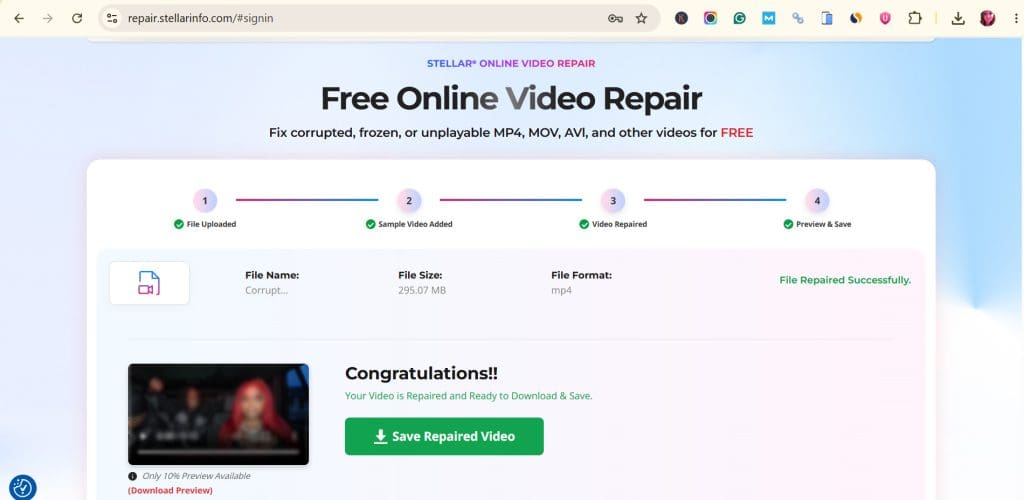
- Stellar Online Video Repair was clean rather than clever; that’s because it does what it claims, offering genuine free online video repair for one file up to 100MB. With no dynamic pricing and no false repair preview like some other clever tools we tested. Upload your corrupted MP4, MOV, MPEG4, AVI, or WMV file, upload a sample video file, and let the tool scan and rebuild the file structure, then preview and download the repaired video directly. The online video repair tool has your back with support for massive video files up to 5GB.
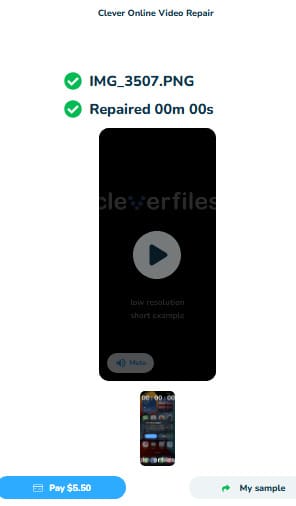
- CleverFiles. While many external sources market CleverFiles as a free repair tool, the free label is misleading. It accepts almost any file, be it a photo, document, or video, and returns a generic-looking repair preview regardless of what you actually uploaded. After repair, you’re charged an aggressive dynamic price, and in our testing, this made it feel more like a tech trick than a real repair service.
- Wondershare Repairit. The free tier only works on files under 50MB, which already disqualifies most high-quality video footage. Even within that limit, the repair didn’t complete successfully in our tests, and the repair wizard kept stuck for hours.
- EaseUS Fixo. Marketed as free, this tool offers multiple free repair sessions, but the repair itself rarely works. Most attempts either failed or produced a file that still wouldn’t play.
Stellar Online Video Repair makes it a practical first try before you pay for anything. You can also download their desktop software, allowing you to fix video files directly on your desktop. That supports unlimited video file repair and supports all video file formats.
Method 2: Try VLC Media Player
VLC isn’t just a media player. It has a built-in repair feature that can fix video files with damaged headers or broken indexes, particularly AVI and MP4 files that stop playing partway through.
To use it, open VLC, go to Tools > Preferences > Input / Codecs, and set “Damaged or incomplete AVI file” to “Always fix.” For MP4 files, VLC can sometimes rebuild the index automatically on playback. This method works best on files with a partially broken index rather than deep structural corruption, and it won’t help with a file that has physical data loss.
Method 3: UNTRUNC and Hex Editors utility tools
Before you attempt anything, remember these utility tools are not designed for average users. For MP4, MOV, and MPEG4 files with a completely missing or destroyed index, Untrunc is a free, open-source GUI-based tool built specifically for minor corruption or unplayable problems in videos. It compares your truncated video file against a working reference file recorded on the same device and rebuilds the missing index from that reference.

Untrunc fixes your unplayable videos resulting from minor corruption for free. It offers a very basic 90s-era GUI, and requires a working reference video from the exact same camera or phone model, and some patience with setup, which makes it a better fit for technically confident users than for a quick fix.
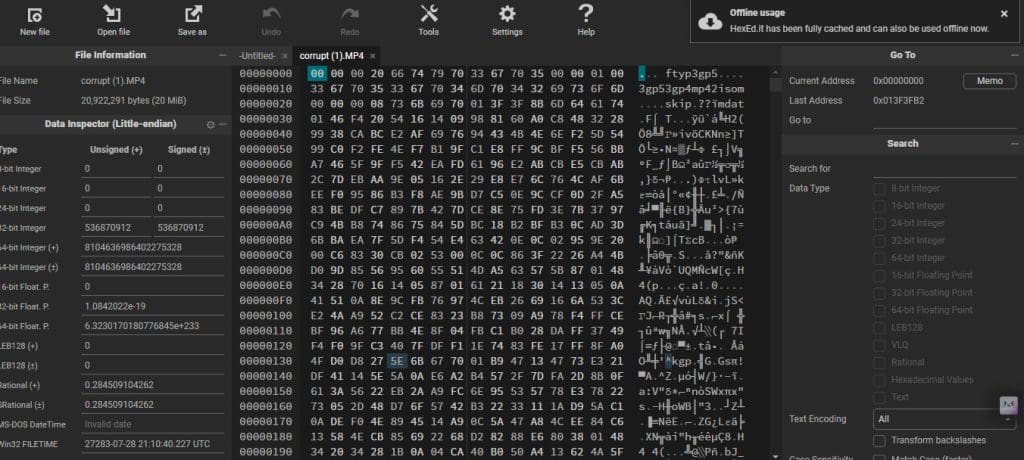
A hex editor takes this a step further. It lets you view and manually edit the raw binary structure of a video file, correcting header values or box sizes by hand in formats like MP4 and MOV. This gives you full control over the repair, but it also demands a solid understanding of the file format’s internal structure. One incorrect edit can make the file worse, so this method is best reserved for advanced users or as a last resort when other tools fail.
Caution: Avoid manual hex editing if you are new to data recovery and unfamiliar with raw file structures.
What to Do After Repairing a Video File
- Verify playback fully, not just the first few seconds, since some fixes only restore partial footage.
- Save the repaired file to a new location, never back onto the original SD card or drive.
- Keep the original corrupted file until you’re certain the repaired version plays correctly all the way through.
- Back up the fixed video to cloud storage or an external drive right away.
- Check audio sync, since some repair methods restore video but leave the audio slightly out of alignment.
Final Thoughts
Most corrupted video files are recoverable without spending anything, since the actual footage usually survives even when the file itself won’t play. Start with the simple checks, move to Stellar Online Video Repair Tool for a free fix, and if you still want to spend time with manual fixes, try VLC, Untrunc, or a hex editor. Whatever method you choose, always work on a copy and stop using the original storage device the moment you notice a problem.
Related Posts
 How to Create YouTube Shorts From Existing Video Using Reap.Video
 How to Keep Your Files Organized With an AI File Renamer
 The Best Free AI Tools to Build a Website
 Top Resume Parser AI Free Tools
 How to Make Free Music With Suno AI
 How to Use Grok AI for Free
 Best Free AI Image Generator
 You Can Use AI Watermark Remover to Get High-Quality Stock Photos Free
 Get Free AI Art With GenTube

Disclaimer: Some pages on this site may include an affiliate link. This does not effect our editorial in any way.